


The performance of an application guarantees that it will be used without inconvenients on most of the end user computer. You will need to monitor the current memory usage of your application constantly on every important application that could be memory intensive. This will allow you to modify the code of your application in order to optimize as its RAM requirement increases, preventing besides the fatal OutOfMemoryException exception in C#.
There's a pretty easy way to obtain the memory usage of your application without relying on external libraries or dependencies but only with the .NET Framework itself and i'll explain you how to easily obtain this value inside your application.
1. Import System.Diagnostics
In order to obtain the current memory used by your application, we will rely on the Process class, located in the System.Diagnostics namespace of .NET. You can easily import it at the top of your class with the following line:
using System.Diagnostics;Then, the Process class will be available in the code.
2. Get amount of private memory
Now, from the imported namespace, call the static GetCurrentProcess method of the Process class and store its value in a Process typed variable. The obtained process instance will have the PrivateMemorySize64 long property that represents the amount of private memory in bytes allocated for the associated process:
// 1. Obtain the current application process
Process currentProcess = Process.GetCurrentProcess();

// 2. Obtain the used memory by the process
long usedMemory = currentProcess.PrivateMemorySize64;

// 3. Display value in the terminal output
Console.WriteLine(usedMemory);
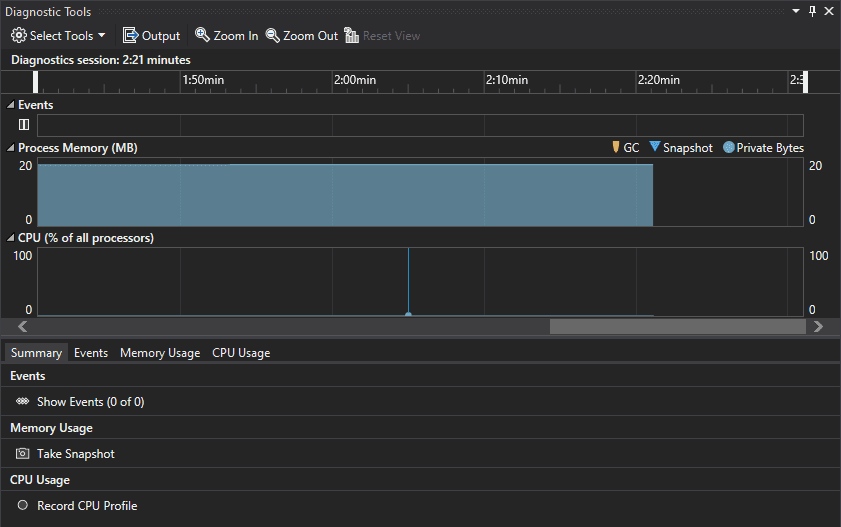
For example, running the described code continuously will print the value in the terminal and will continuously increase the used memory value (18/19 MB approximately):
18632704
18698240
18763776
18829312
18960384
19025920
The property can be used with 32-bit or 64-bit operating systems and processors.
Happy coding !

