

A dim or flickering screen can turn your laptop into a frustrating paperweight. Screen problems are common, but they don’t always mean you’ll lose your data. In this guide, you'll learn simple steps to protect your files while troubleshooting these issues.
Keep reading to save time and avoid headaches!
Key Takeaways
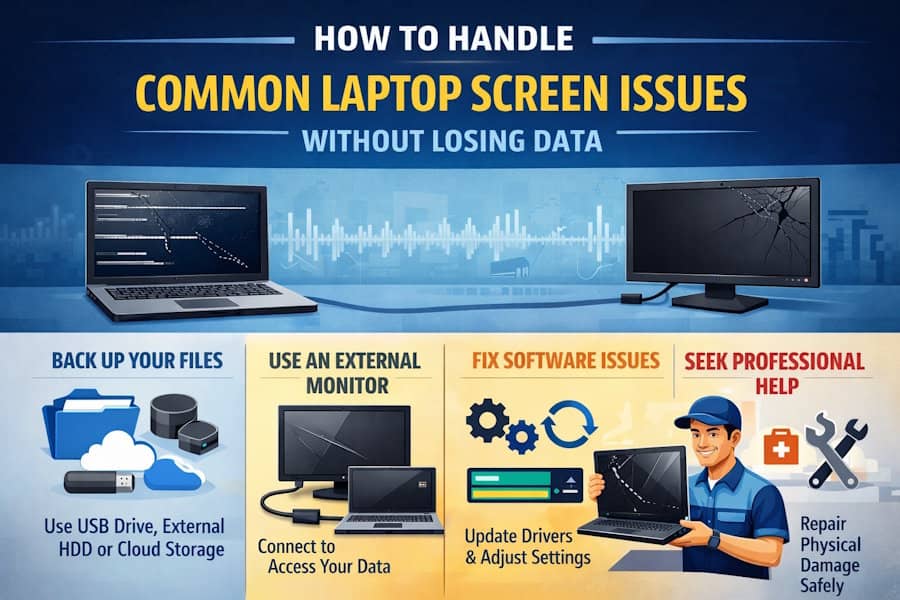
- Always back up your data first. Use an external drive, USB stick, or cloud storage like Google Drive to prevent losing files during screen issues.
- Use an external monitor to access your laptop if the screen is blank or flickering. This helps retrieve files and diagnose hardware problems quickly.
- Fix software-related issues by updating graphics drivers, performing a hard reset, or adjusting display settings like refresh rates and brightness.
- For physical damage like cracked screens or dead pixels, avoid DIY fixes that could void warranties. If you're dealing with a damaged display,
professional laptop repairs in Melbourne can help diagnose the issue, protect your data, and restore your device safely. Seek professional repair services for safe and effective solutions. - Persistent glitches or major hardware failures need expert help. Technicians can provide repairs with warranties while ensuring no further harm to your device.
Initial Steps to Ensure Data Safety
Data is precious, so act fast to protect it. Start by securing access to your files before troubleshooting further.
Back up your data immediately
Stop what you're doing and back up your files now. Use an external hard drive, USB stick, or cloud storage like Google Drive. Screen issues can get worse fast, leading to data loss.
A blank screen or flickering display shouldn't stop you from protecting important files.
If your laptop isn't fully functional, connect it to an external monitor using HDMI or VGA cables. This lets you access files safely before trying any fixes. Protecting data first avoids bigger headaches later, especially if repairs go wrong.
Use an external monitor to access files if the screen is non-functional
If your screen doesn’t work, don’t panic. Plug an external monitor into your laptop to access files. This quick fix lets you keep working even with a blank screen staring back at you.
Use an HDMI, VGA, or DisplayPort cable to connect the display. Once connected, check if the external monitor shows anything. If it works fine here but stays dark on the laptop screen, the issue might be physical damage like a broken LCD panel.
Access important directories and transfer key data to a USB drive or external hard drive for safekeeping.
Diagnosing the Issue
Start by checking if your laptop screen’s trouble lies in the software or hardware. A quick test with an external monitor can shed light on what’s going wrong.
Check if the problem is software-related or physical damage
Connect your laptop to an external monitor using an HDMI or VGA cable. If the display appears fine on the second screen, the issue is likely physical damage to your laptop screen. No output on both screens suggests software problems like outdated graphics drivers or corrupted system files.
Inspect for visible signs of damage such as cracks, ink blotches, or spreading discoloration. These point to hardware trouble. Flickering screens, a dim display, or a blank screen could mean loose cables, failing backlight, or inverter failure.
Restart in safe mode and check if issues persist; this may rule out driver conflicts.
Test with an external monitor to rule out hardware issues
Plugging your laptop into an external monitor can quickly show if the problem is with the screen or something deeper. If the external display works fine, your internal screen or its connections are likely causing trouble.
This step helps isolate issues like flickering screens, blank displays, or dim brightness.
A black screen may mean a faulty graphics card. Using an external monitor checks if it’s still working properly. Loose cables inside could also be to blame if only one display shows errors.
Test this before rushing to a repair shop; it saves time and money!
Fixing Software-Related Screen Issues
Sometimes, your screen acts up because of software bugs. Tweaking settings or refreshing drivers can often fix these hiccups.
Perform a hard reset (power drain)
Turn off the computer and unplug it. If the battery is removable, take it out as well. Press and hold the power button for about 30 seconds to drain any leftover power. Plug in only the power adapter, then turn on your laptop again.
This step can fix frozen screens or a blank display caused by minor glitches. It’s safe for your data since this process doesn’t erase files. If problems persist after this, proceed to update graphics drivers or check hardware connections next.
Update or reinstall graphics drivers
Outdated graphics drivers can cause screen flickering, pixelation, or a blank screen. Open the Device Manager from the Start Menu. Expand "Display Adapters" and right-click your graphics card.
Select “Update Driver” and choose “Search automatically for updated driver software.” This connects to Windows Update and downloads any new versions.
If updating doesn’t work, reinstalling may help fix corrupted files. Uninstall the driver first by choosing “Uninstall device” in Device Manager. Reboot in Safe Mode to clear conflicts before reinstalling it through NVIDIA GeForce Experience or another relevant tool.
Always restart your laptop after these steps for changes to take effect!
Adjust refresh rate and display settings
Change the refresh rate in Display Settings to fix a flickering screen. A higher refresh rate, like 60Hz or more, makes your display stable and smooth. Go to "Settings," pick "Display," then find advanced options to adjust it.
Check brightness settings if the screen looks dim or blank. Sometimes power-saving modes lower brightness levels without warning. Turn off these settings and slide the brightness bar up for better visibility.
Addressing Physical Screen Damage
Physical screen damage can feel like a punch to the gut, but it’s not the end of your laptop’s life. Handle any issues carefully to avoid making things worse.
Handle dead pixels with caution
Dead pixels may be fixed by gently pressing on the screen, but you must power off your laptop first. Use a soft cloth or cotton swab to apply minimal pressure. Never use sharp or hard objects as they can worsen damage.
If dead pixels keep appearing, it might signal deeper display problems. DIY methods don’t always work and could void warranties. Consider professional repair if the issue persists or spreads across your screen.
If you determine that the damage is beyond simple fixes, consider scheduling a laptop screen repair to restore your device to optimal condition.
Seek professional repair for cracked or broken screens
Cracked screens often need full replacement. Drops or pressure can cause lasting damage, like ink blotches or spreading cracks. Leaving minor damage alone only makes it worse over time.
Most major breaks cannot be fixed by DIY methods and require professional laptop repair services.
Service centers, like Quick Phone Repair in Sarasota and Punta Gorda, handle such issues daily. Before taking your device for repairs, back up important files using an external hard drive or cloud storage like Google Drive.
A technician may even set up an external monitor as a temporary fix while repairing your screen.
When to Seek Professional Help
If the screen acts up even after trying fixes, it's time to call an expert. A professional can spot hidden problems and save you from bigger headaches.
Persistent glitches or hardware malfunctions
Frequent screen glitches or hardware issues often signal deeper problems. Backlight failures, stuck pixels, or a blank screen may require expert diagnosis. Cracked screens and physical damage need professional laptop repair to avoid worsening the issue.
Quick Phone Repair handles such cases swiftly, completing most screen replacements in 45 minutes.
Ongoing malfunctions like flickering displays or unresponsive monitors can harm productivity and risk data loss. Seek help from authorized service centers for complex repairs like microsoldering or backlight fixes.
Repairs at Quick Phone Repair include a 1-year warranty and price match guarantee, ensuring reliable results without breaking the bank.
Conclusion
Fixing a laptop screen doesn't have to feel overwhelming. Start by protecting your data with backups or use an external monitor as a quick solution. Simple steps like checking graphics drivers or adjusting brightness settings can often resolve issues.
For bigger problems, seek professional help before causing more damage. Treat your laptop well, and it will keep working for you longer!

