

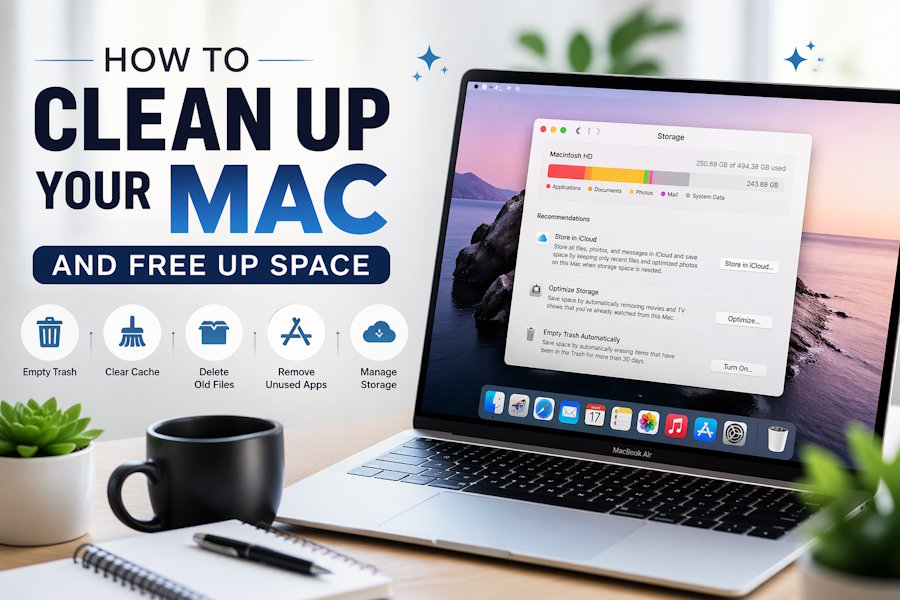
Has your Mac become sluggish, or is your storage bar turning from blue to orange? You are not alone! Your Mac is like any other computer and accumulates trash, caches, photos, applications you don't use anymore, and so much more. However, the good thing is that most of it can be deleted pretty quickly.
1. Check Your Storage
First, take a look at how your current Mac is using its storage capacity:
- From the upper left-hand corner of the screen, click on the Apple icon.
- Then click on the System Settings (System Preferences if you have an older version of macOS).
- In General -> Storage, find the chart showing how much space each item takes up on your Mac.
2. Empty the Trash Folder
It seems obvious enough, but many people don't realize the need to actually empty their Trash folder regularly.
- Right-click on the Trash icon in your Dock.
- Click on "Empty Trash."
For an automatic process, open Finder, click the settings icon in the top-right corner, then select Advanced, and tick Remove items from the Trash after 30 days.
TIP: There are applications that have their own trash (e.g., iPhoto and Final Cut Pro), which shouldn't be overlooked since they don't empty automatically when you empty the Trash.
3. Clean Your Cache
The caches help in speeding up your Mac, however, they tend to build up quickly and don't clean themselves often enough. Here is how you can remove them manually:
- Press Cmd+Shift+G in Finder to bring up the "Go to Folder" box
- Type ~/Library/Caches and press return
- Select all of its contents (Cmd+A) and put them in the Trash then empty the trash.
Don't empty the Caches folder itself; rather, empty its contents. It is important for your browser caches to be cleaned too.
Safari:
- Open Safari
- Go to Safari > Settings>Advanced
- Check "Show Develop menu in menu bar"
- Click Develop>Empty Caches
Chrome:
- Open Google Chrome
- Click on three-dots at the top-right of the screen
- Go to Settings > Privacy > Clear Browsing Data
4. Delete Old Apps and Temporary Files
These are usually the largest unused storage hoggers. Here’s how you can identify them:
- Go to System Settings > Storage > Manage
- Scan through the suggestions provided by your system. This includes old iPhone backups, huge files, and applications you no longer use.
- Uninstall applications simply by dragging them into the Trash.
If you need to remove all associated configuration data as well, then using an uninstall tool or cleaning software will be more effective.
5. Clean Up Your Downloads Folder
Your Downloads folder should always stay tidy, and this is one of the first places to check when you want to free up space.
- Navigate to your Downloads folder via Finder > Downloads.
- Sort items by their size (click on the "Size" heading when viewing in List mode).
- Delete anything unnecessary here, such as installers, zipped files, and old PDFs.
6. Use Mac Cleaning App
If you want the Mac disk cleanup to be automatic, there are a few good Mac cleaning apps to choose from. These tools take the guesswork out of system maintenance by scanning your Mac for unnecessary files, freeing up storage space and keeping performance running smoothly without you manually having to dig through folders. Most cleaning apps can delete junk files, clear system caches, find and remove duplicate files, remove apps entirely and track memory and CPU usage.
One of the most popular options is MacKeeper. It is a complete solution for cleaning, optimizing, and protecting your Mac. Its features include junk file removal, duplicate file detection, memory cleaning, and real-time protection against malware threats. The user interface is easy to use, even for beginners.
In addition to cleaning, MacKeeper offers a built-in virtual private network (VPN), ad blocker, tracker blocker, data breach monitor (if your personal information was stolen), and even a software update tool to keep everything up-to-date. The application includes a useful function called Smart Scan, which shows the state of the computer concerning its performance, security, and data storage in just one go.
7. Prevent Mac Clutter
It's nice when you clean once, but even better when you develop some minor habits which will stop the problem before it begins:
- Clean your trash weekly or enable the 30-day automatic deletion feature
- Check what you have in your Downloads folder monthly
- Uninstall any apps that you haven't used in three or more months
- Store bulky content, such as videos and raw pictures, in an external hard drive
- Utilize the "Optimize Mac Storage" iCloud setting if you don't use certain files much
- Perform scans of your computer using a Mac cleaning application once or twice per month
Conclusion
In order to keep your computer healthy, you do not necessarily need to become a master at everything technical. All of the techniques mentioned above can be carried out in minutes once you know what you should be doing. In case you like a more automatic approach, you can simply opt for running a Mac cleaner application instead of doing all of the steps manually.

