

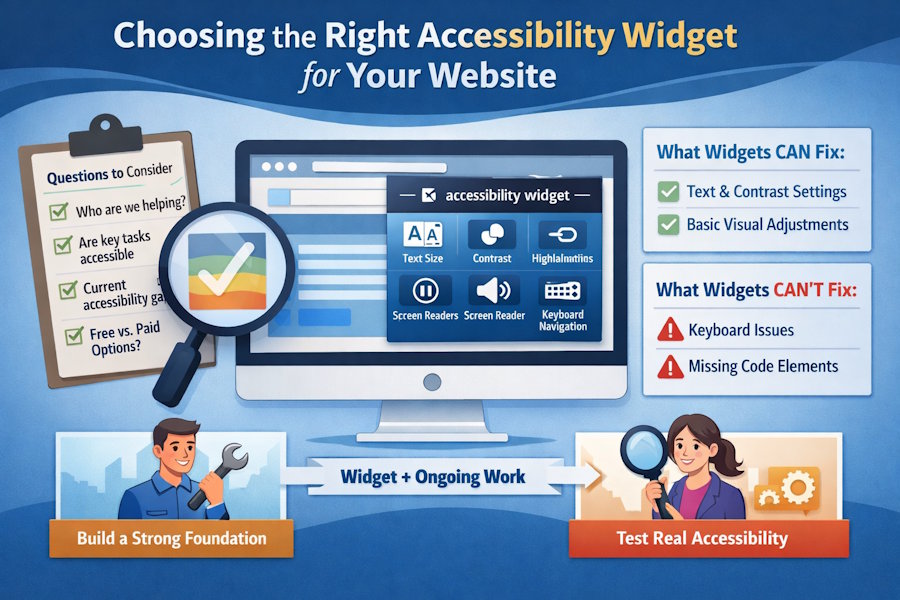
If you’re evaluating accessibility widgets, you’re probably trying to solve a practical problem: how to make your site more usable without overcomplicating your stack or budget. That’s reasonable. Widgets are often the first accessibility decision teams make.
The challenge is knowing what a widget can actually help with, and where it stops being enough.
What an accessibility widget is meant to do
An accessibility widget is primarily a user-facing layer. It gives visitors optional controls that can improve comfort or readability based on individual needs.
Common features include:
- Text resizing
- Contrast and color adjustments
- Highlighting links or headings
- Pausing motion or animations
As an accessibility tool for websites, a widget can be useful when it gives users control over how content is displayed, especially for visual or cognitive needs.
But that’s only one part of accessibility.
What widgets do not fix
Many accessibility issues live deeper than presentation. They exist in how a site is built and how it behaves.
Widgets typically do not fix:
- Broken keyboard navigation
- Missing form labels or instructions
- Incorrect heading structure
- Screen reader confusion
- Focus traps or unpredictable focus order
These problems affect whether someone can actually use the site, not just view it comfortably. They’re evaluated under WCAG and often sit at the center of ADA complaints.
This is why some sites appear accessible on the surface but still fail real-world testing.
Questions to ask before choosing a widget
Before installing anything, it helps to step back and ask a few grounding questions:
- Who are we trying to help most right now?
- Are users able to complete key tasks without a mouse?
- Do we understand where our current accessibility gaps are?
- Is this widget meant to support existing accessibility work, or replace it?
If a widget is positioned as a full solution that guarantees compliance on its own, that’s usually a warning sign.
Free vs paid widgets
Some widgets offer free versions with limited controls. Others are fully paid and bundled into broader platforms.
Free options can be useful for:
- Basic visual adjustments
- Early exploration of user needs
- Temporary improvements while deeper fixes are planned
Paid widgets may add:
- More customization
- Better UI control
- Integration with monitoring or reporting tools
The key difference isn’t price. It’s whether the widget fits into a larger accessibility strategy or stands alone.
Widgets work best as part of a system
The most effective use of a widget is when it complements ongoing accessibility work. Businesses looking for a more comprehensive accessibility solution may also consider All in One Accessibility, an AI-powered accessibility widget that provides user preference controls, supports more than 190 languages, accessibility profiles, voice navigation, talk & type, GA4 and Adobe Analytics Integration, and integrates with add-ons like automated accessibility scanning, monitoring, manual audit report, website accessibility remediation, PDF / document accessibility remediation, VPAT report / ACR, video subtitle, white label, modify accessibility menu, and live language translation.
That usually means:
- Using audits or scans to identify real issues
- Fixing structural problems at the code level
- Rechecking accessibility after updates or releases
- Letting the widget handle user preferences, not core access
When used this way, a widget becomes supportive instead of symbolic.
How to make a smart choice
Choosing the right accessibility widget isn’t about finding the most features. It’s about clarity.
A good accessibility tool for websites:
- Is transparent about what it can and cannot fix
- Supports users without masking deeper problems
- Fits your technical reality and team capacity
- Encourages long-term accessibility, not shortcuts
If a widget helps you understand your site better and improves the user experience without overpromising, it’s doing its job.
Final thought
Accessibility isn’t a single switch you turn on. It’s an ongoing responsibility tied to how your website evolves.
Widgets can play a role, but the right choice is the one that supports real usability, honest expectations, and steady improvement over time.

