

Why a Checklist is Crucial During Restaurant Peak Hours
Your terminal goes down at 7:15 PM on a Saturday. The line is twelve deep. Every minute offline costs you—lost covers, angry customers, staff scrambling to ring up orders on paper. This isn't theoretical. It happens, and when it does, panic doesn't help.
A support checklist changes the game. Instead of calling your POS provider cold with no data, you've already done half the work. You know what's broken, what you've tried, and what information the support team actually needs. The call takes 20 minutes instead of an hour. Your system comes back online before the rush peaks. Your staff stops improvising.
What separates restaurants that recover fast from those that bleed revenue is preparation. Most owners don't think about POS support until something breaks. That's the mistake.
Phase 1: Immediate On-Site Troubleshooting Steps
Before you dial support, try the obvious stuff. Ninety percent of POS issues resolve in the first five minutes if you know what to check.
Basic Hardware & Connectivity Checks
Start here. Don't skip this.
- Reboot the terminal. Power off, count to 10, power on. Wait for full boot.
- Check all cables—ethernet or USB to the payment terminal, power cable to the printer, connection from terminal to kitchen display.
- Verify your printer is online. Check the paper level. Send a test print.
- Test Wi-Fi connectivity. Open a browser on a staff phone connected to the same network. Can it reach the internet?
- If using wired Ethernet, trace the cable back to the router. Reboot the router if needed.
Quick Software Restart
The application itself may be frozen. Close the POS software completely—don't just minimize it. On Windows, use Task Manager to force-close if it's stuck. On Mac, Force Quit. Wait 30 seconds. Reopen the application and attempt a test transaction. If the system responds, you're back in business. If it hangs again, you've confirmed it's a software issue, not hardware.
Phase 2: Preparing for the Support Call: Your Pre-Call Data Checklist
Now you're going to call support. But you're not going in blind. This phase is about gathering ammunition—the exact data your support agent needs to diagnose the problem in the first call, not the third.
Gather Key Information from Your System's Core
Most of this data lives in your system's administrative portal. If you use SkyTab or a similar modern POS, you'll find it all in one place. Most of this data can be quickly found within your system's administrative portal, such as the Lighthouse online back office, which provides a centralized view of your operations and system status at a glance.
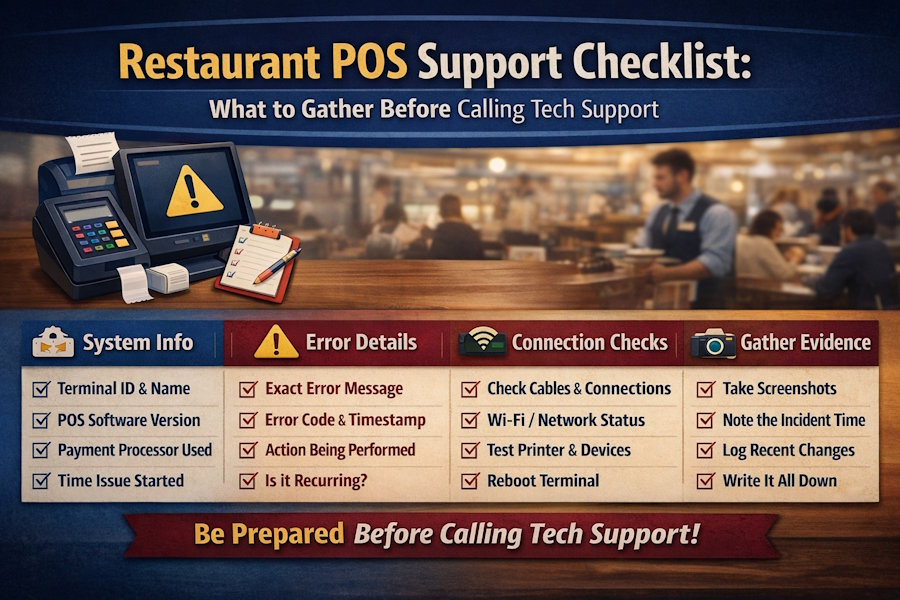
- Terminal ID and Name (e.g., "Register 3" or device serial number).
- Current POS software version—find this in Settings or About.
- The user account that encountered the error. Was it a cashier, a manager, or a specific person?
- Payment processor information if the issue involves payment. Is it Shift4 Payments, Square, or another provider?
- Exact timestamp of when the issue started. Note the time zone.
Document the Incident with Precision
Don't rely on memory. Write it down—or take a screenshot.
- Exact error message. If the screen shows an error code, photograph it. If it's just frozen, describe what the user was doing.
- Time of occurrence. Use 24-hour format. Include seconds if you noted them.
- Specific action being performed. Were they voiding a transaction? Processing a refund? Printing a receipt?
- Is it one-time or recurring? Did it happen once and resolve, or does it repeat every time you try that action?
- Has anything changed recently? New menu items added? System updated? Internet provider switched?
This data transforms a vague "the system is broken" call into a targeted troubleshooting session. Support agents live for this. It cuts resolution time in half.
Phase 3: During the Call: Communicating for a Fast Resolution
You've prepared. Now use that preparation.
Lead with your data. Don't start with a story; start with facts. "Terminal 3, version 5.2.1, error code 0x4B2 at 19:15, occurred while voiding a refund." The agent now knows what they're dealing with. They're not fishing.
Follow the agent's steps exactly. Don't skip ahead. Don't assume. If they ask you to restart the terminal, restart it. If they ask for a screenshot, get it. If they ask you to check a specific log file, navigate there and read it back to them.
Don't hang up until you have a ticket number and a clear statement of next steps. Example: "Your ticket is #48291. We'll check the server logs on our end and call you back within 30 minutes." Write that down. If they don't call back in 35 minutes, you have a reference number to escalate.
Phase 4: After the Fix: Reporting for Long-Term Stability
The system is back online. Crisis averted. Most restaurants move on and forget. That's how you end up with the same issue happening every week.
Documenting in a POS Incident Report
Keep a log. A simple spreadsheet works—Date, Issue, Root Cause (if provided by support), Resolution, Downtime Duration. When you see the same error three times in two months, you spot a pattern. That pattern tells you whether it's a hardware failure coming, a software bug, a network problem, or a user training gap.
From Raw Data to Proactive Insights with Reporting & Analytics
This log is more than just a record; it's a dataset. By leveraging your POS system's reporting and analytics tools, you can transform these individual incident reports into powerful insights, identifying patterns in hardware failures or peak-time errors before they become chronic problems. If your analytics show that errors spike every Friday at 8 PM, you know something about your system's capacity or your network's stability during peak load. You can then address it proactively—upgrade your router, add a terminal, or adjust your payment processor's settings—instead of waiting for the next crisis.
This is where support becomes strategy. You're no longer reactive. You're informed.
A checklist isn't bureaucracy. It's the difference between a 20-minute recovery and a two-hour nightmare. Build it now, before you need it. When the next issue hits, you'll move faster than the restaurants around you. That's worth the five minutes it takes to prepare.

