

The first time I combined signed PDFs, I didn’t think twice about it. I merged the files, saved the result, and sent it off. Everything looked fine on the surface. The signatures were still visible. A few hours later, I was told the document was invalid. That was my introduction to how fragile digital signatures really are. Searching for how to combine PDF files with digital signature led me down a path of trial, error, and eventually a much safer workflow. What I learned is simple in hindsight but easy to miss if you treat signatures like regular graphics.
What Actually Happens When You Combine Signed PDFs
A digital signature is tied to the exact structure of a PDF at the moment it’s applied. That includes page order, file size, internal references, and even metadata. When I merge a signed PDF with another file, I’m changing that structure.
This is why so many people struggle with how to merge digitally signed PDF files. The merge itself isn’t the problem. The problem is that the act of merging alters the document. Once that happens, the signature can no longer prove integrity. It may still appear on the page, but it no longer validates anything.
After testing this myself, I realized there are only a few realistic paths forward:
- Accept that signatures will become invalid
- Remove signatures before merging and sign again
- Avoid merging altogether and keep files separate inside a container
How to Combine Digitally Signed PDF Files In Practice
I don’t use one universal method. I decide based on whether legal validity or convenience matters more.
The Only Way I Trust For Legal Or Official Files
If the final document needs to hold up to scrutiny, this is the route I take every time.
First, I remove all existing signatures. This feels counterintuitive at first, but it’s necessary. A signed document is locked by design. Editing it without removing the signature is what causes problems later.
What I do is open each signed PDF and clear the signature field. Once that’s done, the file behaves like a normal PDF again. Only then do I combine the documents into one file. Here’s what you can do:
- Open UPDF on your device
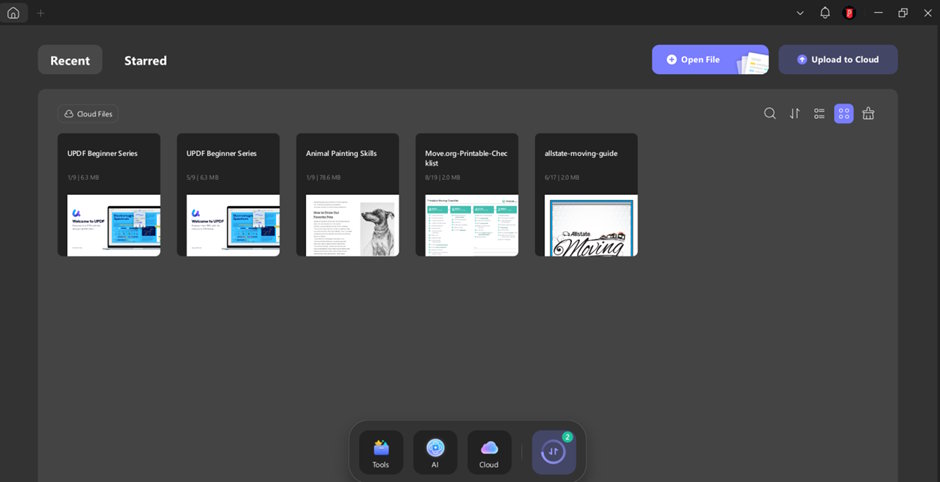
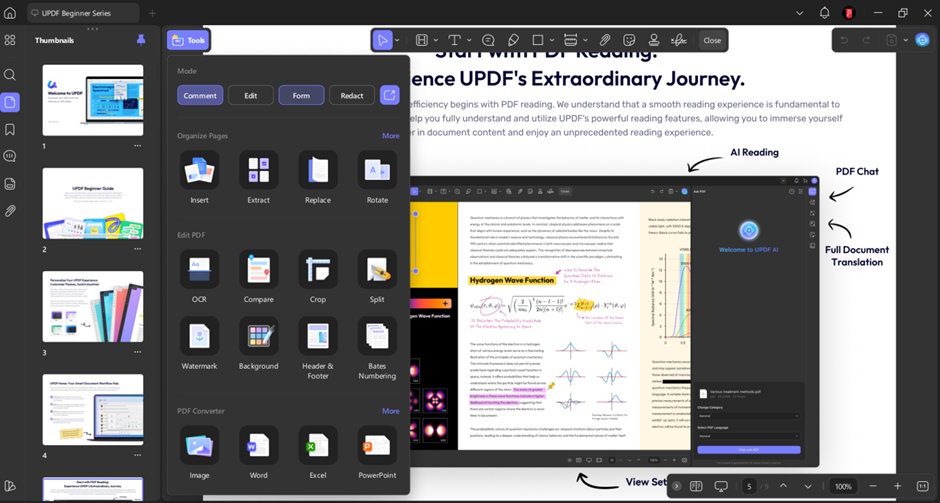
- Open PDF, go to Tools, and then choose the Form option.
- Select the sign that you want to remove. Right-click on it and click on Clear Signature
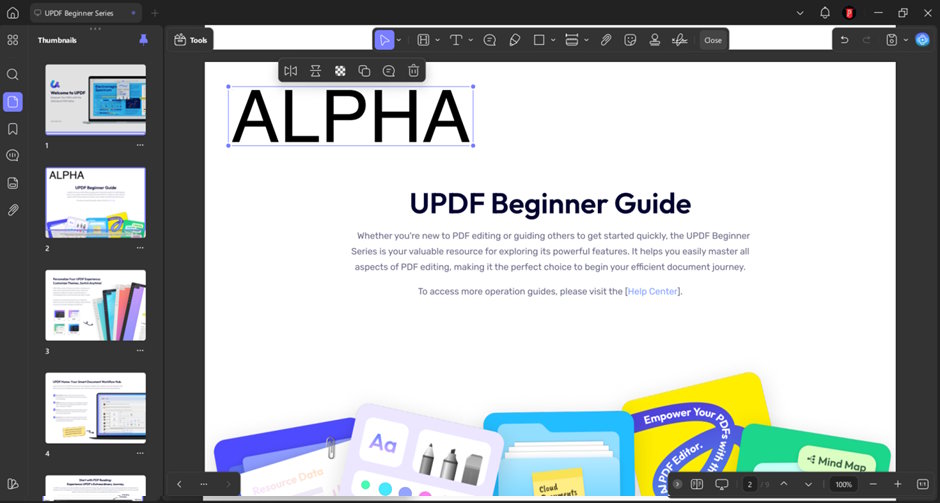
- Go to Tools again and click on the Merge button to merge the files.
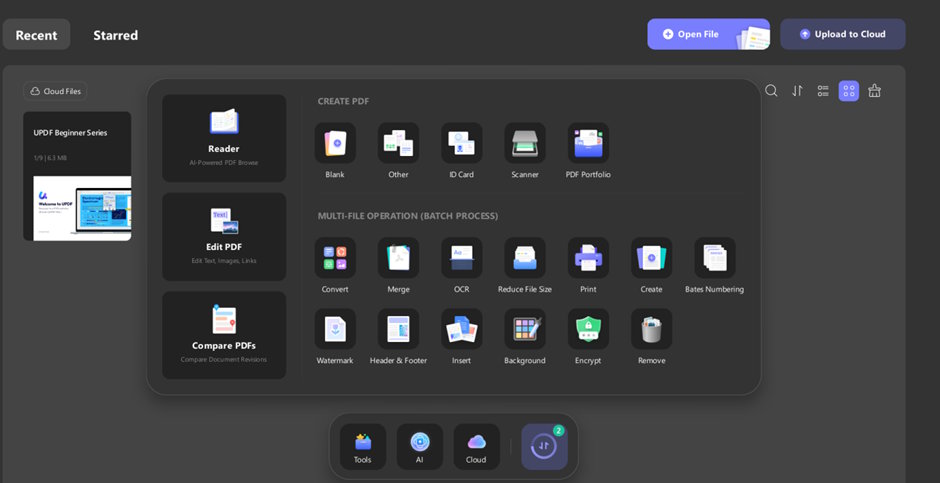
After merging, I treat the combined PDF as a brand-new document. I review page order, check content, and then apply a new digital signature that covers the entire file. For documents that simply need a new signature, users can also sign a PDF electronically before sharing or submitting it. That single signature now represents the integrity of the combined document, not just one part of it. Here’s how you can reapply signatures.
- Open your merged file. Go to Tools and then choose the Form option.
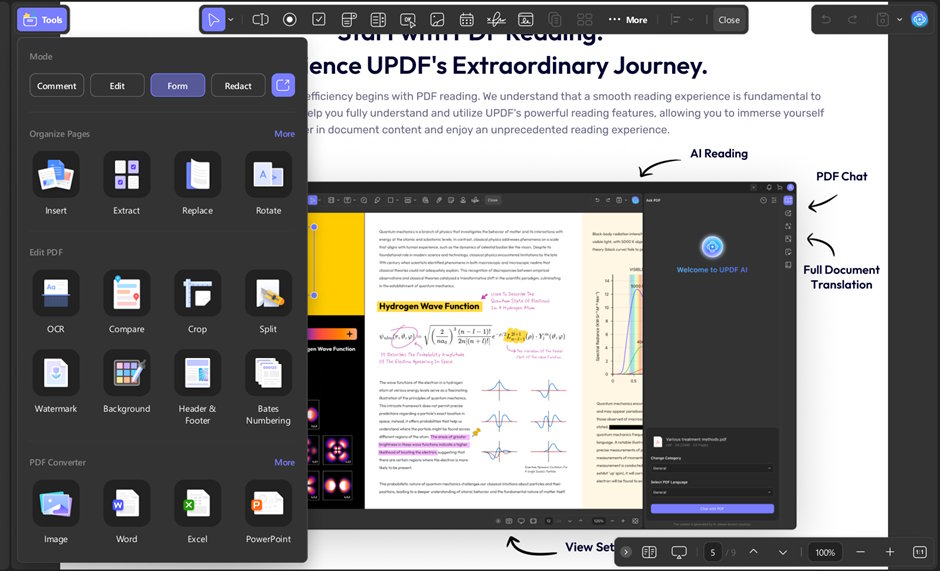
- You’ll see a digital signature icon. Click on it and add your signature.
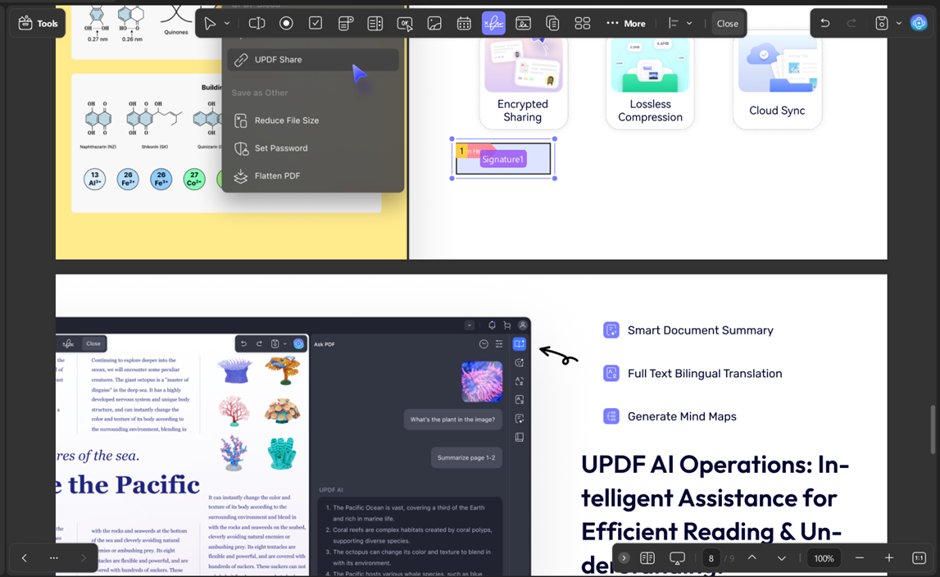
This method takes more steps, but it’s the only one I rely on when signatures actually matter.
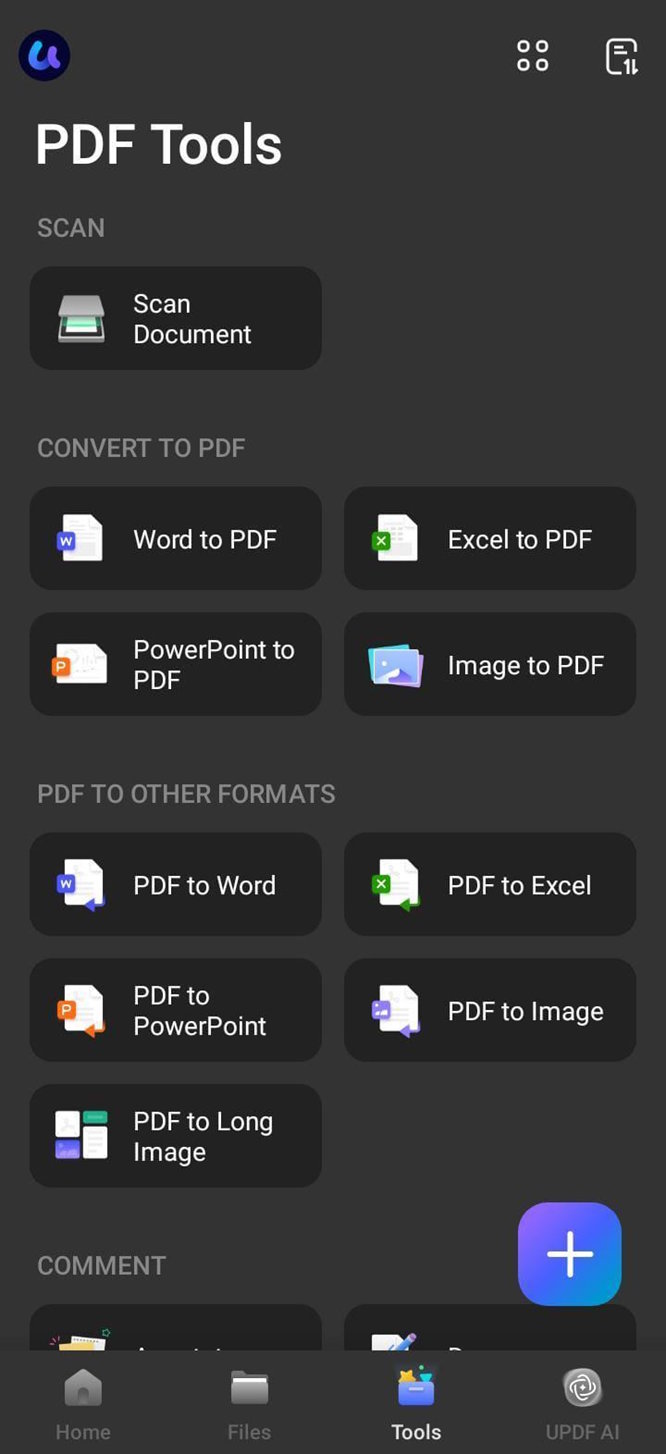
Have a mobile phone device? Here’s how you can do the same steps using your phone.
- Open UPDF in your phone
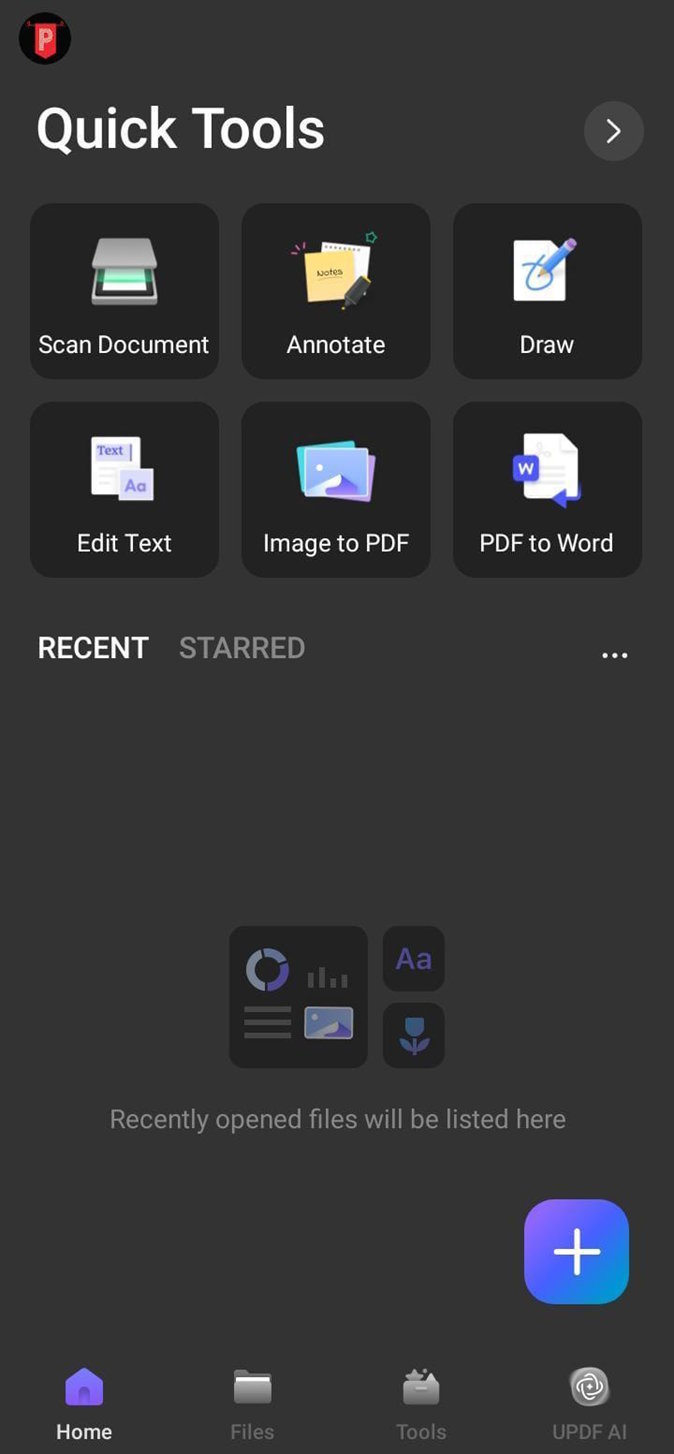
- Click on the Add button. Add files to it.
- Go to Tools and scroll down to choose the Merge option.
Combining Signed PDFs When Validity Doesn’t Matter
There are times when I only need a visual record. For example, internal reference files or archives where no one will verify the signature later.
In those cases, I combine the signed PDFs directly. I don’t remove anything beforehand. The merge works, and the signatures remain visible on their original pages.
I’m very clear with myself about what this means. The signatures are no longer valid. They are just visual artifacts. As long as everyone involved understands that, this approach saves time.
I never use this method for contracts, approvals, or anything that may be audited.
The Option I Use When I Don’t Want To Touch The Files At All
Sometimes I don’t want to alter signed documents in any way. That’s when I stop thinking about merging entirely.
Instead, I create a PDF portfolio. This isn’t a merge. It’s more like a container. Each signed PDF stays exactly as it was. Nothing inside changes. The signatures remain fully verifiable.
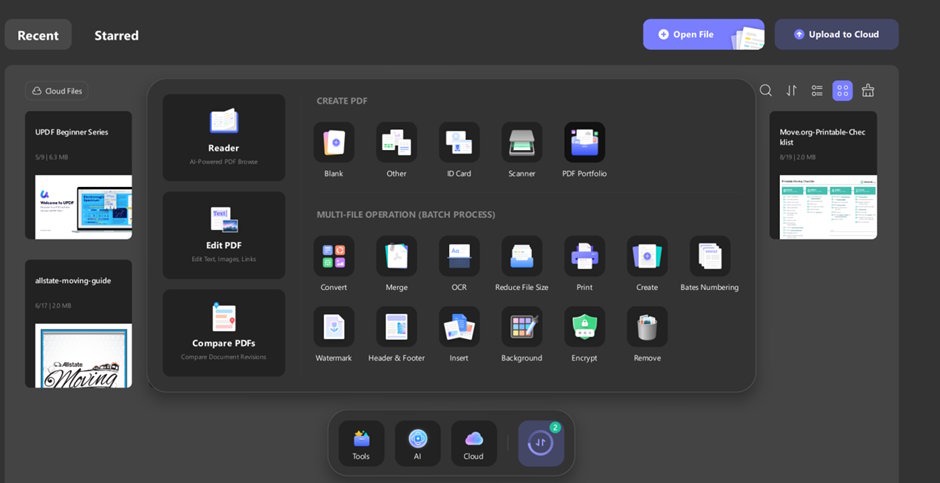
I add each signed file to the portfolio, save it as one PDF, and share that single file. Whoever opens it can access each document individually. From a signature standpoint, this is the safest option because nothing is modified.
I use this approach when I need to submit multiple signed documents together but can’t risk invalidating any of them.
How I Decide Which Method To Use
I ask myself one question before doing anything else. Does the final output need to be legally verifiable?
If the answer is yes, I remove signatures, merge, and re-sign. No shortcuts.
If the answer is no, I decide between visual merging or using a portfolio. Visual merging is faster. Portfolios are cleaner when signatures need to remain checkable.
Once I started making this decision upfront, I stopped running into rejected documents.
Why I Use UPDF For This Workflow
I tested multiple tools before settling on UPDF. What mattered to me wasn’t just merging. I needed control at every step. Teams that need to automate these signing workflows across apps often use a digital signature API instead of relying only on manual PDF tools.
UPDF lets me remove signatures cleanly, merge files in the order I want, and apply a new digital signature without jumping between tools. It also works consistently across desktop and mobile, which helps when I need to check files on the go.
More importantly, UPDF doesn’t hide what’s happening. I can see when a signature is removed, when a file is altered, and when a new signature is applied. That transparency matters when mistakes can invalidate an entire document.
Mistakes I Don’t Make Anymore
- I don’t merge signed PDFs blindly.
- I don’t assume a visible signature is a valid one.
- I don’t mix legally binding documents with reference material in the same merge.
These mistakes are easy to make if you treat PDFs like Word files. Signed PDFs don’t work that way.
Wrapping it Up!
Learning how to combine pdf files with digital signature properly changed how I handle documents. Merging signed PDFs isn’t inherently wrong, but doing it without understanding signatures leads to broken files. I now choose my method based on intent, not convenience. Sometimes that means removing signatures and starting fresh. Other times it means not merging at all. UPDF gives me the flexibility to do both, which is why it’s part of my regular workflow now.

