

More than 60% of users will abandon websites if they’re too confusing or difficult to navigate. A strong user experience hinges on delivering a website that functions well and rarely shows error pages. But in some cases, error pages are unavoidable.
However, don’t let error pages bring a user’s time on your site to a dead stop. Use them as an opportunity to help your users stay on track and achieve their goals.
UX Best Practices for Error Page Design
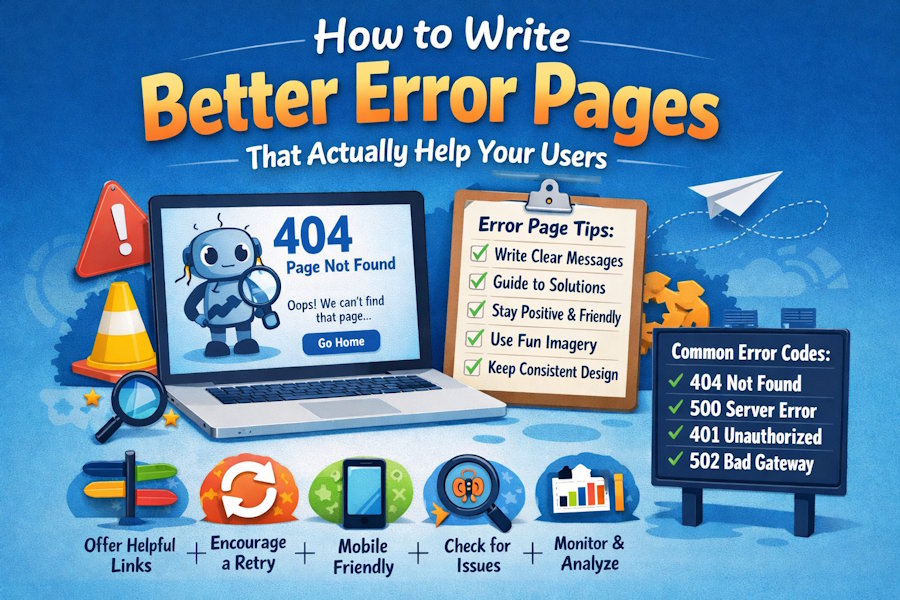
Error pages should never be an afterthought. Showing users a well-designed page will help them fix issues and enjoy a positive website experience. To maintain engagement and reduce user frustration, follow UX best practices:
- Write clear messages: In simple language, tell users why they can’t view the content they expect to see. Assume users aren’t seasoned developers.
- Guide users to solutions: Good error pages state the problem and tell users what to do next. For example, “Please refresh the page and try again.”
- Be positive and friendly: Don’t make a bad situation worse by making users feel they’re in the wrong or yelling at them. Keep error messages polite and positive (e.g., “Please enter a secure password of 12+ characters.”)
- Include consistent design: The error page design should match the rest of the website. Consistent branding lets users know they’re still on the site and being helped.
- Use imagery: Include relevant visuals on error pages for a stronger user experience. Whether these are cute or humorous, images can reinforce branding and make irritating situations more positive.
- Think like the user: Consider the website’s users and the problems they’re likely to face. Ask what error pages would need to say and what actions they would suggest to help you take action.
- Use responsive design: More than 16% of US adults depend on smartphones for internet access. Websites should use responsive design to function properly on mobile devices, and that includes error pages.
What Are Common HTTP Error Codes (and What Triggers Them)?
Client-side errors, server-side errors, and other issues trigger a wide range of error codes. The most common HTTP error codes are the 3XX, 4XX, and 5XX types:
- 301 Moved Permanently: A page has a new location, and the user is redirected to the updated address.
- 400 Bad Request: A server won’t complete a request due to a client error (e.g., a URL typo or corrupted cookies).
- 401 Unauthorized: Users need valid logins or authentication to access pages that the site restricts.
- 404 Not Found: A server can’t show the requested page, usually because a page no longer exists or the URL is wrong.
- 408 Request Timeout: The browser or app took too long to complete a request, usually due to overloaded servers or slow connections.
- 500 Internal Server Error: An unexpected event (such as memory-draining scripts) prevents a server from completing the request.
- 502 Bad Gateway: A server functioning as a proxy or gateway gets no response, or an invalid one, from an upstream server.
- 511 Network Authentication Required: The user needs to sign in to a network to get access.
Diagnosing Upstream Issues
Various upstream issues can trigger HTTP error codes. But you can identify them in five key steps:
Run a Connectivity Test
Use a ping test to check the connection to the server. A ping test will help you understand the issue triggering HTTP error codes, such as data loss and unstable networks.
Assess Security Measures
Firewalls and other security measures may interfere with traffic between devices, browsers, and upstream servers. Run a deep check to confirm that your security configuration allows for smooth data exchanges.
Check Cloudflare’s Status
Here’s one of the big questions to ask: Is Cloudflare down? When Cloudflare is offline, a huge number of websites will be inaccessible or won’t function as they should. Users will see 5XX error pages, such as 502 Bad Gateway. Check Cloudflare’s status and reach out to them for guidance on how long issues will last.
Tweak Retry and Timeout Setup
You may need to adjust your retry and timeout settings to stop error pages from triggering. Systems will have more time to respond to requests and return the relevant content.
Read Activity Logs
Review logs (e.g., for a proxy) to identify the root of issues (e.g., timeouts). While checking logs can take time and patience, it can help you pinpoint UX problems.
Turn Error Pages Into a Better Experience
Error pages don’t have to drive your users away or frustrate them. Pair clear messaging with regular diagnostics to catch upstream issues early — your error pages are an important part of your site.

