

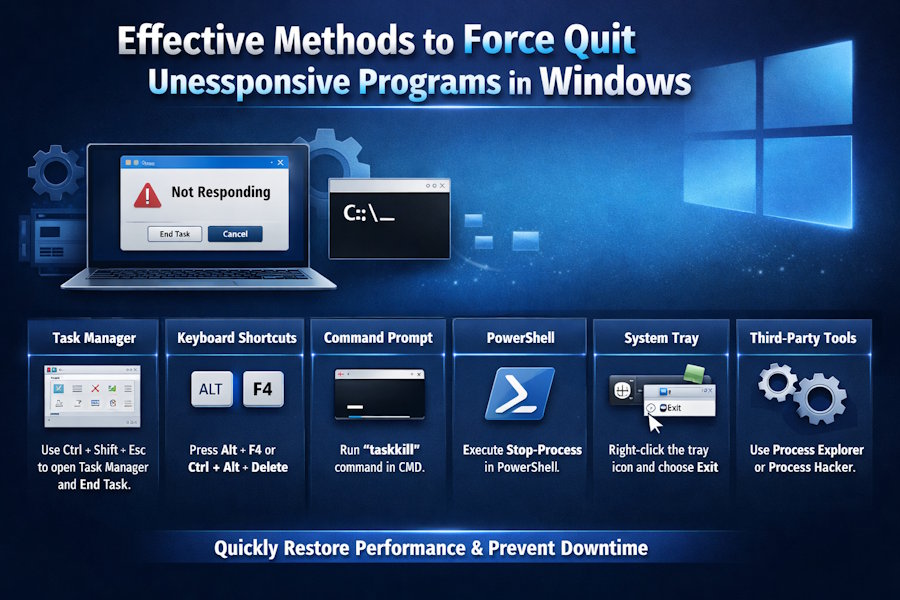
Having a program freeze on your Windows PC can halt your momentum, slow your productivity, and cause unnecessary frustration. Thankfully, Windows offers a range of reliable methods to help you regain control quickly. For those wanting a quick walkthrough on how to force quit a program on Windows, there are several approaches, from built-in utilities to advanced command-line solutions, ensuring everyone can find an option that fits their comfort level.
While some unresponsive applications can be dealt with easily, others may require more direct intervention. The right choice depends on your technical experience and the severity of the problem. Familiarizing yourself with the most effective force quit techniques can save precious time, prevent data loss, and help maintain a stable computer environment.
Understanding and utilizing Windows’ built-in management tools is not just about resolving stuck programs. It also helps users develop good digital habits, reducing the frequency of future problems. Taking proactive steps and knowing when to use each method makes all the difference in keeping your system running smoothly. For organizations and individuals with more advanced support and security needs, professional Managed IT Services can further enhance performance and minimize downtime from problematic software incidents.
Using Task Manager
Task Manager is Windows’ primary resource for managing open applications and processes. It is a go-to option for force-quitting programs that are not responding:
- Press Ctrl + Shift + Esc to launch Task Manager directly.
- Navigate to the “Processes” tab to view a list of active programs.
- Find the unresponsive application, right-click it, and select “End Task.”
This straightforward process often resolves most cases where programs have frozen or stopped responding.
Keyboard Shortcuts
Windows allows users to quickly close unresponsive applications using keyboard combinations, streamlining the process without additional navigation:
- Alt + F4: With the frozen program selected, press Alt + F4 to attempt closing it instantly.
- Ctrl + Alt + Delete: Simultaneously press these keys, then choose “Task Manager” from the presented options to finish the job, especially when the screen is locked or unresponsive.
Using these shortcuts minimizes delays and helps you swiftly recover from hiccups.
Command Prompt
For those who are comfortable on the command line or need to handle particularly stubborn tasks, the Command Prompt is a versatile solution:
- Press Win + R, type cmd, and press Enter.
- Enter tasklist and press Enter to view all currently running processes.
- Identify your target program by its name or Process ID (PID).
- Type taskkill /IM programname.exe /F or then press Enter.
This approach ensures precise program termination, even when the graphical interface is inaccessible.
PowerShell
PowerShell serves users who need a robust scripting tool or to handle IT administration:
- Search for “PowerShell” via the Start Menu and choose “Run as administrator” for required access rights.
- Execute Stop-Process -Name "programname" -Force, replacing programname with the actual frozen software name.
This is a powerful means of dealing with applications, favored by more advanced or enterprise environments.
System Tray
Most modern Windows applications feature a system tray icon, which often allows users to close or exit the program without opening its main window:
- Locate the application’s icon near the bottom-right of your screen.
- Right-click and choose “Exit,” “Close,” or “Quit,” depending on the program’s options.
Please note that severely unresponsive programs may have system tray items that are also nonfunctional. If the application cannot be closed this way, consider one of the other methods above.
Third-Party Tools
Power users or those dealing with frequent unresponsive programs can benefit from specialized utilities designed for enhanced control:
- Process Explorer: Offered by Microsoft Sysinternals, providing deep process management and force quit features.
- Process Hacker: An open-source alternative with an advanced interface and process management capabilities.
These utilities deliver more granular information about your system and can be especially helpful in troubleshooting persistent issues.
Preventive Measures
Reducing the chances of encountering unresponsive programs is as important as knowing how to resolve them. Implement these best practices to keep your Windows PC in optimal condition:
- Regularly update the operating system and installed applications to benefit from performance improvements and security patches.
- Monitor your system’s resource use to avoid running too many high-demand processes at once.
- Perform periodic maintenance, such as disk cleanup and defragmentation, to ensure ongoing system health.
Knowledge and consistency in these actions will help create a more reliable and responsive computing environment.
By leveraging these strategies and resources, you can swiftly deal with pesky, unresponsive programs and enjoy a smoother, stress-free experience on your Windows PC.
Conclusion
Effectively managing unresponsive programs on a Windows PC requires both knowledge and proactive habits. From using Task Manager, keyboard shortcuts, Command Prompt, and PowerShell to exploring system tray options or third-party tools, there are solutions suited for all levels of technical experience. Pairing these techniques with preventive measures, such as keeping software up to date, monitoring resource usage, and performing regular system maintenance, minimizes future disruptions and ensures a stable, efficient computing environment. By mastering these approaches, users can quickly regain control, protect their data, and maintain a smooth, productive workflow.

