


I’ve reinstalled Windows more times than I’d like to admit, but even a fresh system doesn’t stay clean for long. Between preinstalled apps, store games, bundled tools, and software I install for remote work and casual gaming, my Start menu and background processes gradually turn into a mess. Recently, my boot time crept up, my browser started slower, and games had random micro stutters right when I didn’t want them.
Instead of wiping everything and starting over again, I decided to treat built‑in apps like junk software and see what would happen if I removed them properly using IObit Uninstaller. It worked better than I expected.
My PC Setup and Why I Did This
Here’s the exact machine I ran this test on;
- CPU: Intel Core i5‑12400
- GPU: NVIDIA RTX 3060
- RAM: 16 GB DDR4
- Storage: 1 TB NVMe SSD (Windows + games on C:)
- OS: Windows 11 Pro (23H2)
How I actually use it:
- Remote work in Chrome browser
- Gaming at 1080p
- Occasional tutorial recording with a screen recorder
- Problems that pushed me into this experiment;
- Cold boot to usable desktop: ~38 seconds
- Idle CPU usage after boot, no apps open: 8–10%
- In one shooter: around 105 FPS average with 1% lows around 70 FPS—playable, but with random little hitches that usually lined up with background activity
I wanted to know: if I removed 15 built‑in / hidden Windows apps and cleaned their leftovers with IObit Uninstaller, would anything actually improve in a measurable way?
What IObit Uninstaller Is (In My Own Words)
For me, IObit Uninstaller is like a “control center” for software on Windows. It shows me normal desktop programs, Microsoft Store apps, and built‑in Windows apps in one interface, and then gives me tools to not only uninstall them, but also clean up the files, folders, and registry entries they leave behind.
The free version I used is IObit Uninstaller 15 Free, which supports Windows 11, 10, 8.1, 8, 7, Vista, and XP. According to the official description, it’s built to:
- Remove unused and bundled programs and Windows apps with one click
- Use an upgraded uninstall engine and improved algorithms to find more residual files and software traces
- Offer Software Health panel that finds leftovers, redundant setup files, and other software‑related issues and fixes them in one place
In other words, it doesn’t just hide the icon—it tries to stop that app from quietly living in the background.
Why I Didn’t Just Use Windows Settings (and One Other Tool)
Before this, I mainly relied on:
- Windows Apps & Features – Simple for basic uninstalls, but it doesn’t handle all built‑in apps and doesn’t scan for leftovers. It’s fine for the basics, not for deep cleanup.
- Revo Uninstaller – Very good at removing traditional desktop programs, but on my system, I still needed extra steps and PowerShell tricks to deal with certain Windows Store and built‑in apps in one pass.
So I didn’t “replace” everything with IObit Uninstaller, but for this specific job—removing Windows apps and cleaning their junk—it was the most convenient choice.
What Happens Under the Hood (Why It Helps Performance)
The technical side isn’t complicated:
- Many Windows apps add background processes, scheduled tasks, or services that start with Windows or wake up for notifications and updates.
- Each one uses a bit of RAM and CPU, especially during startup or when the system is checking for live tiles, suggestions, or content.
- When I fully remove those apps and their leftovers, I reduce the number of things competing for CPU time and memory at boot and while I game.
IObit Uninstaller 15’s upgraded uninstall engine and improved scanning algorithms are designed to find those files and registry entries and remove more of them than a standard uninstall would. That’s the main reason you see changes in boot time, idle usage, and occasional frame dips.
How I Used IObit Uninstaller to Remove 15 Windows Apps?
1. Finding the real problem
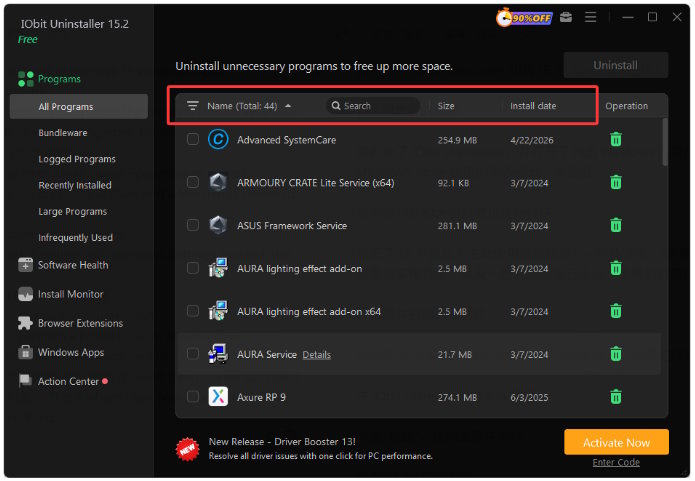
I launched IObit Uninstaller and opened the sections that list Windows built‑in and Microsoft Store apps together. Then I:
- Sorted apps by install date and size.
- Marked 15 that I never intentionally used—preinstalled games, “suggested” media apps, duplicate utilities, and a few things I knew I’d never touch.
2. Uninstalling and scanning for leftovers
For those 15 apps, I didn’t bother with Windows Settings. Instead:
- Select them inside IObit Uninstaller.
- Hit Uninstall and let the built‑in routines run.
After each removal, IObit Uninstaller scanned for leftover folders, files, and registry keys tied to that app, then showed them in a list so I could delete them with one click. That’s where I saw how much extra data basic uninstalls leave behind.
3. Running Software Health
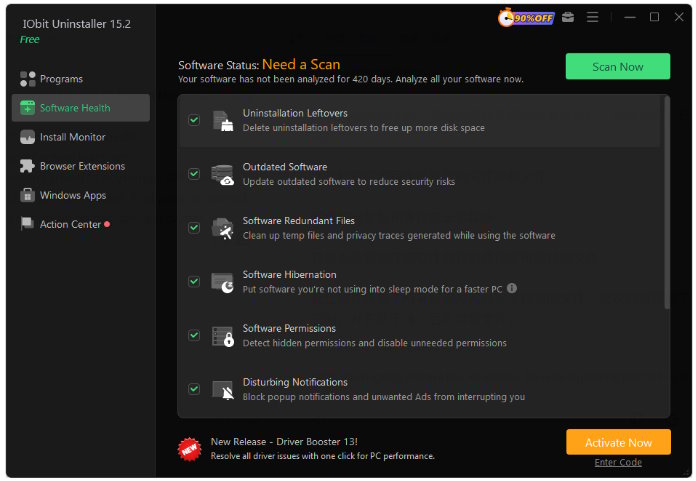
Once the apps were gone, I switched to the Software Health and ran a full scan. It highlighted;
- Leftover folders and files from older app removals
- Redundant setup packages and cached installers
- Other software traces that weren’t linked to anything, I still used
I let it fix everything it flagged as safe to remove. That pass reclaimed even more space and helped cut down on background clutter.
What I Liked About Using IObit Uninstaller for This
- It removed Windows apps and store apps that Windows Settings either hid or wouldn’t touch, and then cleaned leftover files instead of leaving random folders behind.
- The combination of deeper uninstall, leftover scan, and Software Health gave me real numbers—extra free space and shorter boot time—rather than just a tidier app list.
- Having desktop apps, store apps, and built‑ins in one place made planning this cleanup much easier than bouncing between Settings and PowerShell.
What I Didn’t Like (Small but Real Issues)
- Full Software Health and leftover scans take time on a machine with years of history. I ran them when I didn’t need the PC for a few minutes.
- There’s a bit of a learning curve because IObit Uninstaller includes uninstall tools, Software Health, and Install Monitor. It’s powerful, but not completely “set and forget.”
- When I turned on options like restore point creation and thorough cleanup, I got more confirmation prompts. They’re good for safety, just a little slower when batch‑removing apps.
My Honest Take After Removing 15 Hidden Windows Apps
In the past, I would have solved this kind of problem with a full reinstall, then slowly reinstalled everything I needed. Using IObit Uninstaller–a powerful uninstaller for Windows–let me keep my current setup, clean out 15 Windows apps I didn’t care about, and actually measure the difference in space, boot time, and background load.
It’s not a magic button that doubles your frame rate, but if your machine has years of preinstalled apps, store junk, and leftovers baked in, using IObit Uninstaller the way I did is a very practical way to take back control. For my mix of remote work, gaming, and occasional recording, that extra breathing room—and a cleaner Windows environment—was absolutely worth the hour I spent doing it.

