

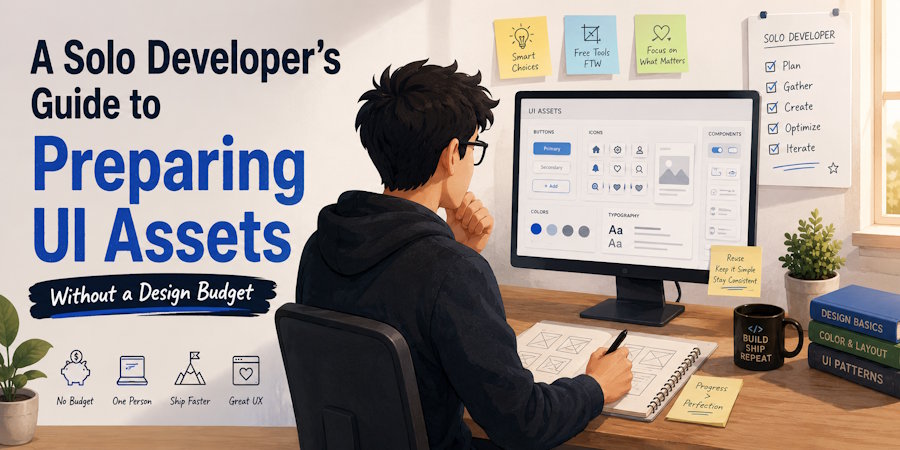
Every solo developer who ships a side project or indie app eventually hits the same wall: you can write the backend logic, scaffold the frontend, and deploy to the edge in an afternoon, but you still need visual assets. Icons, hero images, product shots, avatars, and empty-state illustrations all need to land in your repository at the right resolution and the right format. Hiring a designer for a pre-revenue project is rarely an option, and stock-photo subscriptions eat into a bootstrapped budget fast.
The good news is that modern browser-based AI tools have narrowed the gap between "I found this image online" and "this image is ready for production." Two specific friction points remain, and both can be solved without installing software or creating accounts.
The Resolution Problem
Developers often pull images from free asset libraries, documentation screenshots, or legacy uploads that were compressed for email. When those images become hero banners, card thumbnails, or retina-display assets, the low resolution becomes obvious. A 600-pixel-wide image from a three-year-old blog post will look muddy on a modern phone screen.
Rather than hunting for a replacement asset that may not exist, the fastest fix is to upscale image files directly in the browser. Photiu.ai offers a free Image Upscaler that processes one image at a time entirely client-side. You upload the file, an AI model analyzes edges and textures, and you download a higher-resolution version. There are no scaling ratios or sharpening sliders to configure; the system handles the technical decisions internally. Because it runs in the browser, you do not need to install Photoshop, GIMP, or a command-line toolchain just to fix a single asset.
The tool is genuinely free and requires no registration, which matters when you are iterating on a landing page at midnight and do not want to pause for a signup flow or a credit-card form.
The Transparency Problem
Once your image is sharp enough, the next issue is often the background. A rounded profile card, a floating product preview, or a scroll-driven parallax layer almost always looks better when the subject is isolated on a transparent background. Achieving that with conventional tools means learning layer masks, the magic-wand selector, or fighting with the fuzzy-edge artifacts that free background removers tend to leave behind.
A dedicated remove background tool solves this in one step. Photiu.ai's Background Remover handles the cutout automatically, producing a clean PNG with an alpha channel. You can then drop the resulting asset directly into a React component, a Flutter widget, or a static HTML/CSS overlay without worrying about leftover color fringes around hair, fur, or glass reflections.
Used together, the upscaler and the background remover form a lightweight asset-preparation pipeline: take any source image, sharpen it, isolate the subject, and export a production-ready transparent PNG. The entire workflow stays inside the browser and takes less time than cloning a Git repository.
Limitations Worth Knowing
These tools solve specific problems quickly, but they are not a replacement for a full design workflow. The Image Upscaler processes one image at a time with no batch support, so a gallery of fifty screenshots will still require manual iteration. It is also fully automatic, meaning you cannot dial in a precise 2x or 4x scale or adjust sharpening strength for a stylistic effect. You get what the model produces.
Similarly, the background remover, while accurate on most subjects, can struggle with semi-transparent objects such as tinted glass or fine strands of hair against a busy background. For mission-critical branding assets, a manual pass in a desktop editor may still be necessary. The value here is speed and accessibility, not pixel-perfect studio control.
A Practical Workflow
If you are building tonight and need clean assets by morning, the workflow is straightforward:
- Collect your source images from the free library, screenshot, or archive where you found them.
- Run any low-resolution file through the upscaler to recover enough detail for your target display.
- Run the sharpened image through the background remover if the UI component requires a transparent backdrop.
- Export the final PNG and commit it to your project's public or assets directory.
No install scripts, no subscription tiers, no design backlog. For solo developers shipping on weekends, that kind of frictionless tooling is often the difference between launching and postponing.

