

Data often moves between systems in different formats. JSON is one of those formats that is widely used for transporting data between APIs and modern applications. But the problem is that raw data is not always easy to analyze. So, professionals mostly use spreadsheets as a solution to this challenge.
Microsoft Excel provides an environment where data can be organized, filtered, and even visualized. That’s why developers and analysts convert JSON into Excel to turn nested structures into readable tables. This conversion supports reporting, automation, and decision-making workflows across teams.
In this guide, we will look at two different ways of converting JSON into an Excel file easily. This will help you choose the right conversion method depending on your specific needs.
Methods for JSON to Excel Conversion
To convert JSON into structured data that helps, you need to select the right conversion approach. JSON files can vary in different scenarios. So, the conversion method should match the data and your technical comfort level.
Different methods offer unique advantages. Some give priority to speed while others offer more control to handle large datasets.
Below are two practical methods to convert JSON into Excel. Each method is explained clearly. Go with the one that best fits your workflow.
1. Using an Online Tool
This is often the quickest way to convert JSON to Excel. It’s especially useful for developers who are short on time, because it doesn’t require setting up a complete environment for conversion. The process is very straightforward.
Many JSON to Excel converters are available online. You should always choose the one that offers high speed, performs automatic JSON syntax validation, gives a proper format to the data, and protects user privacy. One of the online tools that meets these standards is JSON to Excel by Minifier.org, which we will use to demonstrate the conversion process.
- Access the tool and upload the file with the given uploading options, i.e., Upload File, Paste URL, and Drag & Drop.
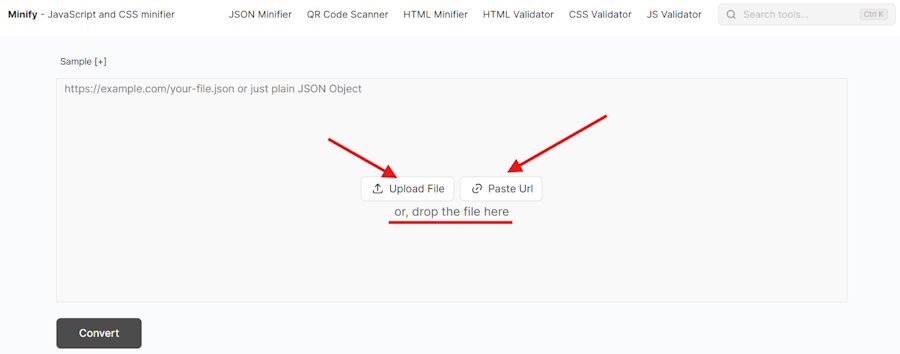
- Once the file is successfully uploaded, simply click on the “Convert” button at the bottom left of your screen.
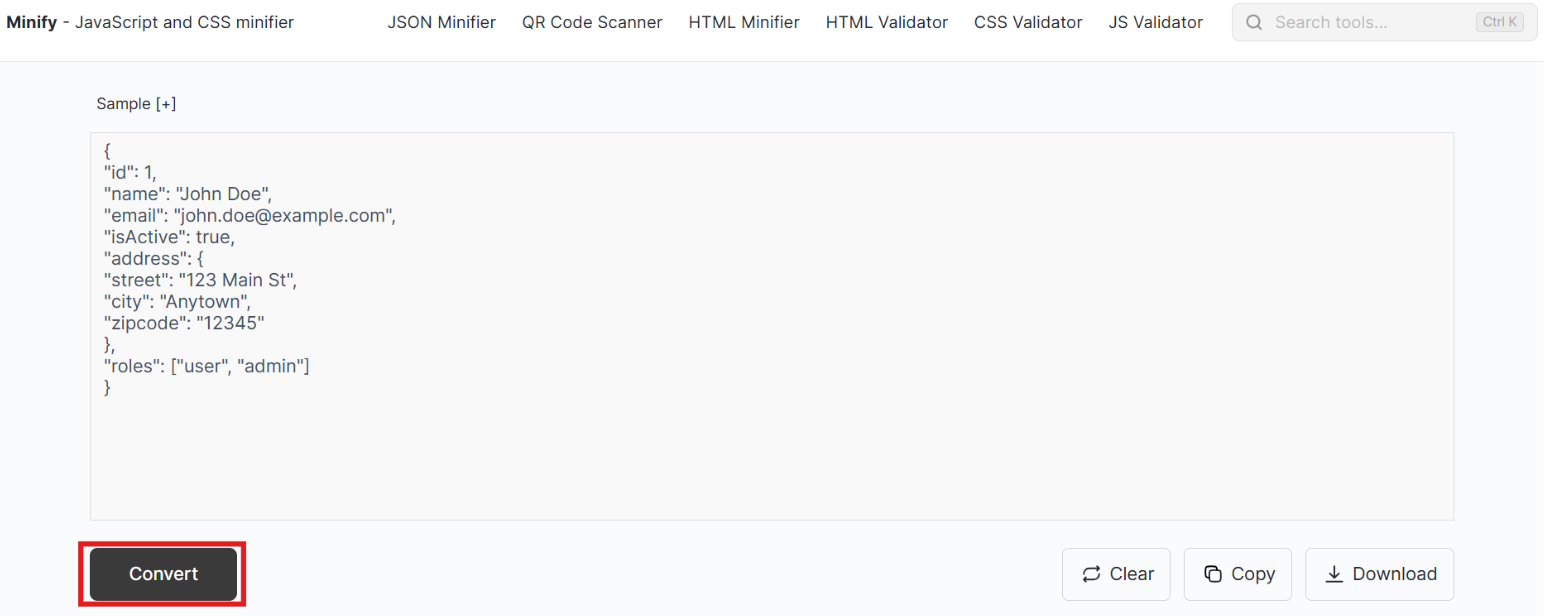
- As soon as you click the convert button, the tool converts JSON into an Excel file within seconds. Now, you can easily copy or download it.
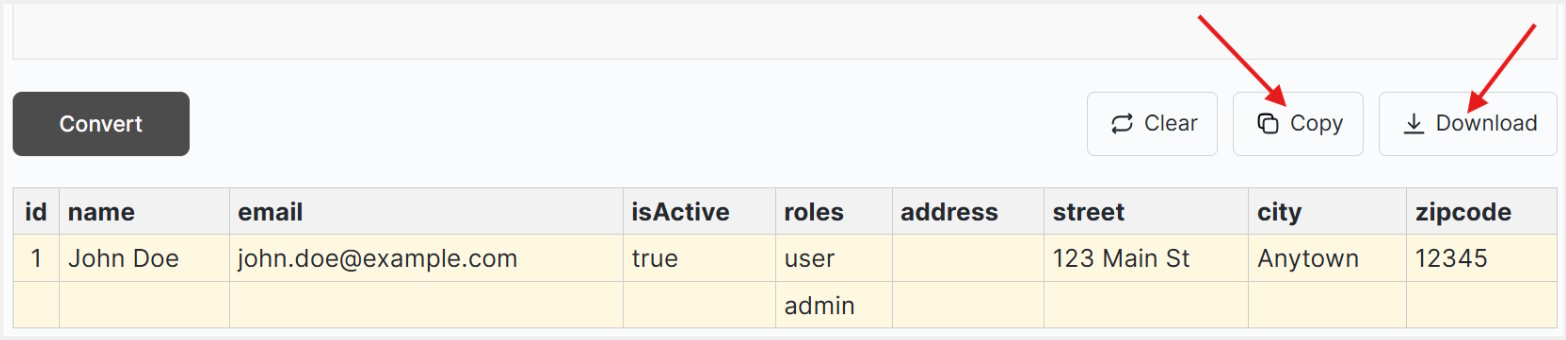
That’s how simple and quick this method is!
Pros
- Simple procedure
- Instant results (within seconds)
- Works directly in the browser
- Compatible with any device having a browser
- No login or signup required
- No need to download software or create a conversion environment
- Automatic parsing
- Suitable for quick tasks (testing, reporting, or debugging)
Cons
- Requires an active internet connection
- Large or complex files may take more time for conversion
2. Using Microsoft Excel
With this method, developers can work directly in Microsoft Excel. Using Microsoft’s built-in options, they can convert JSON into an Excel file through Excel’s Power Query Editor. This method is useful for more control and direct work in a spreadsheet environment.
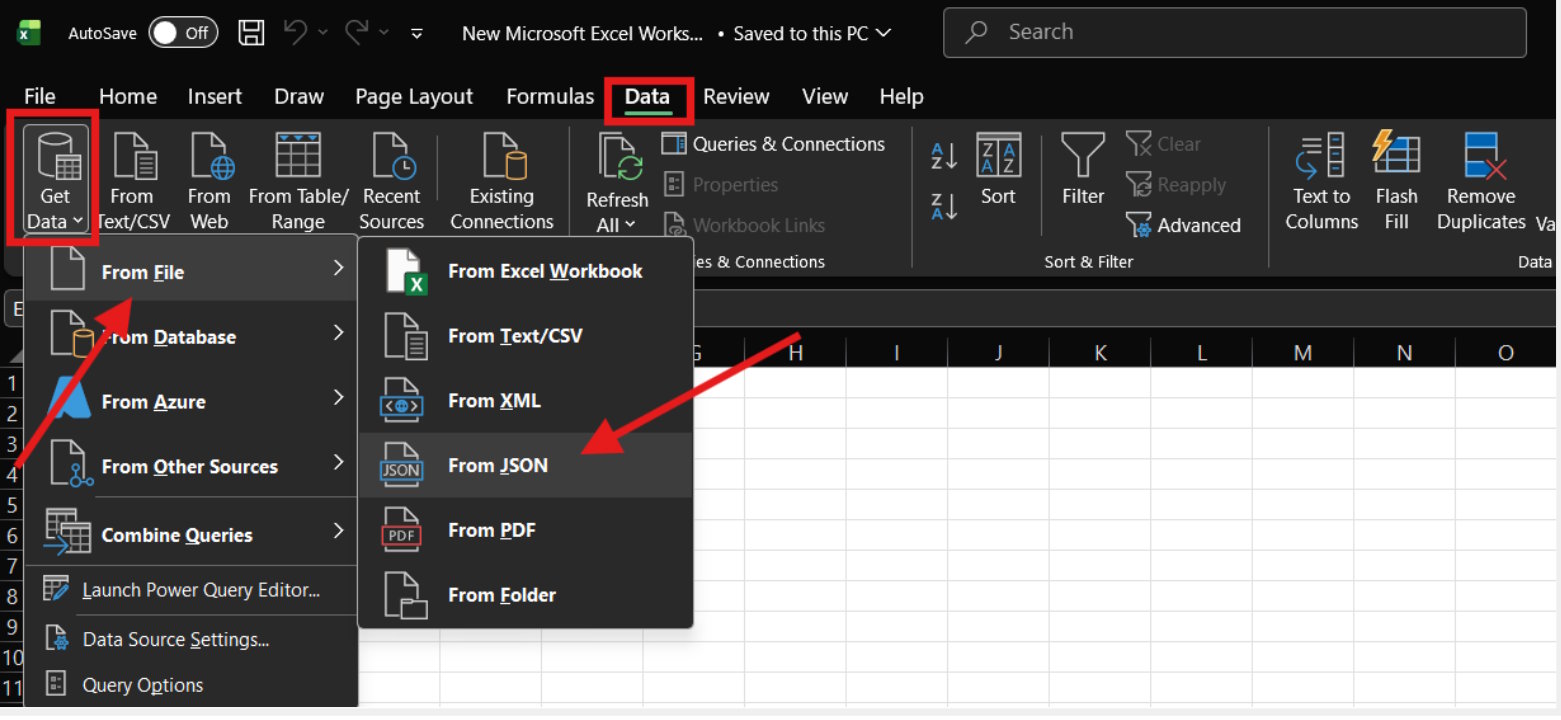
- Open MS Excel. Navigate to Data → Get Data → From File → From JSON, as shown in the given screenshot.
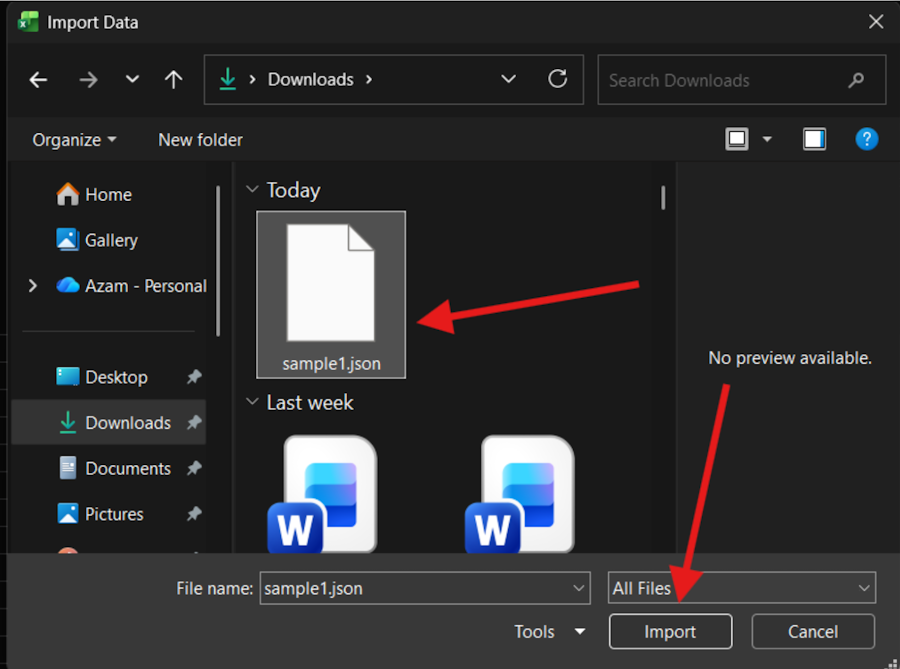
- Then upload the JSON file by clicking on the import button.
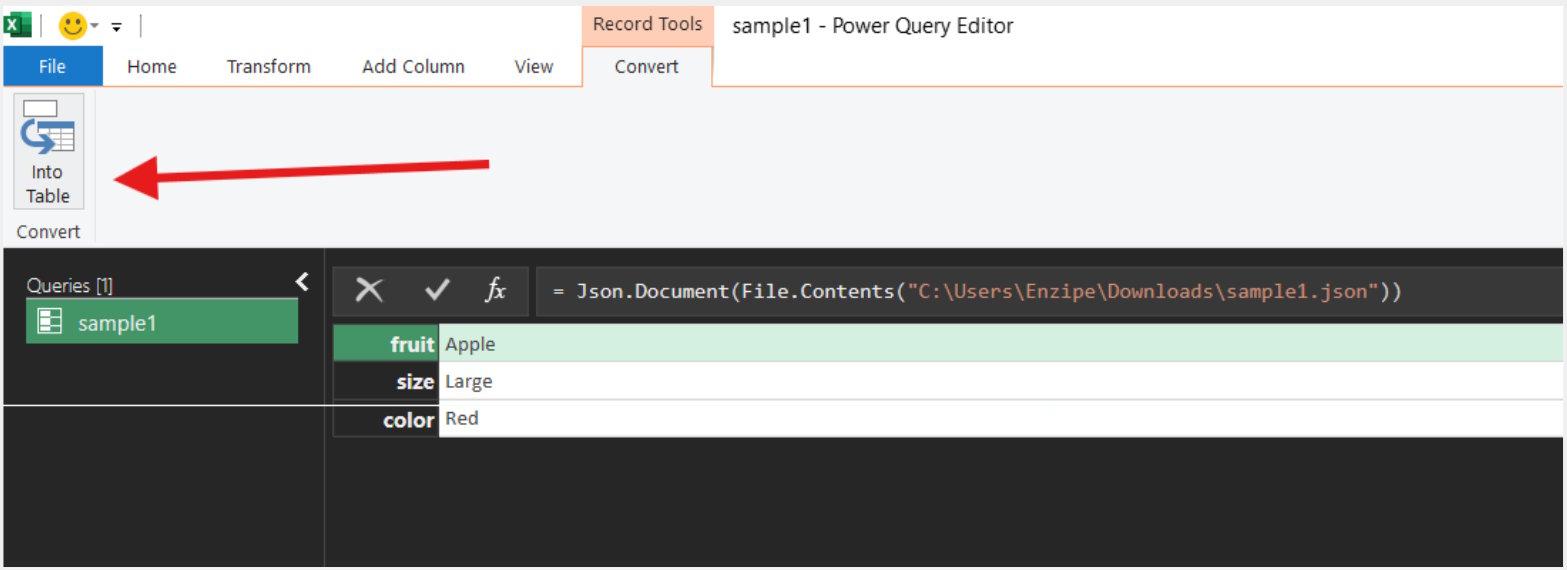
- Once it’s uploaded, click on “Convert Into Table” on the top left.
- Then, in the same position, you’ll have an option “Close & Load”.
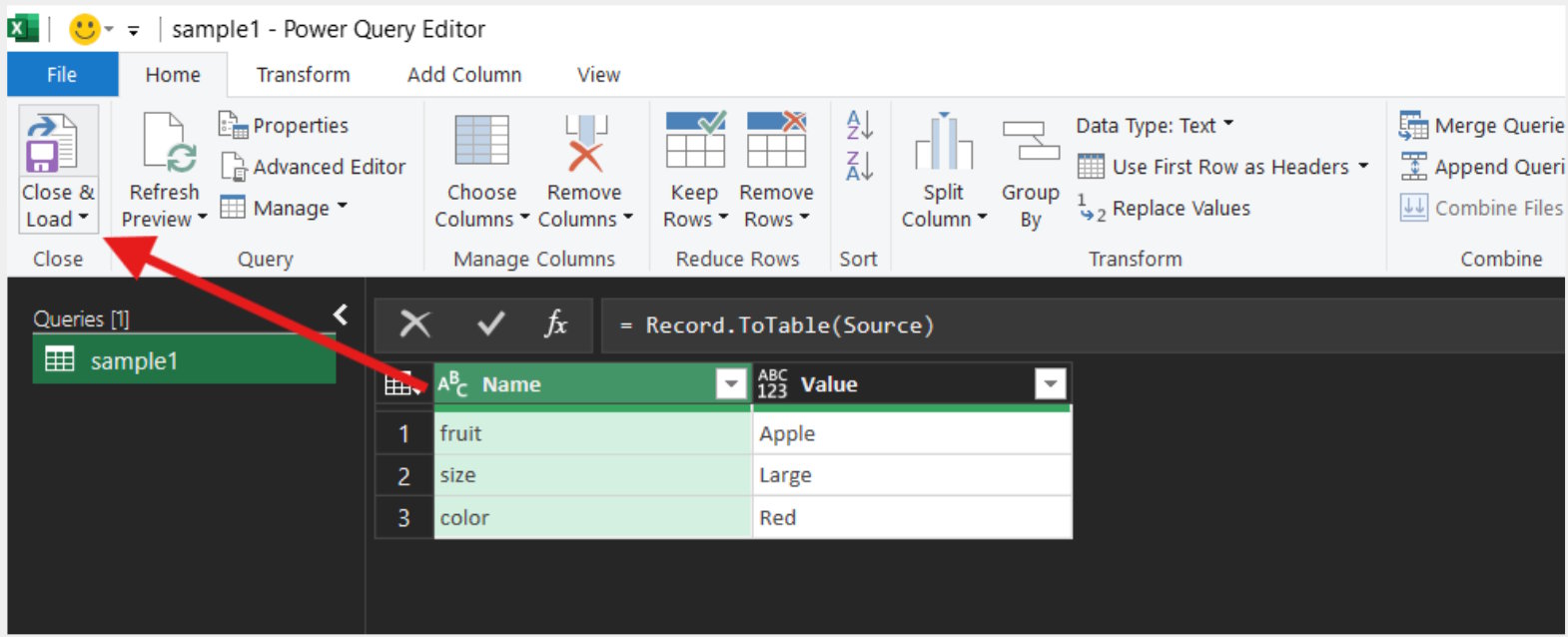
- On clicking the Close & Load option, your JSON table is loaded into the Excel file from Power Query.
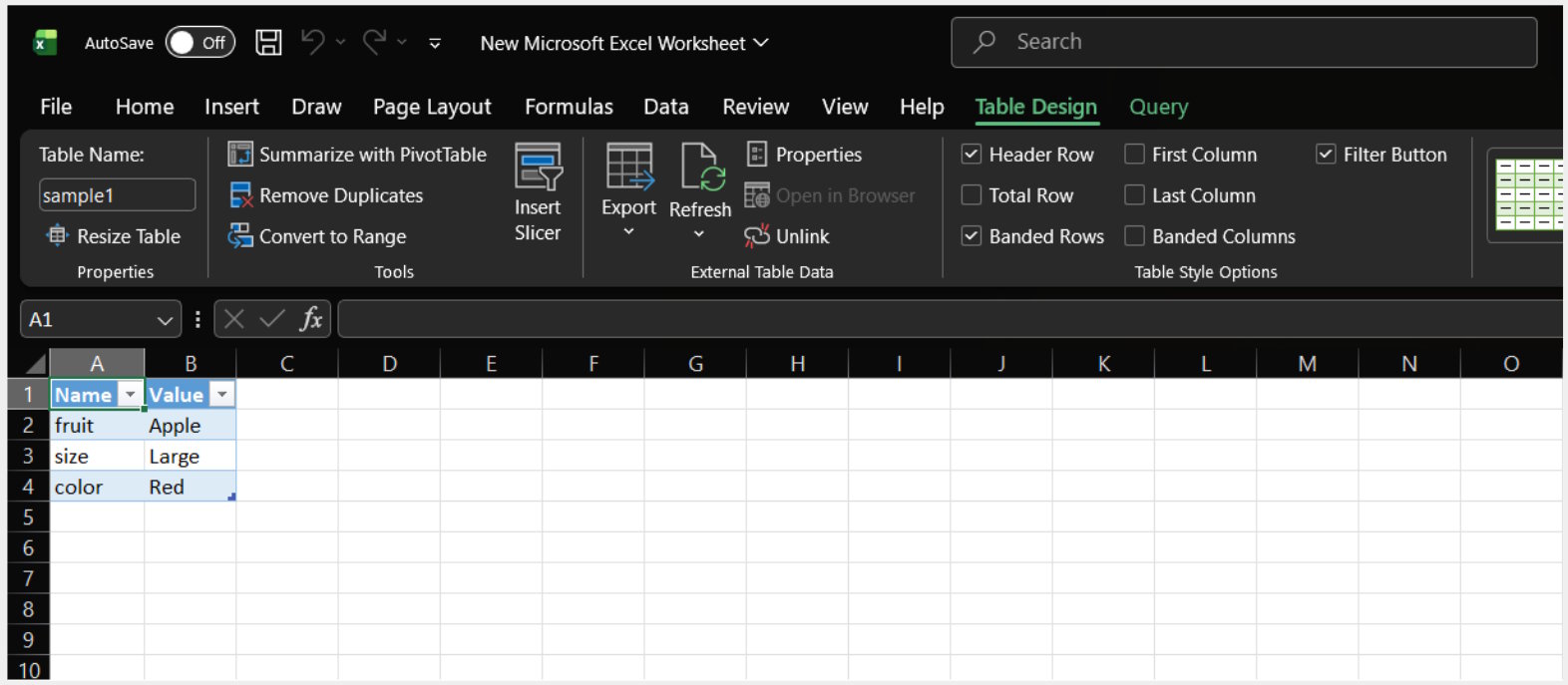
That’s everything you need to do in order to convert JSON to Excel with Excel’s Power Query.
Pros
- No need for external tools or third-party platforms
- Works directly in a spreadsheet environment
- Doesn’t require an active internet connection (if MS Excel is already downloaded in Windows)
- Better control over structuring and formatting
- Suitable for moderate to large datasets or reporting tasks
Cons
- Needs the installation of Microsoft Excel
- More time-consuming compared to the first method
- The procedure may feel a bit technical (especially for beginners)
- Handling deeply nested JSON may require extra effort
Tips for Successful Conversion
The following tips can prove to be useful for developers during JSON to Excel conversion:
- Must validate your JSON before conversion to avoid any parsing errors or broken outputs
- Keep a consistent structure to get clean columns
- Always remove unnecessary fields to keep the Excel file clean
- Choose one of the above conversion methods according to your task size
- Test with a small sample before converting large datasets
Final Words
Converting JSON to Excel is very simple when you choose the right method. You should first understand your data and goals. Then, select a method that best fits the needs.
Small improvements like validating and cleaning your JSON can save a lot of time. It also prevents errors in the output that may appear later and cause confusion.
For better results, always think about how the final Excel file will be used. This helps you structure your data more effectively right from the start. And, if the workload increases, this habit can help you manage the conversion process efficiently.

