

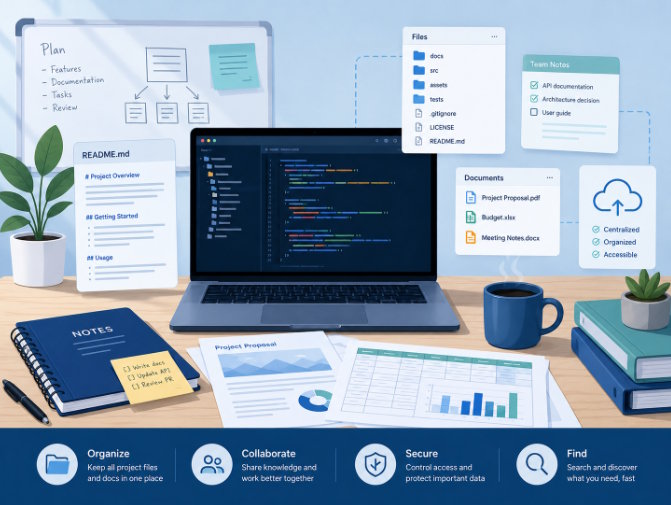
Small teams usually do not have a documentation problem because they lack tools. They have a documentation problem because files grow faster than systems. A project starts with a few notes, a draft proposal, and a basic task list. A few weeks later, there are meeting summaries, requirement tables, design sketches, spreadsheets, onboarding notes, and versioned drafts scattered across laptops, chat threads, and temporary folders.
When files are hard to find, people create new copies instead of updating the right one. That leads to duplicated effort, conflicting information, and lost context. A better approach is not necessarily more complicated software—it is a clear workflow that gives every file a purpose and every folder a place.
1. Start with a simple folder structure
The easiest improvement is to build a basic folder structure that everyone understands. For example, one root project folder can contain sections like Requirements, Design, Documents, Data, and Notes. This keeps the team from mixing API drafts with meeting notes or burying a proposal inside a random download folder.
For teams that also handle proposals, reading notes, spreadsheets, and document-based collaboration, a lightweight office workflow built around wps下载 resources can be useful because it supports the common file types most teams already work with. The important part is not the brand name itself, but the habit of keeping documents in one consistent structure rather than spreading them across too many apps.
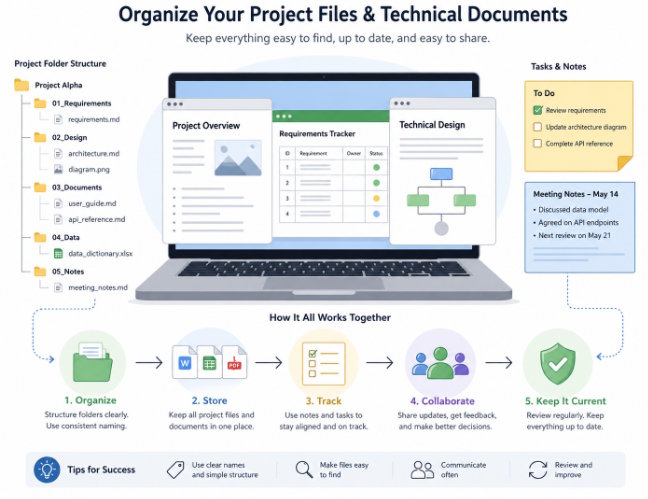
Figure 2. Copyright-safe AI-generated illustration: organizing project files and technical documents.
2. Separate documents by function, not by person
A common mistake is organizing files under personal folders such as “Tom’s files” or “May updates.” This may work temporarily, but it does not scale. Team documents should be grouped by function: requirements, implementation notes, user guides, reports, and meeting materials. That way, anyone joining the project can understand the structure without asking who originally created the file.
Naming matters too. Choose a predictable style such as date + topic, or module + document type. Names like “final_v2_new_latest” create confusion. Names like “api-reference-auth-2026-06” are much easier to scan and maintain.
3. Keep project notes, task lists, and office files connected
Documentation works best when it is tied to action. If a meeting note leads to a task, that task should point back to the note. If a requirement is changed, the tracker, design note, and implementation checklist should reflect that update. Even a simple weekly review helps: identify what changed, what needs revision, and which documents are now outdated.
This is where teams benefit from using the same document workflow across devices. If someone prepares materials on a laptop and later reviews them on another machine, keeping wps 电脑版下载 guidance in the process can make desktop editing and file review feel more consistent. The real goal is to ensure that proposals, meeting notes, spreadsheets, and internal summaries stay synchronized instead of becoming isolated copies.
4. Make cross-device access easy
Most teams switch constantly between office computers, personal laptops, and mobile devices. A file system that only works well in one place becomes a bottleneck. Try to keep active documents in a shared location, use formats that are widely readable, and make sure the latest version is easy to recognize. If someone cannot tell which file is current, the system is already creating friction.
Cross-device access is also helpful for review. A project manager may open a spreadsheet on a laptop, a developer may read a checklist on a phone, and another teammate may update a proposal from home. The workflow does not need to be perfect, but it should be predictable.
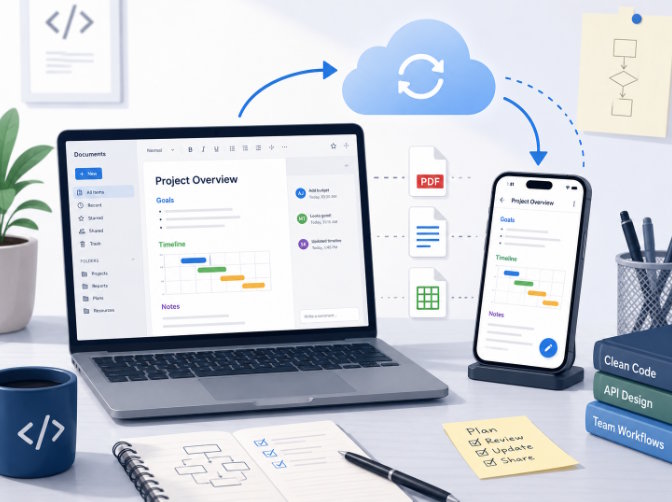
Figure 3. Copyright-safe AI-generated illustration: cloud sync and cross-device document workflow.
5. Review and clean regularly
An organized system still needs maintenance. Old drafts, outdated screenshots, and abandoned notes should not stay mixed with active project files forever. Set a light review rhythm—weekly for active projects or monthly for slower ones. Archive what is finished, remove duplicates, and mark reference documents clearly.
This habit makes search faster and reduces the chance that someone opens the wrong document at the wrong time. It also helps new teammates understand the current state of the project without digging through unnecessary history.
Practical checklist for small teams
- Use one clear root folder per project.
- Group files by function: requirements, design, documents, data, and notes.
- Apply a simple file naming rule and follow it consistently.
- Connect notes, task lists, and reference documents whenever possible.
- Review, archive, and clean files on a regular schedule.
Conclusion
Good document management is less about complexity and more about consistency. When developers and small teams create a simple folder structure, connect notes to tasks, and keep office files easy to find, work becomes smoother for everyone. A few small habits—clear naming, shared structure, and regular review—can prevent a large amount of confusion later.

