

Image: potatoccn.com
Installing a chat app on Windows may seem simple. Most users search for the software, download an installer, open the file, and sign in. However, this process deserves more attention than many people realize. Messaging apps often connect to personal contacts, conversations, files, notifications, and sometimes work-related information. If the installation source is unsafe or the account setup is careless, users may expose private data or create unnecessary security risks.
This does not mean users should avoid desktop messaging apps. On the contrary, a good desktop chat setup can improve productivity, make file handling easier, and help users communicate more efficiently. The important point is to follow a careful checklist before installation.
Whether you are installing a mainstream communication platform or comparing chat app resources such as potato, the same basic safety steps apply. You should confirm the download source, review permissions, secure your account, and understand how the desktop version interacts with your phone.
Confirm Why You Need the Desktop Version
Before downloading any chat app, ask why you need it on Windows. Some users install desktop versions because they type faster on a keyboard. Others need to send documents, screenshots, spreadsheets, or links during work. Some people want to manage communities or customer conversations from a larger screen.
For users who are comparing desktop communication tools, resources about potato 聊天软件 can be useful when checking whether an app fits daily messaging, file sharing, and cross-device communication needs.
Knowing your purpose helps you choose the right setup. If you only need occasional access, a web version may be enough. If you use the app every day, a dedicated Windows client may be more convenient. If you handle sensitive conversations, you should pay extra attention to account security and session management.
Installing fewer apps is also a security advantage. Every additional desktop application increases the number of programs you need to update and monitor. If you do not really need a desktop client, avoid installing one just because it is available.
Download Only From Trusted Sources
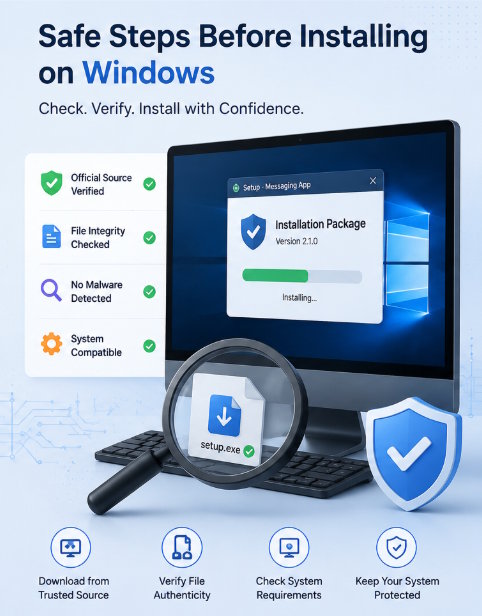
The download source is the first and most important checkpoint. Many security problems begin when users install software from unofficial pages, file-sharing sites, shortened links, or unknown advertisements.
A safe download habit includes checking the domain carefully, avoiding suspicious pop-ups, and refusing installers bundled with unrelated software. Some websites imitate official download pages by using similar names, familiar icons, or misleading buttons. Users should be cautious when a page has too many download buttons or redirects several times before providing the file.
For Windows users, the installer file should look consistent with the software you intended to download. If the file name includes strange extra words, unknown version labels, or unrelated software names, stop and check again. Do not rush through the process simply because the site looks professional.
It is also a good idea to scan downloaded files with built-in Windows security tools or a trusted antivirus solution before opening them, especially if the source is unfamiliar.
Check the Installer Before Running It
After downloading the installer, do not immediately double-click it without review. First, check the file extension. Windows software installers are often `.exe` or `.msi` files, but users should be careful with compressed files, scripts, or packages that ask for unusual manual steps.
Right-clicking the file and checking its properties may provide additional information, such as publisher details or digital signature status. Not every legitimate program displays information in the same way, but missing or suspicious publisher details should make users more cautious.
During installation, read each screen before clicking “Next.” Some installers may include optional software, browser changes, startup items, or permission requests. If you see checkboxes for unrelated tools, disable them. A messaging app should not need to change your browser homepage, install unknown extensions, or add unrelated system utilities.
The safest installation process is usually straightforward: choose language, accept terms, select installation path, and complete setup. Anything beyond that should be reviewed carefully.
Understand Login Methods and Device Linking
Desktop chat apps often use one of several login methods: phone number verification, email login, QR code scanning, password login, or linking from a mobile device. Each method has advantages and risks.
QR code login is convenient, but users must confirm they are scanning the code from the correct desktop app or official web page. Never scan a login QR code sent by a stranger. A fake QR login flow can give someone else access to your account.
Verification codes should also be protected. If a chat app sends you a login code, do not share it with anyone. Real support teams should not need your one-time code. If someone asks for it, treat the request as suspicious.
After logging in on Windows, check whether the app shows a list of active sessions or connected devices. This feature is important because it lets you remove devices you no longer use. If you sign in on a shared or temporary computer, log out when finished.
Review Privacy Settings Immediately
Many users only check privacy settings after something goes wrong. A better habit is to review them immediately after installing and logging in.
Start with profile visibility. Decide who can see your phone number, profile photo, online status, or personal description. If you join public communities, you may want stricter settings than someone who only chats with close contacts.
Next, check group invitation settings. Some messaging tools allow anyone to add you to groups by default. This can lead to spam or unwanted conversations. Restricting invitations to contacts can reduce this problem.
Also review message preview settings on Windows. Desktop notifications may appear on screen during meetings, screen sharing, or public work sessions. Turning off message previews can prevent private content from being displayed accidentally.
Privacy settings are not only about hiding information. They are about controlling when and where your information appears.
Manage Startup and Background Behavior
Many chat apps ask to start automatically when Windows boots. This can be convenient, but it is not always necessary.
If you use the app daily for work, startup access may save time. But if you only use it occasionally, automatic startup can slow down your computer and increase distraction. You can usually adjust this inside the app settings or through Windows startup app controls.
Background behavior also matters. Some apps continue running after you close the main window so they can deliver notifications. This is normal for many communication tools, but users should know it is happening. If you want the app fully closed, check whether it has a “Quit” or “Exit” option in the system tray.
Managing startup and background behavior gives you better control over performance, privacy, and focus.
Be Careful With File Transfers
One advantage of desktop messaging apps is easier file handling. You can drag files from folders, save attachments directly, and open documents faster than on mobile. However, this convenience also creates risk.
Do not open files from unknown users unless you understand what they are. Be especially careful with executable files, scripts, compressed archives, and documents that ask you to enable macros. Even if a file appears to come from a familiar contact, confirm the context if the message seems unusual.
For work environments, save files to organized folders and scan suspicious attachments before opening them. Avoid keeping sensitive downloads scattered across the desktop or downloads folder. Good file management reduces both security risk and long-term clutter.
Keep the App and Windows Updated
A secure desktop setup depends on updates. Chat apps may fix bugs, improve login security, patch vulnerabilities, or add privacy controls through updates. Windows updates also matter because they protect the system environment where the app runs.
Enable automatic updates when appropriate, or check manually on a regular schedule. If the app asks you to update from inside the program, make sure the update prompt looks legitimate and does not redirect to an unfamiliar website.
Avoid using outdated installers saved from old downloads. If you need to reinstall the app later, download the latest version from a trusted source instead of reusing an old file.
Separate Personal and Work Communication
If you use messaging apps for both personal and professional communication, consider separating them. This might mean using different accounts, different apps, or at least different folders and notification settings.
On Windows, it is easy to mix personal chats, work files, community messages, and browser activity in the same workspace. Over time, this can become confusing. A cleaner setup helps you avoid sending files to the wrong chat, missing important messages, or exposing personal notifications during work.
Simple habits can help: pin important chats, mute non-urgent groups, archive inactive conversations, and use clear file naming. These small steps improve daily efficiency.
Final Thoughts
Installing a chat app on Windows should not be treated as a quick one-click task. Because messaging tools connect to personal identity, contacts, conversations, and files, users should take a few minutes to review the source, installer, login method, privacy settings, and device behavior.
A safe desktop messaging setup does not require advanced technical knowledge. It only requires careful habits: download from trusted sources, protect login codes, review connected devices, manage notifications, handle files cautiously, and keep software updated.
By following this checklist, Windows users can enjoy the convenience of desktop communication while reducing avoidable security and privacy risks.

