

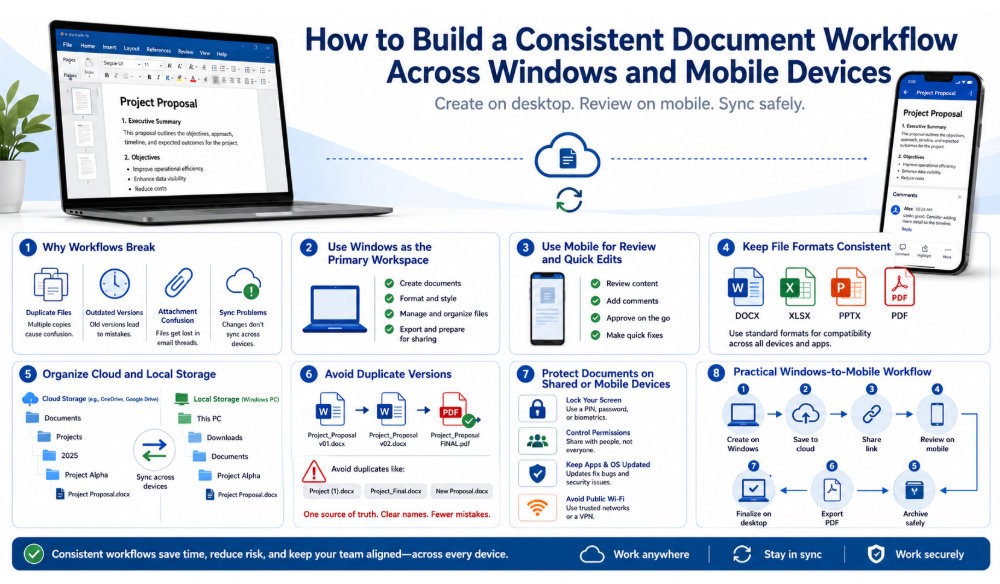
Modern document work rarely happens on only one device. A report may be created on a Windows computer, reviewed on a phone, revised by a colleague, converted to PDF, and finally archived in cloud storage. This flexibility is useful, but it also creates opportunities for version confusion, formatting problems, duplicate files, and accidental data exposure.
A consistent workflow should give each device a clear role. The desktop computer should normally handle detailed creation and complex editing, while the mobile device should support review, comments, approval, and urgent corrections. Cloud storage should connect the two environments without replacing local backups or proper version control.
The goal is not to make every device perform the same task. Instead, users should create a predictable process in which files move safely from creation to review, collaboration, and final storage.
Why Document Workflows Often Break Between Devices
Cross-device workflows usually fail because users move files without a clear system.
A common example begins when a document is created on a Windows computer and sent as an email attachment. The recipient downloads it to a phone, makes a small change, and sends back another copy. The original author then downloads the revised attachment, creates a new desktop copy, and continues editing. After several rounds, nobody knows which file is current.
Other common problems include:
- Multiple files with names such as “final,” “final2,” and “latest”
- Different copies stored in email, cloud folders, and download directories
- Formatting changes between desktop and mobile apps
- Expired attachment links
- Missing fonts or unsupported document features
- Automatic downloads creating duplicate files
- Offline changes that do not synchronize correctly
- Shared links pointing to older versions
- Conflicting edits from several users
These issues are not always caused by the office software itself. They usually result from unclear file ownership, inconsistent storage locations, and a lack of version rules.
A better workflow begins by defining where the active document lives, who is allowed to edit it, and which device should be used for each stage.
Choose a Primary Desktop Environment
A Windows computer is usually the best primary environment for creating and editing complex documents. Desktop software provides more screen space, better keyboard control, easier file management, and broader access to formatting, spreadsheet, presentation, and printing tools.
Users working with wps 电脑版 or another desktop office suite should create a structured workspace before starting a project.
The desktop environment should include:
- A dedicated working folder
- A clear project name
- Standard file formats
- A cloud synchronization location when needed
- A separate backup location
- Consistent file naming rules
Complex tasks are generally easier on a desktop computer, including:
- Building document styles
- Editing long reports
- Managing spreadsheet formulas
- Creating charts
- Designing presentation layouts
- Comparing document versions
- Using templates
- Exporting final files
- Preparing documents for printing
The Windows computer should normally contain the main working copy, especially when the file requires detailed formatting or frequent editing.
Users should avoid saving active project files randomly across the desktop, Downloads folder, email attachments, and several cloud services. A single working location makes it easier to identify the current version.
Use Mobile Devices for Review and Quick Edits
Mobile devices are valuable parts of a document workflow, but they should not always replace the desktop environment.
A phone is particularly useful for:
- Reading documents while away from a computer
- Reviewing comments
- Approving drafts
- Adding short notes
- Correcting simple text errors
- Checking spreadsheet values
- Viewing presentations
- Sharing a link with a colleague
- Confirming that a PDF displays correctly
Users opening files through wps 手机版 or another mobile office application should treat the phone as a review and response tool rather than the default location for complex document production.
Mobile editing can become difficult when a file contains:
- Complicated tables
- Advanced spreadsheet formulas
- Multiple charts
- Custom fonts
- Section breaks
- Headers and footers
- Tracked changes
- Large images
- Complex presentation animations
Small-screen editing can also make it easier to select the wrong text, remove formatting, or overlook hidden changes.
For urgent corrections, a mobile device is practical. For major restructuring, the file should return to the Windows desktop environment.
Users should also confirm that mobile edits are fully synchronized before opening the document on another device. Editing an offline copy and then opening an older cloud copy on the desktop can create conflicts.
Keep File Formats Consistent
DOCX
DOCX is suitable for editable reports, letters, proposals, and other text documents. It supports styles, images, tables, comments, and many advanced formatting features.
Use DOCX while the document is still being edited.
XLSX
XLSX is appropriate for spreadsheets, calculations, tables, budgets, and data analysis. Users should be cautious when editing formulas on a phone because mobile interfaces may hide references, named ranges, or worksheet details.
Important spreadsheet files should be reviewed on the desktop before final approval.
PPTX
PPTX is used for presentations. A mobile device is useful for reviewing slide order and text, but detailed layout work is better completed on Windows.
Fonts, animations, and object positions should be checked on the final presentation device whenever possible.
PDF is ideal for distribution, review, printing, and final archiving. It preserves page layout more consistently than editable formats.
However, PDF should not replace the editable source file. A practical workflow keeps both:
- The editable DOCX, XLSX, or PPTX file
- The final PDF version
Users should avoid repeatedly converting files between formats. Each conversion can change spacing, fonts, formulas, images, or page breaks.
A team should agree on one editable format for each document type and use PDF only when the content is ready for final distribution.
Organize Cloud and Local Storage Properly
Cloud storage makes cross-device access easier, but it should be organized carefully.
A useful structure separates three areas.
Active cloud workspace
This folder contains the current files being edited or reviewed. It should have a clear project structure and controlled sharing permissions.
Example:
- Project Name
- Working Documents
- Reference Files
- Reviews
- Final Files
Local downloads folder
The Downloads folder should be treated as temporary storage, not as the permanent project location.
Files downloaded from email, chat, or a browser should be:
- Reviewed
- Renamed if necessary
- Moved to the correct project folder
- Deleted from Downloads when no longer needed
Leaving several copies in Downloads makes it difficult to identify the active version.
Backup location
Cloud synchronization is not the same as backup. If a file is deleted or overwritten, that change may synchronize across devices.
Important projects should also have a separate backup, such as:
- An external drive
- A controlled company backup system
- A separate archival folder
- A version-history service
The active cloud copy supports collaboration. The backup protects against loss.
Avoid Duplicate and Outdated Document Versions
Version control does not need to be complicated, but it must be consistent.
A clear file name might include:
- Project name
- Document type
- Date
- Version number
- Status
For example:
Client_Report_2026-07-12_v03_Review.docx
Avoid relying only on words such as:
- Final
- Latest
- New
- Updated
- Final final
- Copy
These names lose meaning after several editing rounds.
For shared projects, one person should be responsible for maintaining the official working version. Other users should edit through the shared file or provide comments rather than creating uncontrolled copies.
Shared links are generally better than repeatedly sending attachments because the link can point to the current document. However, permissions should be checked carefully.
Users should decide whether recipients can:
- View
- Comment
- Edit
- Download
- Reshare
When a project is complete, the final editable file and PDF should be moved into a clearly marked archive folder. Old drafts can be retained in a version-history folder rather than mixed with active files.
Protect Documents on Shared or Mobile Devices
Cross-device convenience can create privacy risks if documents are opened on unsecured devices.
Users should protect Windows and mobile devices with:
- A strong screen lock
- Device encryption
- Current system updates
- Application updates
- Multi-factor authentication
- Limited app permissions
- Automatic locking after inactivity
On shared computers, avoid leaving office accounts signed in. Browser sessions, recent-file lists, cached previews, and synchronized folders can expose documents to other users.
On mobile devices, review whether the office app can access:
- All local files
- Photos
- Cloud storage
- Contacts
- Clipboard data
- Background activity
Only necessary permissions should remain enabled.
Public Wi-Fi also requires caution. Sensitive documents should not be uploaded, downloaded, or shared through an untrusted network unless appropriate security controls are in place.
Users should avoid storing confidential attachments indefinitely on a phone. After the file has been moved to the correct workspace, unnecessary local copies should be removed.
A Practical Windows-to-Mobile Workflow
The following process creates a clear path from document creation to final archiving.
Step 1: Create the document on Windows
Start the file in the desktop office application. Save it directly to the approved project folder rather than the desktop or Downloads folder. Apply the correct file name and version number from the beginning.
Step 2: Save the active copy to the cloud workspace
Place the working file in the shared cloud folder. Confirm that synchronization is complete before closing the desktop application.
Step 3: Share a link instead of an attachment
Send collaborators a link to the active document. Assign view, comment, or edit permission based on their role.
Step 4: Review the document on mobile
Use the mobile device to read the document, add comments, approve content, or make minor corrections. Avoid major formatting changes on the phone unless absolutely necessary.
Step 5: Return complex revisions to Windows
Open the synchronized file on the desktop and complete detailed changes. Resolve comments, inspect formatting, and verify that mobile edits were saved correctly.
Step 6: Check the final format
Review the document in its editable format. Then export a PDF and confirm page breaks, fonts, images, tables, headers, footers, links, spreadsheet values, and slide layouts.
Step 7: Approve and archive
Move the approved editable file and final PDF into the Final Files folder. Apply restricted permissions if the project contains sensitive information.
Step 8: Clean temporary copies
Remove outdated attachments, duplicate downloads, and unnecessary mobile copies. Keep only the official final files and required version history.
Final Thoughts
A consistent cross-device document workflow depends on clear roles, not identical behavior on every device. Windows should normally remain the main environment for detailed creation and complex editing, while mobile devices support review, comments, approvals, and urgent changes.
Reliable file formats, organized cloud storage, clear version names, controlled sharing permissions, and separate backups reduce confusion and prevent document loss.
When users know where the active file is stored, which version is current, and which device should handle each task, cross-device office work becomes faster, safer, and easier to manage.

