

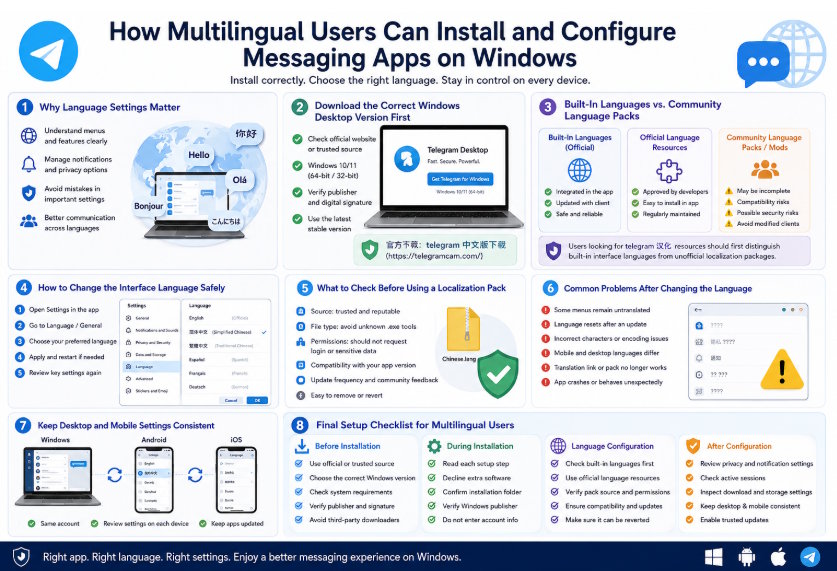
Messaging apps are used by people who communicate across different countries, languages, and devices. Although many applications support multiple interface languages, users may still encounter an English-only setup screen, incomplete translations, regional download pages, or unofficial language resources.
For multilingual users, the installation process should follow a clear order. First, confirm that the correct Windows desktop application has been downloaded. Next, check whether the required language is available through the application’s built-in settings. Only after those steps should users consider external localization resources.
This order matters because interface language and software authenticity are separate issues. A translated interface does not prove that an installer is legitimate, and an unofficial modified client may create privacy or account-security risks even if it provides a familiar language.
Why Messaging App Language Settings Matter
Language settings affect more than the names of menus and buttons. They can influence how accurately users understand privacy controls, notification options, login warnings, device sessions, file permissions, and security prompts.
A user who does not fully understand the interface may accidentally:
- Enable automatic media downloads
- Allow access to contacts or local files
- Ignore an account-security warning
- Misconfigure notification settings
- Open an unfamiliar device session
- Change privacy settings unintentionally
- Approve a request from an unknown source
A properly localized interface can make the application easier to use, especially for people who frequently manage group chats, files, voice calls, and multi-device sessions.
However, language support may differ between platforms. The Windows desktop edition may offer a different list of languages from the Android or iOS version. A translation may also be available on one device before it appears on another.
Users should therefore treat language configuration as a device-specific task rather than assuming that one setting automatically synchronizes everywhere.
Download the Correct Windows Desktop Version First
Before changing the interface language, users should make sure they have installed the correct Windows desktop version.
A product may offer several options:
- Windows desktop installer
- Microsoft Store version
- Browser-based web application
- Android mobile application
- iOS mobile application
- Portable edition
- Community-developed client
- Archived installer
Users researching telegram 中文版下载 should first distinguish the official Windows desktop application from browser shortcuts, mobile packages, and unofficial modified clients.
Before downloading, verify:
- The domain or distribution page
- The supported Windows version
- Whether the installer is intended for 32-bit or 64-bit systems
- The publisher shown by Windows
- The file type, such as EXE or MSI
- The installer version and update date
- Whether a Microsoft Store edition is also available
- Whether the download requires an unrelated download manager
After downloading the installer, right-click the file and open Properties. Review the product name, publisher, version information, and digital signature when available.
When the installer is launched, Windows User Account Control may display the verified publisher. If the publisher is unknown or does not match the expected product, stop the installation and investigate the source.
Language configuration should never be used to justify installing an unverified package. The correct approach is to confirm the application first and configure its interface second.
Built-In Language Options Versus Community Language Packs
Messaging applications may provide language support in several ways.
Built-in language options
Built-in languages are included directly in the application. They can normally be selected from the language or appearance settings without downloading an additional file.
This is generally the safest option because:
- The translation is delivered through the application
- It is updated together with the client
- It does not require a separate installer
- It usually does not request additional permissions
- It is less likely to conflict with future updates
Officially supported downloadable language resources
Some applications allow language files or translation packs to be added through an official in-app mechanism. These resources may be maintained separately but still use the application’s approved localization system.
Users should confirm that the language resource is opened and applied through the genuine client rather than through an unrelated executable file.
Community language packs
Community translations may help when a language is unavailable or incomplete. Their quality and safety can vary.
Users looking for telegram 汉化 resources should first distinguish built-in interface languages from unofficial localization packages. A translation link that changes text labels through an approved in-app process is different from a modified Windows installer that replaces the original client.
Modified clients
A modified client may include translated menus, additional functions, custom themes, removed limitations, or altered privacy controls. These versions can also change how credentials, messages, files, updates, or verification codes are handled.
Users should avoid assuming that a client is trustworthy simply because it offers a complete Chinese interface.
How to Change the Interface Language Safely
The exact menu names may change as applications are updated, but the general process is similar across many Windows messaging clients.
- Open the installed desktop application.
- Go to the main settings area.
- Look for a section related to language, interface, appearance, or general preferences.
- Review the list of built-in languages.
- Select the required language.
- Allow the interface to refresh or restart if necessary.
- Reopen important settings to confirm that the translation is applied correctly.
Users should prefer language controls that are already available inside the application.
If the required language is not listed, check whether the application provides an official translation page, approved language link, or supported localization mechanism. Do not download a separate executable file merely to change menu text unless its source and purpose are fully verified.
After changing the language, review:
- Privacy settings
- Notification controls
- Active device sessions
- Automatic file downloads
- Storage settings
- Call permissions
- Account-security options
This confirms that the translated labels correspond to the expected functions.
What to Check Before Using a Localization Pack
A localization pack should be evaluated with the same caution as any other software-related resource.
Source
Check who published the translation. Prefer resources distributed through the application, official support pages, or a recognized translation system.
Be cautious with files shared through anonymous forums, file-hosting services, shortened links, or advertising pages.
File type
A simple language resource should not normally require an unrelated Windows installer, administrator permission, browser extension, or system-cleaning utility.
An EXE file that claims only to change interface text deserves additional scrutiny.
Permissions
A language resource should not need access to contacts, messages, account passwords, verification codes, or personal documents.
If a localization tool requests login credentials or asks the user to disable security software, it should not be used.
Version compatibility
Translations may be designed for a particular application release. An older language pack may create missing labels, incorrect menu names, or interface errors after the desktop client is updated.
Update frequency
Check whether the resource is actively maintained. Messaging applications change frequently, and outdated translations may no longer match the current interface.
Login or authorization requirements
Users should be cautious when a translation website requests account authorization. Language configuration should not normally require users to provide passwords or one-time verification codes to an external page.
Removal process
A safe localization resource should be reversible. Users should understand how to return to the original interface language or remove the language pack if it causes problems.
Common Problems After Changing the Language
Some menus remain untranslated
A translation may not include recently added features. Switching to another supported language and checking for application updates may resolve the issue.
The language changes after an update
A desktop update may reset interface settings or replace an older localization file. Recheck the built-in language menu before reinstalling any external resource.
Characters display incorrectly
Boxes, symbols, or broken characters may appear when the system lacks the required fonts or when an outdated translation uses incompatible encoding. Updating Windows, the messaging app, and the language resource may help.
Menu instructions no longer match
Online tutorials may show older menu names or button locations. Users should focus on the function being described rather than expecting every label to remain identical.
The mobile and desktop interfaces use different languages
Language settings may be saved locally on each device. Changing the Windows interface may not change the Android or iOS version.
The translation link no longer works
Community resources can be removed, renamed, or abandoned. Do not search randomly for replacement files without confirming their source.
The application behaves unexpectedly
Crashes, login errors, unknown advertisements, or unusual permission requests may indicate a problem with an unofficial client rather than the translation itself.
In that situation, users should back up necessary data, remove the suspicious version, and reinstall a verified desktop client.
How to Keep Desktop and Mobile Language Settings Consistent
Windows, Android, and iOS applications may store language preferences independently. Multilingual users should review each device separately.
A practical approach is to:
- Install verified versions on every platform.
- Open the language settings on each device.
- Select the preferred interface language.
- Compare privacy and notification settings.
- Check that device names and active sessions are familiar.
- Confirm that automatic downloads are configured appropriately.
- Keep every client updated through a trusted source.
The wording of settings may differ between platforms even when the same language is selected. Mobile applications may also follow the phone’s system language, while the Windows client may use its own independent preference.
Users should not attempt to force consistency by installing unofficial modified versions. It is safer to accept small translation differences than to introduce an unverified client into the account.
Final Setup Checklist for Multilingual Users
Before installation
- Confirm the official or trusted download source
- Select the Windows desktop version
- Check system compatibility
- Review the publisher and digital signature
- Avoid third-party download managers
- Do not install modified clients solely for language support
During installation
- Read each setup screen
- Decline unrelated software
- Review the installation directory
- Confirm the Windows publisher
- Avoid entering account credentials into the installer
When changing the language
- Check built-in language options first
- Prefer approved in-app localization methods
- Verify community translation sources
- Avoid executable language tools with unclear permissions
- Confirm version compatibility
- Make sure the change can be reversed
After configuration
- Review privacy settings
- Check notifications
- Confirm active device sessions
- Inspect automatic media downloads
- Compare desktop and mobile settings
- Enable trusted updates
- Remove any suspicious localization files or applications
Final Thoughts
A multilingual messaging setup should begin with a verified Windows client, not with a third-party translation package. Once the correct desktop application has been installed, users should check the built-in language options and use approved localization methods whenever possible.
Community translations can be useful, but their source, permissions, compatibility, and update history should be reviewed carefully. Modified clients and executable “language tools” introduce risks that are not justified simply by a more complete translation.
By separating software verification from language configuration, multilingual users can create a clearer and more secure messaging environment across Windows, Android, and iOS.
Page

