
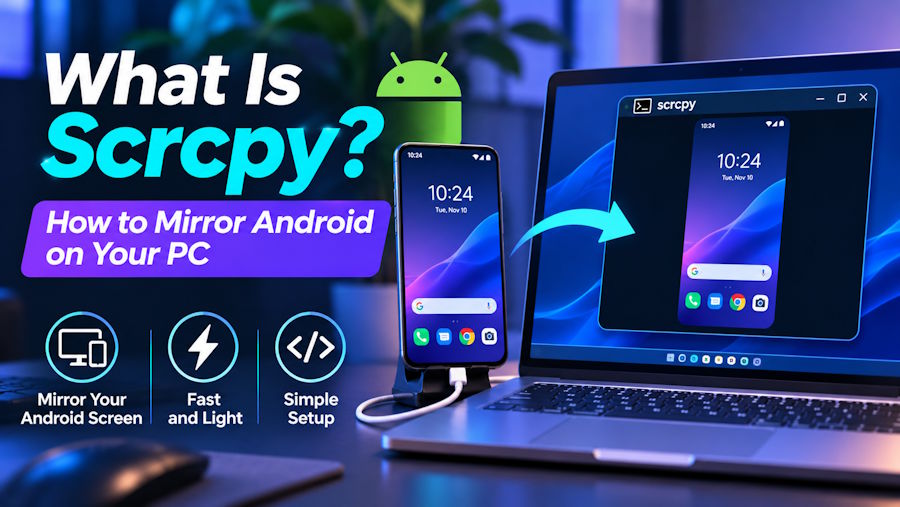
Your phone holds half your working life: messages, two-factor codes, apps that have no desktop version. Yet every time you need it, you have to pick it up, unlock it, and break your focus. Scrcpy fixes that. It puts your Android screen in a window on your computer and lets you use it with your own keyboard and mouse.
This guide explains what scrcpy is, how it works under the hood, what you need to run it, and the handful of commands that cover most people's needs.
What is scrcpy?
Scrcpy (pronounced "screen copy") is a free, open-source program that mirrors an Android device's screen and audio to a Windows, macOS or Linux computer. You can then type, click, scroll and drag on your phone from the desktop as if it were just another app window.
It was written by Romain Vimont at Genymobile, the company behind the Genymotion Android emulator, and first released in March 2018. The name is a programmer's joke: the C function strcpy copies a string, so scrcpy copies a screen.
A few things set it apart from the screen-mirroring apps you find in the Play Store:
- No root required. It works on a normal, unmodified phone.
- Nothing stays on the phone. A small server is pushed to the device when you connect and removed when you stop.
- No account, no ads, no internet. Everything happens between your phone and your computer.
- It is fast. The project quotes 30 to 120 fps depending on the device, 1920×1080 or higher quality, and latency of roughly 35 to 70 ms.
- It is open source, released under the Apache 2.0 licence.
One thing to be clear about: scrcpy is not an emulator. It does not run Android on your computer. It shows and controls a real Android device that you have connected.
How scrcpy works
You don't need to understand the internals to use it, but knowing the basics helps when something goes wrong.
Scrcpy uses ADB (Android Debug Bridge), the standard tool Android developers use to talk to devices. When you run scrcpy, it uses ADB to copy a small server program onto your phone and start it. That server captures the screen, encodes it as compressed video (H.264 by default, with H.265 and AV1 as options), and streams it back to your computer. The desktop client decodes the video and shows it in a window.
Control works in the other direction. The client captures your keyboard and mouse input, sends it to the server, and the server injects it into the phone. Because the video is compressed and the connection is direct, the delay is low enough that typing and scrolling feel natural.
What you need before you start
The requirements are modest:
- An Android device running Android 5.0 (API 21) or newer.
- Android 11 or newer if you want audio forwarding. On older versions you get video only.
- USB debugging enabled on the phone. Open Settings → About phone and tap Build number seven times to unlock Developer options, then switch on USB debugging inside Developer options.
- A computer running Windows, macOS or Linux.
- A USB cable for the first connection. You can go wireless afterwards.
On some phones, particularly Xiaomi devices, you also need to enable a second setting called USB debugging (Security settings) before keyboard and mouse input will work. Reboot the phone once after turning it on.
Installing scrcpy
Installation depends on your operating system. If you want screenshots and a more detailed walk-through for your platform, SCRCPY has setup guides covering Windows and Mac, including how to get ADB working. Whatever guide you follow, take the program itself from the official Genymobile/scrcpy GitHub releases page, since that is the only official source.
Windows. Download the scrcpy-win64 zip file from the releases page and extract it. The archive already includes ADB, so there's nothing else to install. Double-click scrcpy.exe, or open a terminal in that folder and type scrcpy. You can also install it with winget install --exact Genymobile.scrcpy or with Scoop.
macOS. The easiest route is Homebrew:
brew install scrcpybrew install --cask android-platform-toolsThe second line installs ADB. Prebuilt macOS archives for both Intel and Apple Silicon are also available on the releases page.
Linux. Most distributions package scrcpy (sudo apt install scrcpy on Debian and Ubuntu), but distribution packages often lag behind. For the newest version, use the prebuilt Linux tarball from the releases page or build it from source.
Running scrcpy for the first time
- Connect your phone to the computer with a USB cable.
- Unlock the phone. A prompt asks whether to allow USB debugging from this computer. Tick Always allow and tap Allow.
- On the computer, run scrcpy.
Within about a second, a window opens showing your phone's screen. Click to tap, scroll to swipe, and type with your keyboard. That's the whole setup.
If nothing happens, run adb devices in a terminal. If your phone isn't listed, or shows as "unauthorized", the problem is the ADB connection rather than scrcpy. Check the cable, accept the prompt on the phone, and try a different USB port.
Going wireless
Once the wired connection works, you can drop the cable. There are two common ways.
The quick way (any Android version). With the phone plugged in and on the same Wi-Fi network as your computer, run:
scrcpy --tcpipScrcpy finds the phone's IP address, switches ADB to wireless mode and reconnects. Unplug the cable and keep working. If you already know the IP address, use scrcpy --tcpip=192.168.1.20 (with your phone's address).
The fully wireless way (Android 11 and newer). Open Developer options → Wireless debugging, turn it on, and choose Pair device with pairing code. On the computer, run adb pair IP:PORT with the address and code shown on the phone, then adb connect IP:PORT using the address on the main Wireless debugging screen. After that, scrcpy connects with no cable at all.
Wi-Fi has less bandwidth than USB, so if the picture stutters, lower the quality:
scrcpy --video-bit-rate=2M --max-size=1024Useful scrcpy commands
Scrcpy has a lot of options, but most people only ever need a few of them. These are the ones worth remembering:
| What you want | Command |
|---|---|
| Limit the window resolution (helps performance) | scrcpy --max-size=1024 |
| Cap the frame rate | scrcpy --max-fps=30 |
| Use H.265 for better quality at the same bitrate | scrcpy --video-codec=h265 |
| Record the screen to a file | scrcpy --record=file.mp4 |
| Mirror without sound | scrcpy --no-audio |
| Keep the phone screen off while you control it | scrcpy --turn-screen-off |
| Keep the phone awake while plugged in | scrcpy --stay-awake |
| View only, no control | scrcpy --no-control |
| Pick one device when several are connected | scrcpy -s SERIAL |
| Use the phone's camera instead of its screen | scrcpy --video-source=camera |
| Control the phone like a physical keyboard and mouse, without USB debugging | scrcpy --otg |
You can combine options. For example, scrcpy --video-codec=h265 --max-size=1920 --max-fps=60 --no-audio gives a sharp, smooth picture without audio.
To see every option, run scrcpy --help.
Keyboard shortcuts and handy tricks
Scrcpy uses a modifier key, called MOD, for its shortcuts. By default that's left Alt or left Super (the Windows or Command key). A few you'll use often:
- MOD + h: Home
- MOD + b or right-click: Back
- MOD + s: Recent apps
- MOD + f or F11: Toggle fullscreen
- MOD + o: Turn the phone's screen off while mirroring continues
- MOD + r: Rotate the screen
Two features save a surprising amount of time. Drag an APK file onto the scrcpy window and it installs on the phone. Drag any other file onto the window and it's copied to the phone's Download folder. The clipboard is also shared in both directions, so you can copy a link on your computer and paste it on your phone, or the reverse.
What people use scrcpy for
- Replying to messages from your desk. WhatsApp, Signal, SMS and any other app, typed on a real keyboard.
- App development and testing. Developers keep a real device on screen next to their code, and record bug reproductions as video.
- Presentations and tutorials. Share your phone screen in a video call, or record a clean demo without filming the phone with a camera.
- Using a phone with a broken screen. If the display is cracked but the phone still works and USB debugging was enabled, scrcpy lets you reach your data and apps.
- A webcam replacement. The camera source option turns the phone's camera into a high-quality video feed, and on Linux it can appear as a webcam.
- Mobile gaming on a bigger screen, with keyboard, mouse and gamepad support.
What's new in scrcpy 4.0
Scrcpy 4.0, released in May 2026, is the biggest update in some time. The main change is a move from SDL2 to SDL3, the library that draws the window and handles input. This brings ongoing maintenance and enables new features such as locking the aspect ratio when you resize the window. The release also adds flex display support, a configurable background colour, a "disconnected" icon so a dropped connection no longer looks like a crash, and a fix for high CPU usage during silent audio. F11 now toggles fullscreen, and MOD + q quits.
These build on earlier milestones: version 2.0 (March 2023) added audio forwarding, and the 3.x releases added virtual displays and more camera controls.
Common problems and quick fixes
- "Device not found" or "unauthorized": run
adb devices, unlock the phone and accept the debugging prompt. Revoke USB debugging authorisations in Developer options and reconnect if the prompt never appears. - Mouse and keyboard don't work: enable USB debugging (Security settings) on Xiaomi and similar phones, then reboot.
- No sound: audio forwarding needs Android 11 or newer. On Android 11 itself, the phone must be unlocked when scrcpy starts.
- Lag or stutter: reduce
--max-sizeand--video-bit-rate, use a shorter USB cable, and avoid USB hubs. - Wireless connection drops: keep both devices on the same Wi-Fi network, ideally on 5 GHz, and reconnect with
adb connect.
Is scrcpy safe?
Yes, as long as you get it from the official source. The code is public, the project is actively maintained, and nothing is sent to any outside server. The main risk is copycat downloads: some sites bundle modified builds or adware under the scrcpy name. Download from the Genymobile GitHub releases page or your operating system's trusted package manager, and you'll get the genuine program.
It's also worth remembering that USB debugging gives a connected computer a lot of access to your phone. Only accept the debugging prompt on computers you trust, and turn USB debugging off when you no longer need it.
Frequently asked questions
Is scrcpy free?
Yes. It's free and open source, with no paid tier, ads or account.
Does scrcpy work with iPhone?
No. Scrcpy relies on ADB, which only exists on Android.
Do I need to root my phone?
No. Scrcpy works on standard, unrooted Android devices.
Can I use scrcpy without a USB cable?
Yes. After a one-time USB setup, or by pairing through Wireless debugging on Android 11 and newer, scrcpy works over Wi-Fi.
Can I mirror more than one phone at a time?
Yes. Run a separate scrcpy instance for each device and pick each one with -s followed by its serial number or IP address.
Is there a version with buttons instead of commands?
Scrcpy itself is mostly command-line, though you can just double-click it to start with default settings. Community projects such as QtScrcpy and guiscrcpy add graphical interfaces on top.
Conclusion
Scrcpy does one job and does it well. It's light, fast, free, and leaves nothing behind on your phone. Whether you want to answer messages without reaching for your phone, test an app on real hardware, or record a clean demo, it takes about five minutes to set up and quickly becomes part of your daily workflow. Plug in your phone, type scrcpy, and see for yourself.