
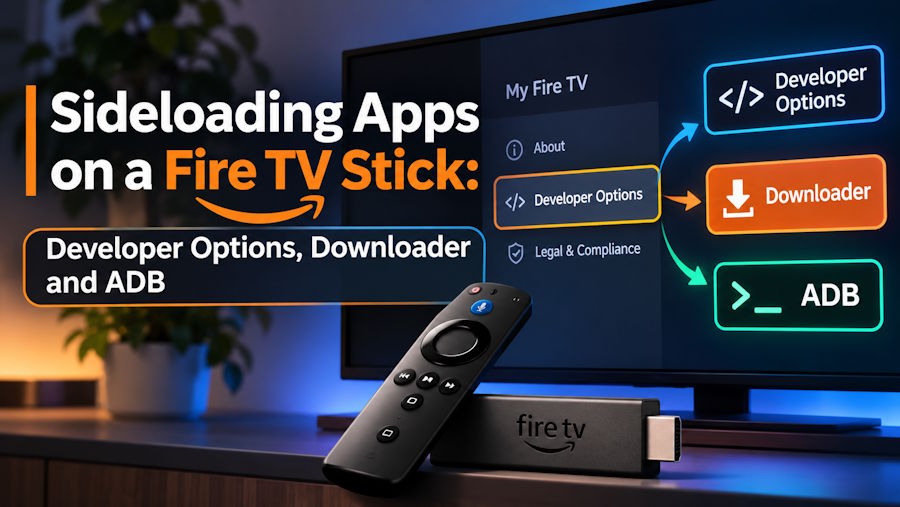
The Fire TV Stick runs Fire OS, a fork of Android, which means you can install Android apps that are not in the Amazon Appstore. This is called sideloading. It is useful for developers testing their own builds and for users who need an app that Amazon does not list. This guide covers the two common methods: the on-device Downloader app and ADB from a computer.
Before you start
Only install apps from sources you trust. A sideloaded app has the same access to your device as any other app, and an APK from an unknown website can contain unwanted software. Check the publisher, compare checksums when they are provided, and keep your Fire TV software up to date.
Step 1: Enable developer options
On the Fire TV, open Settings, then My Fire TV, then About. Select the name of your device several times (usually seven) until a message says that you are now a developer. Go back, and the Developer options menu appears in My Fire TV.
Step 2: Allow installation from unknown sources
Open Developer options and enable Apps from Unknown Sources. On newer versions of Fire OS you may be asked to allow this per app, for example for the Downloader app. Only enable it for apps you actually need and consider switching it off afterwards.
Verify the file first
When the publisher provides a checksum, compare it with the one of your download. On Linux or macOS run sha256sum app.apk, and in Windows PowerShell run Get-FileHash app.apk. If the values differ, do not install the file. It may be corrupted or modified.
Method A: Install with Downloader
Install the Downloader app from the Amazon Appstore. Open it, allow the file access it asks for, and enter the direct URL of the APK. Downloader fetches the file and offers to install it. After installation you can delete the APK to save space. This method needs no computer, which makes it the easiest option for most people.
Method B: Install with ADB
ADB (Android Debug Bridge) installs apps from a computer on the same network. In Developer options, switch on ADB debugging and note the IP address of the Fire TV (under Settings, My Fire TV, About, Network). Then, with the Android platform tools installed on your computer:
adb connect 192.168.1.50:5555
adb install app.apk
Replace the IP address with the one of your device and app.apk with the path of your file. The first connection asks you to confirm the computer on the Fire TV screen. To list installed packages use adb shell pm list packages, and to remove an app use adb uninstall package.name.
Troubleshooting
- If ADB cannot connect, check that ADB debugging is on and that both devices are on the same network.
- If an app crashes, it may be built for a different architecture or Android version than your Fire TV supports.
- Low storage can block installations. Remove unused apps and cached data first.
Set up the rest of the device
Once the app is installed you still need to configure it and sign in to whichever service you use. A Dutch-language Fire TV Stick setup guide walks through the on-device steps in detail.
The Dutch-language site IPTV Nederland Abo publishes similar setup guides for other devices, including smart TVs and set-top boxes.
Done carefully, sideloading is a safe and flexible way to get more from an inexpensive device.