
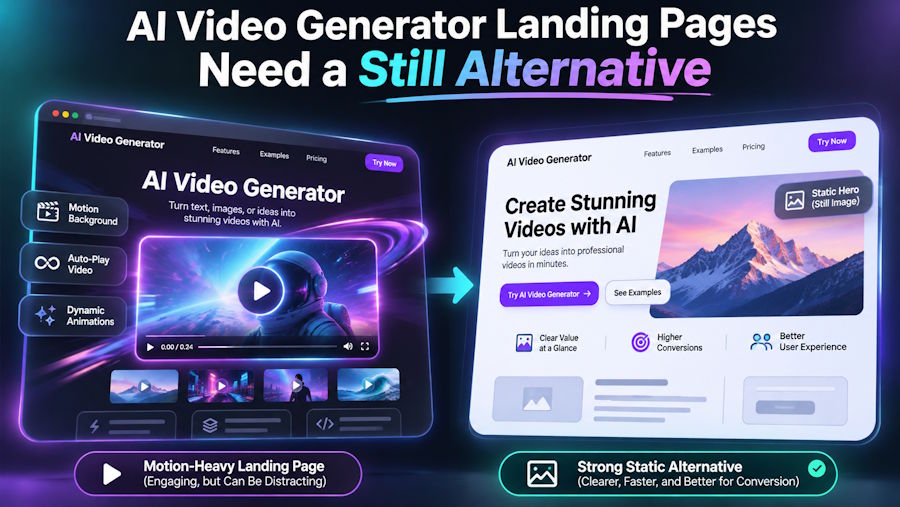
The landing page opens with an empty rectangle where the hero video will appear. The headline promises a clear introduction, but the visual explanation is waiting for a file to load. When the clip finally starts, the page has already asked the visitor to be patient with its most prominent space.
A generated hero video should be designed alongside the page's nonmoving presentation. MakeShot can help create a motion candidate, while the website team decides what appears before playback and when visitors prefer less movement. Those are parts of the same visual brief, even though they are implemented in different tools.
Define What the Page Must Communicate Without Playback
Write down the visual's job before deciding how it should move. An abstract scene might establish mood; a product illustration might show what category the service belongs to. The key question is what remains when the scene is still. If the page only becomes understandable after a dramatic transformation, its opening state may be carrying too little information.
Consider a hypothetical site for a collaborative planning tool. A calm arrangement of cards can suggest organized work without pretending to show the real interface. Motion might then bring a few elements together. The still should already support the headline, while the movement adds emphasis. It should not be necessary to wait for an object to assemble before recognizing the basic subject.
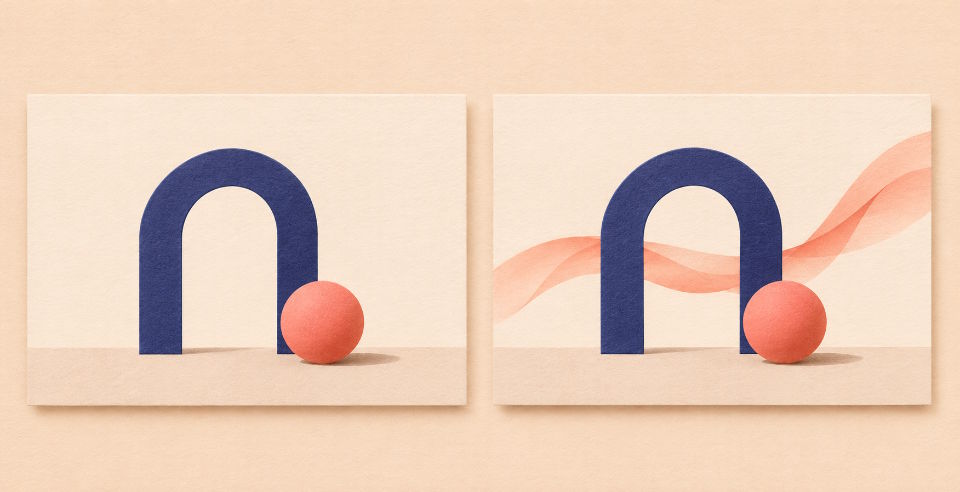
An AI video generator can be used to explore that movement from an approved source image. Choosing a meaningful source gives the web team a starting point for the nonmoving version too. The two assets do not have to be identical, but they should communicate the same idea rather than look like unrelated campaigns occupying the same hero area.
Decide whether the visual contains essential information. If it does, provide that information through the page's content as well. A decorative motion sequence and a demonstration needed to understand the product have different requirements. Calling something a hero background does not make its information optional if the rest of the page depends on what it shows.
Prepare a Still and a Clip as Paired Assets
MakeShot's source-led motion workflow lets a team describe the movement it wants to explore. Keep the request connected to the already approved visual job. A slight shift in an abstract arrangement may be enough. A sweeping camera move can introduce a new scene and make it harder to choose a representative still that matches the original composition.
A video AI generator output is a media asset, not a completed web implementation. Select the still separately and give it to the developer with the clip. Do not assume that the generator supplies a webpage fallback, browser preference handling or a finished video component. Those decisions belong to the site being built.
HTML video supports a poster image that can be displayed while the video downloads. That gives the team an explicit image to design rather than relying on whichever frame becomes available first. Choose a poster that looks intentional beside the headline. A halfway transformation or a dark transition frame is rarely a good introduction simply because it can be extracted from the clip.
Keep the crop and apparent scale coherent between the still and the video. If a large object jumps to a different position when playback begins, the transition can distract from the page even when both assets look good separately. Review the actual start of playback in the layout, including any overlay text, rather than comparing files in separate preview windows.
Check that the still does not resemble an interactive control that the page cannot operate. An illustrated button inside a scene can invite a click even when it is only part of the picture. If the site has a real action nearby, make its relationship to the visual clear and keep the actionable content in the page itself.
Give the still its own quality check. A frame that works during motion may contain blur or an incomplete shape that becomes conspicuous when held. The nonmoving version is a real deliverable that may remain visible for an entire visit. Approve it for that role instead of treating it as a temporary placeholder for the more important clip.
Test Loading and Motion Preferences in the Actual Page
A device's reduced-motion preference can be detected through the web's prefers-reduced-motion media feature. It communicates a preference for reducing nonessential motion. It does not automatically rewrite every video on a site into a suitable still presentation. The developer needs to decide how the page responds and test the resulting behavior.
For a decorative hero, the team might choose the approved still when reduced motion is requested and make playback an explicit choice. The right implementation depends on the page and its content. The useful editorial requirement is that the visitor should retain the message and the next action without having to watch an animation to reveal them.
Test the page before the video is ready as well. Use a realistic slower-loading condition in the browser tools or the team's normal testing setup and observe what appears. The result should be judged in the actual layout, not inferred from the existence of a poster file in a project folder. Confirm that the approved image appears in the intended hero region during the loading trial.
Also examine the point at which movement begins. The headline, button and other important content should remain readable. A clip that repeatedly passes a bright object beneath text may need another composition or a more restrained treatment. The web team should not be forced to hide half the visual with an opaque overlay to repair a brief that never considered the page.
If playback can be started, paused or stopped, check what visitors see in those states. A pause in the middle should not expose a confusing image that looks like a broken component. Decide whether a held frame is acceptable or whether the approved still should return when movement is stopped. That is a product decision to implement and verify, not a feature to assume.
Review the handover with the developer and designer together. They should know which image is the poster, which is the nonmoving alternative and whether those happen to be the same asset. Record the intended behavior in ordinary language so an implementation change does not silently remove the fallback during a later redesign.
Ship the Visual Message With a Playback Choice
Approve the hero as both a still presentation and a moving one. The page should introduce itself coherently before playback and remain useful when the visitor chooses less motion. Test those states in the finished layout.
MakeShot can help supply the creative motion while the website team controls how that motion is delivered. Treat the still as part of the design from the first brief. Recheck the headline, visual and next action with playback stopped.