

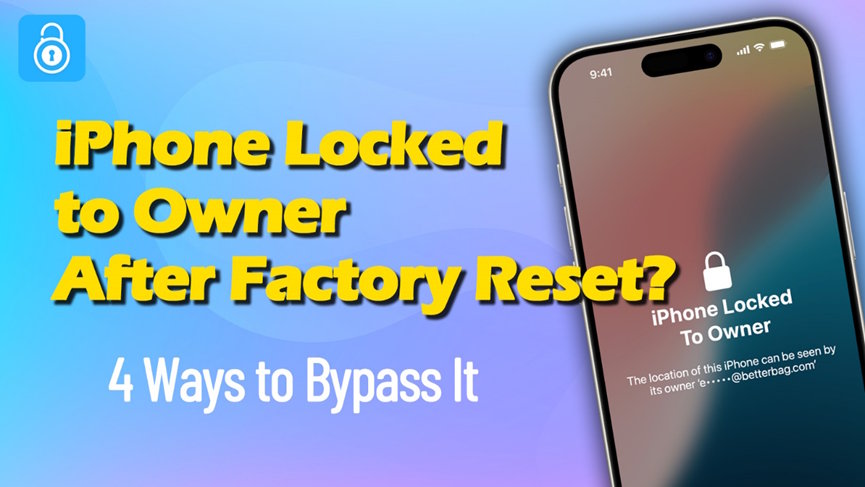
After performing a factory reset, your iPhone should start fresh like a new device. But many users are surprised to see a message that says “iPhone Locked to Owner” on the activation screen. This issue is related to Apple’s Activation Lock, a security feature designed to protect devices from unauthorized use.
If you bought a second-hand iPhone, forgot your Apple ID credentials, or reset your device without signing out of iCloud, you may get stuck. Don’t worry. This guide explains why your iPhone is locked to the owner and introduces four effective ways to bypass Activation Lock, including a professional solution using TunesKit iPhone Unlocker.
Why Is My iPhone Locked to Owner After Factory Reset?
The “Locked to Owner” screen appears usually when Find My iPhone is still enabled and the device is linked to an Apple ID. Here are the most common reasons:
- The Previous Owner Didn’t Remove Their Apple ID
If you purchased a used iPhone and the previous owner forgot to sign out of iCloud, the device remains tied to their account.
- You Reset the iPhone Without Signing Out of iCloud
If you factory reset the device through Settings or Recovery Mode while still logged into iCloud, Activation Lock will be triggered.
- Forgotten Apple ID or Password
If you don’t remember your Apple ID credentials, you won’t be able to activate the device after the reset.
- Find My iPhone Was Enabled Before Reset
Activation Lock is automatically activated when Find My iPhone is turned on. After reset, Apple requires the original account to verify ownership.
How to Bypass iPhone Locked to Owner After Factory Reset
Method 1. Bypass iPhone Locked to Owner with TunesKit iPhone Unlocker
If you cannot contact the previous owner or don’t remember your Apple ID, TunesKit iPhone Unlocker is the easiest and most reliable solutions. This professional tool helps remove various iPhone locks without passcode, including Activation Lock, screen time lock, and iPhone passcode not working.
How to Use TunesKit iPhone Unlocker:
Step 1. Connect Your Device to TunesKit
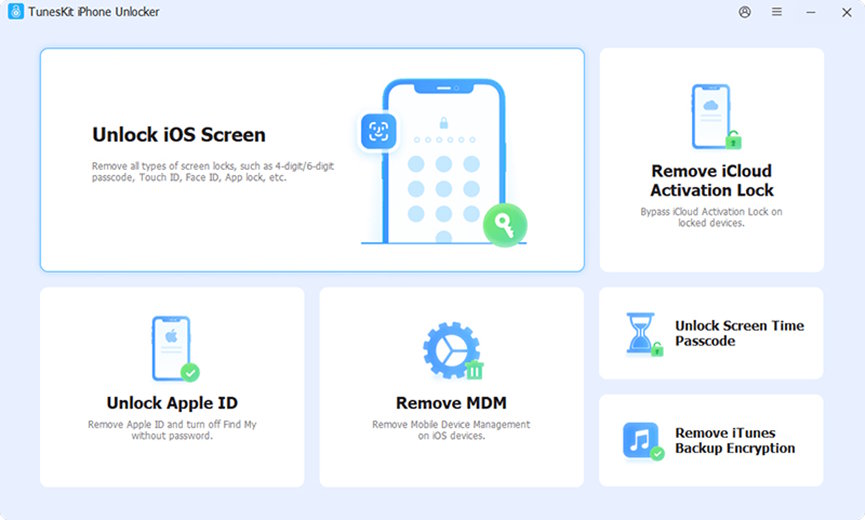
Download and install TunesKit iPhone Unlocker on your Windows or Mac computer. Launch the program and connect your iPhone using a USB cable. Once the device is detected, choose Remove iCloud Activation Lock from the main interface.
Step 2. Jailbreak Your iPhone
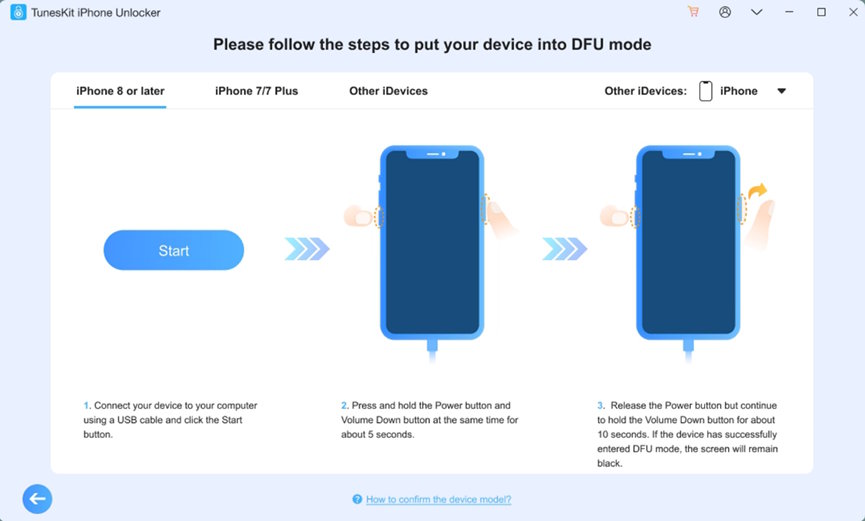
Click Start. Follow the step-by-step guide provided by the software to put your device into DFU mode. After entering DFU mode successfully, TunesKit will begin the jailbreak process automatically. This step is necessary to enable the system to bypass the Activation Lock smoothly.
Step 3. Start Removal and Set Up Your Device
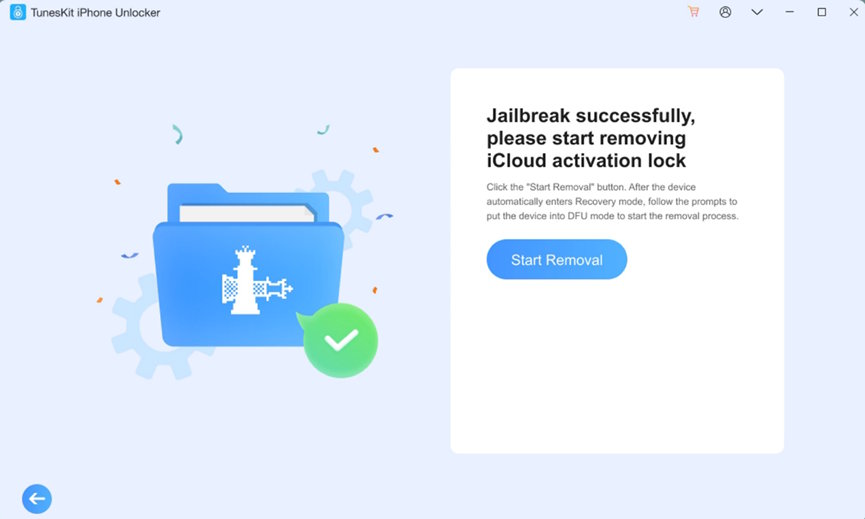
After the jailbreak is completed, click Start Removal. TunesKit will begin bypassing the iCloud Activation Lock. Wait until the process finishes and the device restarts. You can then set up your iPhone and use it without the previous Apple ID.
Method 2. Ask the Previous Owner to Remove the Device from iCloud
If you bought a second-hand iPhone, the most simple way is to ask the original owner to remove the device from their account.
Option A: Remove Directly on the Device
- Ask the owner to enter their Apple ID and password on the activation screen.
- Once unlocked, go to Settings > [Apple ID] > Sign Out.
- After signing out, reset the device again.
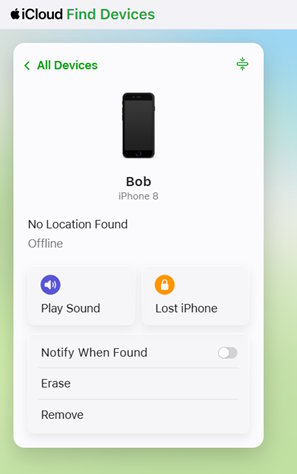
Option B: Remove Remotely via iCloud
If the owner is not nearby:
- Ask them to visit iCloud.com and sign in.
- Go to Find Devices.
- Select the iPhone from the device list.
- Click Remove to remove the device from his Apple account.
After removal, restart the iPhone and complete the setup normally.
Method 3. Recover Apple ID Password via Apple Official Website
If the device belongs to you but you forgot the Apple ID password, you can reset it through Apple’s official account recovery process.
Steps to Reset Apple ID Password:
- Go to iforgot.apple.com.
- Enter your Apple ID email address.
- Follow the instructions to verify your identity.
- Reset your password.
- Return to the iPhone activation screen and sign in with the new password.
This method is safe and recommended if you still have access to your registered email or phone number.
Method 4. Contact Apple Support with Proof of Purchase
If you are the legitimate owner and cannot recover the account, Apple may help remove Activation Lock.
What You Need:
- Original purchase receipt or invoice
- Serial number or IMEI of the device
- Valid ID (if requested)
Steps:
- Visit the Apple Support website or an Apple Store.
- Explain that your iPhone is locked to the owner.
- Provide proof of purchase.
- Apple will review your request and may remove the Activation Lock if ownership is verified.
Keep in mind that Apple will not unlock devices without valid proof.
Tips to Avoid iPhone Locked to Owner in the Future
- Always sign out of iCloud before factory resetting your iPhone.
- When buying a used device, make sure it is already activated and not linked to another Apple ID.
- Ask the seller to remove the device from their iCloud account in front of you.
- Keep your Apple ID and password stored securely.
Final Thoughts
Seeing “iPhone Locked to Owner” after a factory reset can be frustrating, especially if you cannot access the original Apple ID. Fortunately, there are several ways to solve this problem. TunesKit iPhone Unlocker offers a fast and easy bypass solution. By choosing the method that fits your situation, you can regain access to your iPhone and start using it normally again.

