

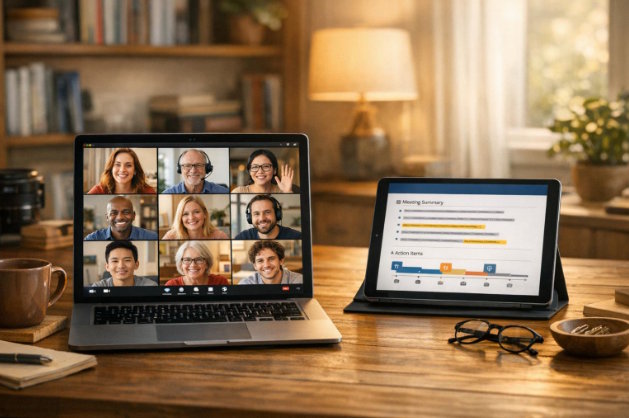
You need to record a Zoom meeting, but you want more than just an audio file. You want a transcript, a summary, and maybe even slides from the conversation. The best way to do this is with a third-party AI recorder. It connects to Zoom, captures everything, and turns the conversation into useful documents automatically.
In this guide, you'll learn exactly how to set up an AI recorder for Zoom. We'll compare Zoom's own recording to what AI tools add, walk you through the setup steps, and review top options like Notta and Otter. By the end, you'll know how to get a full written record and actionable insights from every meeting without lifting a finger.
Why You Need More Than Zoom's Built-In Recording
Zoom's cloud or local recording is a start. It gives you an MP4 video file. But then what? You have to watch the whole thing again to find a key point. Someone has to type up notes and action items. It's manual, time-consuming work.
An AI-powered meeting recorder changes that. Think of it as a super-smart assistant that joins your call. It records the audio, but it also listens. In real-time, it can create a live transcript. After the meeting, it generates a concise summary, pulls out decisions and action items, and can even identify who said what.
This is the core benefit: AI turns a passive recording into an active, searchable knowledge base. You can skim a 60-minute meeting in two minutes. You can search for when a specific topic was discussed. You can email a summary to attendees before they've even left the call. It's about reclaiming your time.
What to Look for in an AI Zoom Recorder
Not all AI recorders are the same. Here are the key features that separate the good from the great:
- Accuracy: The transcript is useless if it's wrong. Look for a tool with a stated accuracy rate (98%+ is excellent).
- Speed: How fast after the meeting ends do you get the summary and transcript?
- Speaker Identification: Does it correctly label who is speaking, especially with multiple participants?
- Action Item & Decision Tracking: Can it automatically highlight tasks ("Sarah will send the report by Friday") and key decisions?
- Integration: Does it connect directly to Zoom so you can start recording with one click?
- Post-Meeting AI: This is the new frontier. Can the tool do something with the transcript? The most advanced platforms, like Notta Brain, can create slides, infographics, and reports from the meeting content.
How to Set Up an AI Recorder for Zoom: A Step-by-Step Guide
Setting this up is straightforward. You're essentially giving a trusted app permission to access your Zoom meetings. Follow these steps.
Step 1: Choose Your AI Recording Tool
First, pick your platform. You'll want one built specifically for meetings. For this guide, we'll use Notta as our example, but the process is similar for others like Otter.ai or Fireflies.ai. Sign up for a free account to test it out.
Step 2: Connect the Tool to Your Zoom Account
This is the one-time setup. Inside your Notta dashboard, you'll find an "Integrations" or "Connect" section.
1. Click "Connect" next to the Zoom logo.
2. You'll be redirected to Zoom's official portal to authorize the connection. This is secure and standard.
3. Click "Allow" to grant permissions. Notta will only need access to start meetings on your behalf and read meeting details—it won't touch your personal data.
Step 3: Schedule or Start Your Meeting (The Two Methods)
You have two ways to record with AI:
Method A: Record a Scheduled Meeting
When you schedule a meeting in your Zoom calendar, the connected AI tool will often detect it automatically. In Notta, you can go to your dashboard, see the upcoming meeting, and simply toggle recording "On." The bot (or invisible recording) will join when the meeting starts.
Method B: Record an Instant Meeting
This is for impromptu calls. Simply start your Zoom meeting as normal. Then, open the Notta web app or desktop app and click "Start Recording." It will instantly connect to your live Zoom session and begin capturing.
Step 4: Let the AI Work During the Meeting
Once recording starts, you can forget about it. The tool will:
* Record high-quality audio.
* Generate a live transcript (visible in some tools).
* Identify speakers.
* Bookmark key moments if you trigger it (like saying "Notta, highlight this").
A unique feature with Notta is its Bot-Free Desktop mode. Instead of a bot account joining the call visibly, the Notta app on your Mac or PC records the meeting audio locally. It's completely invisible to other participants and works with any meeting software.
Step 5: Review and Use the AI Outputs
After the meeting ends, the magic happens. Within minutes, you'll have:
* A full, searchable transcript with speaker labels.
* An AI-generated summary of the key points.
* A list of extracted action items.
* A list of key decisions.
With Notta Brain, you go a step further. You can ask it to turn the meeting into deliverables. For example, type "@Brain create a project update slide deck from this meeting." It will analyze the conversation and generate a ready-to-use PowerPoint presentation. You can also ask for infographics, reports, or email drafts. This is where the tool finishes the work for you.
Comparing Top AI Recorders for Zoom
You have several good options. Here’s a quick comparison of the major players to help you choose.
|
Feature |
Notta |
Otter.ai |
Fireflies.ai |
Fathom |
|
Starting Price |
Free ($0/mo) |
$8.33/mo (Pro) |
$10/mo (Pro) |
$16/mo |
|
Zoom Integration |
Yes (Bot & Bot-Free) |
Yes |
Yes |
Yes (Chrome extension) |
|
Transcription Accuracy |
98.86% |
High (not publicly stated) |
High |
High |
|
Real-time Transcript |
Yes |
Yes |
Yes |
Yes |
|
Post-Meeting AI (Slides, Graphics) |
Yes (Notta Brain) |
No (chat only) |
No (chat only) |
No |
|
Key Strength |
Brain creates deliverables; 58 languages; Bot-Free mode |
Strong brand, good mobile app |
Deep CRM integrations |
Simple, free for individuals |
|
Consideration |
Free plan is limited; US market growing |
Higher starting price; AI stops at summary |
Can be complex for simple needs |
No advanced post-meeting AI |
A Deeper Look at Post-Meeting AI:
This is the big differentiator. Most tools stop at a transcript and summary. They have a Q&A feature you can ask questions of. Notta Brain is an AI Meeting Execution Engine. You command it to create things from the meeting content. Need a one-page visual summary for your boss? Ask for an infographic. Have to present the takeaways? Generate slides. It’s designed to eliminate the "what now?" step after you get the transcript.
Making the Most of Your Recordings: Tips & Best Practices
Setting it up is half the battle. Using it effectively is the other half.
- Name Your Recordings Clearly. As soon as the meeting ends, rename the file in your AI app. Use a format like "ProjectX_Review_2024-10-30." Future you will be grateful.
- Share the Summary Immediately. The biggest productivity gain is sharing the AI summary with attendees right after the call. It confirms understanding and gets everyone on the same page instantly.
- Use Search, Don't Re-watch. Got a question about what was said on a topic? Don't scrub through video. Use the search bar in your transcript to find every mention in seconds.
- Turn Meetings into Action. Export the auto-detected action items list and paste it directly into your project tool (like Asana or ClickUp). Assign owners and dates from there.
- Use the Advanced AI. Don't just read the summary. If your tool has it, experiment with commands. Try: "Create a SWOT analysis from this strategy meeting" or "Make a timeline infographic of the project milestones we discussed." You'll be surprised by what it can build.
The Verdict: Which Zoom Meeting Recorder Should You Choose?
Your choice depends on what you need after the "Record" button stops.
- Choose Zoom's built-in recording if you only need a simple archive of the video and have no need for a written record or summaries. It's basic and free on your plan.
- Choose Otter.ai or Fathom if you primarily want a very accurate, searchable transcript and a solid summary. They are excellent, focused transcription engines. Fathom is fantastic if you're a solo user and want a great free tier.
- Choose Fireflies.ai if your meetings are heavily sales or support-focused and you want those conversations logged directly into a CRM like Salesforce or HubSpot.
- Choose a zoom meeting recorder like Notta if you want the transcript and you want the AI to help with the next steps. If the idea of getting a first draft of slides, an infographic, or a formatted report from a meeting sounds like a time-saver, Notta's Brain feature is unique. Its Bot-Free mode is also a clean, invisible way to record, and support for 58 languages is unmatched for global teams.
The Bottom Line: For most professionals, a third-party AI recorder is worth it. It pays for itself in saved hours of note-taking and meeting review. Start with a free plan (Notta offers 120-200 free minutes monthly) and see how it changes your workflow. You might just find you can't run a meeting without it.
Frequently Asked Questions (FAQ)
Is it legal to record a Zoom meeting with AI?
Yes, but you must follow consent laws. In many places (like the U.S.), you are required to inform all participants that the meeting is being recorded and obtain their consent. Most AI recording tools have a feature that plays an audio notification when recording begins.
What's the difference between a transcript and an AI summary?
A transcript is the full, word-for-word text of everything said. An AI summary is a condensed version, created by the AI, that highlights the main topics, decisions, and action items without the filler conversation. You use the transcript for reference and the summary for quick review.
Can Notta Brain really create slides from my meeting?
Yes. Notta Brain can analyze a meeting transcript and generate a draft PowerPoint presentation. You provide a command like "create a project kickoff slide deck," and it will structure the meeting's content into title slides, topic slides, and summary slides that you can then edit and refine.
Do these AI bots work with other platforms like Microsoft Teams?
Yes, all the major AI recorders integrate with multiple platforms. Notta, Otter, and Fireflies all support Zoom, Google Meet, and Microsoft Teams, so you can standardize on one tool for all your video calls.
How secure are AI meeting recordings?
Reputable platforms take security seriously. Look for tools with SOC 2 Type II and ISO 27001 certifications (Notta has both). Your data should be encrypted in transit and at rest. Always check a provider's security page and privacy policy before connecting it to your business meetings.

