

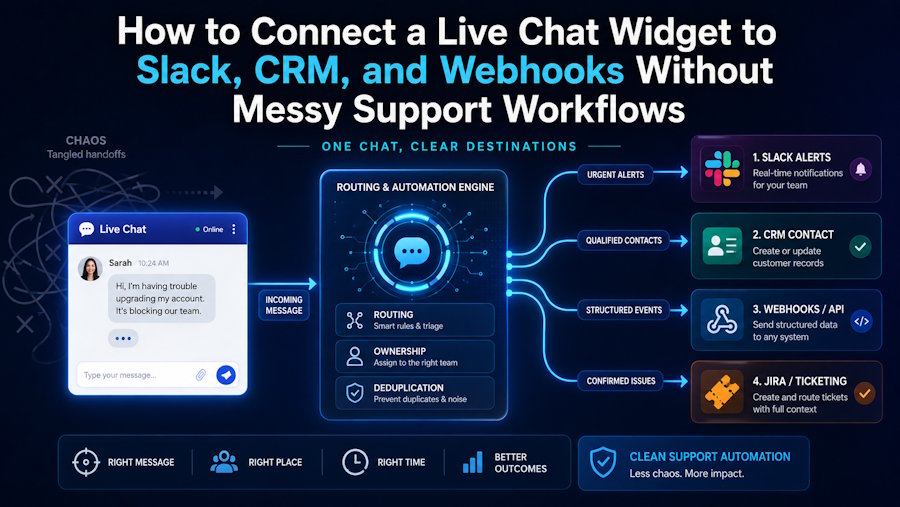
Connecting a live chat widget to Slack, CRM, and webhooks without complicated support workflows can be achieved by handling each chat as a structured event. For instance, you can redirect urgent chats to Slack, store the data of only the qualified contacts in the CRM, and send webhooks just when another system is required to respond. The best live chat software for this setup is the one that gives your team control over routing, fields, ownership, and failed delivery handling before agents see the queue.
Why live chat widget connections break support workflows
A live chat widget looks small on the website, but it touches sales, support, engineering, and operations. The trouble starts when every message goes everywhere. A pricing question lands in Slack, the CRM, Jira, and a shared inbox. Then three people answer, no one owns the final response, and the customer receives mixed follow-ups.
The fix is to decide what each tool should do before connecting anything. Slack should alert people. CRM should store relationship data. Webhooks should move structured events. Ticketing tools should track work that needs accountability. When these borders are clear, your support ticket workflow becomes easier to audit.
|
Destination |
Best use |
Avoid |
|
Slack |
Fast team alerts and triage |
Long-term customer history |
|
CRM |
Contacts, companies, deals, owners |
Temporary bug chatter |
|
Webhooks |
Event handoff to apps and automations |
Human conversation storage |
How to connect a live chat widget to Slack without flooding channels
Slack works best for urgent visibility, not every chat ping. Send alerts only for high-value leads, after-hours issues, angry customers, failed payments, or technical blockers. Begin with one #support-triage channel, then split channels only when message volume proves the team needs more focused routing and clearer ownership during busy hours.
A practical Slack routing setup can look like this:
- Send new urgent chats to #support-triage.
- Add labels such as billing, bug, enterprise, or after-hours.
- Include customer email, page URL, short summary, and assigned owner.
- Suppress repeat alerts from the same visitor within 10 minutes.
- Send resolved chat summaries to the CRM instead of Slack.
That last point matters. Slack is for reaction. CRM is for memory. A best live chat software setup should respect that difference.
How to connect a live chat widget to CRM without duplicates
CRM integration fails when the chat widget creates a new contact for every message. The better pattern is to match first, then write. Use email as the first match field, company domain as a backup, and chat ID as an audit field. When no match exists, create a new contact with only verified data.
Before sending chat data into the CRM, define which fields deserve a permanent place. A long transcript may be useful, but it can crowd the record. A short summary, source page, intent, product interest, owner, and consent status usually give sales and support enough context.
Use these CRM rules:
- Match by email before creating a record.
- Keep one owner field for accountability.
- Store the first page URL and latest chat URL separately.
- Push full transcripts only when they help support or compliance.
- Mark bot-only conversations so sales does not chase weak leads.
Best live chat software comparisons should move beyond widgets and colors. In practice, the best option in a live chat software shortlist is the one that protects CRM data quality after 500, 5,000, or 50,000 conversations.
How webhooks keep live chat widget data moving
Webhooks are the right option when a chat event should trigger a process outside the chat platform. Examples include creating a Jira issue, starting an onboarding checklist, updating a data warehouse, or sending a refund review to finance.
A webhook should send structured fields, not a vague text blob. The receiving system needs enough data to act without guessing. Include event type, chat ID, visitor ID, timestamp, source page, assigned team, status, and a deduplication ID.
|
Event |
Destination |
Owner |
|
chat.new_enterprise_lead |
CRM deal or lead queue |
Sales ops |
|
chat.bug_reported |
Jira issue draft |
Support engineer |
|
chat.refund_requested |
Finance review queue |
Billing support |
The common failure is duplicate processing. A webhook sender may retry after a timeout, even when the receiver already handled the event. To avoid double tickets and double CRM notes, store the event ID and reject repeats after the first successful write.
How to build a cleaner support ticket workflow
A cleaner support ticket workflow begins with one rule: a ticket exists when someone must own a customer outcome. A greeting, a basic FAQ answer, or a bot handoff should not become a ticket. A broken checkout, a missing invoice, a failed login, or a product defect should.
The workflow can follow this path:
- Chat starts on the website.
- Bot or agent captures intent and email.
- Chat widget assigns category and urgency.
- Slack receives an alert only if a human must act soon.
- CRM receives the contact summary after qualification.
- Ticketing system receives the issue only if ownership is required.
- Webhook logs success, retry, or failure.
This removes guesswork from the application support workflow. It also protects engineers from low-quality tickets that lack browser version, device type, account ID, screenshots, or reproduction steps.
Where Jira fits in an application support workflow
Jira should receive work, not raw conversation. If support teams dump all the chat transcripts into Jira, then engineers have to waste time figuring out how to turn the customers' words into concrete tasks. A smart jira support ticket workflow waits with task creation until support has verified the three aspects: the bug can be reproduced, the customer suffering is definite, and the fault is with engineering.
A helpful Jira issue from live chat should include:
- Short problem title.
- Customer impact.
- Steps to reproduce.
- Expected result.
- Actual result.
- Account or environment details.
- Link back to the original chat.
- Support owner for follow-up.
This keeps Jira usable for developers and keeps the customer conversation where it belongs. The support team can still track the chat, while engineering receives a work item that can move through backlog, triage, development, and release.
What went wrong in a messy setup
Here is a common pattern. A company connects chat to Slack first because it feels fast. Then it adds CRM sync because sales wants visibility. Later, engineering asks for Jira issues from support. Finally, operations adds webhooks for reporting. Each step makes sense alone, but no one owns the full route.
The result is a scattered chain:
- Slack receives too many low-value messages.
- CRM stores duplicate contacts.
- Jira fills with vague bug reports.
- Webhooks retry without deduplication.
- Agents do manual cleanup after every busy day.
The better route is to map the event path first and connect tools second. That means every destination has a job, every event has an owner, and every failure has a recovery path.
Live chat widget integration checklist
Before publishing the widget, check the full chain:
- Does every chat event have one clear destination?
- Can the widget suppress repeat Slack alerts?
- Does CRM sync match existing contacts before creating new ones?
- Does every webhook include an event ID?
- Are failed webhook deliveries logged?
- Can support agents see whether CRM, Slack, and ticket sync worked?
- Are Jira issues created from confirmed support cases, not raw chats?
- Does the team know who owns each queue?
If the answer is unclear, the workflow is not ready for scale.
CRM for customer context
Incorporating a live chat widget into Slack, CRM, and webhooks is not simply a matter of tacking on integrations but more of a discussion about deciding which pieces of information belong where. Slack is to be used for generating awareness, CRM for storing the context of the customer, webhooks for the delivery of events, and Jira for the documentation of engineering work that has been confirmed. Once the limits are during completely specified support teams to respond more quickly sales to obtain more accurate records and developers to get tickets that they are actually able to use.
Tab 2

