

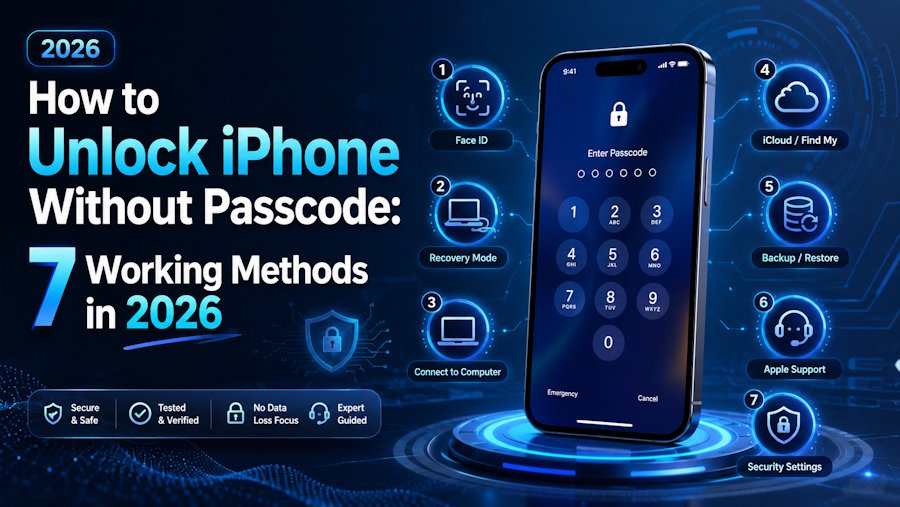
Forgetting your iPhone passcode can be frustrating, especially when you need to access important photos, apps, or files. Whether you forgot your password, entered the wrong passcode too many times, or your iPhone shows “iPhone Unavailable” or “Security Lockout,” you may be searching for how to unlock iPhone without passcode.
Apple takes device security seriously, which means there is no official way to remove a forgotten passcode without erasing the iPhone. However, there are several effective methods to regain access, including Apple’s built-in solutions and professional unlocking tools.
In this guide, we’ll explain 7 working methods to unlock an iPhone without a passcode, including how to reset your iPhone using Apple services, recovery mode, and a simpler unlocking solution.
Things to Know Before Unlocking an iPhone Without Passcode
Before trying any method, it is important to understand how iPhone security works.
When you enter the wrong passcode multiple times, your iPhone may become disabled and display messages like:
- iPhone Unavailable
- Security Lockout
- Try again later
In most cases, unlocking an iPhone without the passcode requires erasing the device. If you have an iCloud or computer backup, you can restore your data after the reset.
If you are wondering how to remove passcode from iPhone without losing data, the answer depends on whether you can still access your device through Face ID, Touch ID, or a previous backup.
[Image: iPhone unavailable screen]
Method 1: Unlock iPhone Using Security Lockout (iOS 15.2 and Later)
Apple introduced a built-in option that allows users to erase a locked iPhone directly from the lock screen.
This method works when your iPhone shows Security Lockout and you still remember your Apple ID password.
Steps:
- On the lock screen, wait until the Security Lockout message appears.
- Tap Forgot Passcode? or Erase iPhone.
- Sign in with your Apple ID password.
- Confirm to erase your iPhone.
- Set up your iPhone again and restore your backup if available.
This is one of the easiest official ways to reset iPhone without password, but all existing data will be removed.
Method 2: Unlock iPhone with Find My iPhone (iCloud)
If Find My iPhone was enabled before your device became locked, you can erase your iPhone remotely through iCloud.
This method is useful if you do not have access to a computer.
Steps:
- Open iCloud.com on another device.
- Sign in with your Apple ID.
- Select Find Devices.
- Choose your locked iPhone.
- Select Erase iPhone.
- Follow the instructions to set up your device again.
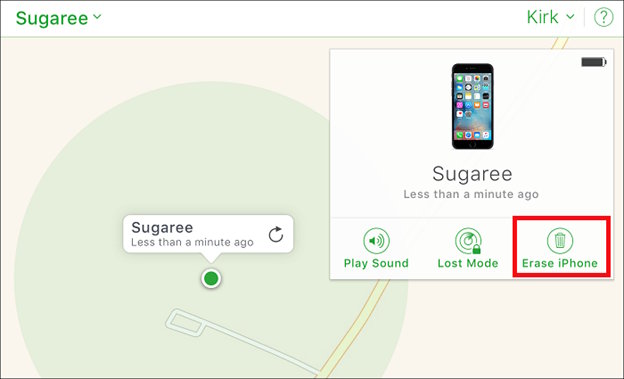
This is an official Apple solution, but you need your Apple ID credentials. It also removes all data stored on the device.
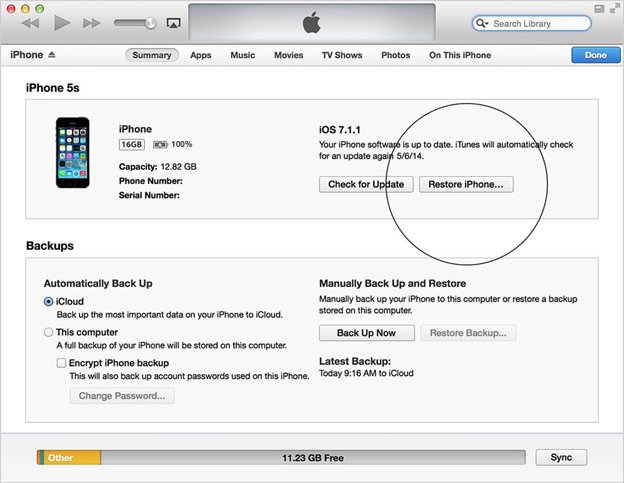
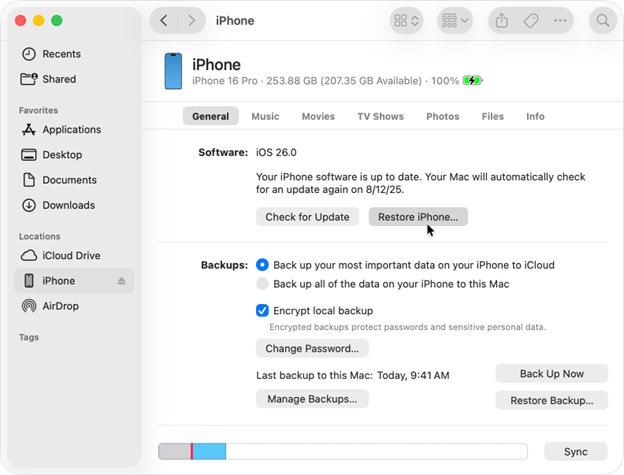
Method 3: Restore iPhone Using Recovery Mode (Finder or iTunes)
Recovery Mode is another Apple-supported way to unlock a disabled iPhone.
It is useful when you cannot access your iPhone normally or when other reset options are unavailable.
Steps:
- Connect your iPhone to a computer using a USB cable.
- Enter Recovery Mode:
- iPhone 8 or later: Press Volume Up, press Volume Down, then hold the Side button.
- iPhone 7/7 Plus: Hold Volume Down + Side button.
- iPhone 6s or earlier: Hold Home + Side button.
- Open Finder on Mac or iTunes on Windows.
- Select your iPhone and choose Restore.
- Wait until the process finishes.
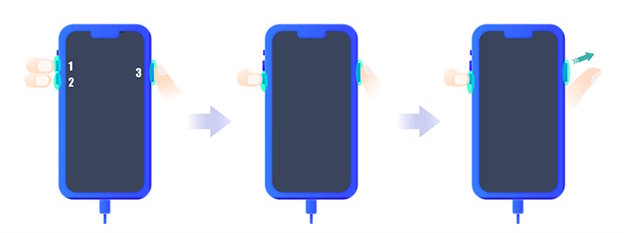
After restoration, your iPhone will restart without the previous passcode.
Method 4: Unlock iPhone Without Passcode Using Tenorshare 4uKey
If you want a simpler way to unlock your iPhone, a professional iPhone unlocking tool can make the process easier.
Tenorshare 4uKey iPhone Unlocker is designed to remove various iPhone screen locks, including:
- 4-digit and 6-digit passcodes
- Face ID lock
- Touch ID lock
- Disabled iPhone screen locks
It supports many iPhone models and iOS versions, making it a convenient option for users who do not want to deal with complicated recovery steps.
How to Unlock iPhone with 4uKey:
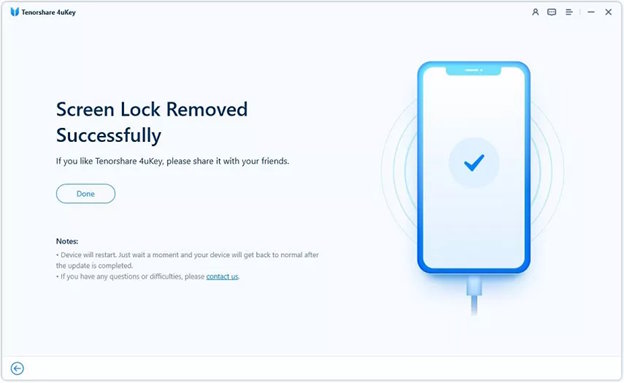
Step 1: Connect Your iPhone
Download and launch Tenorshare 4uKey on your computer. Select Unlock iOS Screen and connect your locked iPhone.
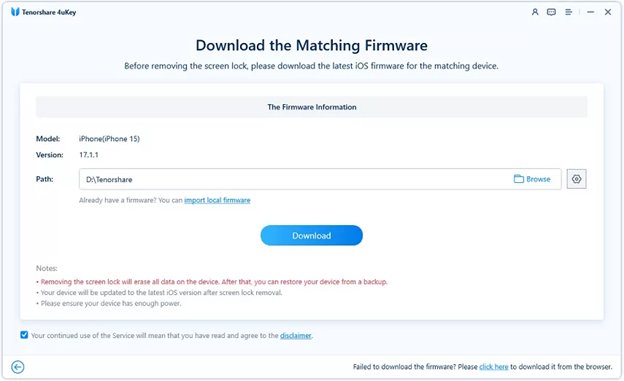
Step 2: Download Firmware Package
The software will detect your device and provide the required firmware package.
Step 3: Remove iPhone Passcode
Click Start Remove and wait for the process to complete.
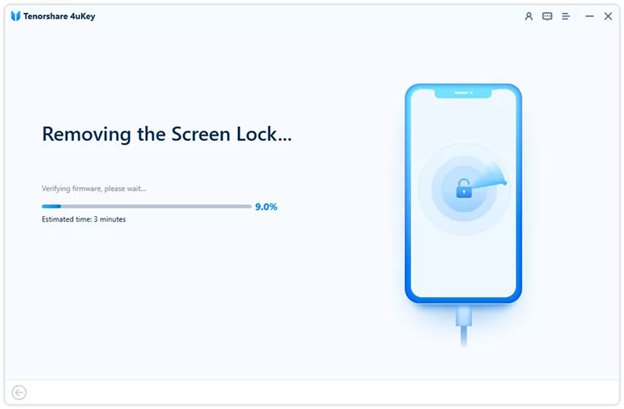
After a few minutes, your iPhone will be unlocked and ready for setup again.
Method 5: Unlock iPhone Using Face ID or Touch ID
In some cases, you may still unlock your iPhone without entering the passcode if Face ID or Touch ID is working.
Steps:
- Wake your iPhone.
- Use Face ID or Touch ID.
- Once unlocked, go to:
Settings > Face ID & Passcode
or
Settings > Touch ID & Passcode
- Change or remove your passcode.
Note that biometric unlocking will not work after restarting your iPhone or after too many failed attempts. You will eventually need the passcode.
Method 6: Ask Apple Support for Help
If none of the above methods work, you can contact Apple Support.
Apple cannot remove your passcode directly, but they can guide you through official recovery options.
You may need:
- Apple ID information
- Proof of ownership
- Device details
Visit Apple Support for further assistance.
Method 7: Erase iPhone from Settings (If You Still Have Access)
If you can access your iPhone but want to remove or reset the passcode, you can erase the device through Settings.
Steps:
- Open Settings.
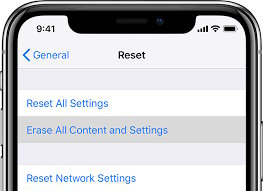
- Go to General > Transfer or Reset iPhone.
- Select Erase All Content and Settings.
- Follow the instructions.
This method removes the passcode but also deletes all data.
FAQs About Unlocking iPhone Without Passcode
Can Apple unlock an iPhone without a password?
Apple cannot unlock an iPhone by removing the passcode while keeping your data. The official solution is to erase the device and restore it from a backup.
How do I reset my iPhone without a password?
You can reset your iPhone using Security Lockout, Find My iPhone, Recovery Mode, or third-party unlocking software. Most methods erase the device.
How to remove passcode from iPhone without a computer?
You can use Find My iPhone through iCloud to erase your device remotely. However, you still need your Apple ID password.
Can I unlock my iPhone without losing data?
Usually, no. iPhone passcodes protect encrypted data, so removing the passcode normally requires erasing the device. Restoring from a backup is the best way to recover your files.
Conclusion
If you forgot your iPhone passcode, there are several ways to regain access depending on your situation. Apple’s official methods, including Security Lockout, Find My iPhone, and Recovery Mode, are safe but usually require erasing your device.
For users looking for a simpler unlocking process, tools like Tenorshare 4uKey provide an easier way to remove iPhone screen locks with fewer technical steps.
Whether you need to unlock iPhone without passcode, reset iPhone without password, or remove passcode from iPhone, choosing the right method depends on your device condition and whether you have a backup available.

