

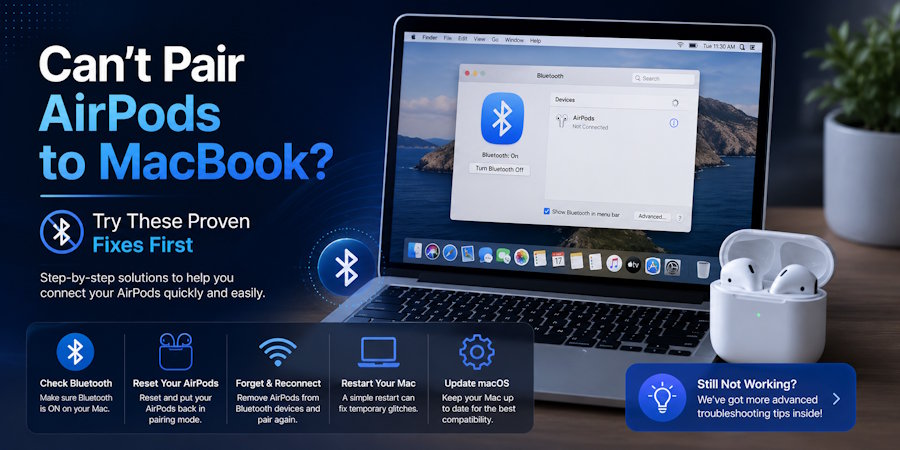
Your AirPods work perfectly with your phone. Bluetooth on the Mac is switched on. And yet the earbuds either never appear in the list or show up and refuse to connect when you click.
Most people assume how to connect AirPods to MacBook hardware is a question that answers itself, because normally it does. They pair once, years ago, and never think about it again until the day it stops working.
One thing before the fixes. This article is about AirPods that will not pair at all. If yours connect fine and then drop out mid-call, that is a different fault with different causes, and none of the steps below will help you.
Key Takeaways
- Newer AirPods models need newer macOS versions to pair at all.
- Pairing mode differs by model, and the wrong method fails silently.
- A charged case matters more than people expect.
- Second-hand AirPods often need a full reset before they will pair.
- Failing to pair and failing to stay connected are separate problems.
First, Confirm Which Problem You Have
Three symptoms get described the same way and need different answers.
Do the AirPods never appear in the Bluetooth list? That is a pairing mode problem, and Fix 1 is where to start.
Do they appear but fail when you click Connect? That points at something stored on the Mac, covered in Fix 2.
Do they connect successfully and then drop out later? That is a connection stability problem rather than a pairing problem, and it belongs to a different troubleshooting path entirely.
The Physical Checks People Skip
These sound too obvious to matter. They account for a large share of failed pairings anyway.
Both earbuds need to be in the case with the lid open, and the lid stays open for the whole process. Closing it mid-attempt cancels everything.
The case needs enough charge to finish. A nearly flat case can start the pairing process and quietly fail to complete it, which looks exactly like a broken connection. If in doubt, charge it for fifteen minutes first.
Sit close to the Mac, within arm's reach, at least while testing.
And check that nothing else has grabbed them. A phone in your pocket can claim the AirPods the instant the lid opens, leaving the Mac with nothing to find.
Fix 1, Enter Pairing Mode Correctly for Your Model
This is the single most common reason people conclude their AirPods are faulty, and it has a simple explanation. Apple changed the method on newer models, so anyone who learned the old way does the wrong thing and gets no result.
For AirPods 4 and AirPods Pro 3, you double-tap the front of the case.
For every other model, you press and hold the setup button on the back of the case.
Either way, you are waiting for the status light to flash white. That flash confirms the earbuds are discoverable. Without it, nothing you do in Bluetooth settings will find them, because they are not broadcasting.
Once the light flashes white, the AirPods should appear under Nearby Devices on the Mac, and you can click Connect.
What the Light Colours Tell You
A white flash indicates the AirPods are in pairing mode and ready to pair.
Amber usually means a reset is in progress or that the case is indicating something about the charge state.
No light at all almost always means no charge. Put the case on a charger and come back.
Fix 2, Clear the Mac's Side
A Mac that has never seen your AirPods behaves differently from one that has. If yours were paired before, there is a record sitting there that may be getting in the way.
Open Bluetooth settings and remove any existing entry for the AirPods, including any greyed-out entry that shows as not connected. Removing is different from disconnecting, and only removing clears the stored record.
Then toggle Bluetooth off and back on, and restart the Mac properly. A sleep and wake cycle is not the same as reloading the process that manages Bluetooth.
While you are there, temporarily disconnect other Bluetooth devices. A crowded device list makes pairing less reliable, and keyboards, mice, and controllers all compete for the same attention.
One more check worth running: does the Mac say "Bluetooth is unavailable" rather than simply "off"? If so, skip ahead. That is not a pairing problem.
Fix 3, The Compatibility Question
This one catches out more people than every software fix combined, and it has a definite answer rather than a workaround.
Each AirPods generation requires a minimum macOS version. Below that version, the Mac will not pair them at all, no matter how many times you reset anything. Newer models in particular require recent releases.
| AirPods model | Minimum macOS |
|---|---|
| AirPods 2 | macOS Mojave 10.14.4 |
| AirPods 3 | macOS Monterey |
| AirPods 4 | macOS Sequoia |
| AirPods Pro 1 | macOS Catalina 10.15.1 |
| AirPods Pro 2 | macOS Ventura |
| AirPods Pro 2 (USB-C) | macOS Sonoma |
| AirPods Pro 3 | macOS 26 |
Apple publishes these requirements on its AirPods setup page, which is worth checking against your exact model, including for AirPods Max, which has its own requirements by generation.
To find your macOS version, open the Apple menu and choose About This Mac.
When the Update Is the Real Blocker
Here is where it gets awkward for a lot of people. You discover the Mac needs a newer macOS, start the update, and it fails with a macOS installation couldn't be completed message.
At that point, your pairing problem was never a Bluetooth problem. It is an installation problem disguised as an issue, and no amount of resetting AirPods will fix it. Fix the install first, then come back and pair.
That is a whole separate troubleshooting path involving disk space, installer integrity, and startup disk health, and it is worth treating as its own job rather than something to squeeze in while holding a pair of earbuds.
When the Mac Is Simply Too Old
Some Macs cannot run the required version at all, and no amount of troubleshooting changes that.
The honest options are limited. Use an older AirPods model that your macOS version supports, use wired headphones, or accept that some pairings will work with reduced functionality while newer models will not pair at all.
It is not the answer anyone wants, but it saves an afternoon of chasing a fix that does not exist.
Second-Hand and Mismatched AirPods
This is the cause almost nobody suspects, and it is becoming more common as used AirPods change hands.
AirPods bought second-hand may still carry a previous owner's association. A full reset, holding the setup button until the light cycles through amber and then white, clears that and lets them pair fresh.
Mismatched earbuds are the other version of this. Two AirPods from different sets will not pair, and a replacement single earbud needs to be paired with the case and its partner before anything works normally.
A quick diagnostic: does one earbud connect on its own while the pair does not? That pattern points straight at a mismatch rather than at the Mac.
When Bluetooth Itself Is the Problem
If the Mac reports Bluetooth as unavailable rather than off, you are looking at a hardware or driver-level fault. No pairing steps will fix that.
Start the Mac in Safe Mode and check whether Bluetooth becomes available. If it works there, something in your regular startup is interfering. If it does not, the problem sits below the software layer and it is time to book a service appointment rather than keep experimenting.
Matching the Symptom to the Fix
Rather than working through everything in order, find your symptom and start there.
| What you are seeing | Most likely cause | Go to |
|---|---|---|
| AirPods never appear in the list | Not actually in pairing mode | Fix 1 |
| Appear, but the connection fails | Stale record on the Mac | Fix 2 |
| Nothing works, and the AirPods are new | macOS too old for the model | Fix 3 |
| One earbud connects, the pair does not | Mismatched or replaced earbud | Second-hand section |
| Bluetooth shows as unavailable | Hardware or driver fault | Section above |
| Connects fine, then drops out | A different problem | Not this article |
Final Thoughts
Almost every pairing failure comes down to one of three things. The earbuds were never actually in pairing mode. The Mac is holding onto a stale record. Or the macOS version simply cannot support that AirPods generation.
Work through them in that order, and you get an answer quickly, including the times when the answer is that the Mac is too old and no fix exists. Knowing that in ten minutes is considerably better than finding out after two hours of resets.
FAQs
Why do my AirPods work with my iPhone but not my MacBook?
Usually because the Mac runs an older operating system than the phone. AirPods requirements are version-specific, and a phone on current software will pair with models a Mac two versions behind cannot.
How do I know which AirPods model I have?
Check the model number printed on the case or inside the earbud, then look it up against Apple's model list. Guessing by appearance is unreliable, since several generations look nearly identical.
Can older Macs use newer AirPods at all?
Not below the minimum version. Some combinations pair with reduced features, but a Mac that cannot reach the required macOS version will not pair the newest models.
Do second-hand AirPods need to be reset before pairing?
Usually yes. A full reset clears the previous association and is the first thing to try with any used set.
Why is there no white light when I hold the button?
Either the case has no charge, or your model uses the double-tap method on the front rather than the back button.

