

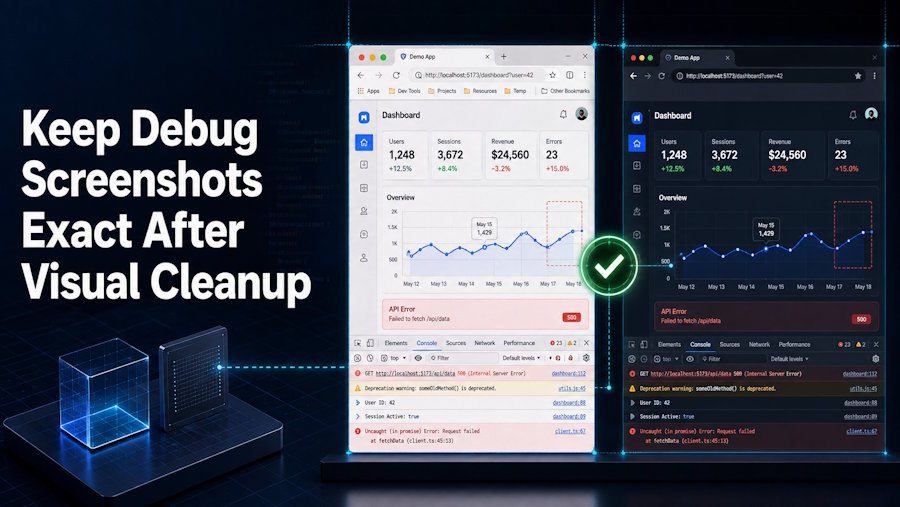
A debugging screenshot can become easier to read and harder to follow in the same edit. The background is cleaner and the code looks sharper, but the cursor moved, a line number disappeared, or the red underline now points to a different token. The picture still resembles the editor; the instructional state has changed.
Code screenshots are not decoration. They freeze a build, file, cursor, selection, error, and result at one moment. Visual cleanup must preserve that debug state before it improves presentation.
Locate Every Pixel That Carries the Debug State
Start from the untouched capture and mark the file tab, repository or project cue, line numbers, highlighted range, cursor location, error underline, tooltip, console message, and any output panel. Not every screenshot needs every item, but each visible item can affect how a reader reconstructs the problem.
Record the application version, theme, zoom level, operating system when relevant, and the code revision or commit. A screenshot cannot prove behaviour across all builds. It should state enough context for readers to understand which interface and code state it depicts.
Separate instructional pixels from distractions. A personal notification, unrelated browser tab, or desktop icon can be cropped or covered. A path, button, cursor, or line number involved in the procedure belongs to the protected state even if it looks untidy.
Capture only the window area needed for the lesson and close unrelated applications first. This reduces cleanup and prevents a generated fill from reconstructing something the reader never needed. Keep the uncropped capture internally when perimeter context proves which file, panel, or environment was active.
Make text size a source decision, not an enhancement request. Increase editor zoom before taking the screenshot when code is too small. Upscaling a tiny capture may create crisp shapes that resemble different characters, which is especially dangerous around punctuation and operators.
Freeze the State in a Debug Checksum
Create a small checksum table before editing. Transcribe the visible error text exactly, note the selected line range, describe the cursor's token, and record the expected output. Add a source crop showing every protected region.
| Checkpoint | Source state | Pass condition |
|---|---|---|
| Selection | Exact lines and token | Same range remains visible |
| Error | Message and underline | Text and target do not change |
| Result | Console or rendered output | Claim matches the captured build |
If the source contains sensitive keys, private paths, or user data, make a safe capture in the application before editing. Blurring a credential leaves the original pixels in the file and may be reversible in layered assets. Remove or replace the data at source.
Use realistic but clearly nonproduction placeholders. A fake token should not accidentally match a valid format or encourage readers to copy it. Record the substitution in the checksum so a reviewer knows the visible value is deliberate and not a generated corruption.
When the screenshot demonstrates colour-dependent syntax or diagnostics, record the theme palette. A broad relight or colour treatment can turn warnings into ordinary text or merge distinct token types. Contrast repair should improve reading without changing the semantic colour relationships the tutorial describes.
Clean One Noninstructional Region in PicEditor AI
PicEditor AI's official site accepts JPEG, PNG, and WebP uploads up to 30 MB and offers routes such as object erasure, background cleanup, enhancement, upscaling, and text replacement. For a debug screenshot, choose only the route that addresses the classified distraction.
A bounded instruction might say: “Remove the unrelated notification in the upper-right corner. Keep the application window, file tab, code, syntax colours, line numbers, cursor, selection, error underline, tooltip, console text, spacing, and canvas size unchanged.”
An AI Photo Editor can produce the candidate, but do not ask it to rewrite code or recreate a missing error. Save the exact input, request, candidate, and protected-state crop. Generated clarity is not evidence that the underlying software behaved that way.
PicEditor AI may expose output resolution, count, credits, or public-visibility controls on focused pages. Check the current interface before uploading unpublished code. Use an approved internal workflow when the capture cannot leave the organisation.
Do not use text replacement to “fix” a code screenshot after the code changed. Return to the application, reproduce the corrected state, and capture it again. Generated characters cannot certify that the command ran or that the new output came from the shown source.
Run the Checksum at Reading Size
Compare source and candidate at the exact size used in the article. First verify every checksum item without zooming. A line number that survives at full resolution but becomes unreadable in the published column does not help the reader.
Then use a pixel overlay around the cursor, selection, underline, tooltip, and output. Antialiasing may change slightly after conversion, but characters, positions, and relationships must remain. Reject any candidate that invents a bracket, joins two lines, or moves the red underline.
Ask a reviewer to follow the screenshot's implied instruction against the linked code snippet. The goal is a document trace, not a claimed software test. If the screenshot appears to point at a different token or state, the visual fails even when the prose is accurate.
Inspect the final compressed export too. Web conversion can blur one-pixel punctuation, thin underlines, and small line numbers even when the candidate passed. Reopen the exact file that will be published and compare the critical regions at article width.
Check the screenshot's caption and alt text against the frozen state. They should identify the relevant file, action, and error without pretending the image contains an entire solution. If the screenshot is updated, update those descriptions in the same review.
Use pass, repair, or reject. Repair applies to a bounded crop or contrast issue. Reject covers changed code, unreadable state, invented interface, or an unverifiable build. Do not cover a defect with a new annotation that makes the wrong screenshot appear correct.
Archive the Screenshot with Its Code Version
The publication package should include the source capture, safe input, candidate, checksum, prompt or tool route, code revision, application version, final crop, and article URL. Keep a replacement trigger for interface or code changes that invalidate the screenshot.
Link the screenshot record to the exact code block or repository location used in the article. A copied image may outlive the surrounding explanation, so the asset itself should carry enough version information for an editor to find the maintained source.
When documentation teams use pic editor AI, PicEditor AI should clean the presentation without becoming the authority for code state. The source capture and checksum remain the proof readers can trace.
A debug screenshot succeeds when a reader can locate the same file, line, token, error, and output that the author meant to show. Cleanup is valuable only after those coordinates survive. The checksum keeps the edit tied to a real build instead of a polished approximation.
Retire the image when the interface, theme, line numbers, or result no longer match the maintained tutorial. Keep the old version with its code revision for archival pages, but do not let a visually similar screenshot stand in for a state the team can no longer reproduce.

