

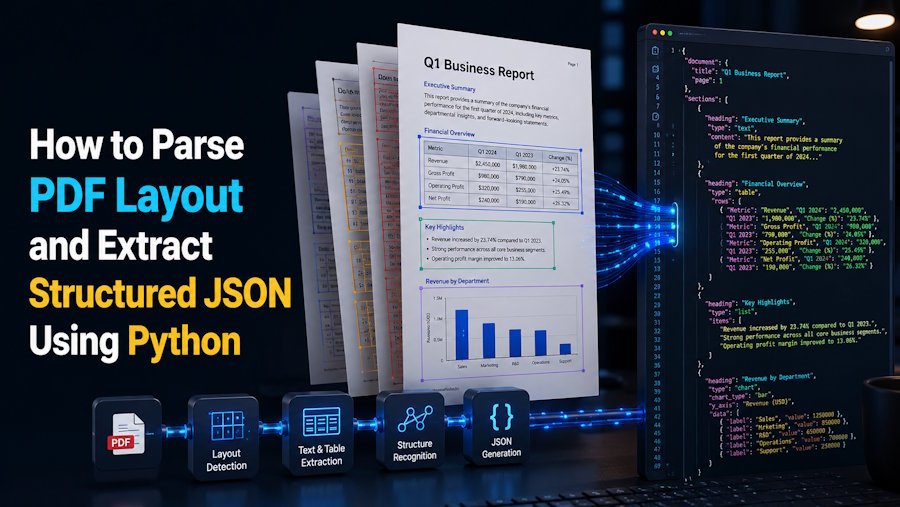
PDFs are everywhere. Invoices, contracts, research papers, government forms, financial statements. And almost every developer eventually hits the same wall: you need to get the content out of a PDF, but you need it structured. Not a wall of raw text with no context. You need to know which part is the header, which part is a table, which part is body text, and where each element sits on the page.
This tutorial walks through how to parse PDF layout in Python and produce structured JSON output that preserves the document's visual hierarchy. We will start with basic text extraction, move to layout-aware parsing, and then look at how machine learning approaches handle the hard cases that rule-based methods miss.
By the end, you will have working Python code that takes a PDF as input and outputs clean JSON with labeled document regions, bounding box coordinates, and content for each element.
Why Raw Text Extraction Is Not Enough
Most Python PDF libraries give you text. That is the easy part. The hard part is understanding the structure of the page that text came from.
Consider a typical invoice. It has a company header at the top, a billing address block, a table of line items with columns and rows, a subtotal section, and a footer with payment terms. If you extract all the text from that page, you get a single string where the company name runs directly into the billing address, the table headers blend into the first row of data, and the footer merges with the last line item.
That flat text is useless for any application that needs to process the invoice programmatically. You need to know that "Widget A" is in the product column, "$14.99" is in the price column, and they belong to the same row. That requires layout parsing, not just text extraction.
If you have worked with PDF processing in Python before, you have probably used libraries that handle splitting, merging, and basic text extraction. Layout parsing takes that a step further by understanding what each piece of text represents in the document's visual structure.
Setting Up the Environment
Before we start, install the libraries we will use throughout this tutorial:
pip install pymupdf pdfplumber pdf2image Pillow
PyMuPDF (imported as fitz) gives us low-level access to PDF page elements including text blocks with positional coordinates. pdfplumber provides higher-level layout analysis with built-in table detection. pdf2image converts PDF pages to images when we need to work with ML-based layout detection. Pillow handles image processing.
For the ML-based approach later in the tutorial, you will also need:
pip install torch torchvision layoutparser
Approach 1: Coordinate-Based Layout Parsing with PyMuPDF
PyMuPDF gives you access to every text block on a PDF page along with its exact coordinates. This is the foundation for rule-based layout parsing.
import fitz
import json

def extract_layout_pymupdf(pdf_path):
    doc = fitz.open(pdf_path)
    pages = []

    for page_num, page in enumerate(doc):
        width = page.rect.width
        height = page.rect.height
        blocks = page.get_text("dict")["blocks"]

        elements = []
        for block in blocks:
            if block["type"] == 0:  # text block
                text = ""
                for line in block["lines"]:
                    for span in line["spans"]:
                        text += span["text"] + " "

                bbox = [
                    round(block["bbox"][0], 2),
                    round(block["bbox"][1], 2),
                    round(block["bbox"][2], 2),
                    round(block["bbox"][3], 2)
                ]

                font_size = block["lines"][0]["spans"][0]["size"]

                elements.append({
                    "text": text.strip(),
                    "bbox": bbox,
                    "font_size": round(font_size, 1),
                    "type": classify_element(bbox, font_size, height)
                })

            elif block["type"] == 1:  # image block
                elements.append({
                    "type": "figure",
                    "bbox": list(block["bbox"])
                })

        pages.append({
            "page": page_num + 1,
            "width": round(width, 2),
            "height": round(height, 2),
            "elements": elements
        })

    doc.close()
    return pages
The classify_element function is where you define rules for assigning layout labels based on position and font characteristics:
def classify_element(bbox, font_size, page_height):
    x1, y1, x2, y2 = bbox

    # Header region: top 10% of page with larger font
    if y1 < page_height * 0.10 and font_size > 12:
        return "page_header"

    # Footer region: bottom 8% of page
    if y1 > page_height * 0.92:
        return "page_footer"

    # Section headers: larger font size in body region
    if font_size > 14:
        return "section_header"

    # Default to paragraph
    return "paragraph"
Now produce the JSON output:
def save_as_json(pages, output_path):
    with open(output_path, "w", encoding="utf-8") as f:
        json.dump(pages, f, indent=2, ensure_ascii=False)

# Run it
pages = extract_layout_pymupdf("sample.pdf")
save_as_json(pages, "output.json")
The output looks like this:
{
  "page": 1,
  "width": 612.0,
  "height": 792.0,
  "elements": [
    {
      "text": "Annual Financial Report 2025",
      "bbox": [72.0, 45.2, 540.0, 68.8],
      "font_size": 18.0,
      "type": "page_header"
    },
    {
      "text": "Revenue Overview",
      "bbox": [72.0, 102.5, 280.0, 120.3],
      "font_size": 15.0,
      "type": "section_header"
    },
    {
      "text": "Total revenue increased by 12% compared to...",
      "bbox": [72.0, 130.0, 540.0, 185.6],
      "font_size": 11.0,
      "type": "paragraph"
    }
  ]
}
Limitations of the rule-based approach
This works well on documents with consistent formatting. But it breaks quickly when:
- The font sizes are inconsistent across the document. A header in one section might use the same font size as body text in another.
- The layout uses multiple columns. The coordinate-based rules assume a single-column layout, and multi-column documents produce interleaved text blocks.
- Tables are present. PyMuPDF extracts table text as individual text blocks without preserving row-column relationships.
These limitations are why rule-based parsing works for simple, predictable documents but fails on the messy, varied PDFs you encounter in production.
Approach 2: Layout-Aware Parsing with pdfplumber
pdfplumber adds a layer of layout intelligence on top of basic text extraction. Its most useful feature for our purposes is built-in table detection, which uses line and edge analysis to identify table structures.
import pdfplumber
import json

def extract_layout_pdfplumber(pdf_path):
    pages = []

    with pdfplumber.open(pdf_path) as pdf:
        for page_num, page in enumerate(pdf.pages):
            width = page.width
            height = page.height
            elements = []

            # Extract tables first
            tables = page.find_tables()
            table_bboxes = []

            for table in tables:
                bbox = table.bbox
                table_bboxes.append(bbox)

                rows = table.extract()
                elements.append({
                    "type": "table",
                    "bbox": [
                        round(bbox[0], 2),
                        round(bbox[1], 2),
                        round(bbox[2], 2),
                        round(bbox[3], 2)
                    ],
                    "rows": rows
                })

            # Extract non-table text
            words = page.extract_words(
                keep_blank_chars=True,
                use_text_flow=True
            )

            # Group words into lines by Y position
            lines = group_words_into_lines(words, tolerance=3)

            for line in lines:
                line_bbox = get_line_bbox(line)

                # Skip if inside a table region
                if is_inside_table(line_bbox, table_bboxes):
                    continue

                text = " ".join(w["text"] for w in line)
                avg_size = sum(
                    w.get("size", 11) for w in line
                ) / len(line)

                elements.append({
                    "type": classify_text_element(
                        line_bbox, avg_size, height
                    ),
                    "text": text,
                    "bbox": line_bbox
                })

            # Sort elements by vertical position
            elements.sort(key=lambda e: e["bbox"][1])

            pages.append({
                "page": page_num + 1,
                "width": round(width, 2),
                "height": round(height, 2),
                "elements": elements
            })

    return pages
The helper functions for grouping words and checking table overlap:
def group_words_into_lines(words, tolerance=3):
    if not words:
        return []

    sorted_words = sorted(words, key=lambda w: (w["top"], w["x0"]))
    lines = [[sorted_words[0]]]

    for word in sorted_words[1:]:
        if abs(word["top"] - lines[-1][0]["top"]) <= tolerance:
            lines[-1].append(word)
        else:
            lines.append([word])

    return lines

def get_line_bbox(words):
    return [
        round(min(w["x0"] for w in words), 2),
        round(min(w["top"] for w in words), 2),
        round(max(w["x1"] for w in words), 2),
        round(max(w["bottom"] for w in words), 2)
    ]

def is_inside_table(bbox, table_bboxes):
    x1, y1, x2, y2 = bbox
    for tb in table_bboxes:
        if (x1 >= tb[0] - 5 and y1 >= tb[1] - 5 and
            x2 <= tb[2] + 5 and y2 <= tb[3] + 5):
            return True
    return False
The pdfplumber approach is a meaningful upgrade over raw PyMuPDF extraction because it handles tables as first-class layout elements. The table data comes out as a list of rows, each row being a list of cell values, which preserves the grid structure that flat text extraction destroys.
But pdfplumber's table detection depends on visible lines and edges. Tables without borders, or tables that use whitespace alignment instead of grid lines, often go undetected.
Approach 3: ML-Based Layout Detection
When rule-based and library-based approaches hit their limits, machine learning models trained specifically on document layouts take over. These models process the PDF page as an image and predict bounding boxes with element classifications for every region on the page.
The layoutparser library provides a Python interface to pre-trained document layout detection models:
import layoutparser as lp
from pdf2image import convert_from_path
import json

def extract_layout_ml(pdf_path, dpi=200):
    # Load a pre-trained model
    model = lp.Detectron2LayoutModel(
        config_path=(
            "lp://PubLayNet/"
            "faster_rcnn_R_50_FPN_3x/config"
        ),
        extra_config=[
            "MODEL.ROI_HEADS.SCORE_THRESH_TEST", 0.5
        ],
        label_map={
            0: "text",
            1: "title",
            2: "list",
            3: "table",
            4: "figure"
        }
    )

    # Convert PDF pages to images
    images = convert_from_path(pdf_path, dpi=dpi)
    pages = []

    for page_num, image in enumerate(images):
        width, height = image.size
        layout = model.detect(image)

        elements = []
        for block in layout:
            elements.append({
                "type": block.type,
                "bbox": [
                    round(block.block.x_1, 2),
                    round(block.block.y_1, 2),
                    round(block.block.x_2, 2),
                    round(block.block.y_2, 2)
                ],
                "confidence": round(block.score, 4)
            })

        # Sort by reading order (top to bottom)
        elements.sort(key=lambda e: e["bbox"][1])

        pages.append({
            "page": page_num + 1,
            "width": width,
            "height": height,
            "dpi": dpi,
            "elements": elements
        })

    return pages
This approach detects five element types (text, title, list, table, figure) with bounding boxes and confidence scores. The model used here is trained on PubLayNet, a dataset of over 360,000 document images sourced from PubMed Central scientific articles.
The JSON output now includes confidence scores that tell you how certain the model is about each prediction:
{
  "page": 1,
  "width": 1654,
  "height": 2339,
  "dpi": 200,
  "elements": [
    {
      "type": "title",
      "bbox": [145.23, 89.67, 1102.45, 142.89],
      "confidence": 0.9812
    },
    {
      "type": "text",
      "bbox": [145.23, 198.34, 1102.45, 567.12],
      "confidence": 0.9734
    },
    {
      "type": "table",
      "bbox": [145.23, 612.78, 1102.45, 1089.23],
      "confidence": 0.9156
    }
  ]
}
The training data bottleneck
The ML approach is the most accurate for complex and varied documents. But it comes with a catch: the pre-trained model only knows the document types it was trained on.
PubLayNet was built from scientific papers. If your PDFs are invoices, legal contracts, or government forms, the model's accuracy will drop because those layouts are structurally different from academic articles. Fine-tuning the model on your specific document types requires labeled training data: documents where every region has been annotated with bounding boxes and element classifications.
Building that labeled dataset manually is the bottleneck. Drawing bounding boxes and classifying regions by hand takes several minutes per page. For a training set of 500 pages, that is hours of annotation work before you write a single line of model training code.
This is where auto-labeling platforms change the workflow. AI Asset Management's DocuGraph uses deep learning semantic segmentation to automatically detect and label every structural region on a PDF page, producing the exact bounding box coordinates and element classifications that layout detection models need for training. You upload your documents, review the auto-generated labels in a visual editor, correct any misclassifications, and export structured JSON that is ready to feed into PyTorch, TensorFlow, or HuggingFace.
The platform processes documents in 15 to 30 seconds and handles the element types that PubLayNet does not cover: section headers, footers, captions, formulas, and custom categories specific to your document domain.
Combining Approaches for Production Output
In practice, the best results come from combining library-based text extraction with ML-based layout detection. The ML model identifies where each element is. The text extraction library pulls the actual content from those regions.
import fitz
from pdf2image import convert_from_path
import layoutparser as lp
import json

def extract_structured_layout(pdf_path, dpi=200):
    # ML-based layout detection
    model = lp.Detectron2LayoutModel(
        config_path=(
            "lp://PubLayNet/"
            "faster_rcnn_R_50_FPN_3x/config"
        ),
        extra_config=[
            "MODEL.ROI_HEADS.SCORE_THRESH_TEST", 0.5
        ],
        label_map={
            0: "text", 1: "title", 2: "list",
            3: "table", 4: "figure"
        }
    )

    images = convert_from_path(pdf_path, dpi=dpi)
    doc = fitz.open(pdf_path)
    pages = []

    for page_num, (image, page) in enumerate(
        zip(images, doc)
    ):
        img_w, img_h = image.size
        pdf_w = page.rect.width
        pdf_h = page.rect.height

        # Scale factors between image and PDF coords
        scale_x = pdf_w / img_w
        scale_y = pdf_h / img_h

        layout = model.detect(image)
        elements = []

        for block in layout:
            # Convert image coords to PDF coords
            pdf_bbox = fitz.Rect(
                block.block.x_1 * scale_x,
                block.block.y_1 * scale_y,
                block.block.x_2 * scale_x,
                block.block.y_2 * scale_y
            )

            # Extract text from this region
            text = page.get_text("text", clip=pdf_bbox)

            elements.append({
                "type": block.type,
                "bbox": [
                    round(pdf_bbox.x0, 2),
                    round(pdf_bbox.y0, 2),
                    round(pdf_bbox.x1, 2),
                    round(pdf_bbox.y1, 2)
                ],
                "confidence": round(block.score, 4),
                "text": text.strip()
            })

        elements.sort(key=lambda e: e["bbox"][1])

        pages.append({
            "page": page_num + 1,
            "width": round(pdf_w, 2),
            "height": round(pdf_h, 2),
            "elements": elements
        })

    doc.close()
    return pages

# Run the full pipeline
result = extract_structured_layout("report.pdf")

with open("structured_output.json", "w") as f:
    json.dump(result, f, indent=2, ensure_ascii=False)
The combined output gives you everything: element type from the ML model, spatial coordinates, confidence score, and the actual text content extracted from each region.
Designing the JSON Schema
A well-designed output schema makes the structured data useful for downstream applications. Here is a schema that works for most document processing pipelines:
{
  "document": {
    "source": "quarterly_report_q3.pdf",
    "total_pages": 12,
    "processed_at": "2026-09-03T14:30:00Z"
  },
  "pages": [
    {
      "page": 1,
      "width": 612.0,
      "height": 792.0,
      "elements": [
        {
          "id": "p1_e1",
          "type": "title",
          "bbox": [72.0, 45.2, 540.0, 68.8],
          "confidence": 0.97,
          "text": "Q3 2026 Financial Summary",
          "metadata": {
            "font_size": 18.0,
            "font_name": "Helvetica-Bold"
          }
        },
        {
          "id": "p1_e2",
          "type": "table",
          "bbox": [72.0, 200.0, 540.0, 450.0],
          "confidence": 0.94,
          "rows": [
            ["Category", "Q2", "Q3", "Change"],
            ["Revenue", "$2.1M", "$2.4M", "+14%"],
            ["Expenses", "$1.8M", "$1.9M", "+5%"]
          ]
        }
      ]
    }
  ]
}
Key design decisions in this schema:
- Each element has a unique
idthat allows downstream systems to reference specific regions. - The
bboxuses PDF coordinate space (points, where 72 points = 1 inch) for consistency. - Tables include a
rowsarray that preserves the grid structure. - Metadata carries font information when available, which helps with post-processing classification.
Handling Common Edge Cases
Real-world PDFs are messy. Here are the patterns that break naive parsing and how to handle them.
Scanned PDFs (image-only pages)
Scanned documents have no text layer. PyMuPDF and pdfplumber return nothing. You need OCR before text extraction.
import pytesseract
from pdf2image import convert_from_path

def extract_scanned_text(pdf_path, dpi=300):
    images = convert_from_path(pdf_path, dpi=dpi)
    for image in images:
        text = pytesseract.image_to_string(image)
        # Or for bounding box level data:
        data = pytesseract.image_to_data(
            image, output_type=pytesseract.Output.DICT
        )
The ML layout detection approach actually handles scanned PDFs better than library-based approaches because it works on the page image directly, regardless of whether a text layer exists. For a deeper dive into how OCR and AI-based approaches compare for document processing, the tradeoffs are worth understanding before you commit to an architecture.
Multi-column layouts
Detect columns by analyzing the horizontal distribution of text blocks:
def detect_columns(elements, page_width, gap_threshold=50):
    x_centers = [
        (e["bbox"][0] + e["bbox"][2]) / 2
        for e in elements if e.get("text")
    ]

    if not x_centers:
        return 1

    x_centers.sort()
    gaps = [
        x_centers[i+1] - x_centers[i]
        for i in range(len(x_centers) - 1)
    ]

    large_gaps = [g for g in gaps if g > gap_threshold]
    return len(large_gaps) + 1
Once you know the column count, sort elements within each column by vertical position to reconstruct the correct reading order.
Rotated pages
Some PDFs contain pages rotated 90 or 180 degrees. Check the page rotation and adjust coordinates accordingly:
page = doc[page_num]
rotation = page.rotation

if rotation != 0:
    # Apply rotation matrix to coordinates
    page.set_rotation(0)  # normalize before extraction
Performance Considerations
For production pipelines processing hundreds or thousands of PDFs, performance matters.
PyMuPDF is the fastest option for text extraction. It processes most pages in under 100 milliseconds because it reads the PDF structure directly without rendering.
pdfplumber is slower because its table detection analyzes lines and edges across the entire page. Expect 200 to 500 milliseconds per page depending on complexity.
ML-based detection is the slowest because it requires rendering each page to an image and running inference through a neural network. On CPU, expect 1 to 3 seconds per page. On GPU, this drops to 100 to 300 milliseconds.
For high-volume processing, a practical architecture runs PyMuPDF extraction on all documents first, flags pages that likely contain tables or complex layouts based on heuristics, and only runs the ML model on those flagged pages.
When to Skip the DIY Pipeline
Building a custom layout parsing pipeline makes sense when you need full control over the extraction logic, when you are integrating into an existing application, or when your documents follow a narrow set of formats that simple rules can handle.
It does not make sense when you need labeled training data for fine-tuning a layout model, when your documents span dozens of different formats and layouts, or when you need high accuracy without weeks of pipeline engineering.
For those cases, using a document auto-labeling platform that handles the segmentation, classification, and JSON export in one step is a faster path to structured output. You upload your PDFs, get labeled regions with bounding boxes and confidence scores, review and correct in a visual editor, and export production-ready JSON or Markdown. The output is compatible with PyTorch, TensorFlow, and HuggingFace, so it plugs directly into whatever ML pipeline you are building.
Summary
Parsing PDF layout and extracting structured JSON in Python is a spectrum from simple to complex:
- Rule-based with PyMuPDF gives you text blocks with coordinates. Fast, no dependencies, but brittle on varied layouts. Works best for simple, single-column documents with consistent formatting.
- Layout-aware with pdfplumber adds table detection and better text grouping. Handles more document types but still relies on visual line detection for tables.
- ML-based with layoutparser uses trained models to classify document regions with high accuracy across varied layouts. Slower and requires GPU for production throughput, but handles the complex cases that rule-based methods miss.
- Combined approach uses ML for layout detection and library-based extraction for text content. This gives you the best of both worlds: accurate region identification with clean text extraction.
The right approach depends on your document diversity, accuracy requirements, and whether you are willing to invest in training data for custom models. For most production use cases, the combined approach with a pre-trained model as the starting point and fine-tuning on your specific document types delivers the most reliable results.
All the code in this tutorial is available as standalone Python scripts that you can adapt to your specific document processing pipeline.

