

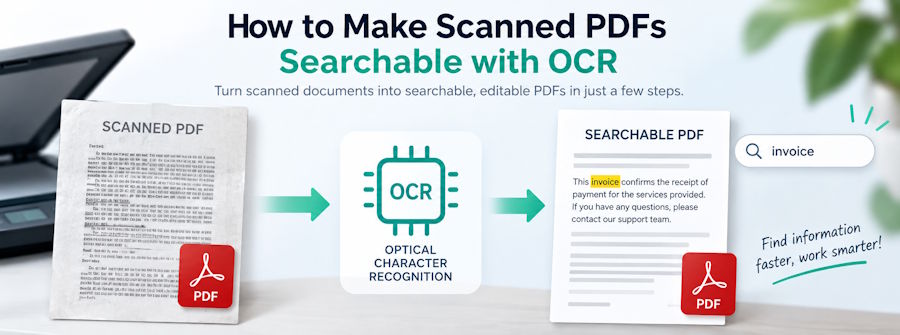
A PDF can look perfectly normal on screen while still behaving like an image. You may be able to read every word, yet Ctrl+F returns no results, text cannot be selected, and copying a sentence is impossible. This usually happens when a document has been created from scanned paper pages rather than from digital text.
The practical solution is optical character recognition, or OCR. A free online OCR PDF converter can recognise the characters contained in scanned pages and add searchable information to the document. The important point is that OCR does not necessarily mean turning the PDF into a plain text file. With the right tool, the original scan stays visually unchanged while an invisible text layer is added behind it.
Why Scanned PDFs Are Not Searchable
A normal digital PDF contains text objects that a computer can identify. That is why you can search for a name, highlight a paragraph, or copy a sentence into another application. A scanned PDF is different because each page may simply be a photograph or image of the original document.
To the computer, a scanned contract containing hundreds of words can therefore be little more than a large picture. The words are visible to a person, but the PDF reader has no actual character data to search. Anyone trying to make scanned PDF searchable needs to introduce that missing text information without unnecessarily rebuilding the document.
How OCR Makes a PDF Searchable
OCR software analyses an image and attempts to identify letters, numbers, punctuation marks, and words. Once the characters have been recognised, the software can associate them with the relevant positions on the scanned page.
For a searchable PDF, the recognised characters are normally stored as an invisible text layer. The scanned image remains on top, so the page continues to look like the original document. The new layer simply gives PDF applications something to search, select, and copy. This is different from text extraction, where the main objective is to pull text out of the PDF into a separate document.
Using IslandPDF to Add a Searchable Text Layer
IslandPDF provides a free online OCR tool designed specifically for scanned PDFs. Instead of replacing the original pages with reformatted text, it reads the characters in the scans and adds a hidden text layer while preserving the visual appearance of each page.
The workflow is straightforward: upload the scanned PDF, let the OCR process recognise its contents, and then download the resulting searchable document. The tool currently recognises English, French, Spanish, Portuguese, and Arabic, and supports documents of up to 50 pages.
Step-by-Step: Turn a Scan Into a Searchable PDF
Start by opening the OCR PDF page and uploading the document you want to process. The file should already be in PDF format. If the pages came from a scanner or phone camera, check that they are reasonably straight and readable before uploading.
Once the document has been processed, download the new PDF and test it in your usual reader. Try searching for a distinctive word with Ctrl+F or Command+F. You should also be able to select recognised text from the page and copy it. People looking for an OCR PDF free solution usually want to add searchable text without rebuilding or redesigning the original pages.
When an Invisible Text Layer Is Better Than Text Extraction
There are many situations where maintaining the page exactly as it was scanned matters. Signed contracts are a good example. The document may include signatures, stamps, handwritten marks, tables, or an unusual page layout. Extracting all of that into plain text would lose much of the visual context.
Archived invoices, reports, book pages, receipts, and administrative records have similar requirements. You may want to search for a reference number or copy a short section, but you still need the PDF to look like the original. Creating a searchable PDF online with OCR provides both: the image remains intact, and the recognised text becomes accessible to software.
How to Improve OCR Accuracy
OCR quality depends heavily on the quality of the source material. A clear scan with dark text on a light background is easier to recognise than a blurred photograph captured at an angle. If possible, scan pages straight, avoid shadows, and use enough resolution for individual characters to remain clear.
Language also matters. Selecting or using an OCR system that supports the document's language gives the recognition engine a better chance of interpreting characters correctly. Even good OCR is not perfect, especially with decorative fonts, handwriting, damaged pages, unusual symbols, or complex multi-column layouts. Important copied information should therefore be checked against the visible scan.
Searchable Does Not Always Mean Fully Editable
It is useful to distinguish three related tasks: making a PDF searchable, extracting its text, and converting it into an editable office document. They are not the same thing.
OCR can make a scanned page searchable and allow recognised words to be copied, but the visible page is still the original image. If you need to rewrite paragraphs, reposition tables, or completely reformat a scanned document, you may need a PDF-to-Word or document-conversion workflow instead. For archives, reference material, signed paperwork, and scanned records, however, searchable OCR is often the more appropriate option because it keeps the visual source intact.
Practical Reasons to OCR Scanned Documents
Searchability becomes increasingly valuable as a document grows. Looking through a three-page scan manually may be manageable, but searching through 30 pages for a name, invoice number, clause, or technical term is far faster once OCR has been applied.
The same applies to collections of older records. Making scanned PDFs searchable can reduce the time spent opening pages one by one, while copyable text makes it easier to quote small sections, transfer reference numbers, or reuse information without retyping it manually.
Conclusion
A scanned PDF does not need to be converted into a completely different format just to become useful for searching. OCR can preserve the original appearance of every page while adding the invisible character data that PDF readers need for search and text selection.
For users dealing with scanned contracts, invoices, archived documents, book pages, or other image-based PDFs, this is often the simplest approach. The key is understanding what the OCR process is actually doing: the scan remains visually untouched, while a hidden text layer makes its contents searchable and copyable.

