

Quick answer: Thunderbolt 4 is enough for many dual-4K productivity setups. Thunderbolt 5 makes more sense for high-resolution or high-refresh-rate displays, faster storage, and bandwidth-heavy professional workflows.
A Thunderbolt dock can turn a laptop into a complete desktop workstation, connecting monitors, storage, Ethernet, USB devices, and power through one cable.
But the best dock is not necessarily the one with the most ports or the highest advertised speed. The right choice depends on your laptop, displays, charging needs, and workflow.
Brands such as UGREEN now offer both Thunderbolt 4 and Thunderbolt 5 docking solutions, covering everything from everyday multi-monitor setups to high-bandwidth professional workstations. The key is knowing which specifications actually matter before you buy.
Here are the six things to check.
1. Start With Your Laptop, Not the Dock
Before comparing docks, identify what your laptop actually supports.
USB-C describes the connector shape, but identical-looking USB-C ports can support very different capabilities, including USB, USB4, DisplayPort, Thunderbolt 4, Thunderbolt 5, and USB Power Delivery.
Thunderbolt 4 provides up to 40Gbps of bandwidth. Thunderbolt 5 increases this to 80Gbps bidirectionally, with Bandwidth Boost providing up to 120Gbps in one direction when additional display bandwidth is required.
Before buying a dock, check four things:
- Your laptop's Thunderbolt or USB4 version
- Maximum number of external displays
- Maximum charging input
- Manufacturer-specific display limitations
A docking station cannot override the hardware limitations of the computer connected to it.
If you're still deciding whether you need a full dock or a simpler USB-C hub, this guide explains how a docking station works.
2. Thunderbolt 4 vs Thunderbolt 5: Which Do You Actually Need?
For most buyers, this is the biggest decision, and the honest answer is that Thunderbolt 4 still covers the majority of desk setups. Thunderbolt 5 earns its premium only when your monitors, storage, or workflow can actually use the extra bandwidth.
| Thunderbolt 4 | Thunderbolt 5 | |
|---|---|---|
| Bandwidth | Up to 40Gbps | 80Gbps bidirectional |
| Minimum PCIe requirement | 32Gbps | 64Gbps |
| Display support (max, host-dependent) | 2 × 4K@60Hz | Up to 2 × 8K@60Hz or 3 × 4K@144Hz |
| PC charging (per Intel spec) | Up to 100W required, 140W available | Up to 140W required, 240W available |
| Best for | Productivity and dual-4K setups | High-end displays, storage and creator workflows |
Choose Thunderbolt 4 if your setup mainly consists of one or two 4K monitors, office peripherals, Ethernet, and conventional external SSDs.
Consider Thunderbolt 5 if you work with 6K/8K displays, high refresh rates, very fast external storage, large video projects, or several bandwidth-intensive peripherals at the same time.
If you're comparing different configurations, UGREEN's range of Thunderbolt Docks includes both Thunderbolt 4 and Thunderbolt 5 options, making it easier to compare port selection, display capability, charging power, and bandwidth based on your workstation needs.
Buying Thunderbolt 5 simply because it is newer is unnecessary. Buy it when your workflow can actually use the additional bandwidth.
3. Work Out Your Monitor Setup First
Display support is one of the easiest docking-station specifications to misunderstand.
Instead of looking only for an “8K” badge, write down the configuration you actually need:
Number of monitors × resolution × refresh rate
For example:
- 2 × 4K at 60Hz
- 2 × 4K at 144Hz
- 1 × 6K at 60Hz
- 1 × 8K at 60Hz
A real-world example shows how host-dependent this is: the UGREEN Maxidok 17-in-1 Thunderbolt 5 dock can drive three 4K@144Hz monitors with a Thunderbolt 5 Windows laptop, up to dual 6K@60Hz or a single 8K@60Hz with a MacBook Pro (M4 Pro/Max and later).
A dock with three display outputs does not automatically allow every computer to run three independent monitors. Macs can have different external-display limits depending on the Apple silicon generation, while Windows laptops can also vary according to their GPU and display architecture.
This makes the host computer's specifications just as important as the dock's advertised display capabilities.
4. Match Charging Power to Your Laptop
Single-cable charging is one of the biggest reasons to buy a Thunderbolt dock.
Typical docks may provide 65W, 90W, 100W, or 140W to the host computer. But more power is not automatically better.
A laptop designed around 65W charging gains little from choosing a 140W dock purely for charging. Higher output becomes more useful for performance laptops and mobile workstations.
A quick way to size it:
| Laptop class | Host charging to look for |
|---|---|
| Ultrabook / MacBook Air | 60–100W is plenty |
| 14-inch performance laptop | Around 100W |
| 16-inch MacBook Pro / mobile workstation | 140W (laptop must support PD 3.1) |
One caveat: 140W fast charging only works if the laptop itself supports USB Power Delivery 3.1 (EPR). Plug a PD 3.0 laptop into a 140W dock, and it will simply charge at up to 100W — still fast, just not the headline figure.
Also distinguish between total adapter power and host charging power.
UGREEN's Maxidok 17-in-1, for example, uses a 240W power adapter while providing up to 140W to the host laptop. Additional power is available for the dock and connected devices.
So when comparing products, look for the specific host Power Delivery output, not simply the biggest wattage printed on the specification sheet.
5. Look at Port Quality — UGREEN Maxidok Is a Good Example
Port count alone tells you surprisingly little.
A 17-port dock only makes sense when those ports solve the problems you actually have.
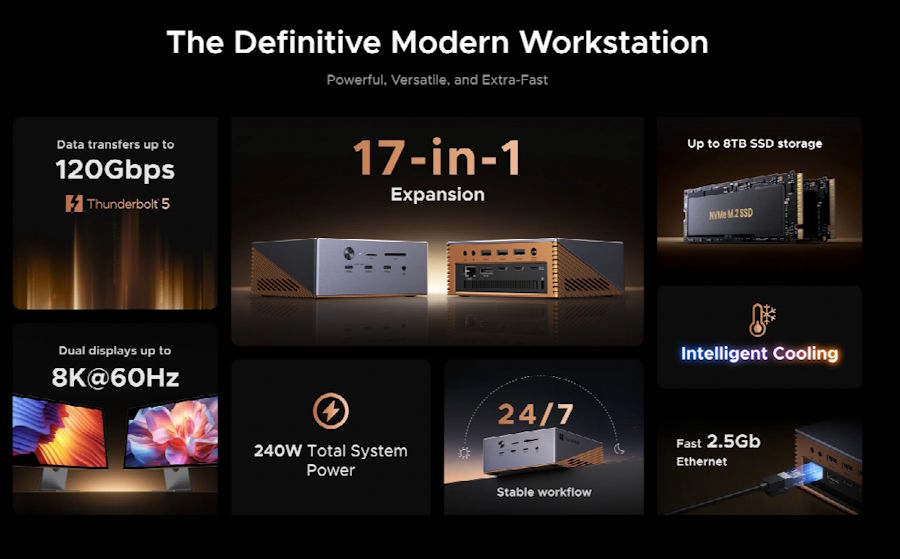
The UGREEN Maxidok 17-in-1 Thunderbolt 5 Docking Station is a useful example of a high-end configuration. It combines:
- Two downstream Thunderbolt 5 connections
- Three 10Gbps USB-C ports
- Three 10Gbps USB-A ports
- DisplayPort
- 2.5Gb Ethernet
- UHS-II SD and microSD readers
- An M.2 NVMe slot supporting up to 8TB
- Up to 140W host charging
These specifications make it particularly relevant for creators, professionals, and power users who want to consolidate several devices into one workstation hub.
The built-in M.2 NVMe storage expansion is especially useful for workflows involving large photo, video, design, or project files. Instead of permanently occupying a Thunderbolt or USB port with a separate external SSD, storage can become part of the dock itself.
Independent reviews from publications including Macworld, Windows Central, and TechRadar have also verified key specifications such as the 140W host charging, 2.5Gb Ethernet, and integrated M.2 storage.
This is a good example of why port quality and purpose matter more than simply counting how many ports a dock has.
One more technical detail is worth understanding: Thunderbolt 5's headline “120Gbps” figure is not its normal bidirectional file-transfer speed.
Thunderbolt 5 provides 80Gbps bidirectional bandwidth, while Bandwidth Boost can allocate up to 120Gbps in one direction when additional display bandwidth is required. Actual storage performance still depends on the SSD, PCIe implementation, enclosure, and other connected devices.
6. Check Compatibility Before You Buy
Finally, verify compatibility instead of assuming every Thunderbolt dock works identically with every laptop.
Check the dock's:
- Supported Thunderbolt generations
- Operating-system requirements
- USB4 compatibility
- Maximum monitor configurations
- Host charging support
- Cable requirements
This is particularly important when connecting a Thunderbolt 5 dock to an older computer.
UGREEN's current Maxidok Thunderbolt 5 models, for example, support Thunderbolt 5, Thunderbolt 4, and USB4 host connections, giving users more flexibility when upgrading between different generations of laptops.
Backward compatibility can make a Thunderbolt 5 dock more useful over several computer upgrade cycles, although actual performance will still depend on the capability of the connected host.
Which Thunderbolt Dock Is Right for You?
A simple way to make the final decision is to match the dock to the workload:
| Your Setup | What to Prioritize |
|---|---|
| Office + dual 4K | Thunderbolt 4, sufficient charging |
| Photo/video editing | UHS-II, fast storage, Thunderbolt |
| 6K/8K workstation | Thunderbolt 5 |
| High-refresh displays | TB5 + verified display support |
| NAS-heavy workflow | 2.5GbE networking |
| High-power laptop | 100–140W host charging |
| Large local media library | Integrated or high-speed SSD storage |
| MacBook with base M1/M2/M3 chip | Any dock works, but one external display max — prioritize ports and charging over display outputs |
For everyday productivity, a well-designed Thunderbolt 4 dock may be all you need.
For creators and power users building a more demanding workstation, features such as Thunderbolt 5, high-power charging, 2.5GbE, UHS-II media readers, and integrated M.2 storage can replace several separate devices while keeping the desk considerably simpler.
The UGREEN Maxidok 17-in-1 Thunderbolt 5 Docking Station demonstrates this all-in-one approach particularly well by combining display connectivity, high-speed data, charging, networking, card readers, and expandable storage around a single Thunderbolt connection.
The best Thunderbolt dock is ultimately the one that gives your computer the right displays, power, storage, networking, and connections through one reliable cable.
FAQ
Is Thunderbolt 5 worth it over Thunderbolt 4?
For normal productivity and dual-4K setups, Thunderbolt 4 is often sufficient. Thunderbolt 5 becomes more valuable for high-resolution or high-refresh displays, fast storage, and bandwidth-heavy workflows.
Is Thunderbolt 5 really 120Gbps?
Thunderbolt 5 provides 80Gbps bidirectional bandwidth. Bandwidth Boost can dynamically provide up to 120Gbps in one direction when additional display bandwidth is required.
Can I use a Thunderbolt 5 dock with a Thunderbolt 4 laptop?
Many Thunderbolt 5 docks support Thunderbolt 4 hosts, but performance and display capabilities will be limited by the host computer.
How many monitors can a Thunderbolt dock support?
It depends on both the dock and the host computer. Check the required number of displays, resolution, and refresh rate against both specifications before buying.
Does every Thunderbolt 5 dock provide 140W charging?
No. Charging output varies by product. Check the dock's specific host Power Delivery rating.

