

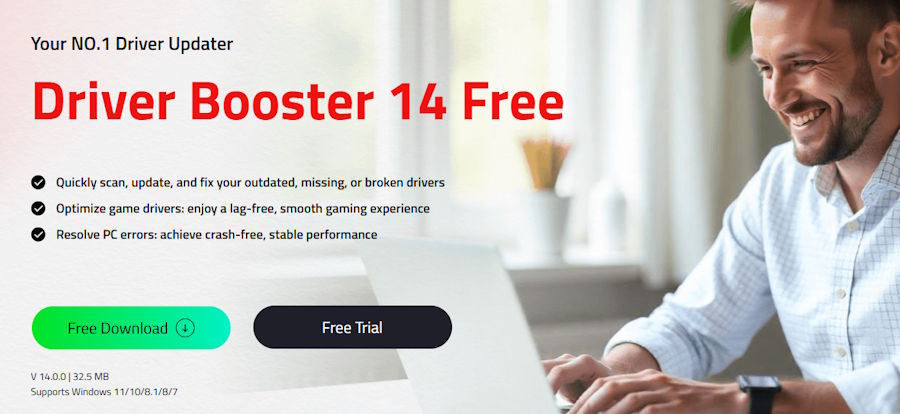
I used to think about driver updates like something outdated kept in the attic—a thing I knew about but was not eager to open. But things like the disturbance to my music during a presentation, printers being off without any reason, and a much-anticipated game constantly failing at start motivated me to reconsider this attitude. In every forum debate, the solution always seemed to be the same. That's the moment I stopped guessing and looked for a proper solution. A reliable driver updater isn't a luxury anymore — it's basic PC hygiene.
What is Driver Booster
Driver Booster 14 is an application that enables the management of drives in a computer and which has been created by IObit. The application scans the Windows computer in order to detect any out-of-date, missing or corrupted drivers and installs new versions for them. The 2026 release goes beyond simple updates, though — it repairs common system faults, patches missing game files, and quietly keeps everything current in the background. For people who have gone through the laborious process of manually searching for drivers on the websites of different vendors before, this is like being offered a shortcut.
The Features That Actually Stood Out to Me
A Database That Covers Almost Everything
The 23 million+ driver library is the headline number, and it shows in practice. My mix of newer hardware and one ancient USB adapter was recognized without any drama. Drivers come from over 1,200 major brands, and everything is double-checked against Microsoft WHQL certification and IObit's own security screening.
Multi-Version Scanning and Installation
This is the upgrade I appreciated most. Instead of forcing me onto whatever version it considered, Driver Booster now shows me both the latest performance-focused driver and the most stable official release. For daily work I lean stable; before a heavy gaming session, I switch to the newest version. The reworked installation engine swapped versions cleanly, with no half-finished installs or error prompts.
Fix Missing Game DLLs
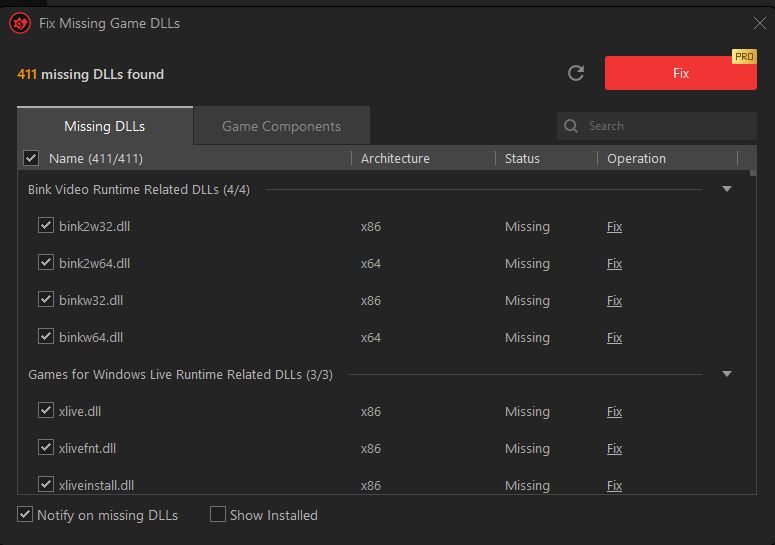
Game crashed on launch because a DLL went missing? This feature scans and repairs over 60 game components and 680+ DLL files, with real-time detection running quietly in the background. It solved two stubborn launch errors for me that no amount of verifying game files could touch.
Automatic Scanning and Background Updates
I scheduled weekly scans and let it check at startup. It runs silently during idle time, so updates happen without hijacking my workday. Set it once and forget it — that's the whole pitch, and it holds up.
Built-In Repair Tools and Gaming Boost
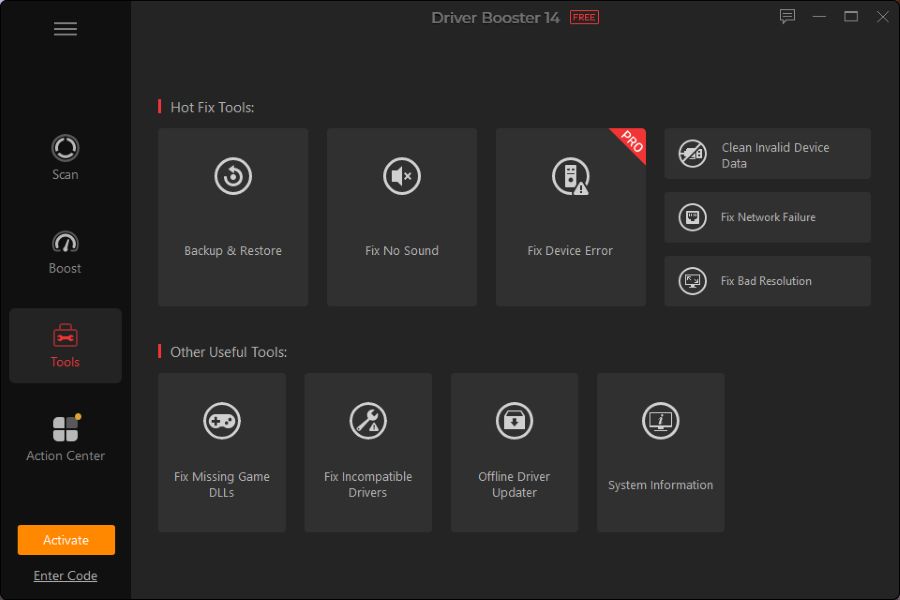
The Hot Fix Tools resolved my no-sound issue in about a minute. One-click solutions are available for problems including network disconnects, incorrect screen resolution settings, non-working printers, non-enumerated USB drives, and blue screen errors. The Game Boost, along with the use of Game Ready drivers for both NVIDIA and AMD provided better stability in frame rate and audio performance.
Backup, Restore, Offline Mode and SOCKS5
Before touching anything, it creates a restore point automatically — no update has ever caught me off guard. The Offline Driver Updater utility acts like a life saver for new Windows installation without an internet connection. The ability to support the SOCKS5 proxy enables downloading even under strict network conditions. With a completely new user interface and support for 38 languages, the end product is indeed a professional one.
How I Use Driver Booster (Step by Step)
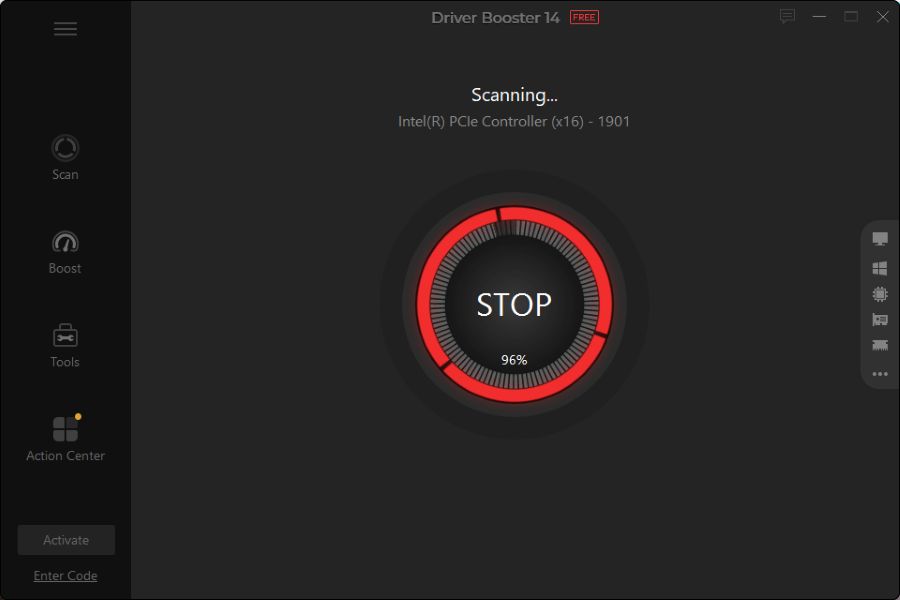
Step One: I begin by installing Driver Booster 14 and opening the main scan. Rather than moving straight on to any updating, first allow the computer to check out the hardware. This will give me an exact knowledge of the drivers that need to be updated, and I like this method since it will let me know exactly what is to be done.
Step Two: I undertake an extensive analysis of the obtained results, focusing on such aspects as graphics, chipset, audio, and network drivers because of their close connection with gaming performance. Where there are multiple versions of a driver to choose from, I do not take it for granted that the latest version will be the best option but the one which suits the context most.
Step Three: Before making any big changes, I check the backup and restore options. Once I feel confident about my selections, I start the updates and allow the installation process to finish without interruption. A restart afterward makes sense so Windows can load the new drivers cleanly. I then test the device or game that was giving me trouble before moving on to other updates.
Step Four: When I’m dealing with a gaming issue, I also use Booster’s Fix Missing Game DLLs scan and Game Boost feature. However, if the problem at hand revolves around a missing piece, finding and resolving this particular lack can prove more useful than reinstalling the whole game again.
Step Five: For maintenance purposes, scans that are either automatic or scheduled are used instead of manually verifying all devices. If an update ever creates a new problem, I use the restore or previous‑driver option instead of troubleshooting blindly. This way, I can track changes more easily and quickly identify when a crash disappears after repairing a specific driver or component.
Who Should Use This Tool
Gamers chasing stable frames, students and office workers tired of random crashes, remote workers with shaky audio or Wi-Fi, and anyone rebuilding an old PC without internet access.
My Final Take
After months of daily use, Driver Booster 14 has become one of those utilities I forget is running — which is exactly the point. It solved my problem with sound and improved the performance of my games, thus making an unpleasant experience a hassle-free one. This is the perfect tool that can be used to ensure stability, speed and robustness against crashes for a system in 2026.

