

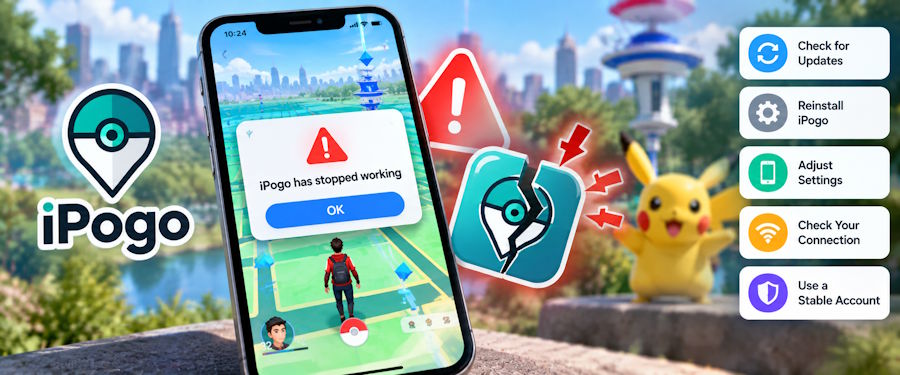
You open iPogo and it won't load, the website is unreachable, or the game crashes at the worst moment. Before you reinstall everything, find out whether the problem is on your phone or on iPogo's side. This guide covers how to check, why it happens, and what to do next, including a more stable iPogo alternative if you're tired of it breaking.
How to Tell If iPogo Is Really Down
Go through these checks in order:
- Open the iPogo website. If it won't load or times out, that’s your first clue.
- Check the official iPogo Discord. Outage notices and status updates usually appear there first.
- Check Reddit. A burst of "is it just me?" posts in a short time usually means a widespread issue.
- Rule out your own setup. Restart your phone, switch between Wi-Fi and mobile data, turn off any VPN, and confirm the official Pokémon GO app logs in normally.
If the first three checks point to a problem, it's most likely on the server side. Reinstalling over and over won't help, and it may leave you unable to get the app back at all.
Why iPogo Not Working or Keeps Crashing
- Server or infrastructure outages. When the website or its supporting services go down, downloads and verification can stop working.
- Version mismatch after a game update. Pokémon GO updates often, and iPogo has to be rebuilt to match. Until the new build is out, iPogo may not launch or may crash. Even after it's released, early builds can have bugs, and if the download site is unreachable, you can't get the update at all.
- Feature conflicts. Shiny Scanner in particular has been reported to crash the game on some versions.
- Device problems. Low storage, a corrupted cache, or an installer from an unofficial source.
The root cause is simple: iPogo runs on a modified version of Pokémon GO, so every official update forces it to catch up.
Quick Fixes to Try While You Wait
- Restart your phone and the game.
- Check that your Pokémon GO version matches your iPogo version, and turn off automatic game updates so it doesn't change on you.
- Clear the cache and free up storage space.
- Download only from official sources. During an outage, unofficial download sites start circulating, and nobody can vouch for them. If you can't verify a file, don't install it.
If you've tried all of this, or you keep starting over after every game update, it's time to consider an alternative.
iPogo Alternative: Why PoGoskill Is a Better Choice
Most iPogo problems come from the same place: a modified game that has to be rebuilt after every update, and a website that has to be online for you to get the new version. PoGoskill takes a different route. It's an advanced location changer that works on both desktop and mobile, so you can choose the setup that suits you.
It doesn't modify Pokémon GO. The desktop version runs on your computer and connects to your iPhone or Android device, so you keep the official game. There's no patched version to fall out of sync, which means it's less likely to crash after a game update.
No installer hunt. When iPogo's site goes down, players can't download the latest IPA file. With PoGoskill, you don't have to wait on a third-party website to get a new build of the game.
Responsive support. PoGoskill has a dedicated support team, and it keeps up with Pokémon GO updates and new phone models so compatibility issues get sorted out quickly.
Key features of PoGoskill:
- One-click GPS location changes without jailbreak or root
- Joystick mode for simulated movement
- Custom routes with adjustable walking speed
- Auto Catch
- IV/CP filters and event calendar
- Nearby search for PokéStop & Gym scanning, and more
How to use PoGoskill:
- Download and install PoGoskill on your computer.
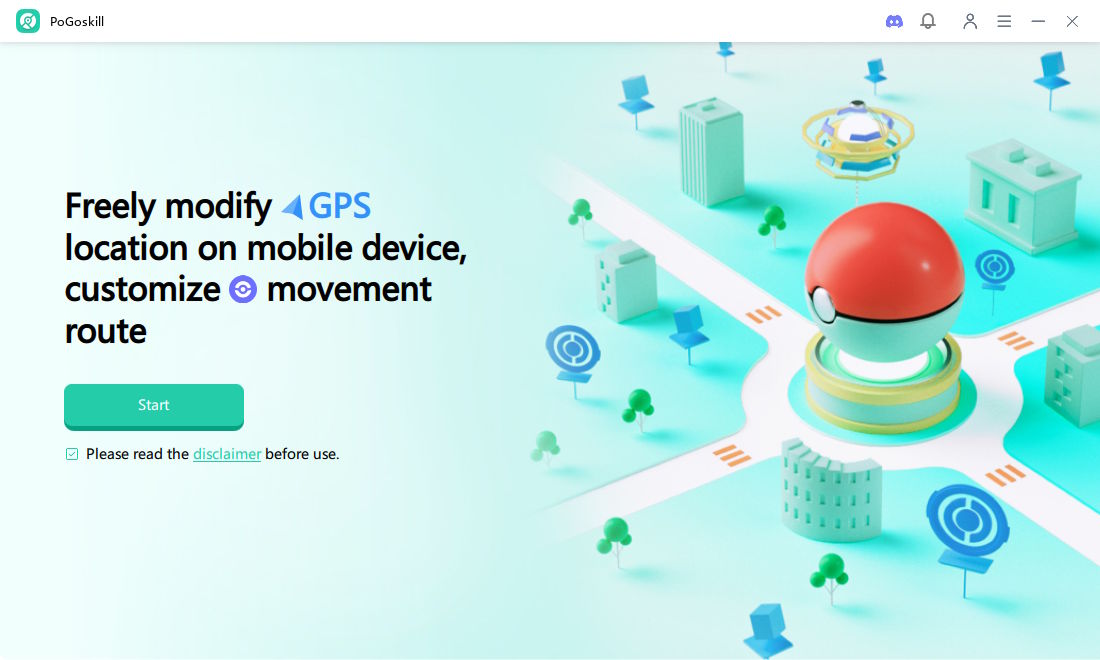
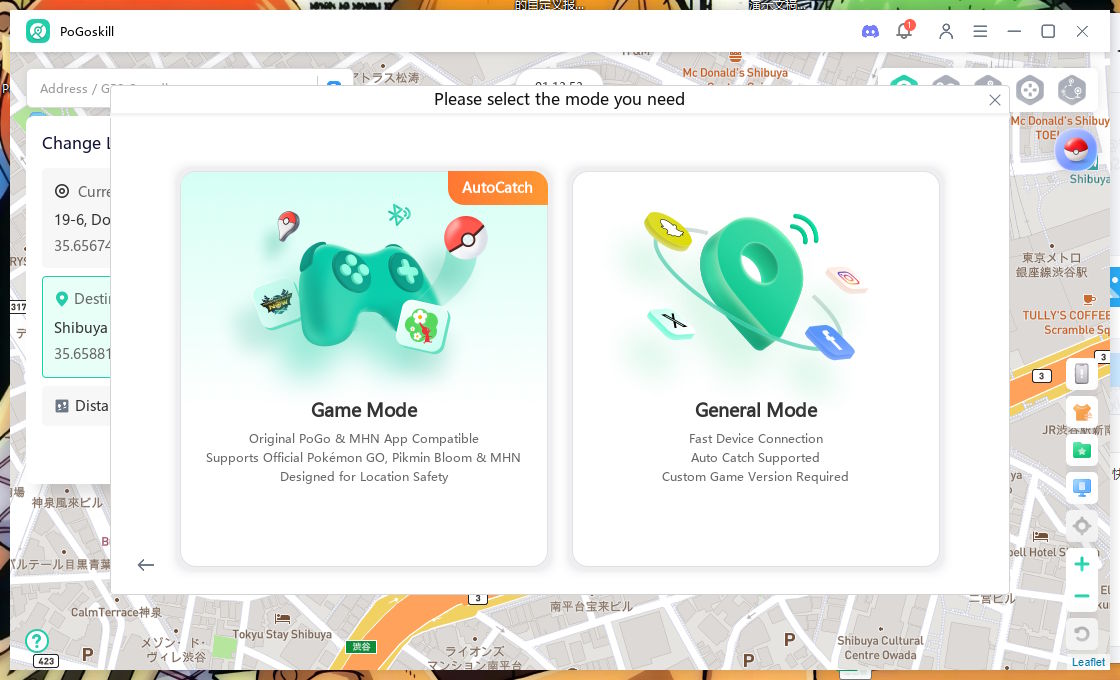
- Connect your iPhone or Android device with a USB cable, then choose Game Mode.
- Search for a location or pick a spot on the map, then click Start to Modify and your in-game position will change.
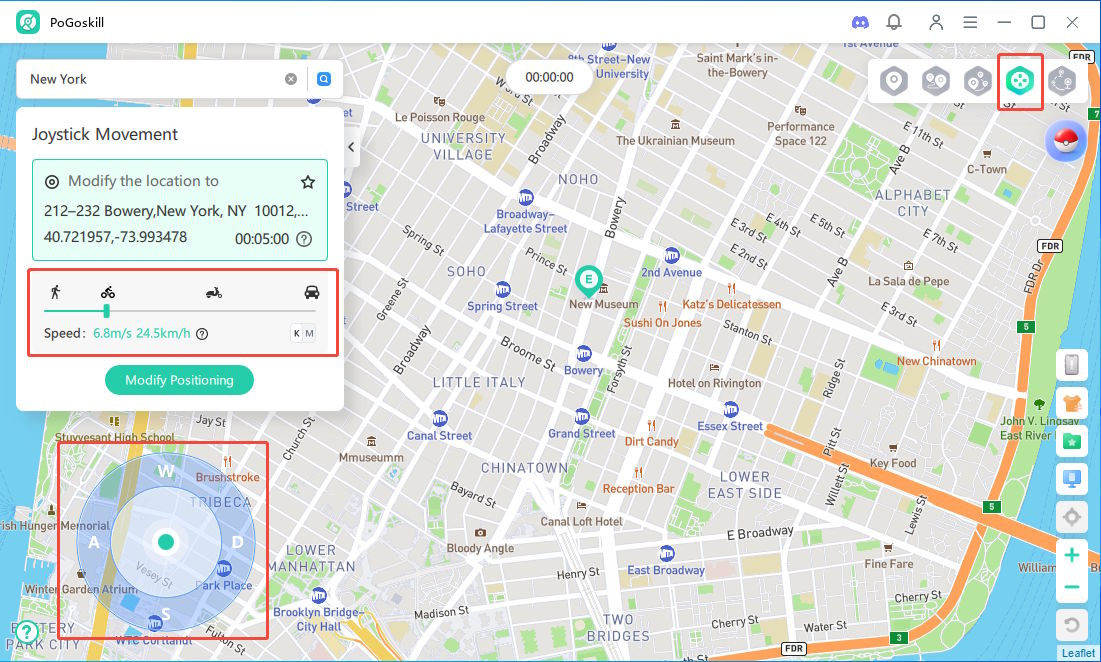
Once you're set up, try Joystick mode and other movement modes, or open the toolbox in the top-right corner for more gameplay helpers.
FAQs
- Why does iPogo crash when the Shiny Scanner notification appears?
The most likely cause is a compatibility problem between the scanner and your current game version. The tips below come from iPogo users on Reddit.
- Turn off Shiny Scanner while the game loads, catch the shiny, then turn it back on.
- Restart the game, open the mod settings gear on the loading screen, switch all mods off, catch the shiny, then switch them back on.
- One user found the crash started after Pokémon GO auto-updated to a version that didn't match their iPogo launcher. Downgrading the game fixed it for them.
- How long does it take for iPogo to get fixed?
It depends on the cause. After a Pokémon GO update, modified clients typically need a few days to be rebuilt, according to several third-party guides. Server or website outages can take longer because they depend on outside providers. Keep an eye on iPogo's official announcements for the latest status.
- Will I get banned for using iPogo?
Using iPogo or any third-party tool goes against Pokémon GO's terms of service, so there is always some risk. Use a secondary account, follow cooldown timers, and avoid unrealistic movement to lower the risk.
Final Thoughts
When iPogo stops working, check first whether it's really down, then try the basic fixes while you wait. If outages and version mismatches keep interrupting your game, it may be worth trying an iPogo alternative that doesn't depend on a single website. You can download PoGoskill to try it, or join the PoGoskill Discord for tips and updates.

