

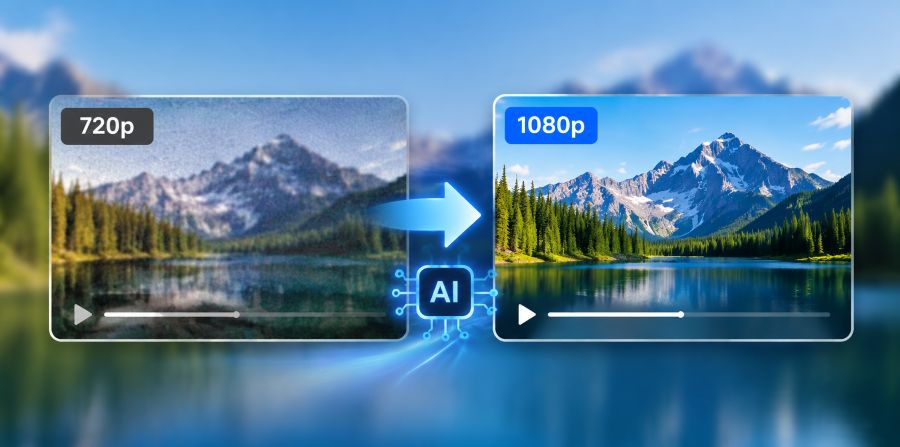
Poor video quality is easily noticeable, especially when projected on a big screen, television, or shared on a social media platform where video quality matters. Online AI video enhancers can be an easy solution to enhance video quality without the need to install any software, yet it might be hard to find the tool that will produce clean 1080p output without leaving any undesired watermarks. This guide covers the details of what can be done, what should be verified prior to improvement, optimal online tools, step-by-step procedures, and practical tips for attaining superior results.
What to Consider Before You Improve Video Quality to 1080p Online
The quality of videos can be enhanced using AI tools; however, the outcomes depend on the quality of the original footage and may not recover the missing details completely.
Start With the Highest-Quality Original
It is best to upload the original video file as often as possible. Do not use videos that have been downloaded from social media, re-uploaded, compressed or even recorded on a screen several times. Every compression operation eliminates a certain amount of visual data, and this may cause a decrease in sharpness, artifacts and complicate the restoration of details.
Check the Original Resolution
The initial resolution affects the resultant output significantly. An upgraded 720p video to 1080p gives a more natural appearance as well since it already has sufficient detail to be analyzed by AI models. Conversely, very weakly damaged 360p or 480p videos can be improved with some restrictions.
Understand the Video Problem
The various quality problems have different solutions:
- Low resolution: Use AI upscaling to increase resolution and improve image quality.
- Noise/ grain: Use noise reduction to clean up footage.
- Soft video: Sharpen and enhance details.
- Dark footage: Adjust brightness and exposure.
- Face quality issues: Use face restoration software.
- Motion blur: This cannot be easily corrected since missing details may be irretrievable.
Check for a Free Video Upscaler With No Watermark
Free online enhancers do not necessarily imply a watermark-free export. There are those that require a paid subscription in order to download clean videos. Always verify export settings prior to any process of important or long videos.
Best Online Tools to Improve Video Quality to 1080p Without Watermarks
There are a number of online AI video enhancer that can enhance video quality online. The correct option will be based on the requirements for upscaling, restoration, social media optimization, or editing.
1. HitPaw Online Video Enhancer – A Video Quality Enhancer for 1080p
HitPaw Online Video Enhancer enables users to make quick improvements without having to undergo complex editing processes. It concentrates on AI-based upscaling, which assists to turn low-resolution video into more vivid videos and enhance clarity, sharpness, and decrease unnecessary noise. The web-based application comes in handy when one wants to easily sharpen their personal videos, social media videos, and any other videos that become blurry when shown on a bigger screen. Its easy workflow makes it a viable option for newcomers who want more and have it without many changes.
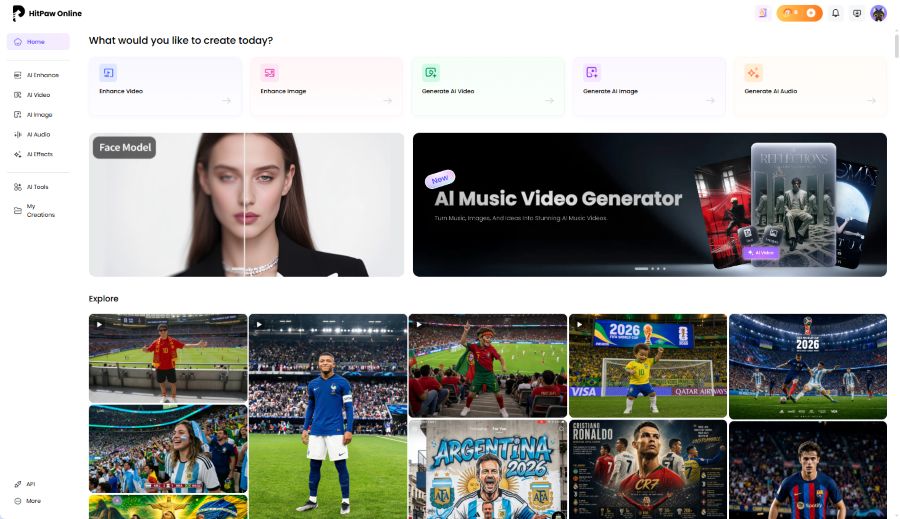
Key Features:
- Low resolution: It is recommended to use AI upscaling to enhance the resolution of videos and make them more visible overall.
- Blurry footage: Sharpen and clean up misty images to be less blurred.
- Noisy videos: Reduce grain and compression noise to produce smoother video.
- Face enhancement: Enhance the face in portrait and people-oriented videos.
- Online processing: Directly improve videos using a browser, without software installation.
Pros:
- Easy one-click improvement of the process.
- Suitable for novices and fast video enhancements.
- AI models assist in enhancing clarity in addition to simple resizing.
- The web-based workflow saves time.
Cons:
- More advanced controls are less advanced than desktop AI enhancers.
- Processing speed depends on video size and server availability.
How to Improve Video Quality to 1080p Without Watermarks With HitPaw Online Video Enhancer
These are simple steps that you can follow to upscale your video, improve clarity, and enhance overall quality.
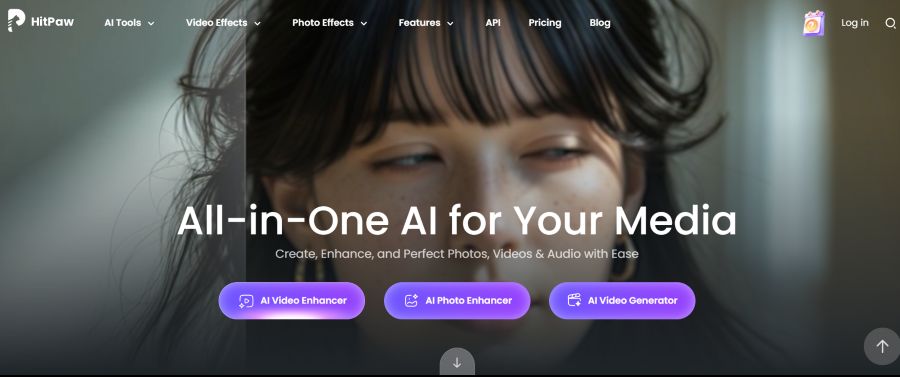
Step 1: Open HitPaw Online Video Enhancer
Go to the HitPaw Online Video Enhancer and open the video enhancement tool in your browser.
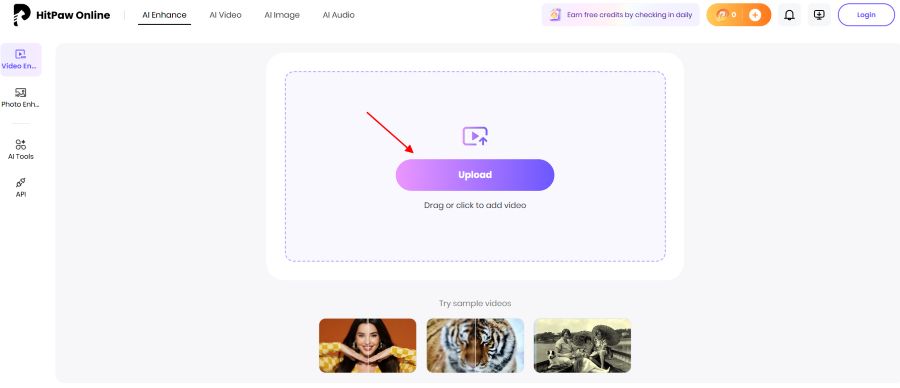
Step 2: Upload Your Video File
Drag and drop your video or click on the upload button into the tool.
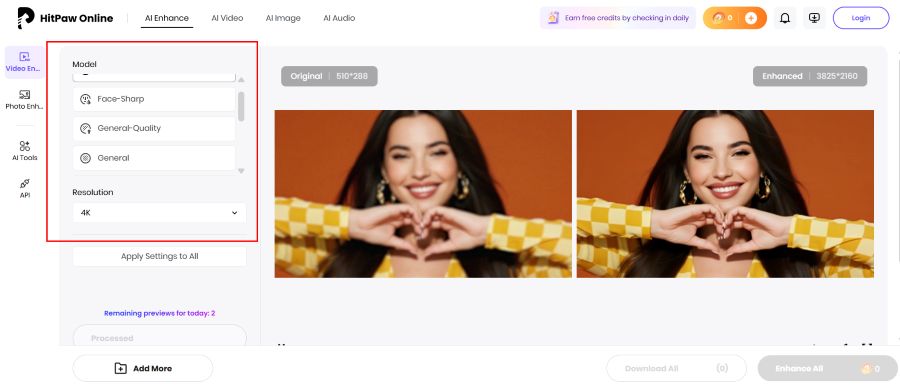
Step 3: Select the AI Enhancement Model
Once you upload the video, select the right AI enhancement option according to the problem with your video.
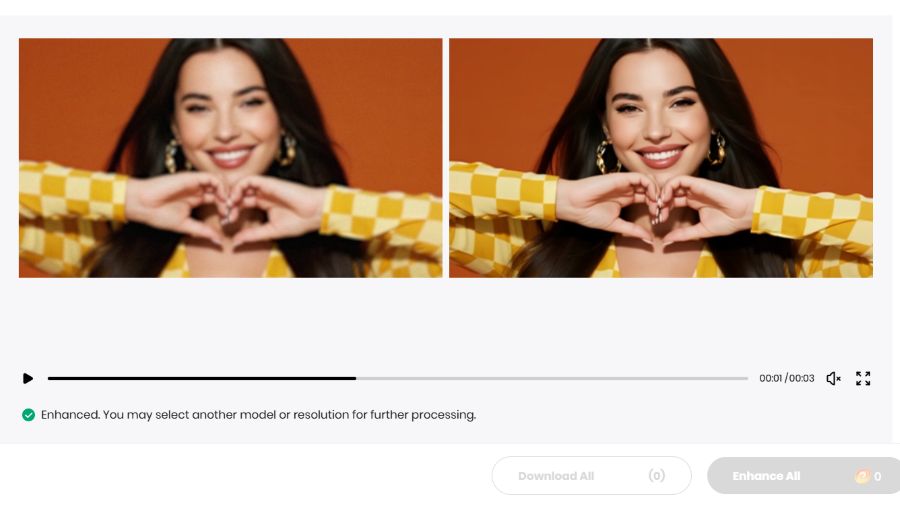
Step 4: Preview the Enhanced Video
Improve the output and then preview the successive result to compare the better result with the original one prior to exporting.
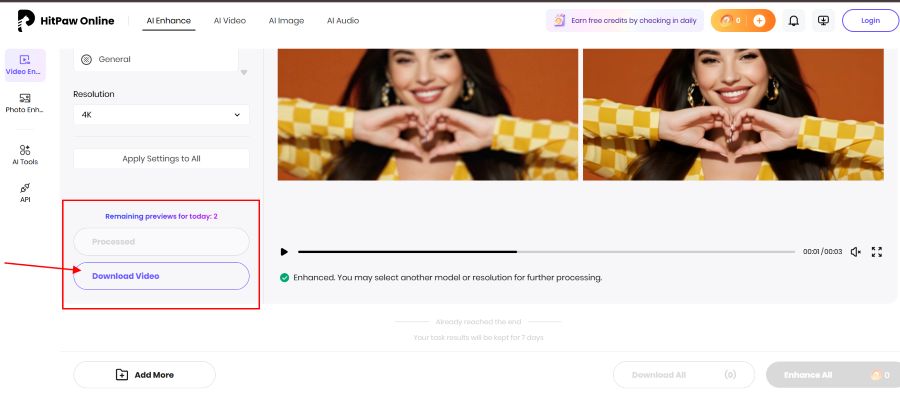
Step 5: Export the Enhanced Video
Export the improved video when you are happy with the outcome.
2. Vmake AI
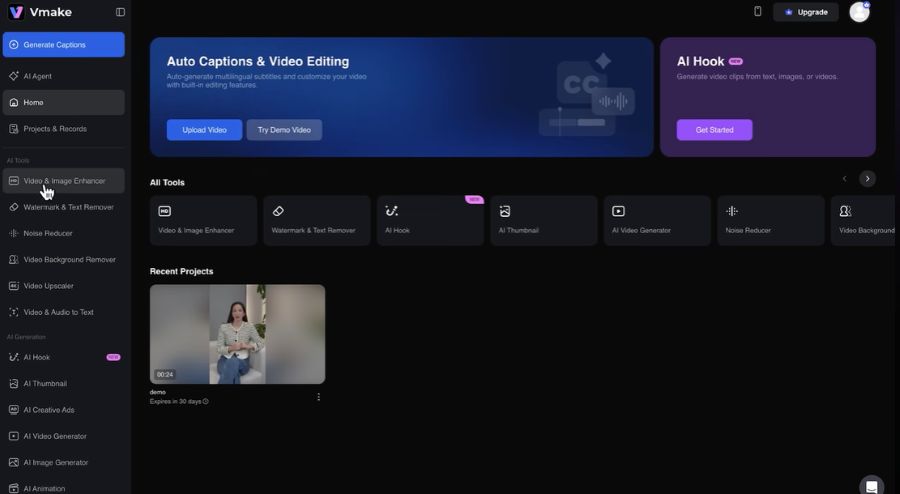
Vmake AI is designed on the basis of the needs of the content creators, brands and e-commerce users who frequently create short-form videos. Rather than just being concerned with restoration, it assists in maximising content for platforms where visual quality and presentation have a direct impact on engagement.
Key Features:
- Social media videos: Enhance the quality of videos on social media platforms like TikTok, Instagram, and other short-video platforms.
- Video enhancement: Auto sharpen and enhance the clarity and the overall appearance of the video.
- Poor video quality: Upscale videos and make them look better on the new displays.
- Creator workflow: Rapidly create videos to be marketed and published online.
Pros:
- Beginner-friendly interface.
- Helpful to designers who require quick fixes.
- Organized to work with online content.
Cons:
- More appropriate for short videos than long and professional videos.
- Paid access might be necessary to access some of the advanced enhancement controls.
3. Cutout.Pro
Cutout.Pro is an easy-to-use online enhancement tool that allows users to make simple enhancements to their videos without having to master complex editing software. The platform is dedicated to automated processing; the user can also refine footage via a straightforward online procedure.
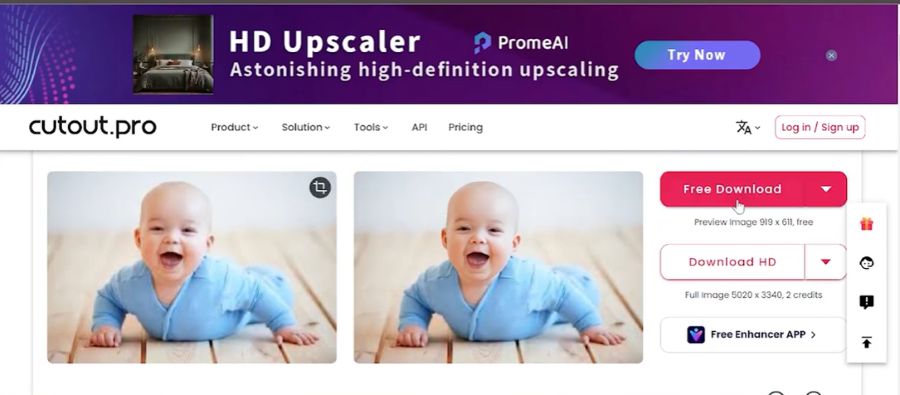
Key Features:
- Low-resolution videos: Enhance the quality of the video using AI and make it more visible.
- Blurry photo: Sharpen and bring out the clarity of details.
- Automatic processing: Improve videos without the need for manual editing.
- Online availability: Videos of processes via a web-based medium.
Pros:
- Easy-to-use interface.
- Good alternative to basic video enhancements.
- Works directly online.
Cons:
- Few manual adjustment capabilities.
- More specialized video enhancement software might be required by advanced users.
4. AVCLabs Online Video Enhancer
AVCLabs Online Video Enhancer is based on AI technology to enhance the quality of videos by increasing resolution and reducing noise and visual details. It targets users who may desire to fix older videos, enhance compressed videos, or make cleaner copies of the video that already exists.
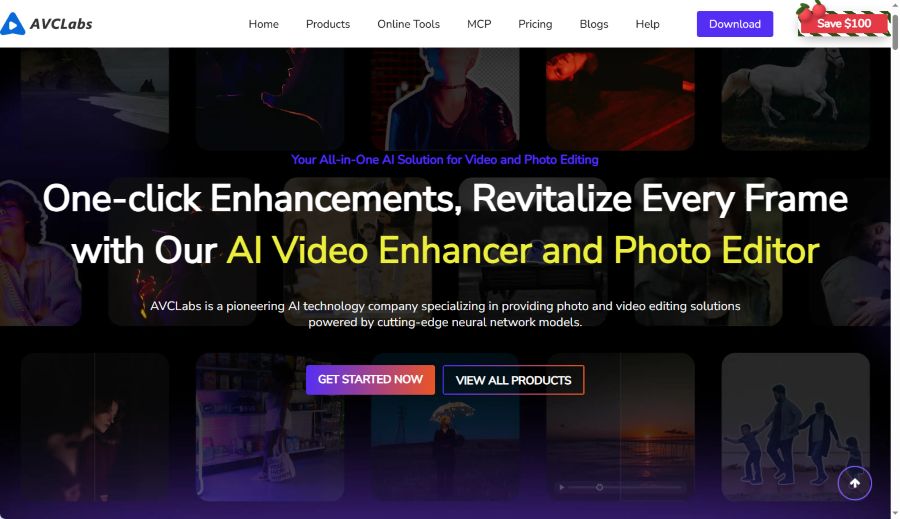
Key Features:
- Video upscaling: Enhance the visual clarity and the resolution.
- Noise reduction: Eliminate unwanted grain and digital noise in videos.
- Old video restoration: Enhance the looks of old or damaged recordings.
- Detail enhancement: Tighten up textures and edges to a finer effect.
Pros:
- Appropriate for restoration-oriented projects.
- Intelligent enhancement as opposed to mere scaling.
- Applicable to make older recordings better.
Cons:
- Video files can take a longer time to process.
- A premium subscription may be needed to use some of the advanced features.
5. Kapwing Video Enhancer
Kapwing is a web-based video editing tool that incorporates favorable improvement capabilities and imaginative editing instruments. Rather than just restoring AI, it offers an entire video workflow to improve, edit, and prepare videos to be published online.
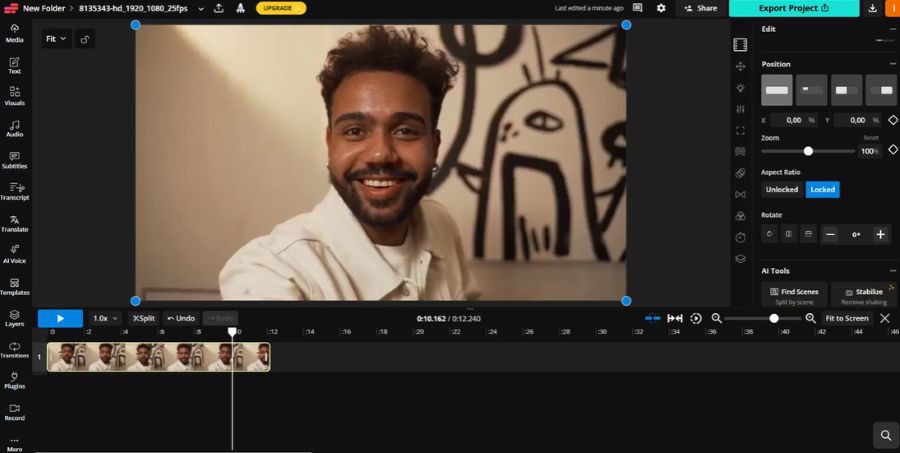
Key Features:
- Video enhancement: Enhance the appearance of the video when editing online.
- Social media formatting: Scale videos to various platforms and screen sizes.
- AI editing tools: Automated captions, editing, and content editing.
- Teamwork: Work on video projects in an online workspace.
Pros:
- Integrates improvement with editing capabilities.
- Helpful to social media and marketers.
- No software to install.
Cons:
- More of an editing tool than an actual AI restoration tool.
- Certain exports and sophisticated features are based on the subscription plan.
Comparison of the Best Online Video Enhancers
When selecting a tool, users are recommended to compare those features that are most important for 1080p improvement, such as AI features, export quality, and a free-plan limit. The following table gives a brief summary of the key differences of popular online video enhancers.
| Tool | 1080p Upscaling | AI Enhancement | Watermark-Free Export | Best For |
|---|---|---|---|---|
| HitPaw Online Video Enhancer | ✅ Yes | Upscaling, noise reduction, blur improvement, detail enhancement | Depends on plan/export limits | Quick AI video enhancement |
| Vmake AI | ✅ Yes | AI quality improvement for short-form content | Depends on credits and plan | Social media creators |
| Cutout.Pro | ✅ Yes | Automatic video enhancement and upscaling | Depends on free credits | Simple online enhancement |
| AVCLabs Online Video Enhancer | ✅ Yes | AI restoration, noise reduction, detail improvement | Depends on subscription | Old video restoration |
| Kapwing Video Enhancer | Video quality improvement + resizing | AI editing and enhancement tools | Free exports may include limitations | Enhancement with editing |
Try HitPaw VikPea for More Advanced Video Enhancement
HitPaw VikPea is a more sophisticated AI-based video quality improvement solution which users require more than a quick online boost. It offers dedicated AI models to upscale, remove noise, sharpen, and repair videos, making it applicable to creators, professionals and users who deal with outdated or subpar videos.
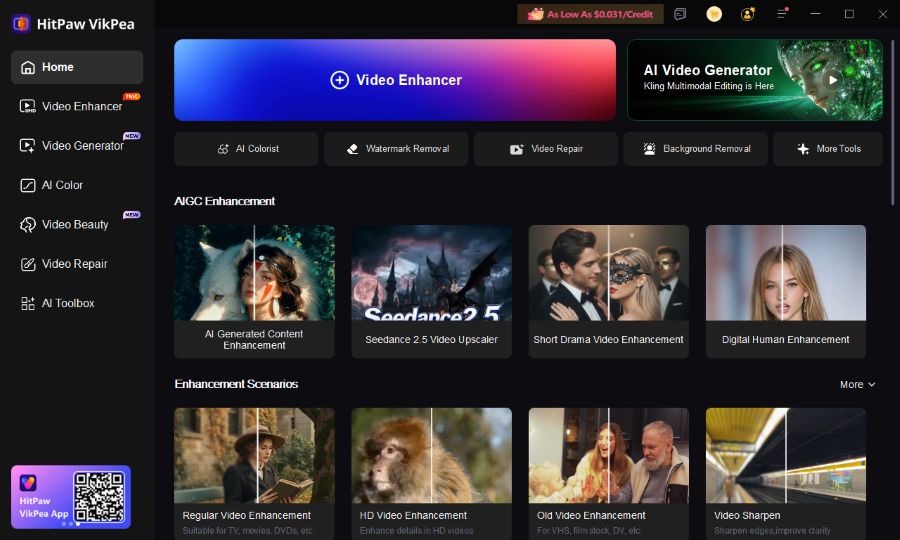
HitPaw VikPea is preferable when you require:
- Higher-resolution upscaling: Enhance videos to a higher level than ordinary HD upscaling with the help of advanced AI processing.
- Video restoration: Improve and sharpen old, low-resolution, or pixelated video using AI repair software.
- Multiple video processing: Process longer videos and regular improvement processes more effectively.
- Specialized AI models: Select models that specialize in faces, general videos, animation, and other enhancement requirements.
Although the online version will help in making some quick fixes, HitPaw VikPea Desktop would be a more appropriate option to those who require to have more control, more features, and better results, on a regular basis, when doing a video enhancement project.
FAQs About Improving Video Quality to 1080p Online
1. How Can I Improve Video Quality Without a Watermark?
Use an online AI video enhancer that supports watermark-free exports. Upload your video, select an enhancement option, and export the improved video quality without a watermark.
2. Can I Improve Video Quality to 1080p Online for Free?
Yes, some tools let you improve video quality free and upscale videos to 1080p. Free plans may have limits on file size, processing, or exports.
3. Is There a Free Video Upscaler With No Watermark?
Yes, some tools work as a free video upscaler no watermark option. Check the tool's export policy before processing your video.
4. Can I Upscale a 720p Video to 1080p?
Yes, AI video upscalers can upscale 720p footage to 1080p while improving clarity and visible details.
5. Does Upscaling a Video to 1080p Improve Video Quality?
Upscaling increases resolution, while AI enhancement can also reduce noise, sharpen details, and improve overall video quality.
Conclusion
AI-based video quality enhancement tools can be used to improve video quality to 1080p online, however, the end result will rely on the quality of the original video and the nature of the issue that needs to be addressed. Tools such as HitPaw Online Video Enhancer are easy-to-use online tools that can be used to improve blurry video quality, remove noise, and enhance clarity without the need to have advanced editing capabilities. HitPaw VikPea has more powerful AI models and professional-level control, available to users who require higher resolution upscaling, or frequent video processing.

