

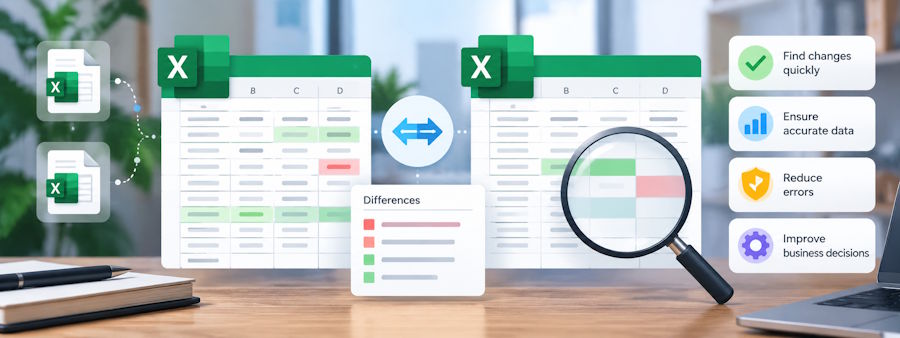
Excel remains one of the most widely used tools for managing business information. Companies use spreadsheets for financial reports, budgets, forecasts, inventory records, project tracking, customer data, and operational planning. As these workbooks are updated and shared between teams, however, differences between versions can become increasingly difficult to identify.
A spreadsheet may contain thousands of cells, formulas, and formatting elements, making manual comparison slow and prone to oversight. A single changed value may be easy to find, but a modified formula or formatting style can remain unnoticed during a quick visual review. These small differences can eventually affect calculations, reporting accuracy, and business decisions.
For organizations that regularly work with multiple spreadsheet versions, a structured comparison process offers a more dependable way to identify changes. Instead of reviewing every cell manually, users can focus on the specific differences that matter and verify whether each change was intentional.
Why Manual Excel Comparison Can Be Challenging
Comparing two Excel workbooks manually may seem straightforward when they contain only a small amount of information. The process becomes considerably harder as spreadsheets grow larger or contain complex calculations. Switching between files and scanning rows and columns can take considerable time, while subtle differences may still be overlooked.
The challenge is not limited to visible numbers. Excel workbooks can contain formulas that calculate values automatically, meaning two cells can display similar results while relying on different calculations. A small change to a formula reference can therefore create problems later, even if the current result appears correct.
A dedicated comparison approach can make this review more systematic. Tools designed to compare excel files can help users identify differences between workbook versions rather than relying entirely on visual inspection. This gives teams a clearer starting point for reviewing changes and deciding which differences require further attention.
Comparing Cell Values for Greater Accuracy
Cell values are among the most important elements to check when reviewing different versions of a spreadsheet. Businesses frequently update figures such as sales totals, expenses, inventory quantities, employee records, or financial forecasts. When several people work on the same workbook, identifying exactly what changed can become difficult.
A comparison tool can help locate differences between corresponding cells in two Excel files. This allows users to determine whether a value was added, removed, or modified and then investigate the reason for the change.
This type of review is particularly useful for financial and administrative workflows. For example, an accounting team may need to compare an earlier report with a revised version before finalizing monthly figures. Similarly, an operations team may need to confirm that an updated inventory workbook contains only the intended changes.
Rather than manually reviewing an entire spreadsheet, users can concentrate on identified differences. This can save time while providing a more organized method for checking important business data.
Why Formula Differences Deserve Attention
Formulas are another critical area when comparing Excel workbooks. Unlike ordinary values, formulas determine how many spreadsheet results are produced. A small change to a formula can therefore affect other calculations throughout a workbook.
For example, a formula may originally calculate a total using one range of cells and later be changed to include or exclude additional data. The displayed result might still appear reasonable, making the change difficult to notice without examining the formula itself.
Comparing formulas helps users identify these underlying changes. This is valuable when reviewing financial models, budgets, forecasting sheets, sales reports, and other workbooks that depend heavily on calculations.
Formula comparison can also help during collaborative work. If several employees contribute to a spreadsheet, a reviewer can determine whether a calculation was changed intentionally or accidentally. Identifying these differences before a workbook is finalized can reduce the risk of incorrect calculations being carried into future versions.
For businesses that depend on spreadsheet-based analysis, checking formulas alongside values provides a more complete understanding of what has changed.
Formatting and Styles Can Affect Interpretation
Excel comparison should not stop with values and formulas. Styles and formatting can also carry important information. Number formats, fonts, borders, fills, alignment, and other visual elements can influence how users interpret spreadsheet data.
Consider a financial workbook where a cell is formatted as a percentage, currency, or date. If that formatting changes, the underlying value may remain the same while its presentation becomes misleading. Similarly, removing a border or changing a fill color can make important sections less obvious in a report.
Comparing styles between workbook versions can help identify these changes. This is particularly useful when spreadsheets are prepared for management reviews, client presentations, audits, or formal reporting.
A complete comparison process therefore looks beyond the visible numbers. Checking cell values, formulas, and styles together gives users a broader view of workbook changes and makes it easier to distinguish meaningful updates from accidental modifications.
Making Spreadsheet Reviews More Reliable
A consistent comparison workflow can make spreadsheet management more efficient and dependable. Instead of waiting until an error is discovered, teams can compare relevant workbook versions as part of their normal review process.
This approach can be useful during monthly reporting, budgeting cycles, financial reconciliation, data updates, and collaborative projects. Before approving a revised spreadsheet, users can identify differences and determine whether the changes match the expected updates.
The process also creates a more focused review. Rather than spending time checking unchanged sections, users can concentrate on cells where values, formulas, or styles differ. Human judgment remains important because not every difference represents an error, but identifying those differences efficiently makes that judgment easier.
As spreadsheets become larger and business processes become more data-driven, reliable comparison methods can help organizations maintain better control over important information. A simple review step can prevent small unnoticed changes from becoming larger reporting or operational problems.
Conclusion
Excel is likely to remain an important part of business data management, but working with multiple versions requires careful control. Differences can occur in cell values, formulas, and styles, and not all of them are immediately visible during a manual review.
A structured Excel comparison process gives businesses a practical way to identify these changes and review them before a workbook is finalized. Comparing values can reveal updated data, while formula comparison can expose changes to calculations that may otherwise go unnoticed. Checking styles adds another layer of review by identifying changes in formatting and presentation.
For finance teams, analysts, administrators, and other spreadsheet users, this approach can improve accuracy without requiring every cell to be inspected manually. As organizations continue to depend on increasingly detailed workbooks, effective comparison will remain an important part of maintaining reliable, consistent, and trustworthy spreadsheet data.

