


Lost Google Drive Files? Act Before the Recovery Window Closes
Most Google Drive losses go unnoticed, whether you accidentally delete a project folder, lose access to a shared document, or find files missing from your Windows synced folder. Google keeps trashed items for 30 days, while “Google Workspace administrators” have up to 25 days to restore data after permanent deletion.
Beyond that, recovery isn’t guaranteed. Before trying any method, determine whether the files were deleted, moved, unshared, or removed only from your local computer. This guide explains how to recover permanently deleted files from Google Drive in the order that gives you the best chance of success.
Part 1: Find Out What Happened to the Files
Start with Google Drive’s search bar. Search by file name, then narrow results using the Type, People, and Modified filters. You can also use these search operators:
- owner:[email protected] (finds files by owner).
- before:2026-09-01 and after:2026-08-01 (filter by modified date).
- title:searches file names.
- is:trashed (lists items in Trash).
- is:unorganized owner: me (finds files whose parent folder was deleted).
The last operator is especially useful if someone deletes a folder containing your file. The file itself may survive in My Drive. Check these locations for missing files:
- My Drive: Your own files and folders.
- Shared with me: Files others own that may have been moved or unshared.
- Computers: Folders backed up from your PC through Drive for Desktop.
- Trash: Items deleted within the last 30 days.
- Activity panel: In “My Drive,” click the “Info” icon, then “Activity,” to check who moved or deleted a file and when. On a phone, open “drive.google.com” in a browser and request the desktop site; this panel isn’t available in the app.
Also, confirm you’re signed into the correct Google account, especially if you use both personal and work accounts. If a shared file is missing, its owner may have moved it, removed your access, or placed it in a restricted folder. Search for “is:limited_access” to identify some access restrictions. If you’ve lost access to a shared drive, contact the person who granted it.
Part 2: Choose the Correct Recovery Path
Once you know what happened, the table tells you where to go next to recover deleted Google Drive files. Move from the top down, because the cheapest fixes come first:
| File Status | Recommended Recovery Method |
|---|---|
| Still in Google Drive Trash | Right-click and select Restore |
| Permanently deleted from a personal account | Submit Google’s signed-in recovery request |
| Deleted from a Workspace account | Contact the Workspace administrator |
| Shared file has disappeared | Ask the owner to restore or reshare it |
| Local synced copy was deleted | Scan the computer with recovery software |
| Backup copy exists | Restore from the backup immediately |
These recovery paths can overlap. Deleting a file from a synced PC folder may remove it from both your computer and the cloud. Google Drive for desktop syncs changes across locations, so deleting a file while mirroring or streaming can delete it everywhere. Pausing sync can help prevent further changes during recovery.
Part 3: Restore Files from Google Drive Trash
If you haven’t emptied the “Google Drive Trash,” restoring recently deleted files takes about 30 seconds:
- Sign in to the correct Google account. Then, open “Trash” (called Bin in some regions).
- Sort by “Trashed date” or search by “file name.” Right-click the file or folder and select “Restore.”
- If the original folder no longer exists, search “My Drive” using “is:unorganized.”
Google Drive automatically deletes trashed files permanently after 30 days. Until then, they still count toward your storage. If you own a file, people you’ve shared it with retain access while it’s in “Trash” but lose it once it’s permanently deleted. In case you’re not the owner, emptying your own “Trash” doesn’t revoke their access.
Part 4: Request Recovery After Emptying Trash
Recovering permanently deleted Google Drive files depends on your account type and how long ago the files were deleted. Here’s when a Google Drive file recovery request is viable after emptying the “Trash”:
Personal Google Account:
Sign in to the account that owned the files and use Google’s official “Drive file-recovery support flow.” Provide the file name and approximate deletion date. Recovery isn’t guaranteed.
WhatsApp backups can’t be restored through Google Drive support because they’re end-to-end encrypted, while Google Photos has a separate recovery process.
Google One Account:
Contact “Google One support” and provide the approximate deletion date so an agent can assess whether recovery is possible.
Google Workspace Account:
Ask your administrator to restore Drive data through the “Admin” console. Administrators have up to 25 days after permanent deletion to restore data. After that, the data is purged. The 25-day window also applies after the automatic 30-day “Trash” period. Audit logs record automatic deletion under “Google System.”
Workspace administrator restore steps:
- Open the “Admin console.” Head to “Directory.” Choose “Users.”
- Select the user. Click “More options.” Then, tap “Restore data.”
- Choose a date range covering the deletion. Next, select “Drive” beneath “Application.” Click “Restore.”
Important limitations:
- Individual files can’t be restored separately. All deleted items within the selected date range are restored.
- Only one restoration can run at a time.
- Large restores may take several days to appear.
- Restoration may fail if it exceeds storage limits.
- Sharing permissions aren’t restored, so users must reshare files.
- If the user’s account was deleted, the recovery window is 20 days from account deletion.
Organizations using “Google Vault” may recover older data covered by retention rules or holds, but that data is exported rather than restored directly to Drive.
Part 5: Recover a Deleted Local Google Drive Copy
Cloud storage and your hard drive require different recovery methods. Desktop recovery software can’t retrieve cloud-only files directly from Google’s servers. But it may recover downloaded, mirrored, or offline copies previously stored on your Windows PC.
Your chances depend on “Drive for Desktop” mode. “Mirror mode” keeps complete copies on both your computer and in the cloud. While “Stream mode” stores files primarily in the cloud, with local copies of files you open or mark offline. Mirrored files are more likely to leave data you can scan for.
Check the “Windows Recycle Bin” first, since deleting a file from a mirrored folder may remove its local copy. If it’s not there, scan the disk itself. In case a Google Drive file was synced, downloaded, or stored offline on your computer, 4DDiG Data Recovery is a great option. It offers Google Drive cloud recovery, along with tools to scan local disks and removable storage.
Main Features of 4DDiG Data Recovery:
- Search Windows hard drives for deleted copies of synced, offline, or downloaded Google Drive files.
- Scans in read-only mode and supports Windows 11 and earlier and macOS 27 and earlier.
- Scans the “Windows Recycle Bin” for files deleted locally, including files removed from the bin.
- Supports recovery of 2000+ file types, including documents, photos, videos, audio, RAW files, and more.
- Preview found files before restoring them.
- The free version recovers up to 2GB, letting you test it on important files.
Step-by-Step Guide Using 4DDiG Data Recovery:
Here’s how to recover permanently deleted files of Google Drive with 4DDiG Data Recovery:
Step 1: Pause Google Drive synchronization:
As deletions propagate between your PC and the cloud, a running sync can push changes before you finish recovering.
Step 2: Stop saving new data:
Deleted files are recoverable only as long as their data hasn’t been overwritten, so every new download or install on the affected disk reduces your chances.
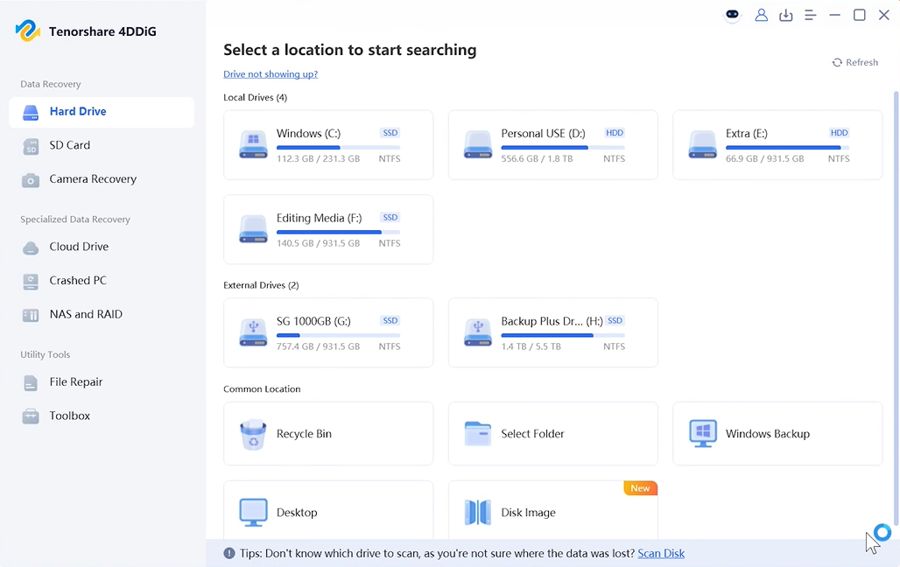
Step 3: Select the local drive:
Open 4DDiG Data Recovery on your computer. Pick the physical disk where your mirrored folder or downloaded copies were stored.
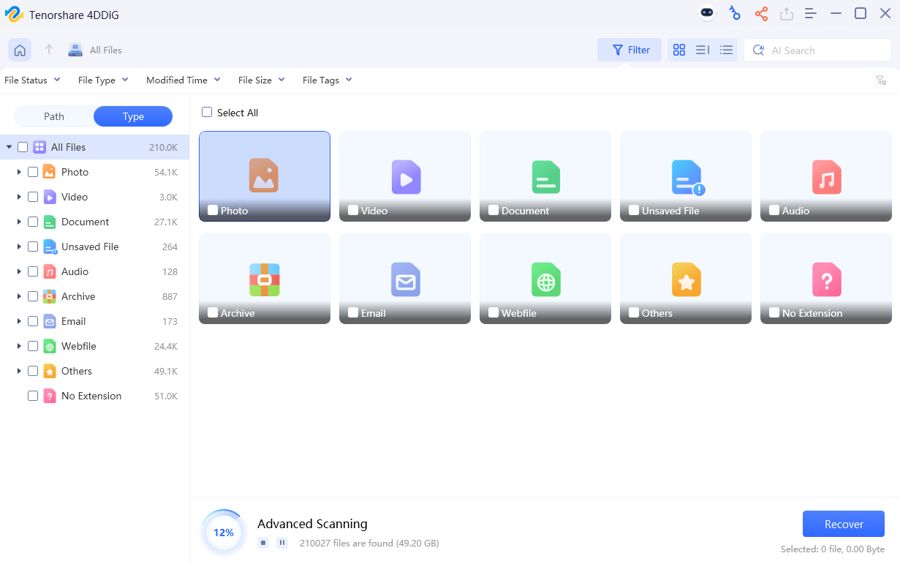
Step 4: Scan and filter results:
Pick the file types and start the scan. Pause or stop the scan and filter results by type and path. You can also use filter tags and keyword search to find the exact matches.
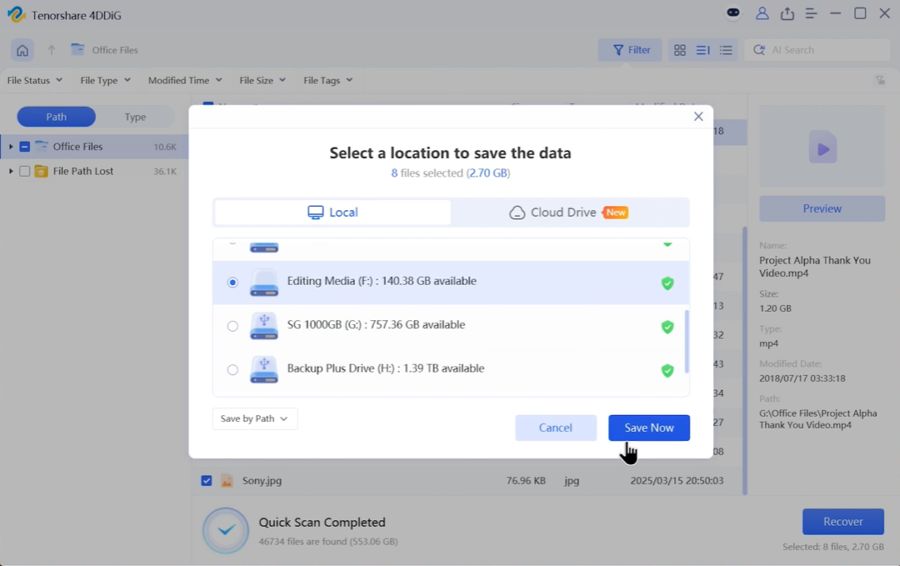
Step 5: Preview and recover files:
Preview recoverable files. Confirm that documents open and images look right before you restore anything. Save them to another healthy drive.
Important: 4DDiG Data Recovery can’t recreate cloud-native Google Docs, Sheets, or Slides without recoverable local data. In synced folders, these files appear as shortcuts to online documents, not complete local copies.
If you deleted a shortcut from a synced folder, check Google Drive’s “Trash” first, as the online document may be there. Downloaded or exported files such as “.docx,” “.xlsx,” and “.pdf” are actual local files that recovery software may find.
Part 6: Prevent Future Google Drive Data Loss
Here are some measures you can take to prevent future Google Drive data loss:
- Use “Mirror mode” for critical files: It keeps complete local copies that recovery software can scan, but deletions still sync across devices, so mirroring isn’t a backup.
- Keep offline copies: In “Stream mode,” mark non-Google files as available offline. Enable offline access for Docs, Sheets, and Slides, and export critical documents as “.docx,” “.xlsx,” or “.pdf.”
- Maintain an independent backup: Store a separate copy on an external drive or backup service that doesn’t mirror Drive’s deletions.
- Review file ownership: Only owners can permanently delete their files, removing access for everyone they shared them with. Transfer important work to a reliable account or responsible team member.
- Limit permanent-deletion permissions: In shared drives, only “Managers” can permanently delete trashed files. Content managers can move files to “Trash” but can’t permanently purge them. Restrict “Manager” access to trusted people, and use “Google Vault” holds to protect important “Workspace data” from premature deletion.
Final Words
When Google Drive files go missing, learning how to recover permanently deleted files depends on the order you follow. Search thoroughly using filters, the “Activity panel,” and shared-file checks. Restore files from “Trash” within 30 days.
If “Trash” is empty, contact “Google support” or your “Workspace administrator” promptly, as administrators have up to 25 days after permanent deletion to restore data. Use 4DDiG Data Recovery when recoverable local copies exist, such as mirrored or offline files on Windows. Most importantly, create an independent backup now to prevent future losses.
FAQs
-
How long do deleted files stay in Google Drive Trash?
Google Drive keeps deleted files in Trash for 30 days. After that, they are automatically permanently deleted.
-
Can I recover files after emptying Google Drive Trash?
Recovery may still be possible through Google’s official support process if the deletion was recent. Submit one accurate request promptly, but do not assume restoration is guaranteed.
-
Can a Google Workspace administrator recover permanently deleted files?
Yes, an administrator can restore a user’s Drive data within 25 days after Trash was emptied. The administrator cannot choose individual files during this account-level restoration.
-
Can 4DDiG recover permanently deleted Google Drive files?
4DDiG Data Recovery may recover downloaded, mirrored, or offline files deleted from a local Windows drive. It cannot directly scan Google’s cloud servers or restore files that existed only online.
-
Why did a shared Google Drive file disappear?
The owner may have deleted, moved, or unshared it, or your access may have changed. Check Shared with me and Activity, then contact the owner to restore or reshare the file.

