

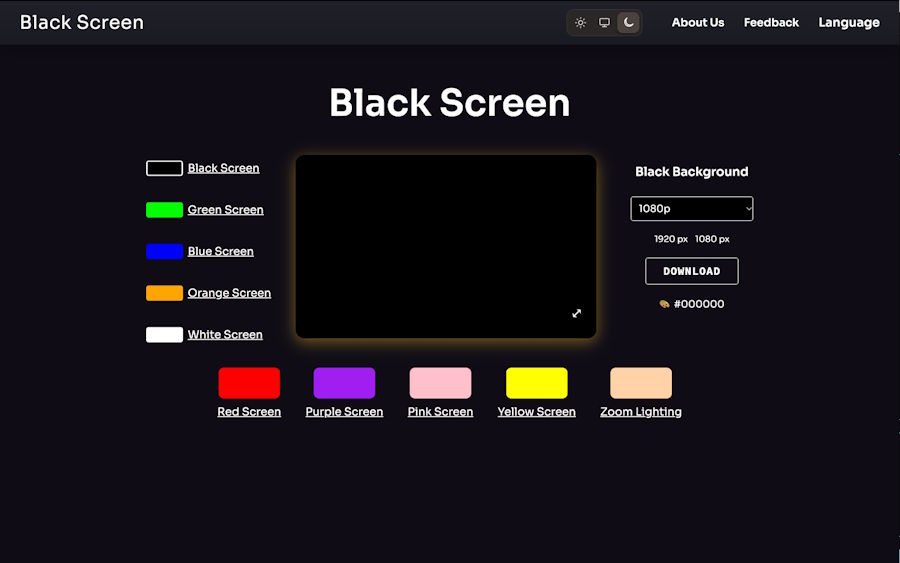
A black screen test takes about two minutes, needs no tools and works on almost every device that has a browser. It will not replace a proper diagnostic, but it answers a surprising number of practical questions: whether a new phone has a faulty pixel, whether a second-hand monitor has uneven backlighting, and whether a projector really goes dark between slides.
This guide walks through the same basic test on phones, laptops, monitors, televisions and projectors, with a note on what to look for and what not to read into the result.
Set Up the Test
The setup matters as much as the screen. Choose a dim room, turn off lamps that reflect in the glass and set brightness to the level you normally use. Clean the display first, since dust and fingerprints can look like defects when the screen is dark.
Next, open a black screen page in your browser and switch to full-screen mode. This hides the address bar, tabs and system controls, so that the whole panel shows one uniform colour. Press Escape or tap the screen to exit. If your browser has a persistent toolbar, check that it has actually disappeared before you start judging the edges.
Test a Phone
Hold the phone at a normal reading distance and look at the corners first, where rounded edges, camera cut-outs and notches sit. On an OLED phone, the screen should look uniformly dark, and the cut-out areas should blend in. A visible glow or a coloured tint suggests a panel issue.
Turn auto-brightness off for the duration of the test, otherwise the display will change under you and make comparisons unreliable. Tilt the phone slightly to check for colour shift and, if the display is new, run your finger across the screen to check that nothing flickers or changes as it moves.
A common mistake is judging the result in a bright room or outdoors. Reflections will hide real problems, and in daylight a display with a genuine fault can appear perfect.
Test a Laptop or Monitor
Sit at your normal working distance, then check the four corners and the edges. LCD monitors, whether IPS or VA, will show some light in a dark room because the backlight cannot be fully blocked. The question is whether that light is even. Bright patches at the edges are known as backlight bleed, and cloudy blotches in the centre are called clouding.
For laptops, repeat the test with the lid at a few angles, since many panels shift in brightness and colour when seen from above or below. For external monitors, check that the input source and settings, such as local dimming or an eco mode, are not changing the result. If you use more than one display, compare them side by side, which makes differences obvious.
Test a Television
If the television has a web browser, you can open the page directly on it. Alternatively, send the page from a laptop or phone using a cable or casting, bearing in mind that casting can add compression or change the aspect ratio.
Televisions have picture modes that alter contrast, local dimming and brightness automatically. Switch to a neutral or standard mode for the test, otherwise the result reflects the mode more than the panel. In a dark room, watch for clouding in the corners, banding and any bright zones. Modern televisions with local dimming can show a halo around bright objects, so a pure black field is a useful baseline for judging it.
Test a Projector
A projector cannot produce true black, because it is a lamp or laser shining through or reflecting from an image. A black page tells you how dark the projector can get, and whether the unit leaks light when it should be dark.
Run the test in a dark room against your screen or wall, and watch how the black compares with the unlit surface around the image. If the black appears as a visible grey rectangle, that is the projector’s native contrast limit. It also shows how distracting a paused presentation will look to an audience, which is useful to know before a real event.
Look for Pixel Problems
Black reveals stuck pixels, which remain lit in one colour. They look like a small red, green, blue or white dot, and they are easier to see if you lean closer to the screen. To check for dead pixels, which stay dark, you need bright backgrounds, so follow the black test with white, red, green and blue full-screen pages.
Scan the screen in a consistent pattern, left to right and top to bottom, so that you do not miss a section. Note the position of any fault, which is helpful if you need to describe it to a seller or a service centre.
Know What the Test Cannot Tell You
A black screen shows visual faults. It does not measure colour accuracy, response time, input lag, brightness or contrast ratio, and it cannot diagnose a hardware problem inside the device. A result that looks fine does not guarantee that the display is in perfect condition, and a result that looks poor may still fall within the manufacturer’s tolerance.
Treat the test as a first filter. If you find something, repeat it in the same conditions, photograph the fault using a stable camera setting, and then check the device’s warranty terms or the seller’s return policy.
A Short Checklist
For a repeatable routine, use the same steps each time: clean the screen, dim the room, set a normal brightness, open the black page in full screen, check corners and edges, move your head slightly, then run the white, red, green and blue pages. The whole process takes less than five minutes, and recording what you saw makes later comparisons far more reliable than memory.

