

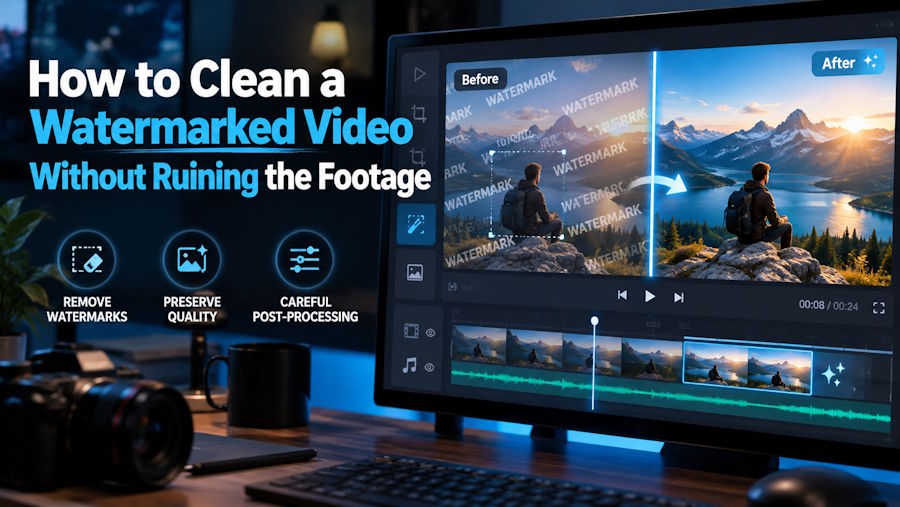
A marketing team finds a strong product video from last year. The demonstration is clear and the footage would fit an upcoming campaign. There is only one problem: the corner contains an outdated logo.
The original editing project is no longer available. Cropping the frame would cut into the product, while covering the logo with another graphic would make the scene feel crowded. Recreating the entire video would take time and budget that the campaign does not have.
The challenge is not simply making the watermark disappear. The edited area also needs to look natural while the video is moving.
Why Video Watermark Removal Is More Difficult Than Image Editing
A still image only needs to be repaired once. A video contains hundreds or thousands of consecutive frames, along with camera movement, changing light, scene transitions, and moving subjects.
A repair may look convincing in one frame but flicker when a person walks behind it. Compression can make the process harder by removing useful visual detail.
Before choosing a method, watch the full video and check:
- whether the watermark stays in one place or moves;
- whether it sits near an edge or covers the main subject;
- whether it is solid, semi-transparent, or animated;
- what appears behind it during different parts of the video; and
- whether its position changes after a transition or scene cut.
These details determine whether the best solution is to re-export, crop, cover, or reconstruct the affected area.
Choose the Least Destructive Method
The strongest editing effect is not always the best one. A good cleanup workflow preserves as much of the original footage as possible.
Re-export from the source
If the original editing project still exists, removing the logo layer and exporting the video again is usually the cleanest option. It preserves the original composition and does not require software to recreate details hidden behind the watermark.
Check whether the mark came from an editing template, export setting, review platform, or trial application. Finding the source project may prevent much more work later.
Crop and reframe
Cropping can work when a small watermark sits close to a corner and the important content remains near the center. It is quick, predictable, and does not create artificial textures.
However, cropping changes the composition. It may cut off a product, caption, gesture, or part of the background. It can also make the footage harder to adapt for landscape, square, and vertical formats. The marketing team in our example cannot use this method because the product already fills most of the frame.
Add a purposeful overlay
A caption, call to action, progress bar, or new brand graphic can sometimes cover an old logo. This works when the added element has a clear purpose and fits the existing design.
The replacement should look intentional. A random rectangle or oversized sticker may attract more attention than the original watermark and weaken the visual focus.
Reconstruct the area with AI
AI-assisted cleanup is useful when cropping would remove important content and an overlay would make the composition too busy. Instead of placing a blur over the watermark, the software analyzes nearby visual information and rebuilds the affected area.
This approach works particularly well for fixed logos, date stamps, text overlays, and marks over relatively consistent backgrounds. It can also reduce manual masking and keyframe work.
A Practical AI-Assisted Workflow
For creators and teams that need a faster alternative to frame-by-frame editing, LogoRemover.ai offers a browser-based way to remove watermark from video. Users can upload a clip, process the unwanted mark with AI, preview the cleaned footage, and download the result without working through a complicated editing timeline.
Several decisions can make the final output look more polished.
1. Start with the best available file
Use the original video whenever possible. Copies from social media or messaging applications may already be compressed, creating noise around text, edges, and moving objects.
Keep an untouched backup before starting. If one method does not suit the clip, the team can return to the original file and try another approach.
2. Try automatic detection first
Automatic detection can identify common logo or watermark areas without requiring the user to paint over every affected frame.
Review the detected area before processing. Transparent edges or shadows may extend beyond the visible part of the watermark and leave faint outlines behind.
For the product video in our example, the old logo stays in the same corner throughout the clip. That makes it a suitable candidate for automatic processing.
3. Use manual selection when more control is needed
Manual control is useful when the watermark appears in an unusual position, overlaps a detailed background, or changes after a transition.
The selection should cover the complete mark without including a much larger area than necessary. A selection that is too small may leave a ghost outline. One that is too large may soften nearby product details or textures.
4. Review the most difficult moments
Do not check only the opening frame. Move to points where a person, product, camera movement, or lighting change passes through the repaired area.
These moments reveal whether the reconstruction remains natural. If one short section causes problems, processing it separately may produce a better result.
5. Export only after the result is approved
Repeated downloading, editing, and exporting can gradually reduce video quality. Complete the watermark cleanup first, review the full timeline, and then add updated captions or branding before creating the final campaign file.
How to Spot Common Repair Problems
Even when a watermark has disappeared, the repaired area should still be checked for visual artifacts.
A faint outline remains: The detection or selection may not include the watermark's transparent edge or shadow. Expanding the area slightly can help.
The background looks smeared: The selected area may be too large, or the background may contain complex details. A tighter selection or separate treatment for that scene may produce a cleaner result.
The repaired area flickers: The background or watermark may be moving between frames. The clip may need to be divided into sections, or the difficult moment may require motion-aware editing.
One area looks softer than the rest: The source video may have been compressed several times, or too much of the frame may have been reconstructed. Returning to the original file is usually the best first step.
Part of a person or product disappears: Important content may pass behind the watermark. In this case, manual masking, a replacement graphic, or a fresh export from the original project may be more reliable than fully automatic processing.
When AI Cleanup Creates Business Value
Returning to the marketing team's product video, removing the outdated logo means the footage can support the new campaign without being recreated from scratch. The team can add its updated branding after the cleanup and prepare versions for the website, advertisements, presentations, and social media.
The same workflow can help an e-commerce seller update an authorized supplier demonstration or a creator refresh an older tutorial or promotional asset.
Clean footage becomes easier to reuse, redesign, and publish across different channels, extending the useful life of existing assets and reducing repetitive production work.
AI cleanup is not the right answer for every video. A moving watermark, a logo covering a face, rapid camera motion, fine patterns, or dense on-screen text may require additional manual work. In those cases, a hybrid workflow is often the practical choice: use AI for the straightforward sections and handle the difficult frames with masks, tracking, replacement graphics, or the original project.
Do Not Overlook the Audio
Visual cleanup is only one part of preparing older footage for reuse. Background hiss, hum, wind, or room noise can make an otherwise polished video feel unfinished. Audio Cleaner uses AI to remove noise from audio, helping teams improve speech clarity in product demonstrations, interviews, tutorials, and campaign clips. Process the soundtrack before the final export so the cleaned audio and repaired visuals can be reviewed together.
Final Check Before Publishing
Before approving the cleaned video, confirm that:
- the watermark is gone throughout the full timeline;
- the repaired area does not flicker, smear, or become noticeably soft;
- people, products, captions, and other important details remain intact;
- the framing still works in the required aspect ratios;
- the color, motion, resolution, and audio remain consistent; and
- the footage is owned, licensed, or authorized for editing and publication.
Turn Existing Footage Into a Reusable Asset
Cleaning a watermarked video is not simply a matter of hiding a logo. It requires choosing the method that removes the distraction while protecting the footage around it.
Re-exporting is ideal when the source project is available. Cropping and overlays can solve simple placement problems. When those options would damage the composition, AI-assisted reconstruction provides a faster and more flexible alternative.
By starting with automatic detection, using manual control when necessary, and reviewing the result in motion, businesses and creators can transform outdated or cluttered footage into clean, polished assets ready for a new campaign, platform, or audience.

