
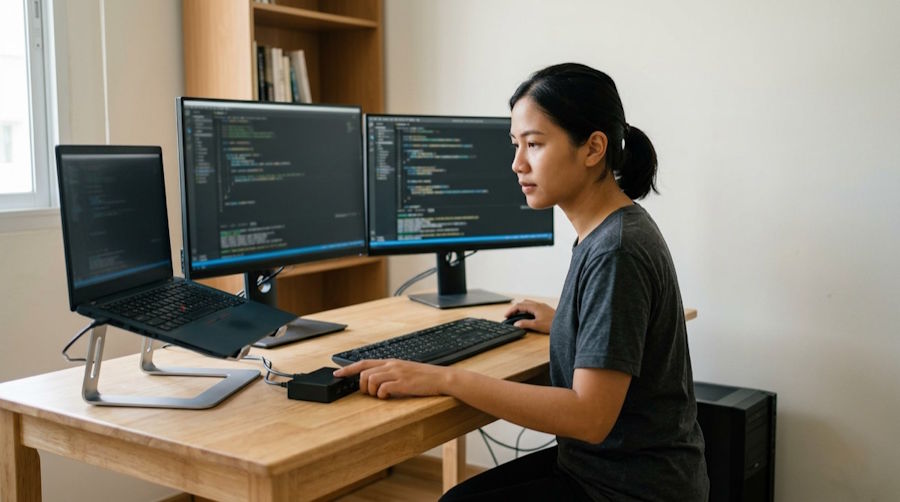
Your work laptop sits on the left, your personal desktop hums under the desk, and there are two keyboards fighting for the same space. Every time you switch from a work ticket to a side project, you're unplugging a monitor cable, reaching across the desk and hunting for the right mouse.
One desk can serve two computers cleanly, as long as you plan how they share the screen, the input devices and the cables. Here's how to set it up so switching between them takes a button press, not a rearrangement.
Step 1 - Map What Each Computer Needs
Start by listing what each machine needs, because the right setup depends on its ports and the rules that come with it. A company laptop often has restrictions a personal desktop doesn't.
For each computer, note:
- Video outputs, such as HDMI, DisplayPort or USB-C with display support
- USB ports and whether they support charging
- How many monitors it should drive
- Whether it connects over Wi-Fi or needs Ethernet
- Any company rules on USB devices, docks or shared peripherals
Check your employer's IT policy before you connect a work machine to shared hardware. Some companies restrict USB switches or require approved docks. Confirm what your work laptop is allowed to connect to before you buy anything.
Step 2 - Plan Your Monitor Inputs
Monitor inputs decide how easily you can move between machines. Most modern monitors have more than one input, so both computers can stay connected and you switch from the monitor's menu or a button.
One Shared Monitor
A single monitor with two inputs is the simplest setup. Connect one computer to each input and switch when you change tasks.
Two or More Monitors
With two monitors, you can either give each computer its own screen or connect both computers to both screens. The second option takes more cables but gives each machine the full desk when it's in use.
Monitor Placement
Wherever the screens end up, position them for comfort. OSHA's computer workstation guidance recommends placing the monitor directly in front of you and at least 20 inches away. If you use two screens equally, center them as a pair rather than putting one directly in front of you.
Label each monitor input with the computer it belongs to, so you're never cycling through inputs to find the right one.
Step 3 - Choose a Dock or KVM Switch
A dock or KVM switch lets you move your keyboard, mouse and sometimes your monitors between computers with one button. The right choice depends on how many devices you share and which ports your computers have.
A USB-C or Thunderbolt dock suits a laptop that needs power, displays and peripherals through one cable. A KVM switch (short for keyboard, video and mouse) shares those devices between two computers. Some do both.
When you compare KVM switches, check:
- Video ports and supported resolution and refresh rate
- Number of computers and monitors supported
- USB ports for extra peripherals such as a webcam
- How you switch, such as a button, hotkey or remote
- Whether it passes through audio
Match the KVM's video spec to your monitor. A switch that can't handle your monitor's resolution or refresh rate will limit what you see, however good the monitor is.
Step 4 - Share Keyboard, Mouse and Other Peripherals
Shared peripherals keep the desk clear, and they work best when one set serves both machines. Route your keyboard and mouse through the KVM, or use Bluetooth devices that pair with more than one computer and switch with a button.
Keep the keyboard in the same spot whichever computer is active. OSHA advises you to place the keyboard directly in front of you at a distance that lets your elbows stay close to your body, with your forearms roughly parallel with the floor.
Webcams and headsets need a plan too. If both computers use them for calls, connect them through the KVM or dock so they follow the active machine. Test a video call on each computer after setup, since a webcam or microphone that stays on the wrong machine is easy to miss.
Step 5 - Route and Label Every Cable
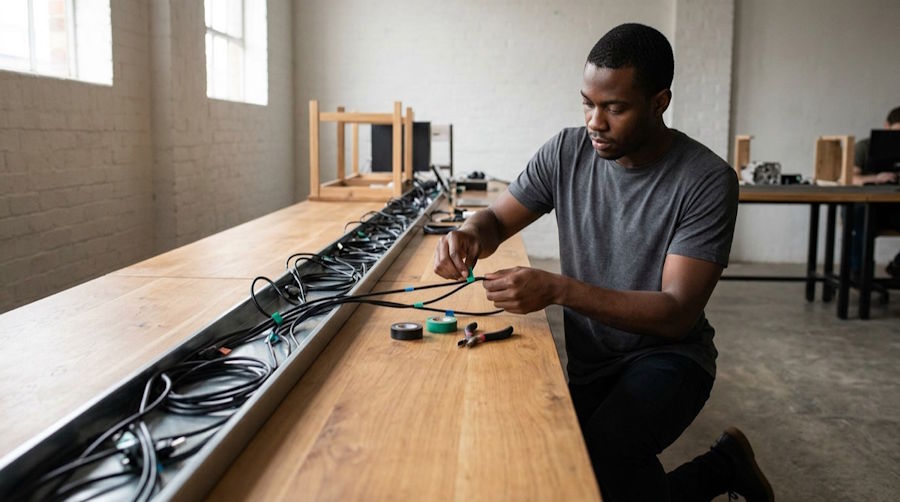
Cable routing keeps a two-computer desk from turning into a tangle, and it makes changes easier later. Plan routes before you plug anything in.
Run cables along the back edge of the desk with a tray or clips, and bring them up only where they're needed. Keep power cables separate from video and USB cables where you can. Leave a little slack at each device so you can move a monitor or laptop without pulling a cable loose.
Top Tip: Label both ends of every cable with the device and computer it belongs to, using small tags or colored tape. When something stops working, you'll trace the problem in seconds instead of pulling the desk away from the wall. Take a photo of the finished setup too, so you can rebuild it after a move.
Step 6 - Measure Your Desk and Choose a Desk Mat
The keyboard-and-mouse area is the part of the desk you use most, so measure it once the layout is final. A desk mat that fits that area keeps everything in place and gives the mouse a consistent surface whichever computer it's controlling.
To measure the area:
- Measure the keyboard's full width and add your mouse's range of movement
- Measure from the front edge of the desk to just behind the keyboard
- Add any space for a second mouse, trackpad or notepad
- Check for obstacles, such as monitor stand feet or a laptop
Choose a mat that covers that area with a little margin on each side. A custom desk mat from Custom Envy, for example, comes in sizes up to 18 x 36 inches. Lay painter's tape on the desk at your chosen size before you order, and check that the monitor stands and laptop sit clear of it.
Sketch Your Desk Layout Tonight
List each computer's ports and the devices you want to share, then sketch the desk with the monitors, keyboard and mouse in place. That sketch will tell you which dock or KVM to buy and how big your desk mat should be.
Frequently Asked Questions
How do I use one keyboard and mouse with two computers?
Route them through a KVM switch, or use Bluetooth devices that pair with more than one computer and switch with a button. Keep the keyboard in the same spot whichever computer is active.
Should I use a dock or a KVM switch?
A dock suits a laptop that needs power, displays and peripherals through one cable. A KVM switch shares a keyboard, monitor and mouse between two computers, and some devices do both.
How far away should my monitor be?
OSHA's guidance recommends placing the monitor directly in front of you and at least 20 inches away. Center two equally used screens as a pair.