
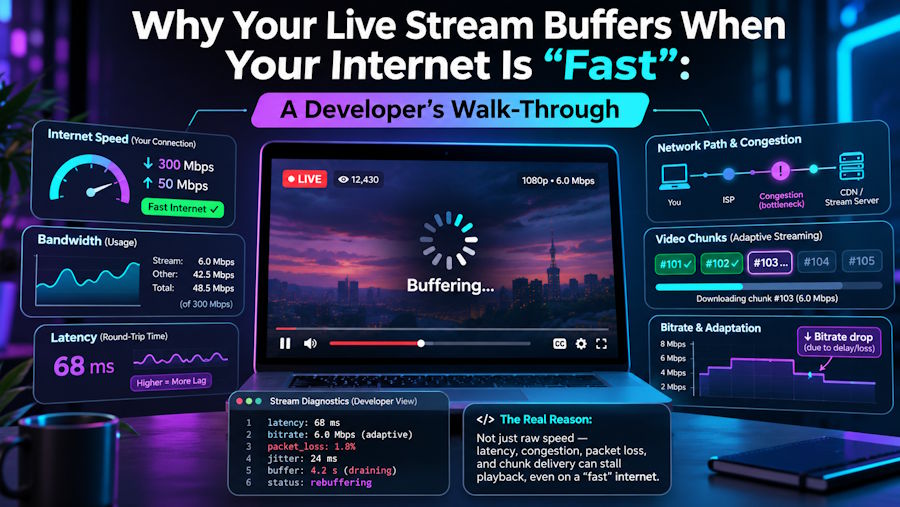
It is 8:55 on a Saturday night. The game starts in five minutes, the speed test on your phone says 300 Mbps, and the picture on the TV freezes every forty seconds. You restart the router. It gets better for a minute, then the spinning circle comes back.
I spend a lot of my week on exactly this problem. On the technical side of Marinios IPTV, most of the messages we get on a busy evening are some version of "my internet is fast, so why does the stream keep stopping?" The honest answer is that a speed test measures one thing, and a live stream depends on five. Once you can see all five, buffering stops being a mystery and becomes a short list of things to check.
This is that list, written the way I would explain it to a friend sitting next to me on the couch.
What actually happens when you press play
A live channel is not one file sitting on a server. It is a stream cut into small segments, usually two to six seconds long, that your app keeps requesting one after another. If the next segment arrives before the current one finishes playing, you never notice anything. If it arrives late, the player has nothing to show, and you get the spinner.
Every segment travels through the same five links. Any one of them can be the slow one:
| Link in the chain | What it does | What goes wrong | What you see |
|---|---|---|---|
| 1. Encoder and origin | Turns the live feed into segments | Overloaded at peak events | Every channel stutters at the same moment |
| 2. Delivery server | Hands segments to thousands of viewers | Too many viewers on one server | Fine at noon, bad at 9 pm |
| 3. Your internet provider | Carries traffic from the server to your home | Congested routes in the evening | Speed test fine, stream slow |
| 4. Your home network | Wi-Fi from the router to the TV | Weak signal, crowded channel, walls | Worse in one room than another |
| 5. Your device and app | Downloads, buffers and decodes the video | Low memory, full cache, old app | Picture freezes but audio goes on |
The useful habit is to stop asking "is my internet fast?" and start asking "which of these five links is slow right now?"
Why your speed test is lying to you
A speed test is a sprint. It opens several connections to a server a few miles away, pushes as much data as it can for about ten seconds, and reports the best number it saw. A live stream is a marathon on a different road. It pulls one steady flow, for hours, from a server that may be hundreds of miles away.
Three things matter more for that marathon than the headline number:
- Consistency. A stream at 4K needs roughly 25 Mbps every second, not 300 Mbps for ten seconds and then 8 Mbps for the next ten. Short drops are what empty the player's buffer.
- Jitter and packet loss. If packets arrive out of order or go missing, the player has to ask for them again. On a live stream there is very little time to wait. Two percent packet loss can hurt more than halving your bandwidth.
- Peak hours. Between about 7 pm and 11 pm, everyone on your street is streaming. The route between your provider and the stream's server can be crowded even when your own line is quiet.
A quick way to see this for yourself: run a speed test at 10 am and again at 9 pm on a Saturday, on the TV itself rather than your phone. If the evening number on the TV is a fraction of the morning number on the phone, you have already found part of the answer.
Read the pattern, not the spinner
Buffering is never random. The way it happens points straight at the weak link, which is why the first question we ask on support is not "how fast is your internet?" but "what exactly does it do?"
| What you notice | Most likely weak link | First thing to try |
|---|---|---|
| Freezes every 30–60 seconds, then catches up | Home Wi-Fi (link 4) | Move the router or plug in a cable |
| Only bad between 7 pm and 11 pm | Provider route or delivery server (links 2–3) | Test at peak time on a cable; try another server if your service offers one |
| One channel freezes, others are fine | That channel's feed (link 1) | Switch channel, wait a minute, come back |
| Picture stops, sound keeps playing | Device or app (link 5) | Restart the device, clear the app cache |
| Starts fine, gets worse after an hour | Device memory or heat (link 5) | Full power-off for 30 seconds, not sleep mode |
If you want to go through this properly, we keep a two-minute buffering checklist that walks through each link in order, with the exact settings to look for on common TVs and streaming sticks. Most people find the problem in the first two steps.
Fixes that actually make a difference
Here they are in the order I would try them, cheapest and fastest first:
- Use a cable for the TV. An Ethernet cable from the router to the TV or streaming box removes link 4 from the problem completely. If running a cable is not possible, a pair of powerline adapters is the next best thing.
- If you stay on Wi-Fi, use 5 GHz. It is faster and less crowded than 2.4 GHz. Keep the router in the open, off the floor, and not behind the TV.
- Power the device off properly. Sleep mode keeps old data in memory. Unplug the TV box for 30 seconds once a week, and clear the app's cache if it offers that option.
- Give the player more room. Many IPTV players have a buffer setting. Raising it from "small" to "medium" adds a few seconds of delay but absorbs short drops.
- Drop the resolution at peak time. Full HD needs about 10–15 Mbps; 4K needs about 25 Mbps. On a congested evening, Full HD that plays smoothly beats 4K that stops.
- Pause the heavy stuff at home. A game update or a cloud backup on another device can take most of your bandwidth without anyone noticing.
- Be careful with VPNs. A VPN server far away adds distance and another busy link to the chain. If you use one, pick a server close to you and test with and without it.
None of these will fix a server that is overloaded on the provider's side. But together they remove links 4 and 5 from the list, so if buffering continues, you know where to look.
What to ask a provider before you pay
Links 1 and 2 belong to whoever runs the service, and you cannot fix them from your couch. You can, however, ask the right questions before you hand over money:
- Can I test it at the time I actually watch? A trial on a Tuesday morning tells you nothing about Saturday night. Ask for a test window that covers a busy evening.
- What happens when a server is full? A provider that spreads viewers across several servers, or can move you to a quieter one, handles peak hours far better.
- How often are the servers maintained? Ask how often they add capacity and check feeds. A clear answer is a good sign; vague promises are not.
- Is there a real refund window? Thirty days is a fair standard. It means the provider expects you to stay because the service works, not because you are locked in.
- Who answers when it breaks? Buffering on a big night needs an answer in minutes, from a person who can read the pattern with you.
Be suspicious of anyone who promises that a stream will never buffer. Every live stream on the internet passes through links that nobody fully controls. The honest promise is a service built to keep those moments rare, and people who help you when they happen.
The short version
Buffering is a chain problem, not a speed problem. Your speed test checks one link for ten seconds; a live stream leans on five links for hours. Watch the pattern, put the TV on a cable, restart the device properly, and test any service at the hour you really watch. Do those four things and the next time the spinner shows up five minutes before kickoff, you will know where to look, and you will usually fix it before the opening whistle.