
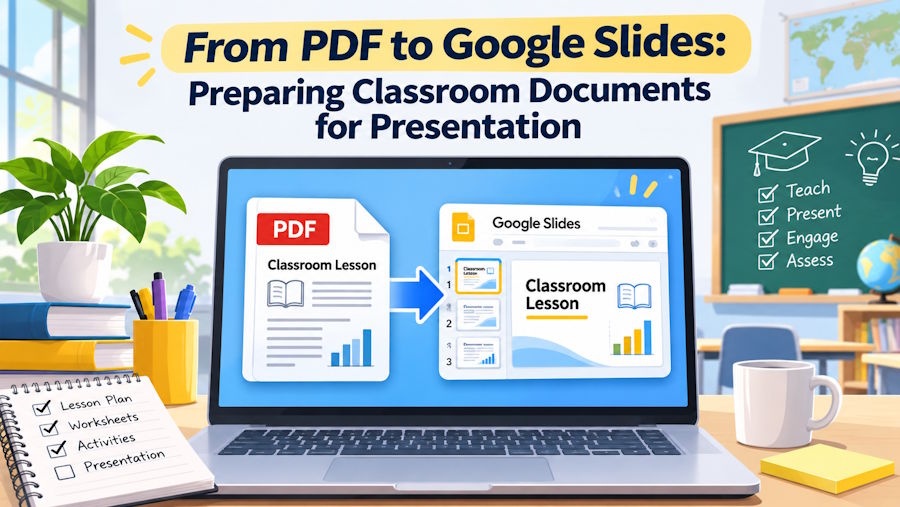
Teachers often receive their best material as a PDF: a worksheet pack from a colleague, a scanned chapter, or a permission slip. PDFs preserve layout, but they are written for reading on paper, not for discussion on a classroom screen. Turning one into a clear presentation therefore starts before any slide is created, with the document itself.
Most problems when moving from pdf to google slides come from an unprepared source file. Dense paragraphs and scanned pages produce crowded slides that students cannot follow. DocHub works inside the Google environment teachers already use, through integrations with Google Drive, Gmail, Google Workspace and Google Classroom, so the same file can be edited, annotated and shared without repeated downloads and renamed copies.
Why a PDF rarely works as a presentation as-is
A printed handout and a slide deck do different jobs. A handout can carry long explanations, small print and exercises that students work through at their own pace. A slide has to be understood in seconds, from the back of a room, while the teacher is talking. Copying PDF pages onto slides without editing keeps the long explanations and shrinks them, which makes both formats worse.
The useful step is separation. The PDF remains the complete record, with full text and printable exercises. The presentation takes only the headings, the key examples and the questions worth discussing aloud. Everything else is left in the handout that students receive through Google Classroom.
Start in Google Drive, not with a download
In most schools, the original files already sit in Google Drive: shared folders, scanned pages and office forms. Downloading a PDF to one computer, editing it there and uploading it again creates a second version that colleagues cannot see, and the shared folder falls out of date.
The DocHub integrations include Google Drive: a document stored there can be opened, edited and exported back to Drive. The same connected workflow covers the Gmail add-on, for a PDF that arrives as an email attachment, and Google Classroom, where the finished material will be assigned. Over 100 million users handle documents this way without treating every task as a new file, and the class works from the current version.
Edit the PDF down to presentation material
Once the file is open in the PDF editor, the first pass is removal. Outdated content can be covered with the white-out tool, repeated instructions can be taken out, and a clearer heading can be added as text directly on the page. Images, comments and highlights can be added where the original is unclear, for example over a confusing diagram.
This pass is also where a long document becomes teachable. A teacher can merge two short PDFs into one source file and convert material supplied in other formats, since DocHub works with PDF, DOC, DOCX, XLS, PPT, PPTX, TXT and other formats. Slides are built section by section from one clean master, instead of from three partial files.
The DocHub PDF editor, with annotation and markup tools applied to a document.
Use summaries to plan the slide outline
A forty-page PDF does not announce its own slide structure, and reading it repeatedly to find one takes planning time. DocHub includes a Document Assistant, an AI tool that can simplify a document, summarize its key points and answer questions about its content. Used at the planning stage, a summary gives the teacher a first outline: the main topics, their order, and the points the document treats as important.
That outline still needs a teacher's judgment. A summary cannot know which topic caused confusion last term. Its value is speed: instead of starting from a blank deck, the teacher starts from the document's own structure, deletes what the class does not need, and spends that time on examples and questions.
Add the marks a class actually needs
Some PDF content becomes clearer when it is marked up rather than rewritten. A highlighted sentence on a reading passage, a comment beside a formula, or a white-out box covering last year's dates can turn a stored handout into material that matches this week's lesson. Because the marks sit on the document itself, students who open the same file in Google Classroom see what the teacher pointed to.
Annotation also helps colleagues who share teaching materials. Comments record why an example was changed or which page a question refers to, so the next teacher does not have to reconstruct the reasoning. When the presentation is built from the annotated PDF, those highlights and comments act as a guide to which points deserve a slide.
Turn handouts into fillable forms and templates
Presenting information is only half of classroom paperwork; the other half is collecting it back. The worksheet shown on a slide often ends as a form students or parents complete: an enrollment form, a permission slip, or an assignment sheet. In DocHub, a PDF can be built into a fillable form with text fields, checkboxes, and signature and initials fields placed where answers belong.
A document can also be turned into a reusable template, where each recipient completes their own copy. A teacher prepares one permission slip template for a field trip, and every parent receives an individual copy to fill and sign. The teacher keeps one standard version, instead of editing the same document thirty times.
Adding a new fillable field to a form in the DocHub editor.
Handle the signatures behind the lesson
Many documents attached to a lesson need an eSignature rather than an answer: permission slips, consent forms and enrollment documents are common examples. DocHub allows a document to be signed by typing, drawing, or uploading an image of a signature, and a document can be sent for signature to multiple people in a set order. In-person signing is supported, including Kiosk Mode, which suits a parents' evening.
For the teacher, the practical point is tracking. Signing can be followed in real time, so it is visible which permission slips have come back and which are still outstanding. That record is more reliable than returned paper, and it keeps the signed documents in the same workflow as the lesson materials themselves.
Placing a saved eSignature on a document in the DocHub editor.
Share the finished files with the right people
When the documents are ready, they still have to reach students, parents and colleagues in a controlled way. DocHub allows sharing by email, fax, public link or personal URL, with comments, roles and permissions, so a colleague gets the right level of access to a shared file. Organizations can also apply custom branding to documents they send.
Sharing settings matter because classroom documents are not all public. A blank worksheet can go to a whole class, while a completed enrollment form should reach only the people handling it. Keeping the presentation, the handout and the form in one connected workflow reduces the chance of a file being shared more widely than intended.
Keep student documents protected
Classroom paperwork includes personal information, so safeguards matter. DocHub states compliance with SOC 2 Type II, audited annually, HIPAA, GDPR, CCPA/CPRA, PCI DSS and FERPA, and it goes through Google's Security Assessment for Google Workspace. For schools, FERPA is the relevant standard, covering how student education records are handled in the United States.
The security measures include 256-bit encryption in transit and at rest, OAuth 2.0 authentication, two-factor authentication, and password protection and access controls on documents. Infrastructure is hosted on Amazon Web Services in SOC 2-accredited data centres. A tamper-evident audit trail records views, signatures, initials and changes, with email address, IP address, geolocation, browser and operating system, and users can view or download it. More than 500 million documents have been completed on the platform.
Frequently asked questions
Can a PDF be used as the basis for a Google Slides presentation?
Yes, provided the PDF is prepared first. Dense pages should be edited down in a PDF editor, with outdated sections removed and key points highlighted, before slides are built from the cleaned file. Building slides directly from an unedited PDF usually produces crowded, unreadable slides.
How does DocHub connect with Google Drive and Google Classroom?
DocHub integrates with Google Drive, Google Workspace and Google Classroom, and provides a Gmail add-on. A document stored in Drive can be opened, edited and exported back, and material can then be assigned through Classroom. This keeps one current version instead of separate downloaded copies on individual computers.
Can parents sign a permission slip electronically?
Yes. A document can be sent for signature, and signers can sign by typing, drawing or uploading an image of a signature. Signing progress can be tracked in real time. DocHub's eSignatures comply with the U.S. ESIGN Act and UETA, so electronic signatures are legally recognized in the United States under those laws.
What is a template in DocHub?
A template is a reusable version of a document. The original is prepared once, for example a permission slip with text, checkbox, signature and initials fields, and each recipient then completes their own copy. This suits repeated classroom paperwork, because the document is prepared once instead of being recreated for every student.
Is there a free version of DocHub?
Yes. A free version of DocHub is available, and a 30-day free trial is offered. DocHub is part of the airSlate family of products, and it is available as a web app and as iOS and Android apps, in addition to a Chrome extension and support for Microsoft Edge.