
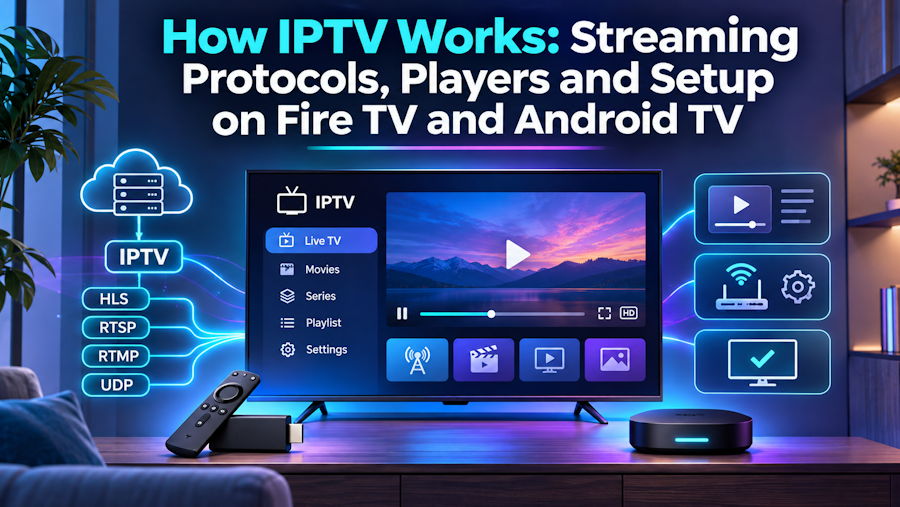
Internet Protocol Television (IPTV) delivers television content through an internet connection rather than traditional cable or satellite infrastructure. Instead of receiving programmes through a broadcast signal, viewers access live channels and on-demand content through compatible applications. Anyone considering ana href="https://gold-tv.ca/iptv-canada/">IPTV service in Canada should understand how streaming protocols, playlists, media players and connected devices work together before setting up their television.
Although the viewing experience can feel similar to traditional television, the technology behind IPTV involves several different components. The streaming server delivers video, the internet connection transfers the data, and an IPTV player processes it for playback on a television or streaming device.
Understanding How IPTV Streaming Works
IPTV follows a relatively straightforward process. A content provider receives or prepares video streams, encodes them into compatible formats and makes them available through streaming servers. These servers deliver the content over the internet when a viewer selects a channel or programme.
The process generally involves four stages:
- Content preparation: Video and audio are encoded into digital formats suitable for online delivery.
- Stream distribution: The encoded content is delivered through servers and, in some systems, content delivery networks (CDNs).
- Device connection: An IPTV application connects to the provider's server using playlist information or account credentials.
- Playback: The player retrieves the stream, processes the data and displays the video on the television.
Live television and video-on-demand (VOD) use similar delivery principles, although their content management and playback requirements can differ. Live streams are delivered while a programme is being broadcast, whereas VOD content is stored and requested whenever the viewer wants to watch it.
What Is HLS and Why Does It Matter?
HTTP Live Streaming (HLS) is one of the commonly used technologies for delivering video over the internet. Originally developed by Apple, it allows media content to be distributed through standard HTTP connections.
Rather than downloading an entire video file before playback, HLS divides the content into smaller segments. A playlist file tells the player where these segments are located and how they should be requested.
One important feature of HLS is adaptive bitrate streaming. The technology can provide multiple versions of the same video at different quality levels. The player monitors available bandwidth and adjusts the stream when network conditions change.
For example, if a household's internet connection becomes slower, the player may switch to a lower-resolution stream to maintain playback. When the connection improves, it can move back to a higher-quality version.
This approach offers several advantages:
- Flexible video quality: Playback can adjust to available bandwidth.
- Reduced buffering: Smaller segments allow the player to manage incoming data more efficiently.
- Network compatibility: HLS uses standard HTTP infrastructure.
- Live and on-demand support: The same technology can deliver different types of video content.
However, HLS is not the only streaming technology used by IPTV providers. Other systems may use MPEG-DASH or different delivery methods, depending on their infrastructure and supported applications.
IPTV Playlists, M3U and Xtream Codes Explained
An IPTV subscription usually requires connection information that allows a compatible player to access the available content. Two common ways of providing this information are M3U playlists and Xtream Codes login details.
M3U Playlists
An M3U playlist is a text-based file or URL containing references to media streams. It can also include information such as channel names, categories and electronic programme guide identifiers.
When added to a compatible IPTV player, the playlist helps the application organise available channels and connect to their corresponding streams.
Some providers supply an M3U URL that users can paste directly into their chosen application. Others offer a playlist management page where users can upload or activate their playlist using device information.
Xtream Codes Login
Xtream Codes is another commonly supported connection method. Instead of entering a complete playlist URL, users typically provide three details:
- Username
- Password
- Server URL
The application uses these credentials to communicate with the provider's service and retrieve supported channel lists, categories and other available information.
The choice between M3U and Xtream Codes depends on the IPTV provider and the player being used. Not every application supports both methods, so users should follow the connection instructions supplied with their subscription.
It is also important to understand that M3U and Xtream Codes are not video streaming protocols themselves. They are methods of organising or accessing IPTV content, while technologies such as HLS handle the actual delivery of video.
Choosing an IPTV Player for Your Device
An IPTV player is the application responsible for connecting to a streaming source and displaying its content. It does not necessarily provide television channels independently. Users generally need compatible service credentials or a playlist to access content.
Different players offer different features, including:
- Live television channel browsing
- Electronic Programme Guides (EPG)
- Favourite channel lists
- Video-on-demand libraries
- Catch-up television, where supported
- Playback and subtitle settings
Compatibility is particularly important when choosing an application. A player designed for a touchscreen smartphone may not provide the same experience on a television controlled by a remote.
For example, the installation resources provided by Gold IPTV Canada list applications such as XtremeHD Player, XCIPTV, IPTVX, TiviMate and other device-compatible options. The available choices depend on the operating system and the application store.
How to Set Up IPTV on Amazon Fire TV and Firestick
Amazon Fire TV devices use Fire OS, which is based on Android. They support compatible streaming applications that can be installed through the Amazon Appstore or other approved installation methods.
The general setup process is as follows.
Step 1: Connect Your Fire TV Device
Connect the Fire TV Stick to an available HDMI port on your television. Turn on the television, select the correct HDMI input and connect the device to your home Wi-Fi network.
A stable internet connection is important, particularly when streaming high-definition or 4K content.
Step 2: Install a Compatible IPTV Player
Open the Fire TV home screen and navigate to the application store. Search for an IPTV player that supports your provider's connection method.
Depending on the device and application availability, options may include IBO Player, Bob Player or other compatible applications.
If an application is distributed outside the official store, only download it from a source you trust. Some applications require the Downloader utility, but users should avoid installing unfamiliar APK files or enabling unknown-source installations unnecessarily.
Step 3: Add Your IPTV Connection
Open the installed player and look for an option such as Add Playlist, Add User or Login.
Depending on the application, you may need to:
- Select M3U and enter the playlist URL.
- Select Xtream Codes and enter the username, password and server URL.
Use the exact details provided by your IPTV provider. Incorrect credentials or an incorrectly copied URL can prevent the playlist from loading.
Step 4: Load Channels and Check Playback
After saving the connection details, allow the application to retrieve the available channels and categories.
Open a channel and check whether video and audio play correctly. If the application supports an electronic programme guide, allow it to load as well.
For device-specific instructions, theIPTV installation guide provides separate setup information for compatible players and streaming devices.
How to Set Up IPTV on Android TV and Google TV
Android TV and Google TV provide another convenient way to access IPTV because they support applications designed specifically for television screens.
Unlike a smartphone, these platforms are designed around remote-control navigation, making it easier to browse channels and manage playback from a sofa.
Step 1: Connect Your Television to the Internet
Open your television's network settings and connect it to a reliable Wi-Fi network or Ethernet connection.
An Ethernet connection can be useful when Wi-Fi signals are inconsistent or the television is located far from the router.
Step 2: Install an IPTV Application
Open Google Play Store and search for a compatible IPTV player.
The Gold IPTV Canada installation resources identify XtremeHD Player as an Android TV option and also list applications such as TiviMate and IPTVX.
Check the application's compatibility and installation requirements before proceeding.
Step 3: Enter Your Login Information
Launch the player and select the appropriate connection method.
For Xtream Codes, enter the server URL, username and password supplied by the provider. If the application uses M3U, paste the playlist URL into the relevant field.
Some applications may also ask you to name the playlist or confirm additional settings.
Step 4: Refresh the Playlist
Save the connection and allow the application to load its channel information.
Once the process finishes, browse the available categories and test a few channels. If the application supports VOD content, check whether its movie and television sections load correctly.
Common IPTV Streaming Problems and How to Fix Them
Even with a compatible device and player, streaming problems can occasionally occur. Understanding the cause makes troubleshooting easier.
| Problem | Possible solution |
|---|---|
| Constant buffering | Check internet speed, Wi-Fi signal and network congestion. |
| Playlist not loading | Verify the M3U URL or login credentials. |
| Channels not opening | Refresh the playlist and check server availability. |
| Missing programme information | Refresh the EPG data if supported. |
| Application freezing | Restart the player or device and check for updates. |
| Poor picture quality | Check the available bandwidth and video quality settings. |
It is also worth checking whether other devices are using significant bandwidth. Multiple simultaneous streams, large downloads and online gaming can affect available network capacity.
If the problem continues across different devices, the issue may be related to the streaming provider rather than the television or player.
Internet Requirements for Reliable IPTV Playback
The quality of an IPTV stream depends on several factors, including internet speed, network stability, video resolution and the number of devices streaming simultaneously.
A higher-resolution stream generally requires more bandwidth than a standard-definition stream. However, raw internet speed is not the only consideration. Latency, packet loss, Wi-Fi interference and server performance can also affect playback.
For a more consistent experience, consider these practical steps:
- Use Ethernet when possible.
- Position the Wi-Fi router closer to the television.
- Avoid unnecessary background downloads.
- Keep the IPTV application and device software updated.
- Make sure your internet plan can support multiple simultaneous streams.
These adjustments can help reduce interruptions without requiring changes to the television itself.
Final Thoughts
IPTV combines internet-based video delivery, streaming protocols, playlists and compatible media players to provide television access through connected devices. Technologies such as HLS manage video delivery, while M3U playlists and Xtream Codes help applications connect to available content.
Whether using Amazon Fire TV, Firestick, Android TV or Google TV, the basic setup process remains similar: connect the device to the internet, install a compatible player, enter the correct connection details and test playback.
Understanding these components makes it easier to select suitable applications, configure devices correctly and troubleshoot common streaming issues. It also helps viewers make informed decisions when choosing an IPTV provider and checking device compatibility.