

Changing your GPS location on an iPhone isn’t something Apple officially makes easy. There’s no built-in button to “set a fake location,” and for good reason, location data is tied to privacy, security, and app functionality.
But in real life, there are plenty of situations where you might want to change your location:
- Testing location-based apps
- Accessing region-specific content
- Playing AR games like Pokémon GO
- Sending a different location on apps like WhatsApp or Find My
So the question becomes: how do you safely and effectively change your GPS location on an iPhone in 2026? Let’s walk through what actually works, and where tools like MagFone Location Changer fit in.
Can You Change GPS Location on iPhone Natively?
Short answer: not really. Unlike Android, iOS doesn’t offer a “mock location” setting for regular users. Apple locks this down pretty tightly to prevent abuse. There are only a few “official” ways to influence your location:
- Turning off Location Services (not helpful for spoofing)
- Sharing location from another Apple device
- Using VPNs (which change IP, not GPS)
None of these truly change your GPS location at the system level. So if you want apps like maps, games, or social media to think you’re somewhere else, you’ll need a different approach.
The Practical Way: Use a Desktop GPS Location Tool
This is where most users end up. Instead of modifying the iPhone directly, desktop tools connect to your device and simulate a new GPS location externally. The phone then reports that location to apps as if it were real. One of the tools that’s been getting attention recently is MagFone Location Changer.
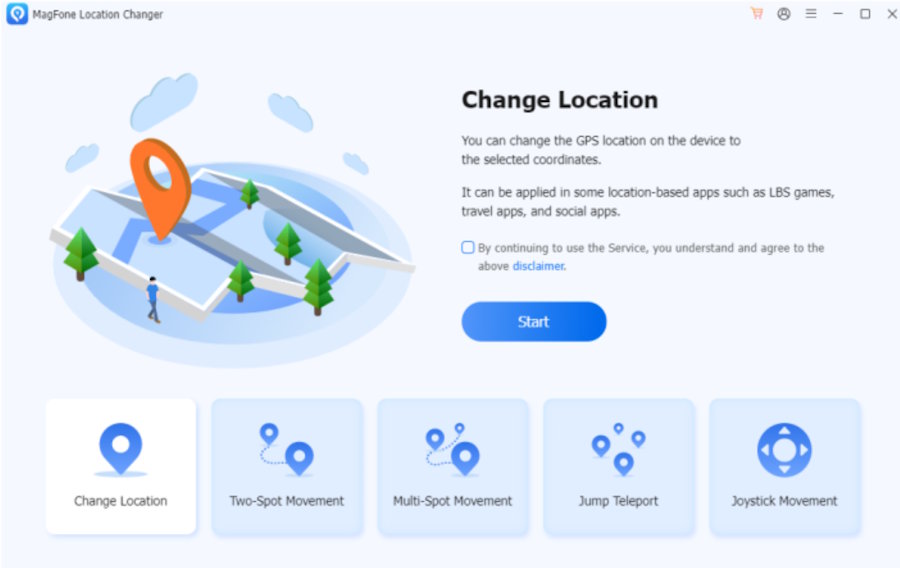
MagFone Location Changer Review (2026)
Let’s break it down from a real user perspective, what it does well, and where it fits.
What It Does
MagFone Location Changer lets you change your iPhone’s GPS location without jailbreaking. Once connected to your computer, you can pick any location on a map and instantly move your device there. But it doesn’t stop at simple teleporting. You also get:
- Joystick movement: control your location in real time
- Multi-spot routes: simulate walking along a path
- Custom speed settings: mimic walking, cycling, or driving
- GPX import/export: useful for repeated routes
This makes it more than just a “location changer”, it’s more like a full movement simulator.
What Stands Out
From a usability standpoint, a few things make a difference:
- No jailbreak required: This is a big one. You don’t need to modify your device or risk voiding your warranty.
- Clean interface: The map-based UI is straightforward. You search a location, click, and go. No complicated setup.
- Stable on newer iOS versions: Some older tools struggle with recent updates, but MagFone tends to keep compatibility up to date.
Where It’s Most Useful
This kind of tool isn’t for everyone, but in the right situations, it’s genuinely helpful.
- Location-based games: If you play games that require movement, joystick mode is a huge upgrade. You can explore without physically walking.
- Privacy control: You don’t always want apps to track your real location. Setting a virtual one adds a layer of control.
- Social apps: Want to send a different location on WhatsApp or simulate being somewhere else on Find My? This is where it comes in handy.
How to Change GPS Location on iPhone (Step-by-Step)
If you’re using a tool like MagFone, the process of how to change location on iPhone is pretty straightforward:
Step 1: Download and install it on your Windows or Mac computer. Use a USB cable or Wi-Fi connect your iPhone with computer.
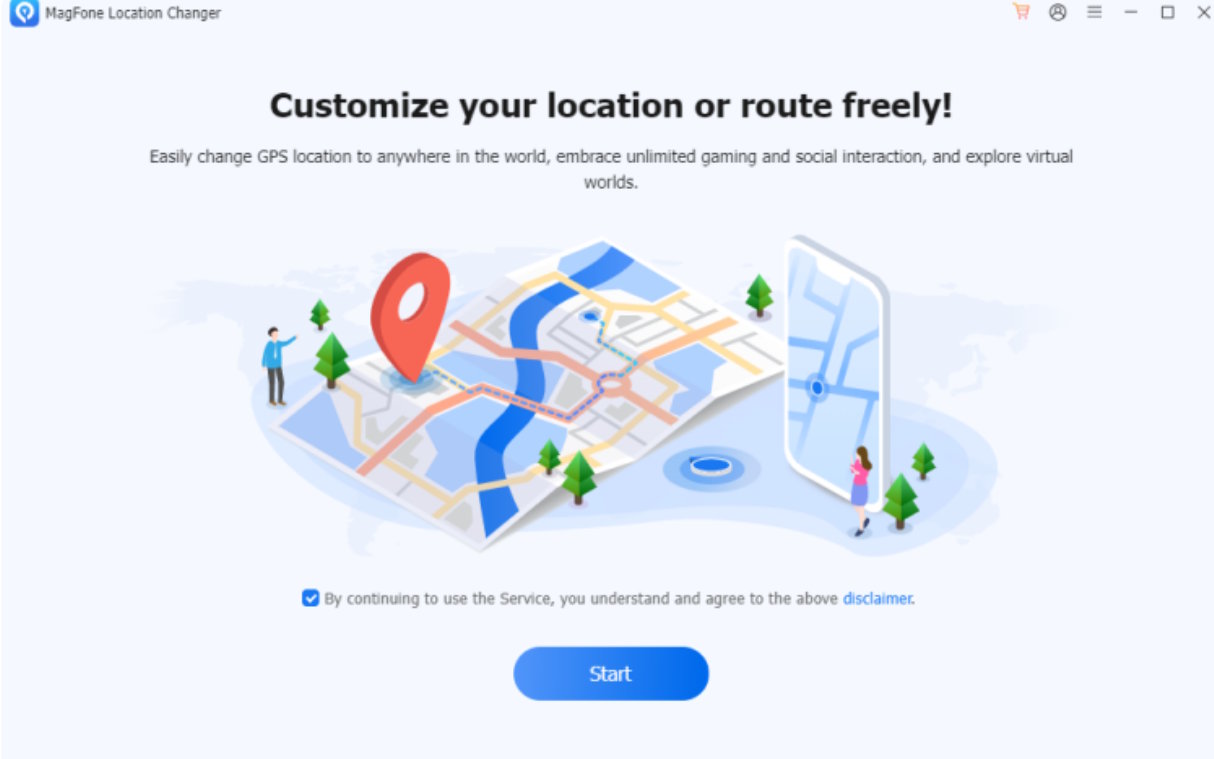
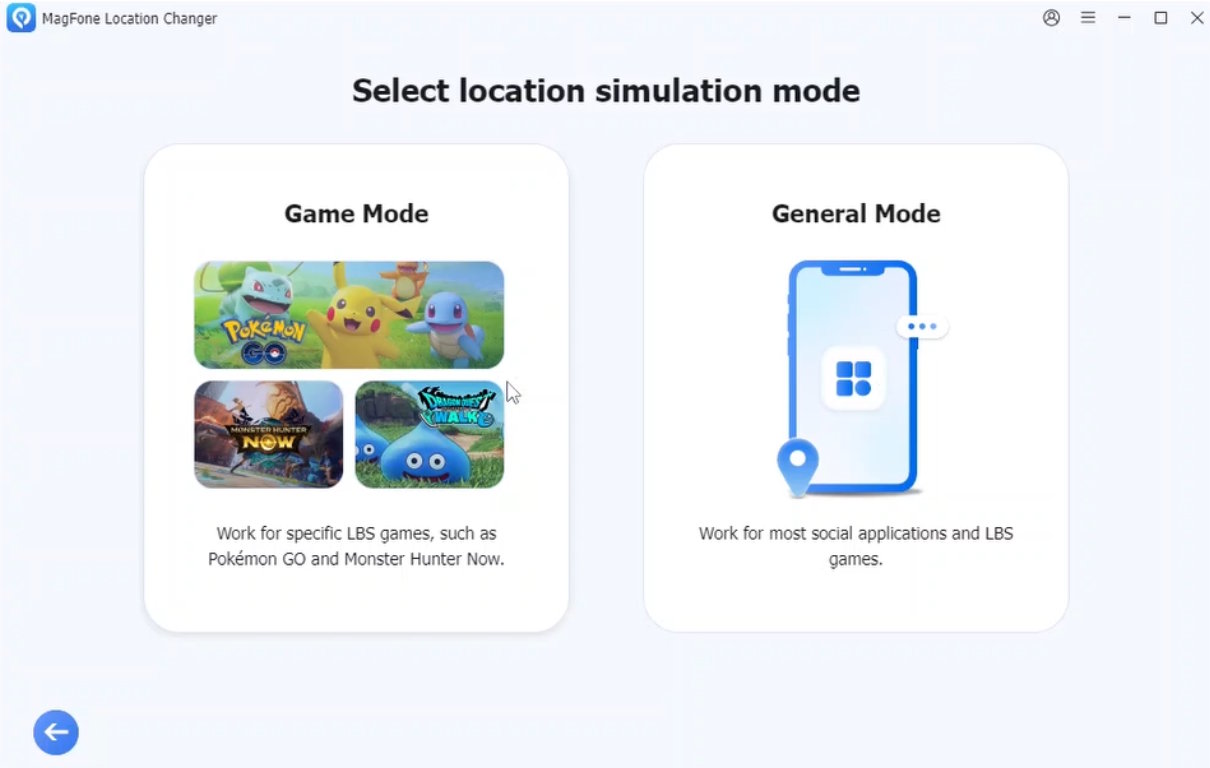
Step 2: Click Start button and select location mode.
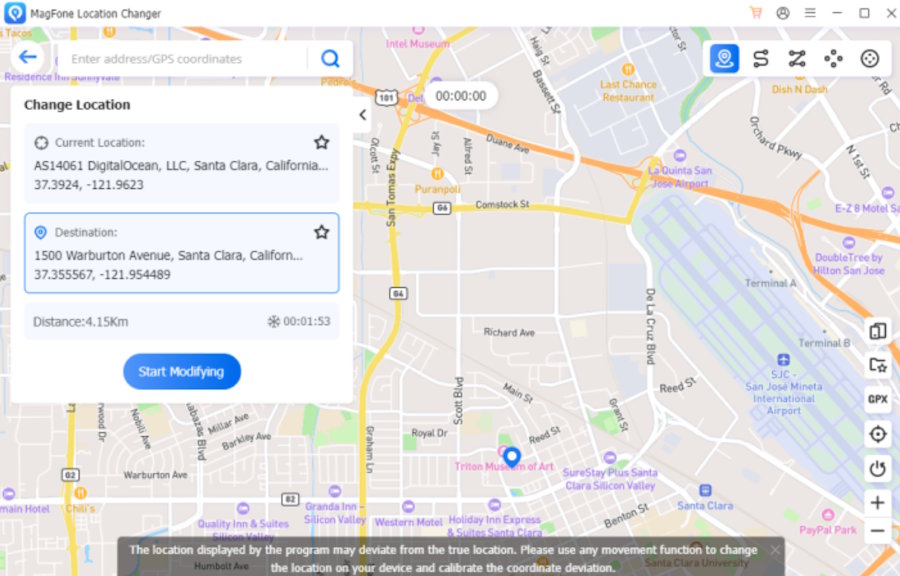
Step 3: After entering the map, search for any location worldwide or click directly on the map. Once clicking Start Modify button, your iPhone’s GPS updates instantly. From that point on, apps will use the new location.
Is It Safe to Change Your GPS Location?
Generally speaking, yes, but it depends on how you use it. Here are a few practical tips:
- Don’t jump across continents too frequently
- Use realistic movement speeds
- Avoid suspicious patterns in apps that track behavior
- Stick to one location per session when possible
Changing location isn’t inherently risky, but unnatural behavior can raise flags in certain apps.
Alternatives: Are There Other Options?
You might come across other methods, but they all have trade-offs:
- VPNs → Only change IP, not GPS
- Free mobile apps → Often unstable or limited
- Jailbreak tweaks → Risky and not beginner-friendly
Compared to these, desktop tools strike a balance between ease of use and functionality.
Final Thoughts
Changing your GPS location on an iPhone isn’t something Apple officially supports, but it’s definitely possible with the right setup. If you just need a quick workaround, basic methods might be enough. But if you want something more flexible, like real-time movement, route simulation, or precise control, then a dedicated tool makes a big difference.
That’s where something like MagFone Location Changer fits in. It doesn’t reinvent the concept, but it simplifies the process and makes it accessible even if you’re not tech-savvy. At the end of the day, the goal isn’t just to “fake a location”, it’s to do it in a way that feels natural, stable, and actually useful for your needs.

