


When a web app works well on a developer’s own computer, it does not always mean it will work the same way for every user. A page may load correctly in one country but redirect differently in another. An API may work during testing but hit rate limits when several testers use the same network. A login page may behave normally from one location but trigger extra security checks from another.
Developers often focus on code, design, browser support, APIs, caching, and speed. These are all important. But web apps can also react to network signals, including the public IP address a request appears to come from.
That is why IP visibility matters. It can affect redirects, local content, access rules, security checks, logs, and debugging. For developers, knowing what a website sees at the network level can make testing much easier.
What IP Visibility Means in Web Development
Every request to a website comes from a visible network source. In simple terms, the server can often see the public IP address connected to that request.
That IP address may be used by the website, server rules, analytics tools, security systems, or a content delivery network. It may help estimate a user’s location, apply access rules, limit repeated requests, or detect unusual activity.
IP location is not always exact, but it can still affect what users see. A site may use IP information to choose a language, show a currency, send users to a regional page, or flag a login from a new area.
Developers may see IP information in server logs, CDN dashboards, API tools, admin panels, analytics reports, and security alerts. If a website has location-based, access-based, or security-based behavior, the visible IP may be part of the issue.
This is why “it works on my machine” is not always enough. Sometimes the code is fine, but the network context is different.
Common Cases Where IP-Based Behavior Matters
Geo-based content is one common example. Some websites redirect users based on region. They may show different languages, prices, currencies, shipping messages, legal notices, or available services. If a developer only tests from one location, they may miss problems that affect users elsewhere.
Staging and admin access are another example. Some teams limit internal dashboards or staging sites to approved IP addresses. This can improve security, but it can also cause confusion when a developer, tester, or client cannot access the site from a new network.
API rate limits can also depend on IP address. If several testers use the same office network, mobile hotspot, or VPN server, the API may treat the traffic as coming from one source. This can trigger limits that do not appear during normal individual testing.
Login security can also change based on IP. A login from a new country or unfamiliar network may trigger extra checks. If a user reports that a login flow behaves differently while traveling, the issue may not be a frontend bug. It may be a security rule responding to a new visible location.
For developers, the lesson is simple: when testing unusual behavior, do not only ask which browser, device, or operating system was used. Ask what network context the site saw.
Where VPNs Fit Into a Developer Testing Workflow
VPNs can be useful for developers because they make it easier to test from different visible network locations. They can help when checking location-based redirects, regional pages, login behavior, or how an app reacts when the visible IP changes.
For developers who regularly test apps across devices, browsers, and network environments, choosing a reliable VPN download source can be part of building a cleaner testing workflow. The goal is not to treat a VPN as a complete QA system, but to use it as one practical tool for checking how websites behave from different network contexts.
X-VPN, for example, organizes its downloads by platform. This can be useful when testing across desktop, mobile, and browser-based environments. For developers who move between Windows, macOS, mobile devices, and browser tools, clear platform options can make quick testing less messy.
A VPN can also be useful when working from public Wi-Fi, coworking spaces, airports, or hotels. But it should be used carefully. A VPN does not replace staging environments, automated tests, monitoring, or server logs. It simply gives developers another way to see how an app behaves when the network context changes.
Developers should also be careful about where they download VPN tools. Random installers, mirror sites, and software bundles can create risk. If a VPN is part of a development or testing workflow, it should come from a clear and trusted source.
Use IP Checks Before Debugging Location-Based Issues
Before debugging a location-based issue, developers should confirm what IP address and approximate location the website is actually seeing. Without this step, it is easy to misunderstand the problem.
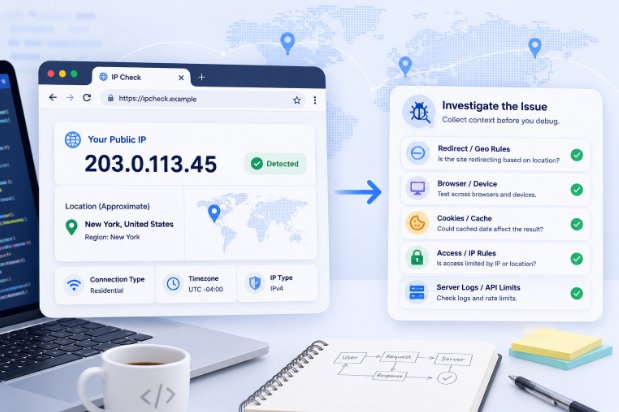
An IP address checker can help developers confirm what public IP and approximate location a website sees before testing access rules, redirects, local content, or VPN behavior. Without this check, a developer may think the problem is in the code when the real trigger is the visible network location.
This is useful when testing geo redirects. If a page is supposed to show a regional version, the developer should first confirm the visible IP location. If the IP is not where the developer expected, the redirect result may not be a bug.
The same idea applies to access rules. If an admin panel or staging site is limited to approved IP addresses, checking the visible IP can help explain why access is failing. It can also help when a client needs to provide an IP address for access approval.
For API testing, visible IP checks can help when rate limits or security rules behave in unexpected ways. If several testers appear to be coming from the same IP, the app may treat them as one source. That detail can matter when reading logs or trying to reproduce errors.
A Practical IP Testing Checklist for Developers
Developers do not need a complex process to include IP visibility in testing. A simple checklist is often enough.
Start by testing from the normal development network. Record the browser, device, operating system, visible public IP, approximate location, and whether a VPN is active. This gives you a baseline.
Next, test the same flow from another network context if the issue may be related to location or access. You can use a VPN, mobile hotspot, different Wi-Fi network, or separate device. If the behavior changes, the visible IP or network context may be part of the issue.
Clear cookies or use a separate browser profile when testing redirects and local content. IP address is only one signal. Cookies, account settings, browser language, cached redirects, and old sessions can also affect what appears.
Check server logs when possible. Compare the source IP, user-agent, time, page route, response code, and any security messages. If the site uses a CDN, review cache rules, firewall events, and geo-routing settings.
For APIs, check whether rate limits are tied to IP, user account, API key, session, or a mix of signals. This can prevent confusion when a tester thinks the API is broken, but the real issue is a limit caused by repeated requests from the same source.
Finally, document the network context in the bug report. Instead of writing only “redirect not working,” include details such as visible IP region, VPN status, browser profile, cookies cleared or not, device type, and test time. These notes can make the issue easier to reproduce.
Common Mistakes to Avoid
One common mistake is assuming every location issue is a frontend bug. If a user sees the wrong language, currency, or regional page, the problem might be in frontend code. But it could also come from backend rules, CDN settings, geo-IP data, cookies, or a redirect rule.
Another mistake is testing VPN behavior without checking the visible IP. A VPN app may show that it is connected, but the developer still needs to know what the website actually sees.
Developers should also avoid ignoring cookies and session history. A site may remember a previous region choice even after the visible IP changes. This can make testing confusing if the browser profile is not reset.
CDN caching is another easy-to-miss factor. A developer may think an app is showing the wrong content by location, when the issue is actually an edge cache rule or an old cached response.
Using unsafe download sources is another mistake. Developers often install tools quickly during debugging, but security tools should not be downloaded from random pages. A VPN or browser extension should be treated like any other development tool: install it from a trusted source, keep it updated, and understand what it affects.
Finally, developers should not assume that a VPN makes testing fully anonymous or fully realistic. It changes the visible network context, but it does not perfectly copy every real user environment. Device type, browser settings, cookies, account history, DNS behavior, and local infrastructure can still affect results.
VPNs Are Useful, But Not a Substitute for Proper QA
A VPN can help developers test from a different visible network context, but it cannot explain every bug. If an issue involves login, cookies, frontend rendering, API behavior, caching, permissions, or browser-specific JavaScript, normal debugging tools are still needed.
Proper testing should include browser dev tools, server logs, error tracking, analytics, API monitoring, staging sites, real device testing, and clear bug reports. A VPN and IP checker can support that process, but they should not replace it.
This matters because network testing can sometimes create false confidence. If a page works from one VPN location, that does not mean it works for every user in that region. If a login alert appears from one IP, that does not mean every user from that location will see the same thing. IP-based testing is useful, but it should be treated as one signal.
For developers, the best use of VPN testing is focused and documented. Use it when network context may affect the behavior. Record what changed. Compare results with logs. Then combine that information with normal debugging methods.
Add Network Context to Your Testing Notes
Modern web apps do not respond only to code, browser type, and screen size. They can also respond to IP address, location, access rules, CDN behavior, rate limits, fraud checks, and security settings.
That is why developers should understand IP visibility. It helps explain why a page redirects, why an API limit appears, why a login is flagged, or why a staging site is blocked. It also helps teams write better bug reports and reproduce problems more reliably.
The next time a location-based or access-based issue appears, do not only ask which browser or device was used. Ask what IP location the site saw, whether a VPN was active, whether cookies were cleared, whether the same behavior appeared from another network, and what the server logs showed.
Adding network context to the testing process will not solve every bug, but it can reduce guesswork. For developers, that alone makes it worth paying attention to.

