

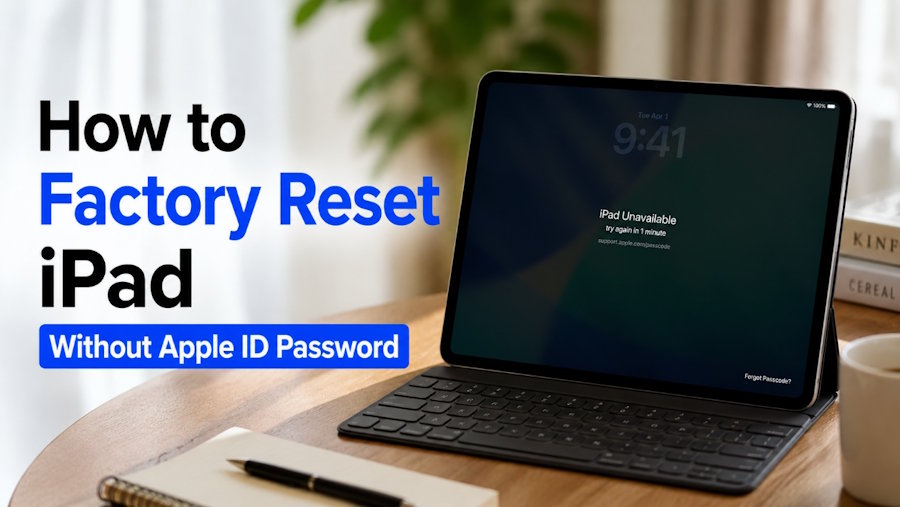
Forgetting your Apple ID password can make resetting your iPad seem impossible. Whether you've forgotten your credentials, bought a second-hand device, or simply can't access your Apple account, you may be wondering how to do a factory reset on your iPad.
The good news is that it is possible to factory reset an iPad without the Apple ID password in certain situations. Depending on whether your iPad is locked, disabled, or connected to iCloud, there are several methods you can try. This guide explains the easiest and most effective ways to factory reset your iPad, including using an iOS system recovery tool and official methods.
Can You Factory Reset a Locked iPad?
Yes, but it depends on what type of lock your iPad has.
If your iPad is locked by a screen passcode, you can still erase it using a professional unlocking tool, Recovery Mode, or iCloud (if Find My is enabled and you know your Apple ID credentials).
However, if your iPad is protected by Activation Lock, simply performing a factory reset won't remove the Apple ID linked to the device. You'll still need the original Apple ID password or the previous owner's assistance during setup.
How to Factory Reset iPad Without Apple ID Password
Solution 1: Best Way to Factory Reset an iPad Without Password
If you've forgotten your Apple ID password or can't access your locked iPad, a professional iOS repair tool like TunesKit iOS System Recovery provides a simple and reliable way to factory reset your device. Its Factory Reset feature can erase all data and restore your iPad to factory settings with just a few clicks, making it an excellent option when the standard reset methods aren't available.
Steps to factory reset iPhone using TunesKit iOS System Recovery:
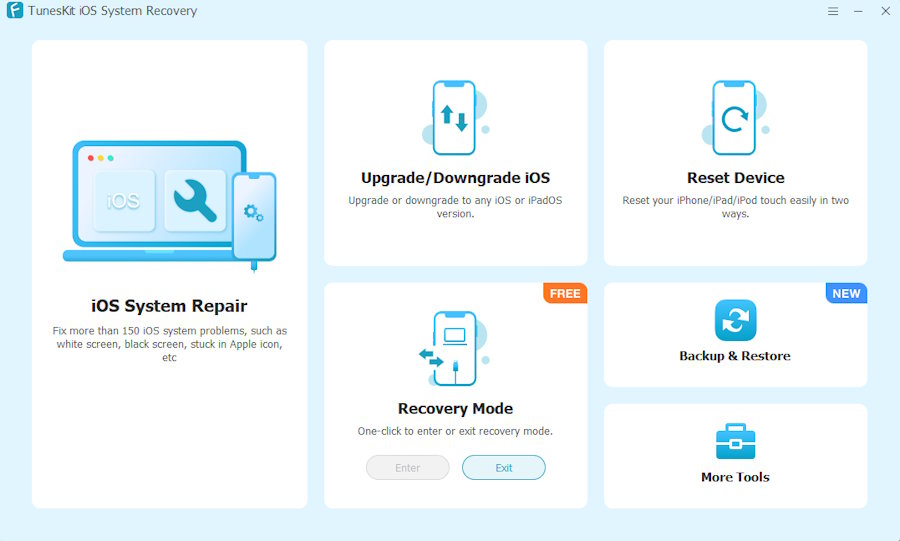
- Download and install TunesKit iOS System Recovery on your Windows PC or Mac. Launch the program and connect your iPad to the computer with a USB cable.
- Choose Reset Device from the main interface. Select Factory Reset.
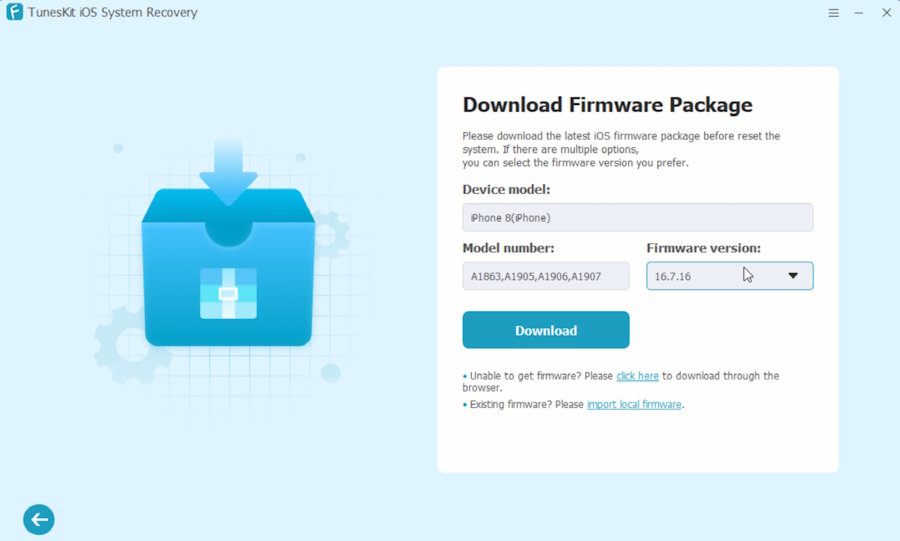
- Confirm device information and download the appropriate firmware package for your device. Wait for the firmware to be downloaded successfully.
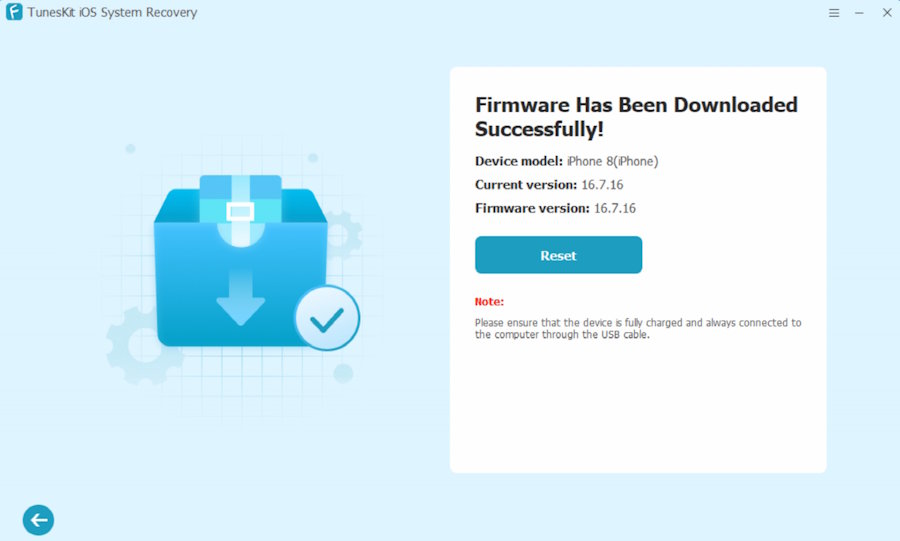
- Click Reset and wait for the program to erase your iPad and reset it to factory settings.
Compared with Apple's built-in methods, TunesKit iOS System Recovery offers a more straightforward and faster process. It's especially useful if your iPad or iPhone stuck on Apple logo, is disabled, or stuck on the lock screen.
Solution 2: How to Do a Factory Reset on iPad Using Recovery Mode
If you prefer using Apple's official method, Recovery Mode is a reliable way to factory reset a locked or disabled iPad. This method is useful when you can't access the Settings app because your device is stuck on the lock screen.
Here's how:
- Plug your iPad into your PC or Mac, then open Finder (macOS Catalina or later) or iTunes (Windows/macOS Mojave or earlier) to continue.
- Put your iPad into Recovery Mode:
For iPads without a Home button: Press and release Volume Up, press and release Volume Down, then hold the Top button until the recovery screen appears.
For iPads with a Home button: Hold the Home and Top (or Side) buttons together until the recovery screen appears.
- When prompted, choose Restore.
- Wait for the firmware to download and the restoration to finish.
After the process, your iPad will return to factory settings. However, if Find My was enabled, you'll still need the Apple ID during activation.
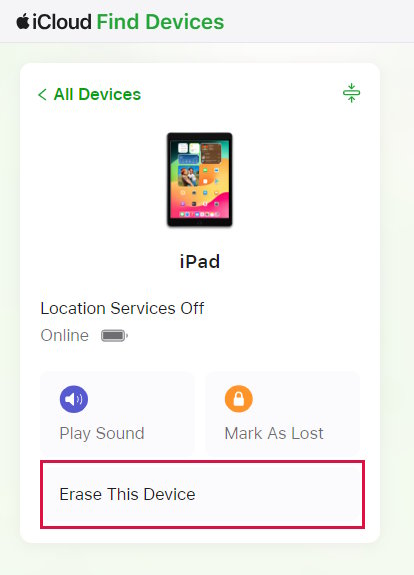
Solution 3: Reset iPad to Factory Settings Using iCloud
If Find My iPad is enabled and you still have access to the Apple ID account (or you're already signed in on another device), you can erase your iPad remotely.
Steps:
- Open Find My on another Apple device or visit iCloud.com.
- Sign in with your Apple ID account, select Devices.
- Choose your iPad.
- Click Erase This Device.
- Confirm the erase request.
This method is convenient when your iPad is lost or unavailable, but it requires access to the associated Apple ID account.
Solution 4: How to Factory Reset iPad Without Computer
If you don't have access to a computer, you may still be able to factory reset your iPad directly from the lock screen. However, this feature only works under certain conditions. Your iPad must be running iPadOS 15.2 or later, be connected to the internet, and have Find My iPad enabled.
Here's how:
- Enter the wrong passcode several times until you see iPad Unavailable.
- Tap Erase iPad in the lower-right corner.
- Confirm the erase option.
- Enter your Apple ID password to complete the process.
This method requires your Apple ID password. If you can't remember it, you'll need to try a different solution. In that case, using a professional unlocking tool or Recovery Mode is a better choice.
What a Factory Reset Can't Do
Many users believe a factory reset solves every lock issue, but that's not entirely true.
A factory reset cannot remove Activation Lock. If the iPad is still linked to someone else's Apple ID, you'll be asked to sign in with that account after the reset.
Likewise, a factory reset won't bypass Apple's security system or unlock an iPad that has been reported as lost or stolen. Always make sure you own the device or have permission from the original owner before attempting a reset.
FAQs
1. Can I factory reset an iPad without the Apple ID password for free?
Yes. Recovery Mode is Apple's free method for restoring a locked iPad. However, if Activation Lock is enabled, you'll still need the Apple ID password after the reset.
2. How to factory reset iPad with buttons?
You can use the button combination to enter Recovery Mode, then connect your iPad to Finder or iTunes and choose Restore. The buttons alone cannot complete a factory reset.
3. Will a factory reset remove Activation Lock?
No. Activation Lock remains enabled after a factory reset. If your iPad is locked to owner after a factory reset, TunesKit iPhone Unlocker can help you remove the Activation Lock.
4. Can I use the iPad after resetting it without the Apple ID?
Only if Activation Lock is disabled or you've successfully signed in with the correct Apple ID. Otherwise, the device will remain locked at the activation screen.
5. What's the easiest way to factory reset a locked iPad?
For most users, using TunesKit iOS System Recovery is the quickest and simplest option. It requires minimal technical knowledge and works even when you've forgotten the screen passcode.
Final Thoughts
If you've forgotten your Apple ID password, don't panic. There are several ways to factory reset an iPad without an Apple ID password. TunesKit iOS System Recovery offers the fastest and most user-friendly solution. For users who prefer Apple's free methods, Recovery Mode remains a reliable alternative. Choose the method that best fits your situation and you'll have your iPad reset and ready to use again.

