

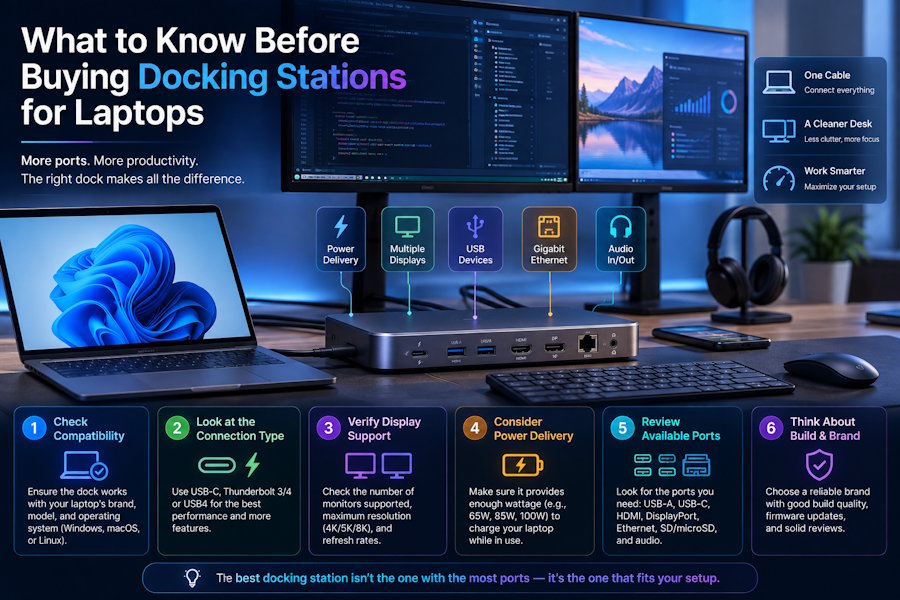
A laptop can support serious work, but thin hardware often leaves little room for monitors, wired internet, charging, and everyday accessories. A docking station can bring those pieces together through one connection.
The better choice starts with practical checks, not guesswork. Buyers should review laptop ports, display plans, power needs, system support, cable placement, and future equipment needs before deciding which model belongs on their desk.
Check Laptop Ports First
Buyers should confirm the exact connector on the computer when comparing docking stations for laptops. Universal Serial Bus (USB) Type C, USB 4, and Thunderbolt ports can look similar from a distance. Their support for video, charging, and data varies, so labels, manuals, and device specifications deserve careful review.
Count Every Display
Monitor needs should shape the shortlist early. One screen places lighter demands on a dock than two, three, or four displays. Inputs also matter, including High-Definition Multimedia Interface (HDMI) and DisplayPort. Resolution and refresh rate can change support limits. A dock may run two standard screens well, yet struggle with higher-resolution panels at faster refresh settings.
Review Power Delivery
Many docking stations send power through the same cable used for video and data. Wattage ratings can differ widely across models. Buyers should compare the original laptop charger with the dock output. Extra headroom helps during video calls, large transfers, and processor-heavy work.
Separate Travel and Desk Use
Portable docks are suitable for people who move between conference rooms, classrooms, shared desks, or client sites. They are lighter and easier to pack but usually support fewer connections. Desk docks make more sense for fixed setups with monitors, speakers, a webcam, storage, and wired internet. Some buyers may need one compact unit for travel and a fuller station at work.
Check System Support
Software behavior can make or break a setup. Windows, macOS, Chrome OS, and Linux may handle external displays in different ways. Some arrangements need drivers, firmware updates, or specific display modes. Multi-screen users should verify support before purchase to prevent unstable connections after setup.
List Needed Accessories
A dock should match actual equipment on the desk. Keyboards, mice, webcams, headsets, speakers, printers, external drives, and memory cards all need suitable ports. USB Type A remains useful for older devices, while Type C handles many newer tools. Ethernet, audio, and card slots can also remove small adapters that clutter bags and drawers.
Consider Wired Network Access
Ethernet supports dependable calls, large uploads, secure office access, and low-latency tasks. Wireless networks are convenient, but shared connections can slow down during busy hours. A dock with wired networking gives the workstation a more reliable connection. Offices, studios, clinics, and home work areas often benefit from it more than expected.
Measure the Desk Setup
Cable reach and port access affect daily comfort. A dock hidden behind a monitor may look tidy, but awkward placement slows down routine use. Front ports are better for temporary drives, headphones, and mobile devices. Rear connections are suitable for displays, power, speakers, and network cables. Good positioning keeps the workstation clean while preserving quick access.
Compare Build and Warranty
A dock handles frequent plugging, packing, heat, and cable strain. The durability of its ports, the stability of its casing, the management of heat, and the steadiness of its base all affect its service life.
Warranty coverage also warrants attention because charging, display output, and data transfer depend on one hub. Strong support terms can lower replacement risk for companies, schools, and home offices.
Plan for Growth
Current needs may be modest, yet equipment changes quickly. A buyer might add a larger monitor, faster storage, better camera, or newer laptop within a short period. Choosing a dock with spare capacity can cost more at first. Still, it may prevent another purchase. Sensible growth planning should reflect likely upgrades.
Conclusion
A useful docking station should seamlessly integrate with the laptop, monitors, accessories, desk layout, and work pattern as one connected system. Buyers should verify connector standards, display support, charging power, operating system behavior, and port placement before comparing prices.
The best choice isn’t always the model with the longest feature list. It’s the dock that reduces daily friction, controls cables, and leaves practical room for future equipment.

