

Animated text should be easier to read, not harder. Find out how to pick the words, the timing, the movement, and animate it in Filmora.
Movement catches the eye, which is the whole reason text animation works. It is also the reason it goes wrong so often. Words that spin, bounce, and fly in from the side pull attention toward the effect rather than the message. The viewer ends up watching the motion instead of reading.
Good, animated text does the opposite. It brings the words in, holds them still long enough to be read, and takes them away again without any fuss. This guide covers how to get that balance right, then walks through the process in Wondershare Filmora on the desktop.
Part 1. Start with Clear and Concise Text
No animation can rescue text that was hard to read when it was standing still. Four things decide whether words work on screen, and all of them come before we can create animated text:
- Keep the Phrase Short: A few words land in a moment, while a full sentence needs time the viewer may not give it.
- Pick a Plain Font: Filmora reads any font installed on your computer, so the temptation is to choose something decorative. Simple shapes stay clearer at small sizes.
- Give it Contrast: Light text on a bright sky disappears. A border or a soft shadow, both available in the Advanced text panel, separates the words from whatever sits behind them.
- Size It For a Phone: Most people will watch on a small screen, so check the text is readable there rather than on your monitor.
A quick test settles all four at once. Pause the video on the frame where the text sits, then look away and back again. Anything you cannot take in at a glance needs simplifying before you animate it.
Part 2. Give Viewers Enough Time to Read
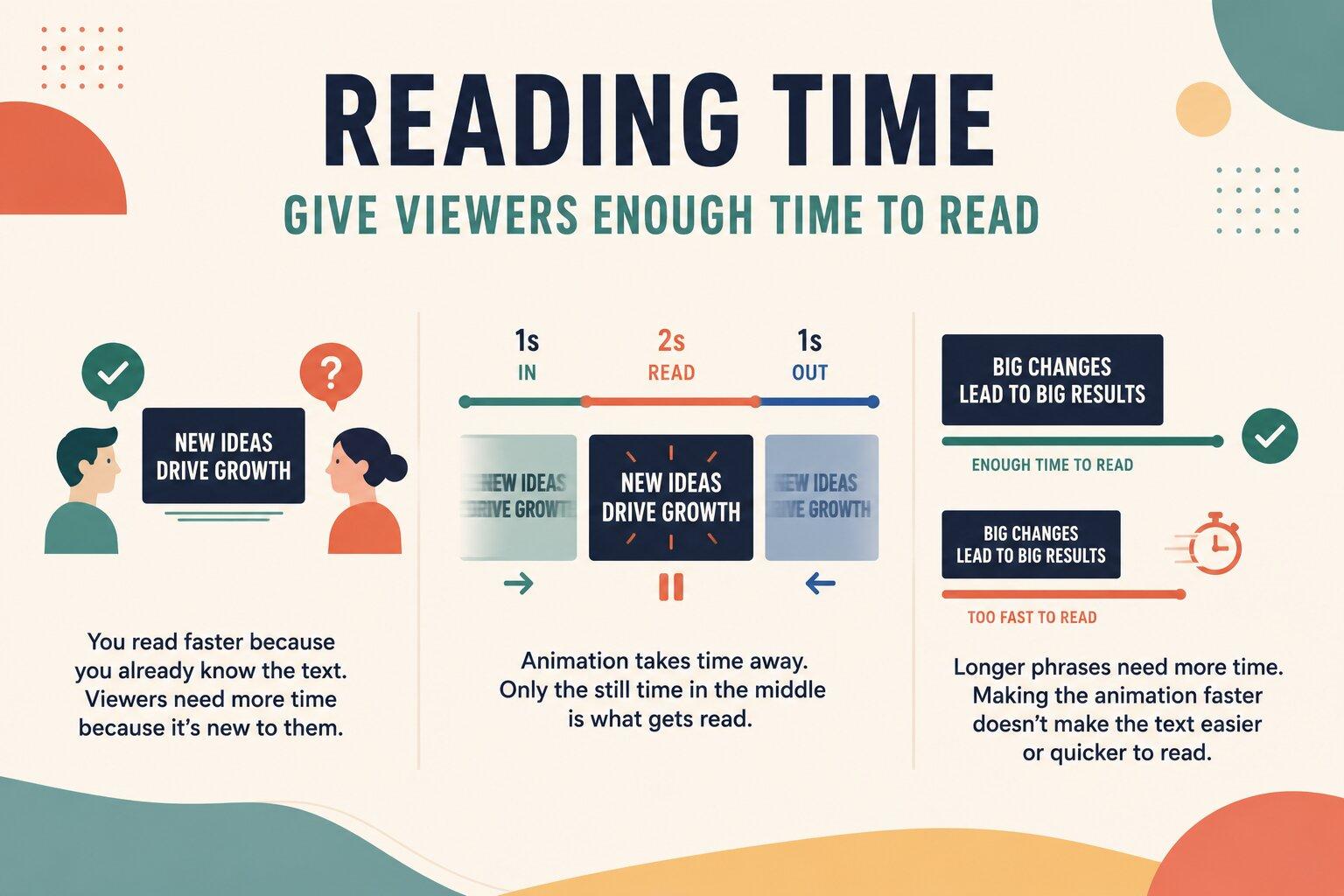
Reading time is the part most editors underestimate, mainly because you already know what the text says. You recognize it instantly, so 3 seconds feels generous. A viewer meeting those words for the first time needs longer than you do.
The animation itself eats into that time as well. If a title takes 1 second to arrive and another to leave, a 4-second title only sits still for 2. That still period is the part that actually gets read, so it should be the longest section rather than an afterthought.
Longer phrases need proportionally more room, and fast animations do not solve that. Speeding up the entrance simply means the words arrive sooner, not that they become quicker to read.
Part 3. Choose an Animation That Matches the Message
Movement carries a tone of its own, and it should agree with what the words are saying. Any animated text maker will offer far more styles than a single video needs, so the table below covers the ones worth reaching for:
| Animation Style | What It Suits |
|---|---|
| Fade | Almost anything, since it adds no movement to distract from reading |
| Slide | Lower thirds and labels that arrive while something else is happening |
| Zoom | A single strong word or a number you want the viewer to notice |
| Bounce | Playful content, used once or twice rather than on every title |
| Loop | Text that stays on screen a long time and needs gentle life |
As a general rule, the more words there are, the calmer the animation should be. Save the stronger effects for 2 or 3 words at most. To learn more about the video editor that will assist you throughout this, check out the Filmora video editor for Mac.
Part 4. Animate Text in Filmora
Filmora holds more than 80 animation presets, which is enough to create animated text for most projects without building motion by hand. These five steps cover the whole process.
Step 1. Add a Title to the Timeline
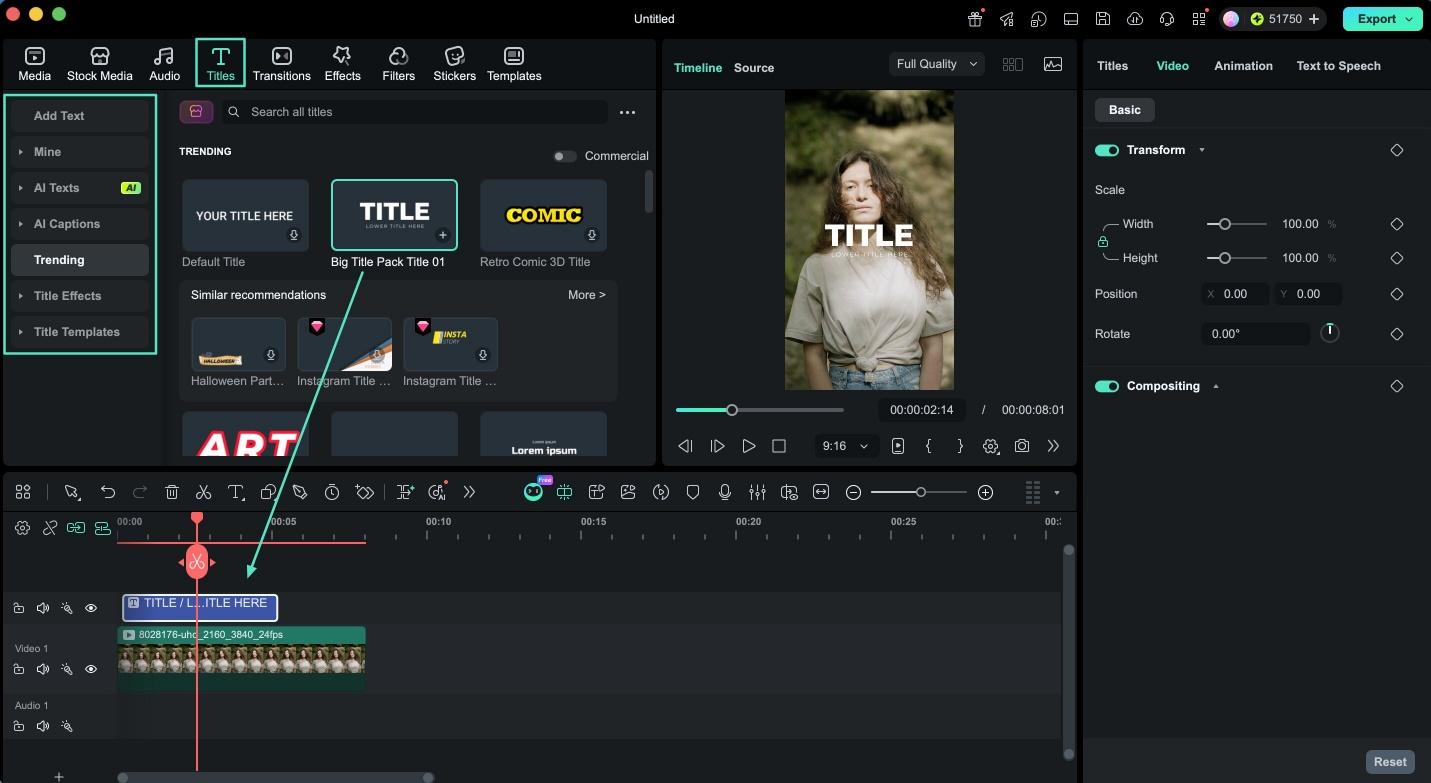
Open the “Titles” tab in the menu bar and pick a template. Categories cover openers, lower thirds, subtitles, and end credits, so start with the one closest to your purpose. Drag it onto a track above your footage.
Step 2. Type Your Text and Set Its Style
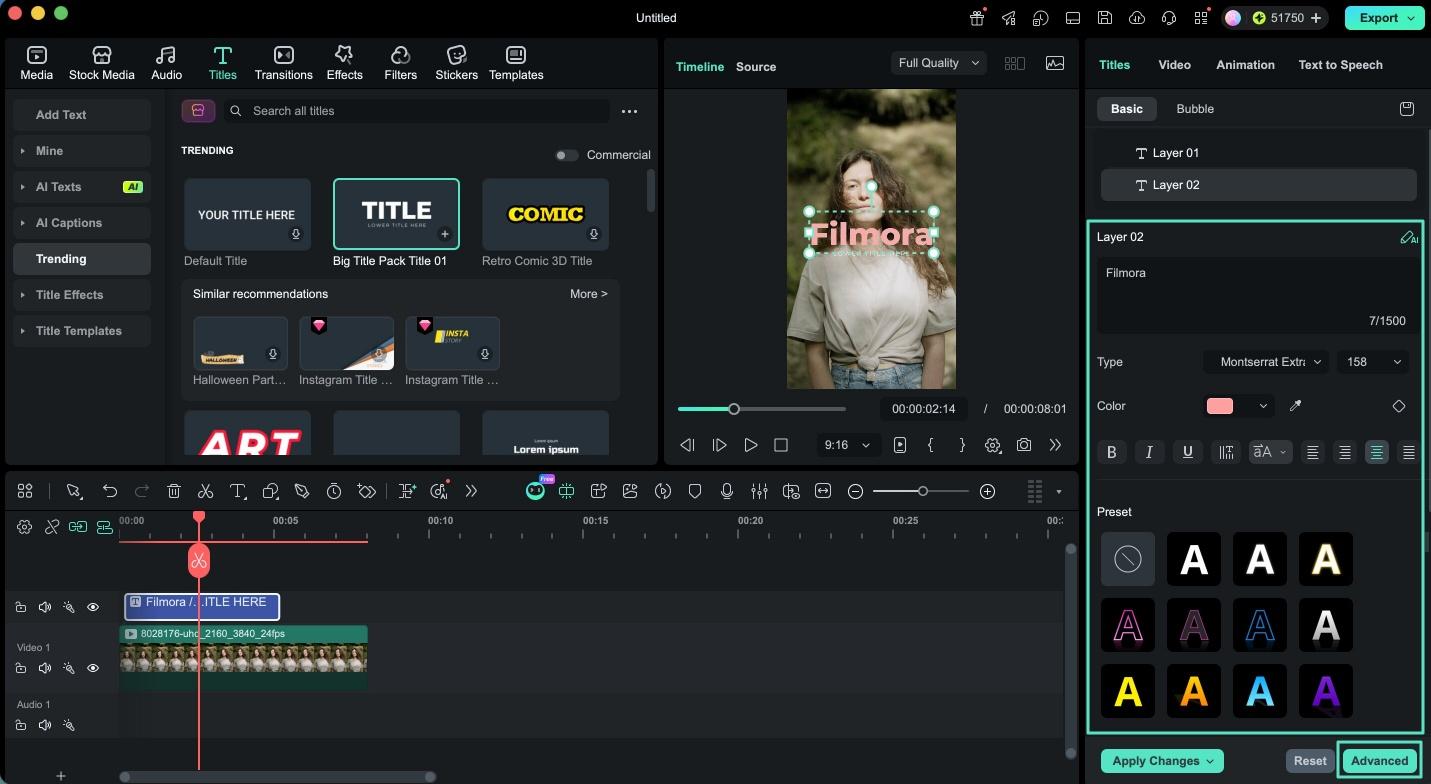
Double-click the title to open the text panel on the right. Enter your wording, then set the font, size, and color. The “Advanced” button opens deeper controls for borders, shadows, and opacity.
Step 3. Open the Animation Section
Switch to the “Animation” section in the same properties panel. This is where the preset library sits, separate from the styling controls you just used.
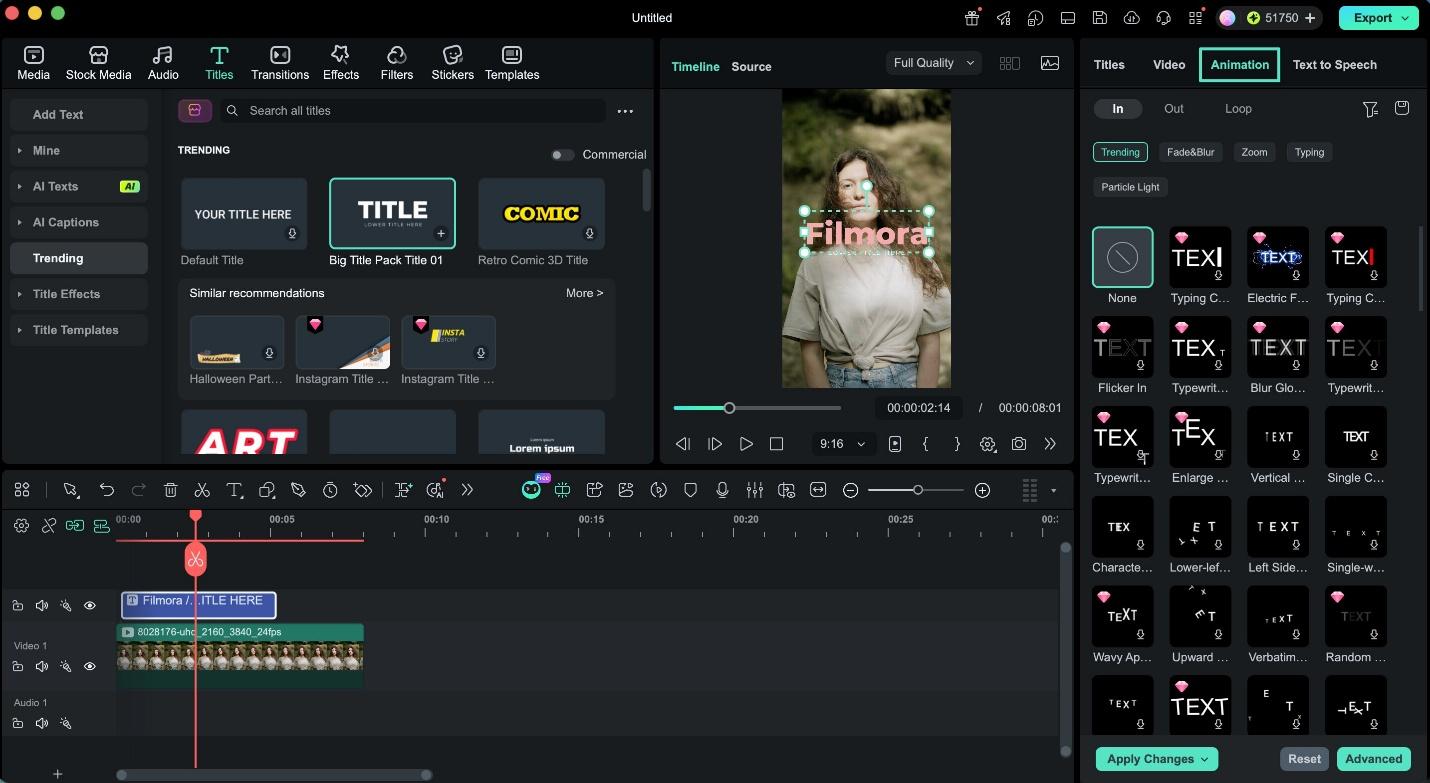
Step 4. Choose an In, Out, or Loop Preset
“In” animations bring the text on, “Out” animations take it away, and “Loop” keeps a gentle movement running while it stays on screen. Selecting one shows it in the preview window straight away.
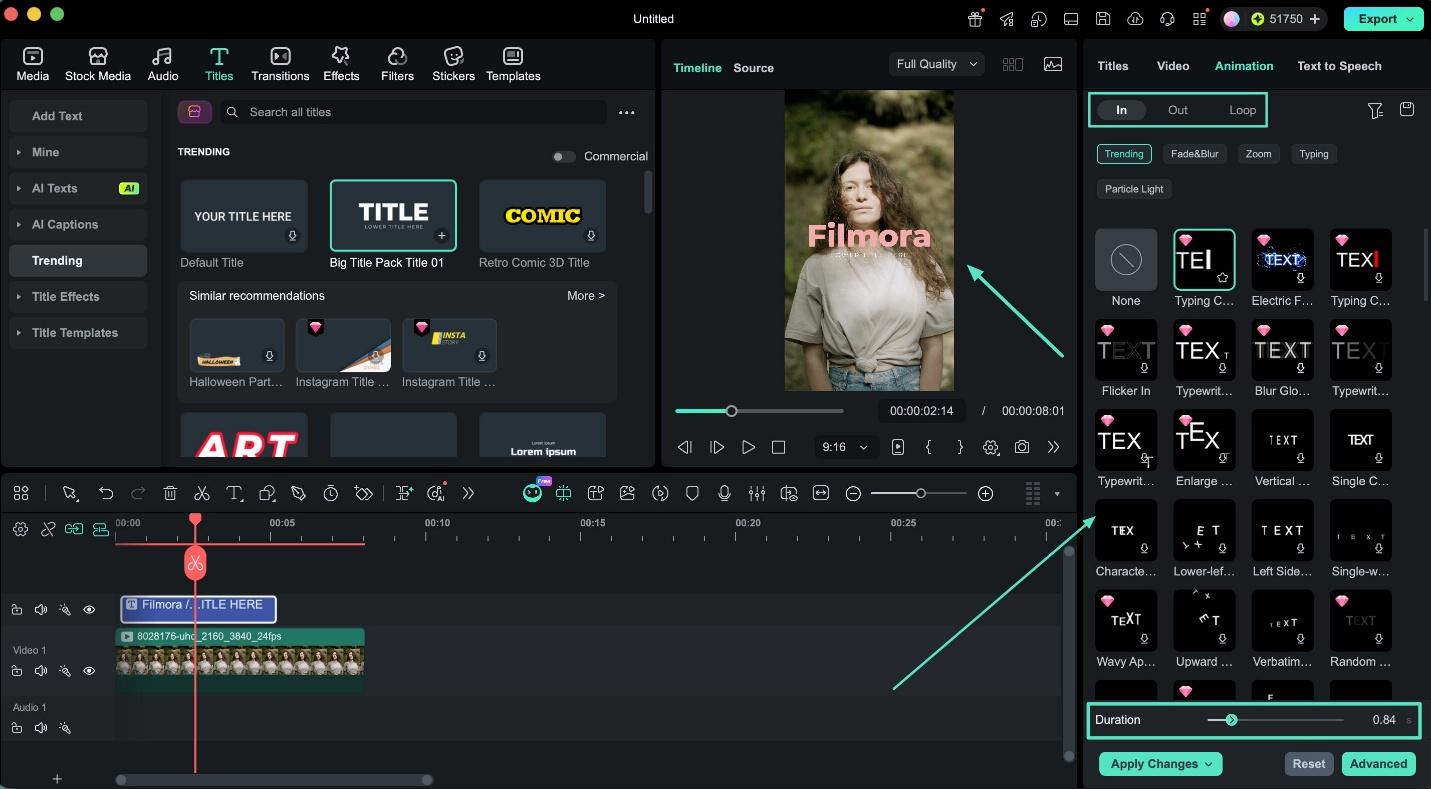
Step 5. Set the Duration and Preview It
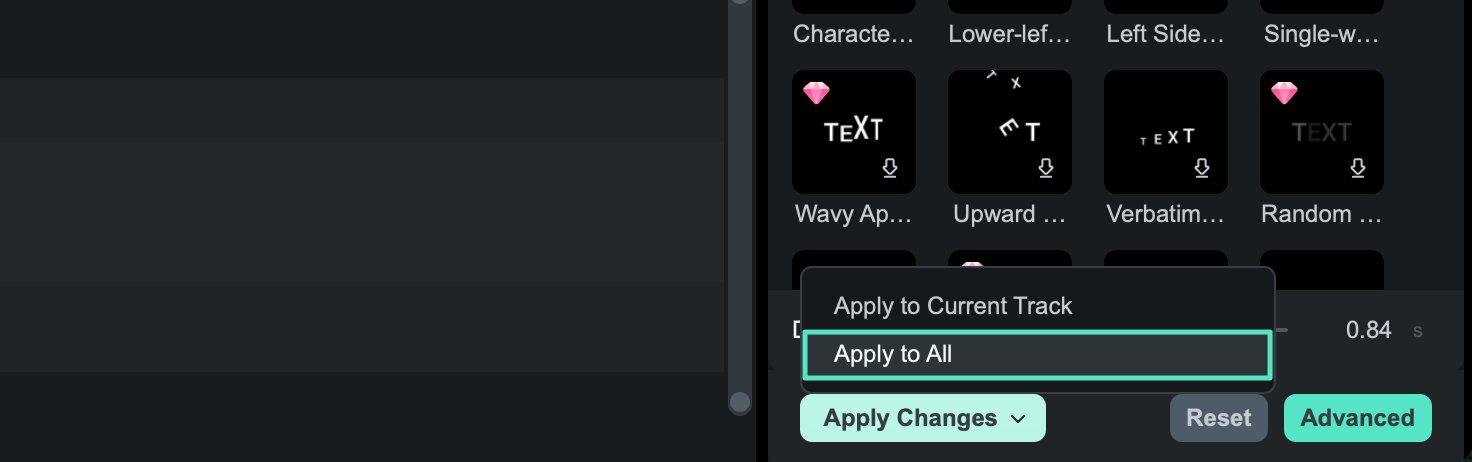
Drag either edge of the title on the timeline to control how long it lasts. Click “Apply to All” if you want the same animation on every title, then play the section back to check the result.
Note: Titles arrive at a default length of 5 seconds. To change that for every future title, open “Preferences” and set a new “Effect Duration.”
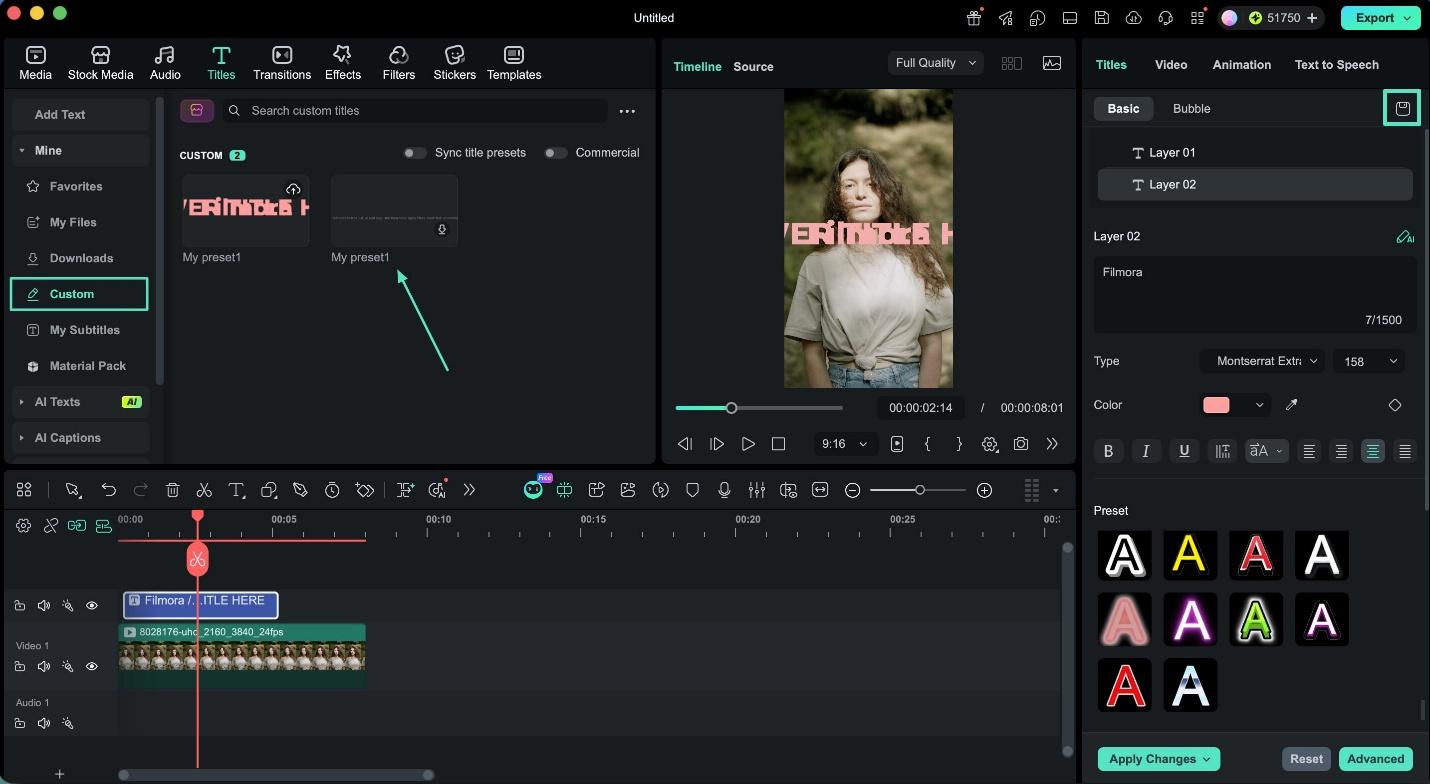
Once a title looks right, the “Save as Custom” button stores it in the “Custom” folder of the “Titles” tab. Reusing it keeps every title in the video consistent without setting the style again. To learn more about using this proactive video editor, go through this comprehensive Filmora Mac editing guide.
Part 5. Review the Text at Normal Playback Speed
Judging animated text while you are building it is almost impossible, because you are watching a frame rather than a sequence. Play the section at full speed and check four things:
- Reading Time: Read the words along with the video. If you cannot finish before they leave, nobody else will.
- Placement: Watch for text landing on a busy part of the picture or sitting where a platform puts its own buttons.
- Contrast: Check the words against the moving footage, since a background that was dark at the start may brighten.
- The Start and Finish: Look for text that snaps on or vanishes abruptly, which usually means the animation is too short.
Fixing any of these usually means extending the title rather than changing the animation. Giving the words another second on screen solves more problems than switching to a different preset.
Conclusion
The best test for animated text is simple enough to apply to any project. If removing the movement would make the video harder to follow, the animation is earning its place. If nothing would be lost, it is decoration. A text animation maker gives you plenty of options, though the useful ones are usually the quiet presets that let the words do the work.

