

Many viewers watch videos in situations where audio is unavailable or inconvenient. Without subtitles, your content struggles to hold viewer attention, leading to lower completion rates and poor engagement. At the same time, manual transcription takes hours. Few creators want to download bloated editing software or deal with browser crashes when uploading large files just to get a simple SRT file.
Converting MP4 to SRT files with precise timestamps streamlines your editing and publishing workflow. An SRT file stores your transcript along with exact start and end times, ensuring every line aligns with the spoken dialogue. This guide breaks down three reliable methods depending on whether you need AI auto-transcription, offline file extraction, or a completely free tool.
Why You Need an Independent SRT Subtitle File
When you convert MP4 to SRT, you gain full control over video distribution across multiple platforms. Instead of permanently burning text into video frames, standalone caption files preserve visual quality and keep your text fully editable.
- Better Search Engine Indexing
Searchable subtitle text gives platforms additional textual context that can improve accessibility and content discovery. They read the text inside SRT files to index your keywords and match your video with relevant search queries.
- Higher Retention on Silent Playback
On-screen captions allow viewers to follow along in noisy environments or quiet spaces like offices and public transit. This simple addition helps keep viewers watching longer.
- Easy Localization and Editing
The SRT format is a universal standard accepted by video editors and translation platforms. You can edit typos in a plain text editor or translate the dialogue into multiple languages without re-rendering the video.
- Improved Accessibility
Subtitles help deaf and hard-of-hearing audiences follow your content clearly. They also assist non-native speakers who understand written text better than fast spoken dialogue.
Method 1: Convert MP4 to SRT Online with AI Tool
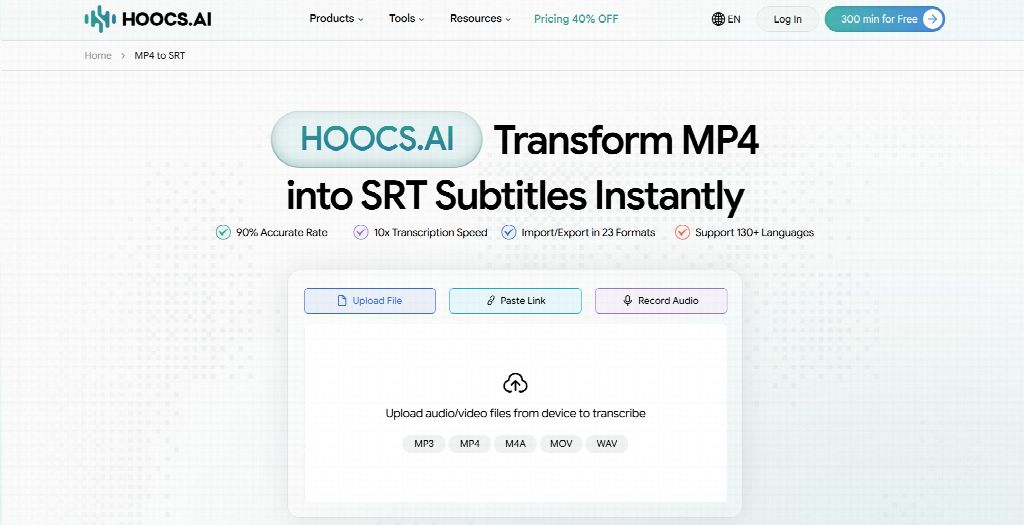
When your MP4 file has no built-in subtitles, an AI transcription tool is the fastest way to extract subtitles from an MP4 video. AI engines process speech in minutes, replacing the tedious task of typing out every line by hand. If you need a reliable web converter, Hoocs AI provides an automated transcription workspace designed for speed and accuracy.
Hoocs AI allows you to convert large MP4 files directly into your web browser without downloading heavy software suites. To save processing time and local bandwidth, the platform accepts video URLs from YouTube, Google Drive, and Dropbox. This web-based setup enables content creators to generate editable SRT subtitle files from any desktop computer.
Key Advantages
- High-speed AI processing delivering 10x conversion and high accuracy
- Direct cloud URL imports bypassing heavy local file uploads
- Multilingual conversion supporting over 130 global languages
- Versatile file capabilities supporting 23 distinct media formats
- Automated visual mind maps extracting key transcript takeaways
Limitations
- Stable internet connection required for cloud-based video processing
- No dedicated mobile application currently
Step-by-Step Guide to Convert MP4 to SRT Online
Follow these five steps to process your video and download an editable SRT subtitle file using an online AI generator.
Step 1: Create an Account. Sign up or log in to Hoocs AI using your browser.
Step 2: Upload Your MP4 file. Drag and drop your local MP4 file into the dashboard or paste a direct cloud video link.
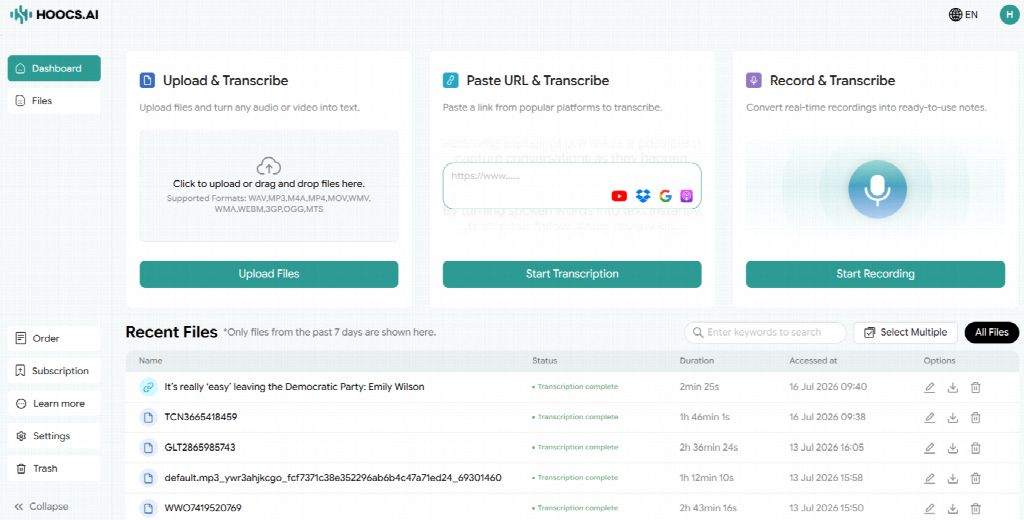
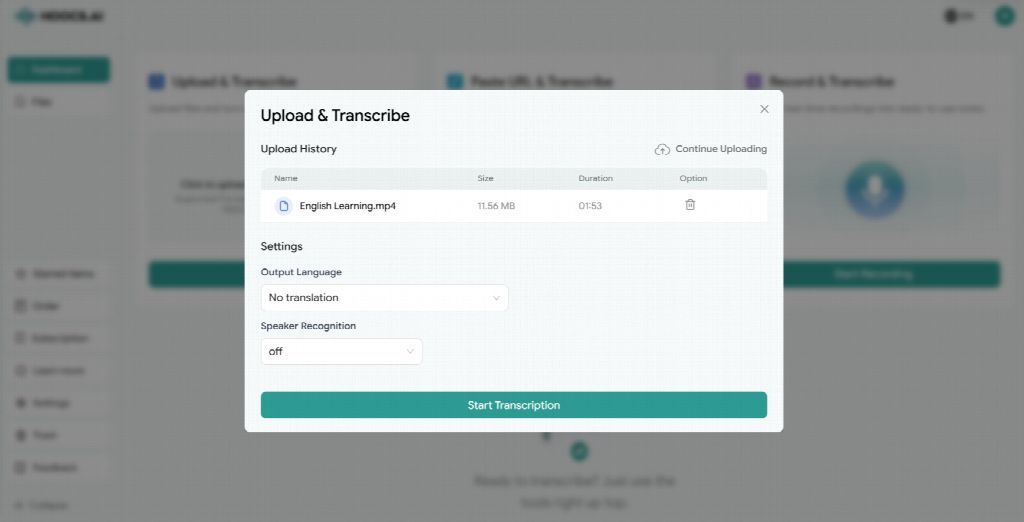
Step 3: Configure Transcription Settings. Select the Output Language and enable Speaker Recognition if your file contains multiple speakers.
Step 4: Review Transcript and Timeline. Let the AI process the video, then use the online editor to correct typos and check timing alignment.
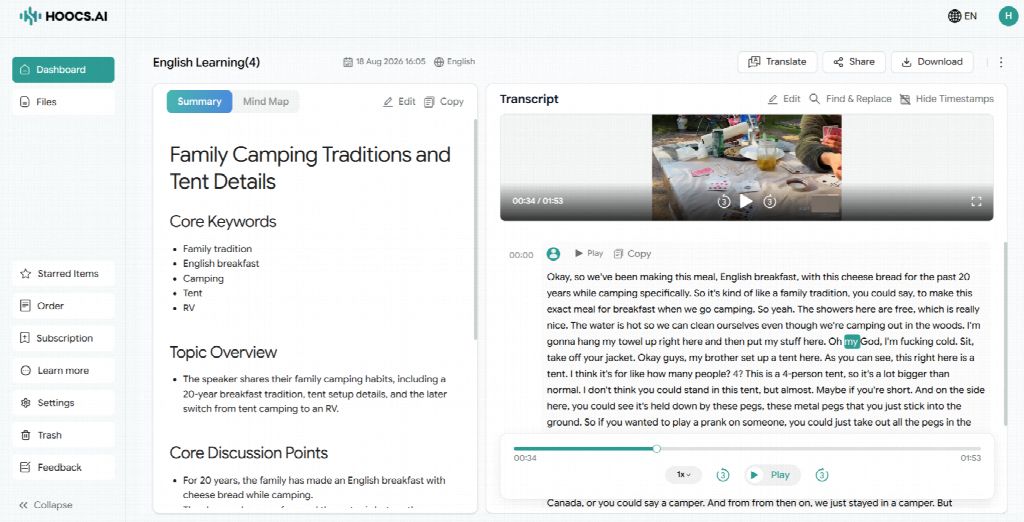
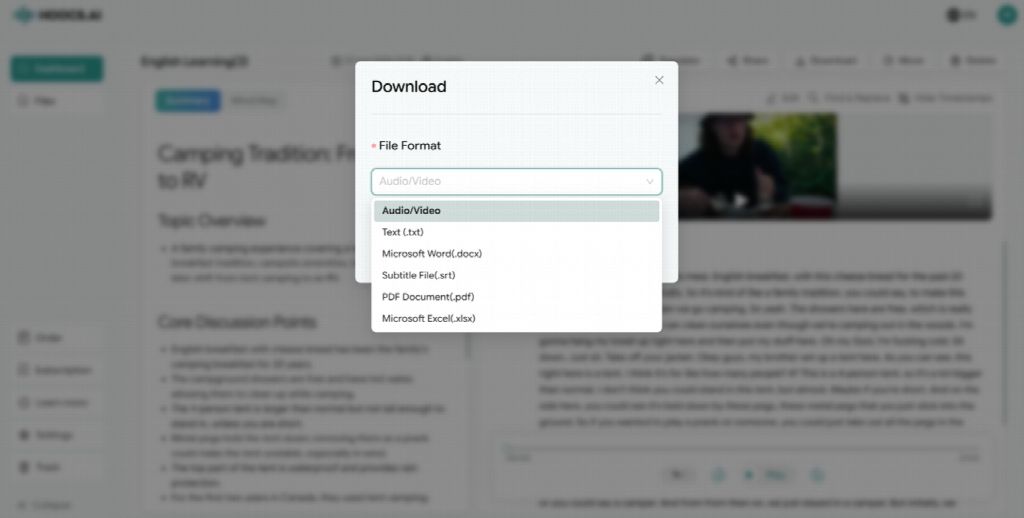
Step 5: Export Your SRT File. Click the export button and select SRT format to download the file directly to your device.
Method 2: Extract Embedded Subtitle Tracks with VLC Media Player
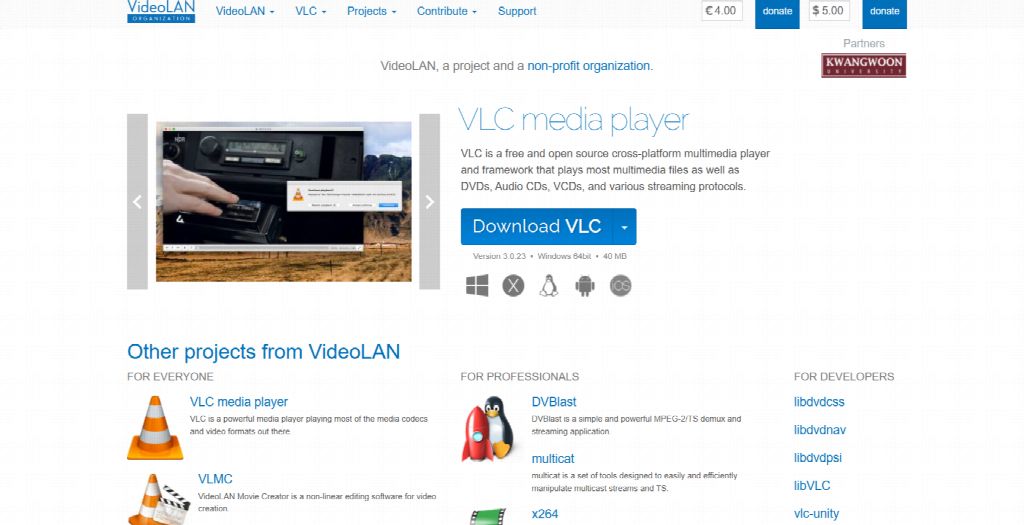
If your MP4 video already contains embedded soft subtitles (Softsubs), you do not need an AI engine to re-transcribe spoken audio. Using the open-source VLC Media Player allows you to convert MP4 to SRT for free. This demuxing approach guarantees perfect text accuracy without processing delays or speech recognition errors.
VLC Media Player offers an effortless extraction workflow for creators who handle pre-captioned video containers. It isolates embedded subtitle streams without needing cloud uploads or heavy video re-encoding. This offline method provides a fast, privacy-focused solution for users wanting to extract existing subtitle tracks from local MP4 files.
Key Advantages
- Free open-source application with zero subscription fees
- Instant lossless extraction preserving original subtitle accuracy
- Complete offline processing ensuring maximum data privacy
- Seamless multi-platform support across major desktop operating systems
Limitations
- Inability to extract text from videos without embedded softsubs
- Cannot generate new subtitles from raw video audio
How to Extract Subtitles in VLC Media Player
VLC can export subtitles from an MP4 file if the video already contains an embedded subtitle track. However, it cannot automatically generate new subtitles from spoken audio. Check that your MP4 includes a subtitle stream before starting.
Step 1: Open the Convert Window. Launch VLC Media Player, click Media in the top menu bar, and select Convert / Save.
Step 2: Load Your MP4 File. Click Add to import your video file, then click the Convert / Save button at the bottom.
Step 3: Enable Subtitle Export. Click the Wrench (Edit Profile) icon next to the profile option. Open the subtitle settings, enable Subtitles, and select SubRip (SRT) as the output format.
Step 4: Choose a Save Location. Click Browse, select your destination folder, and save the file with an .srt extension.
Step 5: Export the Subtitle File. Click Start to extract the embedded subtitle track and save it as an SRT file.
Method 3: Generate SRT Files for Free with Subtitle Edit
For creators on a tight budget or handling sensitive footage, Subtitle Edit provides a completely free, open-source desktop solution. It eliminates reliance on cloud servers by running local speech recognition directly on your computer. This offline workspace enables users to convert MP4 audio into accurate SRT files while keeping all video data private.
Subtitle Edit features built-in integration with OpenAI's open-source Whisper model, delivering powerful AI auto-transcription without subscription fees. The software handles long video files without size restrictions or monthly quota limits. It is ideal for privacy-focused editors and offline creators who require precise timestamp editing and full file control.
Key Advantages
- Completely free open-source software with no usage limits
- Local Whisper AI integration ensuring total file privacy
- Unlimited video duration and file size transcription capacity
- Advanced timing synchronization and line adjustment controls
Limitations
- High local CPU and GPU resource requirements during processing
- Initial setup required for downloading local AI model files
Step-by-Step Guide for Local Auto Transcription
Follow these four steps to transcribe your MP4 video offline and export an SRT subtitle file using Subtitle Edit and local Whisper AI.
Step 1: Import MP4 Video File. Launch Subtitle Edit, click Video in the top menu bar, select Open video file..., and load your MP4 video into the workspace.
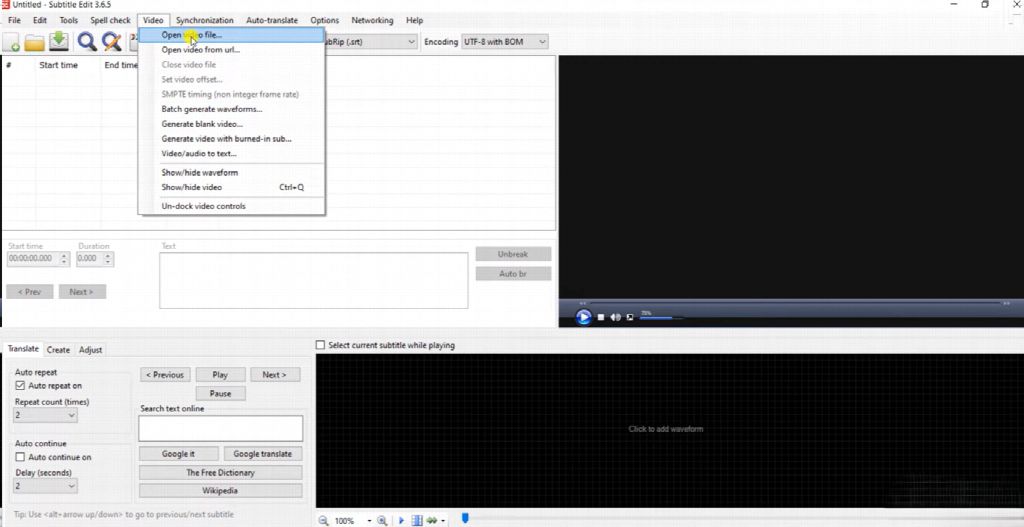
Step 2: Enable Whisper Transcription. Open Video → Audio to text (Whisper), select a Whisper model, and choose the spoken language. Smaller models process faster, while larger models generally provide better recognition quality.
Step 3: Generate the Subtitle Draft. Start the Whisper transcription process. Subtitle Edit will analyze the audio track locally and create timestamped subtitle lines automatically.
Step 4: Review and Export the SRT File. Check the generated subtitles for names, technical terms, and timing accuracy. Then select File → Save as and export the result as SubRip (*.srt).
Best Practices for SRT Subtitle Formatting and Sync
Generating an SRT file does not always mean it is ready to publish. Before adding subtitles to your final video, review the text length, timing, and overall readability to make sure the captions display clearly across different screens.
- Keep Subtitle Lines Clear and Readable
Avoid placing too much text on the screen at once. Keep each subtitle to one or two short lines and break longer sentences at natural pauses. This makes captions easier to follow on both desktop and mobile devices without covering too much of the video.
- Check Subtitle Timing and Fix Sync Issues
Play the video alongside the exported SRT file and check whether each subtitle appears at the right moment. If the entire subtitle track appears slightly early or late, use a global time-shift tool to adjust all timestamps instead of editing every subtitle manually.
- Test the SRT Before Publishing
Import the SRT file into your video editor or upload it alongside the video on platforms such as YouTube or Vimeo. Check that timestamps, line breaks, and subtitle order display correctly before publishing the final version.
Final Thought
Choosing the right MP4-to-SRT conversion method depends on your video's current state, delivery timeline, and privacy requirements. If your MP4 video has no existing subtitles and demands high accuracy with fast turnaround, using online AI tools like Hoocs AI is the most efficient choice, especially for processing large cloud files and multilingual audio.
For videos with embedded softsubs, extracting them directly with VLC Media Player is a free and lossless shortcut. For zero-budget creators who prefer offline processing or need strict data privacy, using open-source tools like Subtitle Edit allows local speech recognition without uploading videos online. You can select the tool that best fits your workflow by evaluating your file size, privacy concerns, and turnaround goals.

