

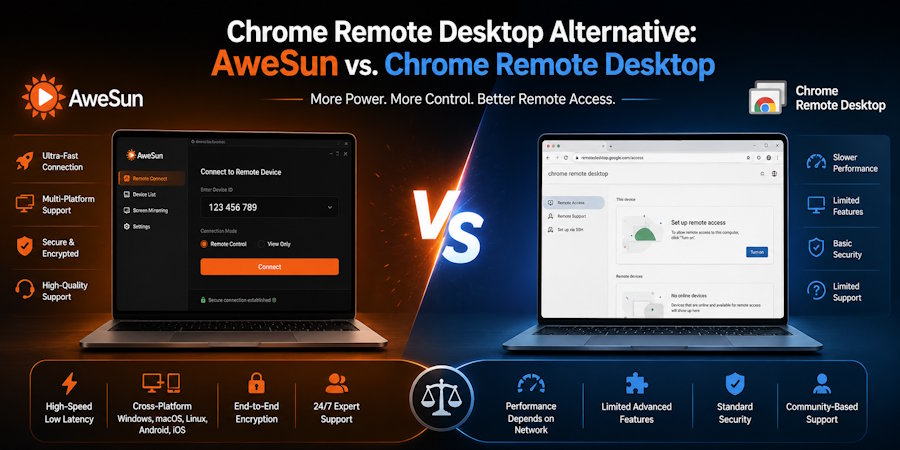
Remote desktop software has become a practical tool for people who need access to a computer from another location. A developer may need to reach a workstation while travelling. An IT administrator may have to troubleshoot a remote machine. A business user may need access to files that remain on an office computer.
Chrome Remote Desktop is one of the better known options for these tasks. It provides a straightforward way to access a computer remotely through a computer or mobile device. For occasional personal access, that simplicity can be enough.
The situation changes when remote access becomes part of a regular workflow. Users may need broader device support, easier file transfers, remote support features, or better options for more demanding workloads.
That is where comparing Chrome Remote Desktop with a dedicated alternative such as AweSun becomes useful.
This guide looks at the practical differences between the two, where each option fits, and what users should consider before choosing a remote desktop solution.
What Is Chrome Remote Desktop?
Chrome Remote Desktop is Google's remote access service. It allows users to connect to a computer from another device and access the remote desktop.
Google supports two main use cases. Remote access allows users to connect to their own computers, while remote support lets another person access a computer with permission for troubleshooting or assistance. Google supports remote connections from computers and mobile devices.
For basic requirements, the service has several advantages:
- Simple setup
- Remote access to personal computers
- Support for Windows, macOS and Linux hosts
- Access from mobile devices
- Temporary remote support
- No complicated enterprise deployment for basic personal use
These characteristics make Chrome Remote Desktop particularly suitable for people who want to access a computer occasionally without managing a large remote access platform.
However, the requirements of remote users can vary considerably.
Why Look for a Chrome Remote Desktop Alternative?
There is no need to replace Chrome Remote Desktop simply because other tools exist.
The reason to consider another solution is usually a change in requirements.
For example, an individual might initially use remote access only to retrieve files from a home computer. Later, that same person may start working remotely, managing several computers, accessing a desktop from a phone, or using remote software for technical support.
At that point, several questions become relevant:
- Does the software support all the devices you use?
- Can you transfer files conveniently?
- How does it perform on your usual network?
- Does it support your preferred remote support workflow?
- Is it suitable for more demanding applications?
- Does its security model fit the way you manage remote access?
These questions provide a better basis for choosing a Chrome Remote Desktop alternative than simply comparing the number of features advertised by different products.
AweSun vs. Chrome Remote Desktop
AweSun and Chrome Remote Desktop approach remote access from somewhat different directions.
Chrome Remote Desktop focuses on providing relatively simple access to a remote computer. It works well for users who want to reach a personal machine or provide occasional remote assistance.
AweSun is positioned as a broader remote connectivity solution. Its supported use cases include remote work, IT maintenance, mobile device access, and remote gaming. The platform supports Windows, macOS, iOS, and Android.
That broader scope can be relevant for users who regularly work across different devices.
For example, a person may use a Windows desktop as a main workstation, a MacBook while travelling, and an Android phone when away from both computers. In this situation, the remote access software needs to fit into a mixed-device environment.
Users considering this type of setup can learn more about AweSun Remote Desktop and its supported platforms.
Cross-Platform Remote Access
Device compatibility is easy to overlook when choosing remote desktop software.
A user might initially connect two Windows computers and assume that any remote access solution will work equally well when another device is introduced.
Real world setups are often more complicated.
A designer might have a Windows workstation but use a MacBook when travelling. An IT professional might manage Windows machines from an Android phone. A business owner might need to access an office computer from an iPad.
AweSun provides applications for Windows, macOS, Android, and iOS.
Chrome Remote Desktop also supports access from computers and mobile devices, with Windows, macOS, and Linux supported as host platforms.
This means both options can cover common cross-device scenarios. The difference comes down to the features, workflow, and management experience that matter to the individual user.
File Transfer and Remote Workflows
Remote access is often discussed as if the main purpose were controlling a screen.
In practical work, users frequently need to move information between devices as well.
Consider a remote worker who stores project documents on an office computer. Accessing the desktop solves one problem, but the user may still need to move a document to the computer being used locally.
AweSun includes file transfer capabilities within its remote access environment. This can be useful for people who regularly move documents, images, project files, or other data between connected devices.
The importance of this feature depends on the user's workflow.
Someone who only needs to check an application remotely may never use file transfer. A developer, designer, or IT administrator working between several machines may use it frequently.
That is why features should be evaluated according to actual tasks rather than treated as a simple checklist.
Remote Access for IT Support
Remote support has different requirements from personal computer access.
An IT professional may need to connect to another person's machine, diagnose a problem, and guide the user through a solution. In some cases, the person receiving support may not be technically experienced.
Chrome Remote Desktop provides a remote support mode where users can generate a support code and share it with another person. Google explains that the code allows another user to connect to the computer for support.
This can work well for occasional assistance.
Dedicated remote access platforms may appeal more to IT professionals who handle remote support regularly and need additional controls around their wider workflow.
The right choice depends on how often support is provided and what the support process requires.
Performance and Latency
Performance becomes increasingly important when remote access involves applications that respond continuously to user input.
A document or email application can remain usable even with moderate latency. Graphic applications, video workflows, development environments, and games are more sensitive to delays.
Several factors affect remote desktop performance:
- Internet latency
- Available bandwidth
- Network stability
- Distance between devices
- Host computer performance
- Client device performance
- Screen resolution
- Type of workload
AweSun positions its software for demanding scenarios, including remote gaming, and highlights low latency, high frame rates, and support for up to 144 FPS.
Those specifications provide useful information about the platform's intended capabilities. They should still be evaluated under real conditions because network and hardware limitations can have a major effect on the final experience.
A person deciding between remote desktop applications should therefore test the software with the applications they actually use.
Security Considerations
Remote desktop software provides access to a computer from another location. That makes security one of the most important factors in the selection process.
Google states that Chrome Remote Desktop connections are fully encrypted. Its support documentation also provides guidance for setting up remote access and remote support.
AweSun also describes security measures for its remote connections, including encrypted communication and account security features.
Regardless of the software selected, users should follow several basic practices:
- Use strong and unique passwords.
- Keep the operating system and remote access software current.
- Limit access to trusted devices and users.
- Remove devices that no longer need access.
- Avoid sharing permanent credentials unnecessarily.
- Review account and device permissions periodically.
Security is therefore a combination of the platform's technical controls and the user's configuration decisions.
Which Option Makes More Sense?
The answer depends on the type of remote access you need.
Chrome Remote Desktop is a practical choice for users who want simple access to a personal computer or occasional remote support without a complicated setup.
AweSun may be worth considering when remote access is part of a wider workflow involving several operating systems, mobile devices, file transfers, IT support, or remote gaming.
Neither option needs to be judged as universally better.
The more useful approach is to identify the tasks that matter most and test each application against those requirements.
For users who want to compare other options before making a decision, this guide to a Chrome Remote Desktop alternative provides additional information about other remote access solutions and their intended use cases.
How to Evaluate a Remote Desktop Tool
A short practical test can reveal more than a long feature comparison.
Before committing to a new remote access platform, test the following:
1. Connection Setup
Check how long it takes to establish a connection and whether the process is easy to repeat.
2. Input Response
Move the mouse, type text, open applications, and perform normal tasks. Pay attention to delays.
3. File Handling
If file transfer is important to you, test an actual document or project file.
4. Mobile Access
Connect from your phone or tablet if mobile access is part of your normal workflow.
5. Reliability
Use the connection for an extended period instead of judging it after a single successful login.
6. Security Controls
Review authentication, permissions, connected devices, and other available security settings.
Testing these areas against your own workflow gives you a more realistic picture of whether a particular solution is suitable.
Final Thoughts
Chrome Remote Desktop remains a useful solution for straightforward remote access. Its simple approach makes sense for users who occasionally need to reach a personal computer or provide remote assistance.
The decision becomes less straightforward when remote access becomes part of everyday work.
Cross-platform setups, mobile access, file transfers, IT support, and demanding applications can create requirements that deserve closer consideration. This is where dedicated remote connectivity platforms such as AweSun become relevant.
Rather than choosing based on a feature list alone, users should test remote desktop software with the computers, networks, and applications they actually depend on. That practical comparison will reveal whether a particular solution fits the way they work.
Frequently Asked Questions
Is Chrome Remote Desktop a good choice for personal use?
Yes. It is particularly useful when you need straightforward access to a personal computer and do not require a large collection of additional remote management features.
What should I consider when choosing a Chrome Remote Desktop alternative?
Consider device compatibility, performance, security, file transfer, mobile access, remote support, and the applications you expect to use remotely.
Can remote desktop software be used from a phone?
Yes. Both desktop and mobile remote access solutions are available. AweSun provides applications for Android and iOS alongside its desktop clients.
Does remote desktop performance depend on internet speed?
Yes, but speed is only one factor. Latency, connection stability, hardware performance, distance between devices, and the type of application being used can also affect the experience.
Is remote desktop safe?
Remote desktop can be used securely when the software provides appropriate security controls and the user configures access carefully. Strong credentials, current software, controlled permissions, and regular account reviews are important.

