

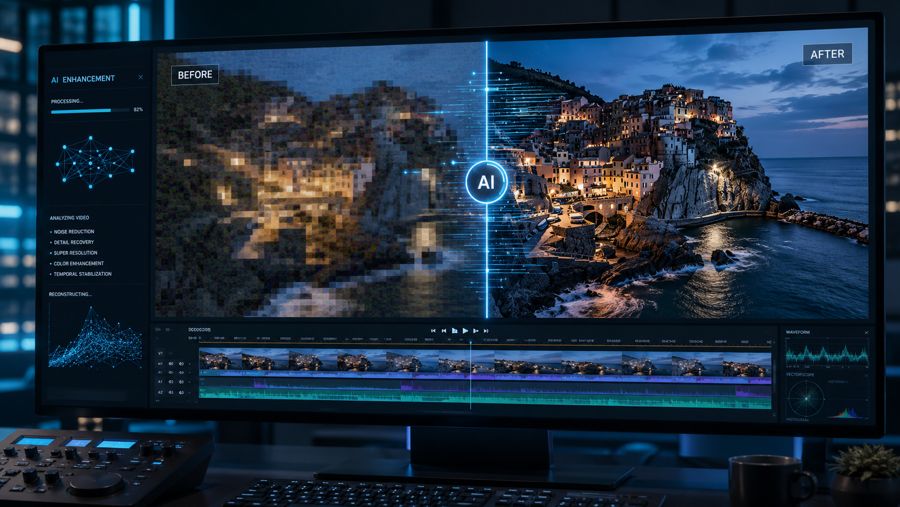
You recorded the perfect moment: a birthday, a sunset, a once-in-a-lifetime trip and when you play it back, the footage looks like a mosaic of blurry squares. It's one of the most frustrating things that can happen to a content creator or casual videographer alike. Whether the pixelation appeared after exporting, downloading a clip, or sharing it through a messaging app, the good news is that it's fixable. This guide walks you through everything you need to know about how to fix pixelated video, from understanding why it happens in the first place to exploring an AI-powered tool that actually restores your footage. By the end, you'll have a clear, step-by-step path to recovering your video quality, with practical tips to prevent the problem from ever coming back.
What Makes a Video Look Pixelated?
Before jumping to fixes, it helps to understand what's actually causing the problem. Pixelation isn't random; it always has a root cause, and knowing it lets you choose the right solution.
Low Resolution or Recording at Low Bitrate
Every video file stores a certain amount of visual data per second, measured as bitrate. When you record at a low bitrate, your camera discards fine detail to keep the file small. The result is footage that looks blocky and soft, especially when played on a larger screen or zoomed in. Resolution plays a related role: a 360p video stretched to fill a 1080p monitor will always look pixelated because there simply aren't enough pixels to go around.
Aggressive Compression
Every time a video is uploaded to a platform or passed through a messaging app, it gets compressed again. Apps like WhatsApp, Telegram, and Instagram apply their own compression algorithms to reduce file size, stripping out detail with each pass. A clip that looked clean when you first recorded it can look heavily degraded after being shared a few times through these channels.
Poor Lighting and High ISO
When you shoot in a dark room or at night, your camera compensates for the lack of light by raising the ISO. Higher ISO introduces visible grain and noise, which clusters into blocky patches across the frame, visually very similar to pixelation. In many cases, people searching for how to fix pixelated video are actually dealing with noise from low-light recording.
Slow Internet During Streaming
Streaming platforms dynamically adjust video quality based on your connection speed. A weak or unstable internet connection forces the player to drop to a lower resolution so the video can load fast enough to keep playing. This is why a video might look sharp on a fast connection but blocky and degraded on a slower one.
File Corruption or Incomplete Downloads
If a video file was interrupted during download or transfer, or if bad sectors exist on a storage device, the file can become partially corrupted. This often shows up as green blocks, random glitches, distorted colors, or a sudden drop in quality partway through playback—all symptoms that look like pixelation but are actually data damage.
Outdated Media Player or Codec Mismatch
Sometimes the video itself is perfectly fine, but the media player can't decode it correctly. Older players may lack support for modern video codecs like H.265/HEVC, causing playback artifacts that look like pixelation. Simply updating your player or switching to one that supports a wider range of codecs can make the problem disappear instantly.
Fastest Way To Fix Your Pixelated and Low-Quality Footage: HitPaw VikPea
After testing several AI video enhancement tools, I found HitPaw VikPea to be one of the quickest and easiest solutions for fixing pixelated and low-quality videos. It uses advanced AI models to sharpen blurry details, reduce noise, remove compression artifacts, and upscale videos from 480p, 720p, or 1080p to stunning 4K or even 8K quality. Whether you're restoring old recordings, improving AI-generated videos, or enhancing heavily compressed clips, VikPea delivers noticeable improvements with just a few clicks. Its specialized AI models for restoration, sharpening, stabilization, and frame interpolation make it a reliable choice for turning poor-quality footage into clear, natural-looking videos without requiring advanced editing skills.
What Makes VikPea the Right Choice?
Fix Pixelated, Damaged, and Corrupted Video Files
If your videos suffer from pixelation, corruption, excessive compression, or visual damage, the AI Video Repair tool can restore much of the lost quality. It rebuilds missing details, reduces visual artifacts, and improves overall clarity, helping older or damaged videos look significantly cleaner and more watchable.
Upscale, Sharpen, and Restore Low-Quality Videos
HitPaw VikPea's AI Video Enhancer is designed to improve poor-quality footage with minimal effort. It can sharpen blurry videos, reduce noise, remove compression artifacts, stabilize shaky clips, and upscale low-resolution videos to 4K or 8K. The built-in AI Frame Interpolation also boosts frame rates up to 60FPS, resulting in smoother, more natural playback. With its latest AI models, videos gain clearer details and a more professional appearance in just a few clicks.
Add Natural Colors to Faded and Black-and-White Footage
The AI Video Colorizer restores life to faded, dull, or black-and-white footage by intelligently applying realistic colors. It also fine-tunes brightness, contrast, saturation, and overall color balance to create vibrant, natural-looking results. This makes it an excellent tool for restoring old memories or enhancing vintage videos for modern displays.
AI Video Generator
Beyond video enhancement, HitPaw VikPea also includes an AI Video Generator that helps create videos from static images. Simply upload your photos, and the AI transforms them into animated videos with smooth motion effects. Support for advanced models like Kling 3.0 and Kling V3 Omni produces more realistic movement, improved visual quality, and greater creative flexibility for content creators.
Remove or Replace Video Backgrounds with One Click
The AI Background Remover automatically separates subjects from their backgrounds with impressive accuracy. Thanks to its upgraded AI detection model, it creates cleaner edges and more precise cutouts, making it easy to replace, blur, or customize backgrounds. It's especially useful for product videos, social media content, and professional video editing.
Restore Sharpness to Blurry and Out-of-Focus Footage
The AI Unblur feature restores sharpness to videos affected by camera shake, motion blur, poor focus, or low-resolution sources. Using intelligent AI reconstruction, it enhances fine details while maintaining a natural look, making faces, text, and objects appear noticeably clearer.
Video Beauty
The Video Beauty feature enhances facial appearance using AI-powered skin refinement and facial optimization. It subtly smooths skin, improves facial details, and creates a more polished look without making the results appear artificial. It's ideal for portraits, interviews, vlogs, and other people-focused videos.
How to Fix Pixelated Video with HitPaw VikPea
Step 01: Download, Install and Launch
Download and install HitPaw VikPea from HitPaw's official website, then launch it. After launching, click on Video Enhancer.
Step 2: Import Your Video
Click on Browse Video or drag and drop your video to import into VikPea.
Step 3: Choose Right AI Model
Choose the right AI model at the right side of your screen and click on the Preview button.
Step 4: Download Your Video
After checking the result, you can now download the modified video into your device by clicking on the Export button.
How to Prevent Pixelated Videos in the Future
Fixing a pixelated video is useful, but preventing the problem from occurring in the first place saves you a lot of time and effort. A few adjustments to how you record, export, and store your footage can make a significant difference to long-term quality.
Always Record at the Highest Bitrate Your Storage Allows
Before you start recording, make sure you have enough storage space to capture at the highest available bitrate. Bitrate is the single biggest factor in how much visual detail gets saved per second. Clearing space on your memory card or drive before a shoot ensures you're never forced to drop quality just to fit the file.
Use Proper Lighting to Keep ISO Low
A well-lit scene gives your camera what it needs to produce clean footage without cranking up the ISO. When shooting indoors, bring in additional light sources or position your subject near natural light. The lower you can keep the ISO, the less grain and noise will end up in your footage and the less cleanup you'll need to do afterward.
Export at Source Resolution or Higher – Never Downscale Unnecessarily
When you're done editing, your export settings should match or exceed the quality of your original footage. Exporting at a lower resolution than what you recorded throws away detail that was already there. Always export at the same resolution you captured, and only downscale if a specific platform requires it—not as a default step.
Use Modern Codecs Like H.265/HEVC for Compression
H.265 (also known as HEVC) is a far more efficient codec than the older H.264 standard, delivering significantly better image quality at the same file size or a much smaller file at the same quality. When exporting, choose H.265 wherever possible to preserve detail without bloating your file size.
Avoid Re-Exporting Already-Compressed Files
One of the fastest ways to degrade video quality is to compress a compressed file. Every time you export from an already-exported video, you're applying compression to compression, and the damage compounds quickly. If you need to re-edit a project, always go back to the source file rather than working from an export.
Back Up Original Files Before Sharing
Before you send a video through any app or upload it anywhere, back up the original file. Platforms and messaging apps apply their own compression automatically, and once you lose the original, you can't get that quality back. Keep a master copy in a safe location—an external drive, cloud storage, or both—so you always have a version to work from.
Conclusion
Pixelated video is a common problem, but it's far from permanent. Whether your footage was damaged by heavy compression, poor lighting, a bad export, or file corruption, the right approach can bring it back to a watchable, even professional-looking, state.
The fastest and most effective way to fix pixelated video today is with an AI-powered tool like HitPaw VikPea. Rather than applying a generic sharpening filter, VikPea actually reconstructs lost detail using scene-specific AI models trained to handle everything from compressed social media clips to archival family recordings. The process takes just four steps, requires no video editing experience, and produces results that look genuinely better, not just processed. If you have a pixelated clip you've been putting off fixing, now's the time. HitPaw VikPea offers a free trial so you can preview the results on your own footage before committing to anything.

