

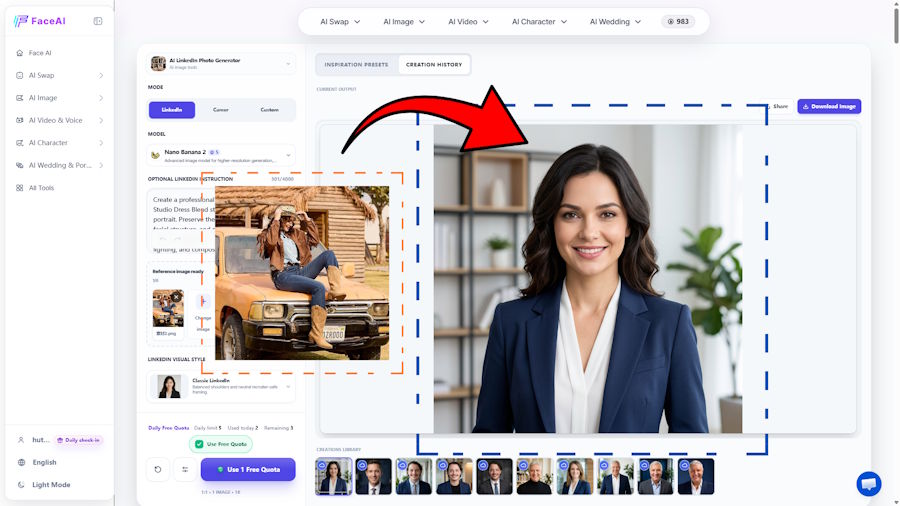
You don't need a professional photoshoot to get a professional headshot. If you have a decent selfie but the lighting, background, or overall look isn't quite right for LinkedIn, an AI LinkedIn photo generator can turn it into a polished portrait in just a few steps.
Face AI helps users transform existing photos into professional headshots and further refine them with background changes, enhancement, and upscaling. But a good AI headshot isn't just about looking better. It should still look like you, feel natural, and fit your professional image.
In this guide, we'll cover the most common headshot mistakes, what to watch out for when using AI, and how to create a professional profile photo from a single selfie.
Why Your LinkedIn Photo Matters
Your LinkedIn profile photo is often one of the first things people notice when they visit your profile. Before reading your experience or achievements, recruiters, potential clients, and professional connections may already have formed an initial impression based on how your profile looks.
A professional photo doesn't mean you need to look overly formal or perfectly polished. It should simply make you appear clear, approachable, and credible while matching the professional image you want to build.
The problem is that many people use photos that were never intended for a professional setting. A casual selfie, an outdated picture, or a poorly cropped group photo can make an otherwise strong profile look less professional.
5 Common LinkedIn Profile Photo Mistakes
Taken with flash and cluttered
A bathroom selfie with harsh flash, a messy desk, or random objects in the background can immediately make a photo feel casual rather than professional. Even if your face looks fine, distracting surroundings can take attention away from you.
A clean, simple background usually works better. If you don't have a suitable space for taking a photo, you can also use an AI Image Editor to replace a distracting background.
Vacation Selfie
Vacation photos are great for social media, but they don't always work well as professional profile pictures. Sunglasses, beach backgrounds, unusual poses, or overly casual clothing can send the wrong message depending on your industry.
For LinkedIn, choose a photo that feels authentic while still reflecting the professional impression you want to make.
Stone Face and Bad Lighting
A stiff expression combined with poor lighting can make an otherwise good photo look uninviting. Overhead lights can create strong shadows, while cold indoor lighting can make your skin look dull.
You don't need a big smile. A natural, relaxed expression and balanced lighting are usually enough to make a professional headshot feel more approachable.
Outdated Photo
Using a photo from several years ago can create a mismatch between your profile and your current appearance. If someone meets you after seeing your LinkedIn profile, an obviously outdated photo can make the introduction feel less natural.
Your profile photo doesn't need to be updated constantly, but it should still be a reasonably accurate representation of how you look today.
Cropped Group Photo
Cropping yourself out of a group photo may seem like a quick solution, but the result often looks awkward. Other people's shoulders, partial faces, or an unusual crop can make it obvious that the image wasn't originally taken as a professional headshot.
A dedicated portrait or an AI LinkedIn Photo Generator from a selfie will usually give you much more control over the composition.
How to Create a Professional LinkedIn Headshot From One Selfie
Step 1: Choose the Selfie
You don't need a perfect selfie to get started. While many AI headshot tools work best with a clear, front-facing portrait, Face AI can handle more challenging source photos.
For example, even if your face is partially covered, you're wearing a hat, or the photo was taken in a less conventional setting, Face AI can still generate a professional-looking headshot from it.
The key is simply to choose a photo that clearly shows enough of your face for the AI to work with. You can start with an everyday photo rather than spending time trying to take the “perfect” selfie.
Step 2: Choose a Career Style
Upload your selfie to Face AI's AI LinkedIn Photo Generator, then choose a career style that matches the image you want to present. You can select from different professional directions, such as LinkedIn, Career, or Custom, and browse styles designed for different professional settings.
Choosing the right style helps ensure that the final headshot fits your industry and personal brand instead of looking like a generic AI portrait.
Step 3: Generate a Professional Headshot
Once you've selected your preferred style, generate the headshot. Face AI can create multiple professional variations from your selfie, giving you different options for clothing, background, framing, and overall presentation.
Compare the results and choose the one that looks the most natural while still maintaining your recognizable facial features.
Step 4: Enhance the Photo
Don't stop at the first generated result. If the image needs further refinement, use Face AI's editing tools to improve the final photo. You can make subtle adjustments to the image, enhance its quality, or upscale it for a sharper result.
The goal is to polish the headshot without over-editing it. Your final photo should still look like a realistic version of you.
Step 5: Check the Final Image at LinkedIn Size
Before using your new headshot, preview it at the size it will actually appear on LinkedIn. Make sure your face remains clear, the framing is balanced, and the background doesn't distract from you.
A headshot that looks great at full resolution may look very different when reduced to a small profile picture, so this final check is worth doing before uploading it to your profile.
6 Problems to Watch Out for When Using an AI Headshot Generator
Not all tools deliver the same results. Before choosing one, there are a few common issues worth checking.
It Doesn't Look Like You
The most important thing about a professional headshot is that it should still look like you. Some AI tools may change your facial structure, skin tone, hairstyle, or other recognizable features while trying to create a more polished image.
A professional headshot should enhance your appearance, not turn you into someone else. Always compare the generated result with your original photo and check whether your key facial features remain recognizable.
You Can't Preview the Result Before Paying
Some services require payment before you can see what the final headshots will actually look like. This can be frustrating if the generated images don't match your expectations.
Ideally, you should be able to understand what you're getting before committing to a paid plan. A preview or free generation option can make it easier to evaluate the quality first.
Restrictive Refund Policies
AI image generation involves computing costs, so refund policies can sometimes be more restrictive than users expect. For example, you may find that credits are considered used once an image has been generated, even if you aren't satisfied with the result.
Before purchasing, check the service's refund terms, credit rules, and what happens when a generation doesn't meet your expectations.
Every Result Looks the Same
A professional headshot doesn't have to mean the same suit, office background, and expression as everyone else.
Some AI generators offer limited styles, which can make the results feel generic. Look for tools that give you enough control over the career style, clothing, background, and overall visual direction to create a headshot that fits your profession and personal brand.
Weekly/Monthly Subscription Traps
A low advertised price doesn't always mean a low total cost. Some services rely on recurring weekly or monthly subscriptions, which can be easy to overlook when you're simply trying to create one profile photo.
Before starting a trial or purchasing credits, check whether the plan renews automatically, how often you're charged, and how you can cancel it.
Slow Processing & AI Artifacts
Speed and image quality also matter. Some generators may take a long time to process an image, while lower-quality results can contain obvious AI artifacts such as distorted teeth, unnatural facial details, strange hair, or inconsistent features.
A good AI headshot should look natural at both full resolution and normal profile-picture size. If the result requires extensive fixing before you can use it, the convenience of AI starts to disappear.
These are exactly the issues Face AI was designed to avoid. Free credits let you see real results before you pay anything, generations preserve your recognizable facial features, styles span a range of careers rather than one corporate template — and there's no recurring subscription to worry about.
Choose a Headshot Style Based on Your Career
| Career Type | Recommended Headshot Style | What to Aim For |
|---|---|---|
| Corporate Professional | Classic / Executive | Polished, trustworthy, and formal. A suit or blazer with a clean office or studio background works well. |
| Job Seeker | Professional / Minimal | Clean and approachable. Keep the focus on your face with a simple background and natural expression. |
| Freelancer | Professional / Casual | Professional but approachable. A smart-casual outfit and relaxed setting can help show personality. |
| Entrepreneur | Executive / Business | Confident and credible. Choose a polished look that supports your personal brand without feeling overly formal. |
| Creative Professional | Creative / Casual | More personality is welcome. You can use a distinctive background, outfit, or visual style while keeping the image professional. |
| Healthcare / Legal / Finance | Professional / Studio | Clean, conservative, and trustworthy. Neutral backgrounds and formal clothing are usually a safe choice. |
FAQ
Can I use a selfie as a professional LinkedIn headshot?
A casual selfie usually isn't the best choice for a professional LinkedIn profile photo. However, you can use an existing selfie as a starting point and transform it into a more polished headshot with an AI tool such as Face AI's AI LinkedIn Photo Generator.
What makes a good LinkedIn profile photo?
A good LinkedIn profile picture should be clear, natural, and appropriate for your profession. Your face should remain the focus, while the clothing, expression, lighting, and background should support the professional image you want to present.
Are AI-generated headshots professional enough for LinkedIn?
They can be, as long as the final image looks natural and accurately represents you. Before using one, check for obvious AI artifacts and make sure the clothing, background, and overall style are appropriate for your industry.
How can I make an AI headshot look more like me?
Start with a photo that gives the AI enough information about your face, then choose a generation that preserves your recognizable features. Avoid results that significantly change your facial structure, hairstyle, or overall appearance simply to make the image look more polished.
What should I wear for an AI-generated LinkedIn headshot?
Choose clothing that matches your industry and the professional image you want to present. A blazer, shirt, or other simple, well-fitted outfit usually works well, while creative roles can be more flexible.
Can I change the background of an AI headshot?
Yes. Changing the background can help make a headshot more suitable for a professional setting. A clean studio, office, or neutral background can keep the focus on you without making the image look overly staged.
Conclusion
A professional LinkedIn headshot doesn't require an expensive photoshoot or a perfect selfie. With the right AI tools, you can turn an everyday photo into a polished headshot that fits your career and personal brand.
The key is to choose a natural-looking result that still represents you, matches your professional image, and works well at LinkedIn's profile-picture size.
Ready to upgrade your profile? Upload a selfie to Face AI's AI LinkedIn Photo Generator and see what a polished headshot can do for your first impression.

