

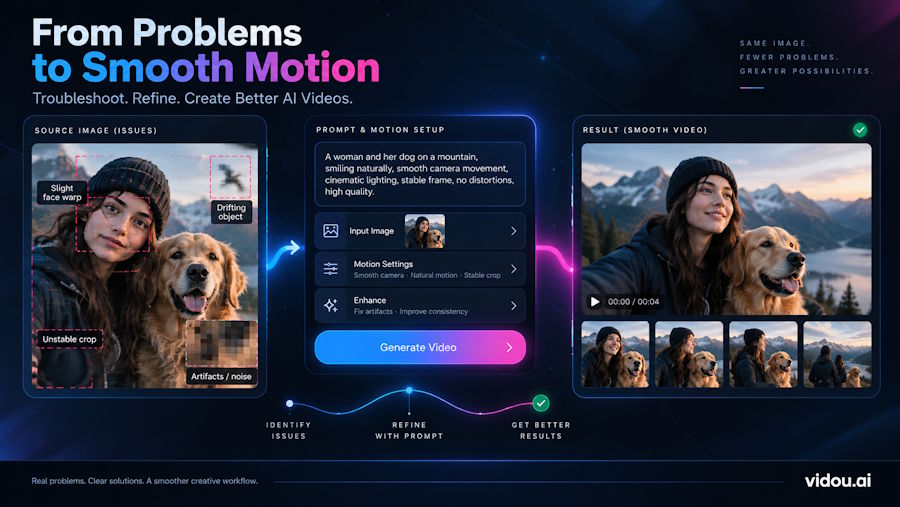
Turning a still image into a short video looks simple: upload an image, describe the motion, generate, and download. In practice, first attempts often contain problems—faces change, hands bend, products deform, text drifts, backgrounds melt, or the camera moves in a way that makes the shot feel unstable.
Many of these failures are predictable. Image-to-video systems must infer motion from a single frozen frame. They do not know what happened before the image or what should happen next unless the source image and prompt provide useful constraints. Better results therefore come less from writing longer prompts and more from controlling the starting frame, motion hierarchy, camera behavior, and iteration process.
This guide explains a practical workflow for diagnosing and fixing common image-to-video problems.
Start With the Source Image, Not the Prompt
A weak source image creates problems that prompting cannot reliably repair. The input frame establishes the subject, composition, lighting, depth cues, and visual relationships that the generator tries to preserve while inventing new frames.
Inspect the image at full size. Look for blurry faces, malformed fingers, duplicated objects, unreadable text, inconsistent reflections, tangled edges, or confusing overlaps. These imperfections may be easy to ignore in a still image, but motion can amplify them.
A strong source image usually has a clear subject, separation between foreground and background, consistent lighting, and enough room for the intended movement. If a portrait fills the frame edge to edge, for example, a large push-in may force the model to invent missing visual information.
Think of the source image as frame zero of a shot, not merely as inspiration.
Describe Motion, Not the Picture
A common mistake is using the prompt to redescribe everything already visible.
If the image already shows a person beside a window, repeating clothing, room style, and facial details does not clearly explain what should move. Instead, describe the temporal change:
“Locked camera. The subject slowly turns toward the window. Curtains move gently in a light breeze. Soft daylight shifts across the wall.”
Runway's current image-to-video prompting guidance follows the same principle: the image establishes appearance and composition, while the prompt should focus primarily on subject action, environmental motion, camera motion, timing, direction, and speed.
For teams testing browser-based workflows, Vidou.ai's Free AI Image to Video Generator page follows a similarly direct starting point: provide an image and describe the desired motion in natural language. Keep the first test simple so you can tell whether a failure comes from the image, motion request, or the generator's interpretation.
Use a Motion Hierarchy
Trying to animate everything at once is a reliable way to lose control. A short shot rarely needs several independent actions, multiple camera moves, dramatic weather, and a lighting transition.
Rank motion by importance:
- Primary motion: the main action, such as a person turning, a product rotating, or the camera pushing forward.
- Secondary motion: supportive details such as hair, fabric, steam, leaves, reflections, or water.
- Camera behavior: locked, pan, tilt, push-in, pull-back, orbit, or handheld movement.
- Atmosphere: fog, dust, rain, particles, or background activity.
If the primary motion matters most, keep everything else restrained. “The camera slowly pushes toward the coffee cup as steam rises naturally; background remains stable” gives the model a clearer hierarchy than a prompt packed with simultaneous actions.
Match Motion to the Geometry of the Image
Some animation requests fight the source frame.
A front-facing portrait can usually support a gentle push-in, blink, expression change, or small head turn more safely than a full rotation that requires the model to invent the unseen side of the subject. A flat product image can support parallax or a controlled camera move, while a complex spin may force the system to hallucinate the back of the product.
Before prompting, ask: how much unseen information would this motion require?
The more new geometry the model must invent, the greater the risk of identity drift, deformation, or texture changes. If consistency matters, prefer movements that reveal less unknown information: slow zooms, shallow arcs, small subject motions, environmental movement, or carefully constrained pans.
Keep Camera Instructions Physically Coherent
Camera language provides a clear spatial rule, but conflicting directions create unstable shots.
Start with one camera idea: “locked camera,” “slow push-in,” “gentle pan right,” or “subtle handheld drift.” Then describe the subject separately.
For example:
“Slow camera push-in. The cyclist remains centered while the jacket moves slightly in the wind. Trees in the distant background sway gently.”
This separates camera, subject, and environment. It also makes the prompt easier to revise because one variable can change without rewriting the entire concept.
Fix Faces and Hands by Reducing Motion Pressure
Faces and hands are sensitive because viewers notice small anatomical changes immediately. When a face warps, adding more descriptive language is not always the answer.
First reduce motion. Replace a dramatic head turn with a slight glance. Replace “waves rapidly” with “raises one hand slowly.” Keep the camera steady. If the source already contains questionable fingers, occluded hands, unusual facial angles, or blur, repair or replace the image before generating again.
For portraits, test identity stability before adding a camera move. Generate one small action first. Once the face remains consistent, introduce environmental or camera motion in a later test.
Protect Product Shapes, Logos, and Interface Screenshots
Product shots, packaging, dashboards, and UI screens create another challenge: viewers expect geometry and text to remain exact.
Generative motion can bend straight edges, rewrite labels, alter logos, or change interface elements across frames. If exact text matters, avoid transforming the text-bearing area. A locked or restrained camera is usually safer than an aggressive perspective change.
For software demonstrations, separate the job into layers. Let generative video handle a background, device framing, or atmospheric movement, while the actual interface remains a conventional screen recording or composited overlay.
The same principle works for packaging: preserve the label as a controlled graphic layer when brand accuracy matters more than fully generative movement.
Choose the Aspect Ratio Before You Animate
Aspect ratio changes composition, not just export dimensions.
If the final clip is vertical, starting with a wide landscape image and cropping after generation can remove the subject or create awkward framing. Forcing a vertical source into a wide frame can require the system to invent large areas on both sides.
Prepare the source image close to the final delivery ratio whenever possible. Reframe before generation so the subject, negative space, and intended camera movement fit the target canvas.
This matters especially for push-ins, pans, and product reveals.
Iterate One Variable at a Time
Image-to-video generation is probabilistic, so the same idea can produce different results across attempts. Randomly rewriting the whole prompt makes those differences difficult to learn from.
Use controlled iteration. Keep the source image fixed and change only the camera instruction. Then keep the winning camera instruction and change the subject action. Next, adjust speed or environmental motion.
A simple test log can record the source version, prompt, camera move, subject action, aspect ratio, and one note about what failed. Over time, this turns experimentation into a reusable motion recipe rather than a hunt for one “magic” prompt.
A Practical Image-to-Video Prompt Template
A compact structure works well for many tasks:
Camera behavior + primary subject motion + secondary environmental motion + timing or stability constraint.
For a portrait:
“Locked camera. The subject slowly looks toward the light, then smiles slightly. Hair moves gently in the breeze. Background remains calm and stable.”
For a product:
“Slow push-in toward the bottle. Condensation glints under the light while a thin ribbon of mist moves behind it. Product shape and label remain stable.”
Different models interpret wording differently, so the important habit is separating motion roles rather than memorizing a universal formula.
Frequently Asked Questions
Why does an AI image-to-video generator change the face?
The generator must create frames that do not exist in the source image. Large head turns, fast motion, occlusion, low-quality facial detail, or competing instructions make identity harder to preserve. Use a cleaner source image and reduce movement before adding complex camera behavior.
Should an image-to-video prompt be long or short?
Start short. The source image already supplies visual context, so the prompt should primarily explain what moves and how. Add detail only when a specific part of the motion is ambiguous. Runway's official guidance also recommends simple, direct motion descriptions followed by iteration.
Why does text or a logo become distorted?
Generative video models synthesize new pixels across frames, so exact typography and brand marks may not stay perfectly consistent. When text fidelity is critical, preserve it with conventional overlays, compositing, or screen recordings.
How do I make AI-generated motion feel less artificial?
Reduce simultaneous actions, use believable speeds, keep secondary movement subtle, and make the camera physically coherent. Natural-looking clips often come from restrained motion rather than maximal motion.
Final Takeaway
Better image-to-video results start before the Generate button. Clean source images reduce ambiguity. Motion-focused prompts prevent conflicts. A clear hierarchy keeps the shot readable. Conservative camera choices protect faces and products. Aspect-ratio planning prevents composition problems. Controlled iteration turns unpredictable generations into a repeatable workflow.
Direct the clip like a short shot, not a static picture. Decide what moves, what stays stable, what the camera does, and which detail matters most. Once those decisions are clear, the prompt becomes shorter—and troubleshooting becomes much easier.

