

Upgrading from an HDD to an SSD can make a Windows PC start faster and respond more quickly. However, many users do not want to reinstall Windows, programs, files, and settings after installing a new drive. Cloning offers a simpler option because it copies the existing system to the new SSD. If you are looking for how to clone a hard drive to Samsung SSD, you can use Samsung Data Migration or third-party SSD cloning software such as 4DDiG Partition Manager. The right method depends on your SSD, disk layout, and migration needs.
Why Clone HDD to Samsung SSD?
A hard drive stores Windows, installed programs, personal files, and system settings. When you replace it with an SSD, a clean Windows installation requires you to set everything up again. Cloning avoids this extra work. During cloning, the contents of the original drive are copied to the new SSD. This can include:
- Windows and system files
- Installed applications
- Personal files
- User settings
- Existing partitions
An SSD can also provide faster boot times and quicker application loading than a traditional HDD. After a successful clone, you can normally continue using Windows with your existing setup instead of starting from scratch.
Before Cloning Your Hard Drive
Before you start, check the new Samsung SSD and your existing hard drive. A few simple checks can prevent common cloning problems.
Check Samsung SSD Capacity
First, make sure the Samsung SSD has enough space for the data you want to clone. Check how much space your current Windows drive actually uses rather than looking only at the total capacity of the old HDD. For example, a 1TB HDD does not necessarily require a 1TB SSD if only 300GB of data is stored on the HDD. However, the target SSD must have enough usable capacity for the data and partitions you plan to migrate. Also back up important files before cloning. Some cloning tools erase existing data on the target SSD during the process.
Connect and Initialize the SSD
Connect the Samsung SSD to your computer. Depending on your PC, you may install it directly into an available M.2 or SATA slot, or connect it through a suitable USB adapter.
Open Windows Disk Management and check that Windows detects the SSD. Make sure you identify the correct source and target drives before starting because choosing the wrong target can erase important data.
Method 1: Use Samsung Data Migration Tool
Samsung provides Data Migration for moving an existing operating system and user data to supported Samsung SSDs. Samsung's documentation says the software can migrate an existing operating system, applications, and user data to a Samsung SSD.
The general process is straightforward:
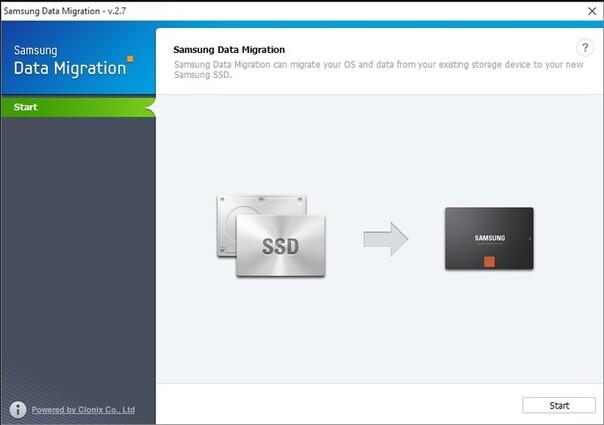
Step 1: Launch Samsung Data Migration on your Windows PC. On the main screen, review the available drives and start the migration process.
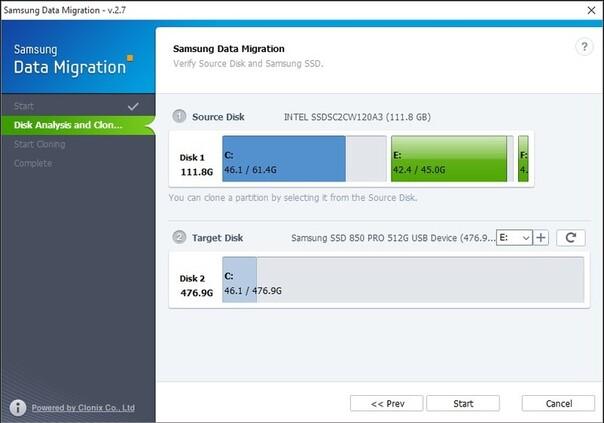
Step 2: Select your existing HDD as the source drive and choose the Samsung SSD as the target drive. Check both drives carefully, then start the migration.
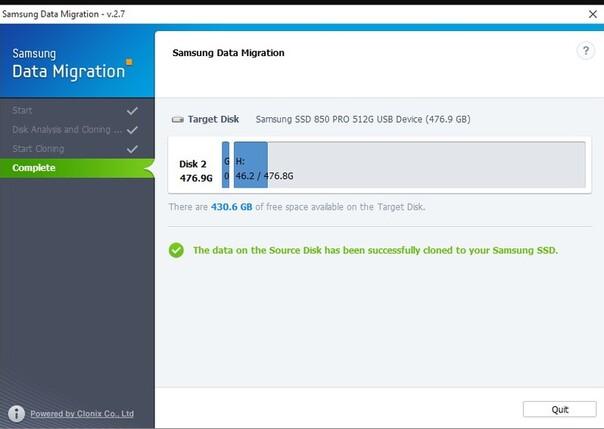
Step 3: Let Samsung Data Migration copy Windows, applications, files, and supported partitions to the Samsung SSD. Do not disconnect either drive while the process is running. Once it finishes, verify the cloned SSD before replacing the old HDD.
Samsung Data Migration works well when you have a supported Samsung SSD and a simple Windows setup. However, it has some limits. Samsung states that the tool supports specific Samsung SSD models and can clone only a source drive that contains an operating system. It also has restrictions involving encrypted drives, multiple operating systems, and certain partition setups. For a basic Samsung SSD upgrade, this method can be enough. More complex setups may require another tool.
Method 2: Use Alternative SSD Cloning Software
Samsung's tool is useful for supported Samsung drives, but you may need more control when your computer has unusual partitions, another SSD brand, or a different migration setup.
This is where 4DDiG Partition Manager can help. The software supports disk cloning and Windows OS migration, including migration to an SSD without reinstalling Windows.
With 4DDiG Partition Manager, you can select the source disk, choose the Samsung SSD as the target, review the partition layout, and start the cloning process. The software also lets you adjust partition sizes during the cloning process when the target drive requires a different layout.
This option can be useful when:
- Your disk has multiple partitions.
- You need to adjust partition sizes.
- You want to clone between different drive brands.
- You need more control over the target disk layout.
- Samsung Data Migration does not support your specific setup.
Before starting, remember that cloning can overwrite data on the target drive. 4DDiG's guide specifically warns users to back up important data on the target disk before cloning.
After Cloning: Replace the Old Drive
Once the cloning process finishes, do not immediately erase the old HDD. First, confirm that the Samsung SSD contains your Windows installation and important files.
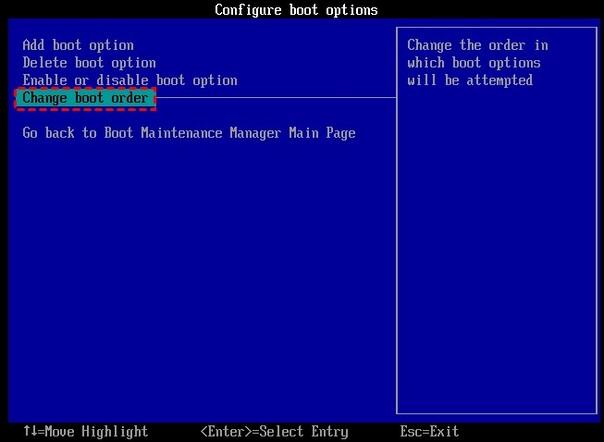
If you are replacing the original system drive, shut down the computer and install the SSD in the main storage slot if required. Then start the computer and enter the BIOS or UEFI settings if Windows does not automatically boot from the new drive. Set the Samsung SSD as the first boot device and restart the computer. After Windows loads, check your files, applications, desktop settings, and partitions. Keep the original HDD untouched until you confirm that the new SSD works correctly.
Troubleshooting Common Cloning Issues
Cloning does not always finish without problems. The process may fail, the new SSD may not boot, or some partitions may not appear correctly. These common issues have simple checks that can help you complete the migration.
Clone Failed
A cloning process can fail because of insufficient space, damaged sectors, unsupported configurations, or problems with the target disk. Check the SSD capacity, disconnect unnecessary drives, and run a disk check on the source drive before trying again.
SSD Is Not Booting
If the SSD contains your files but Windows will not start, check the BIOS or UEFI boot order. Make sure the cloned SSD appears as the first boot device. Partition style and boot mode can also affect startup.
Missing Partitions
If some partitions do not appear after cloning, check Disk Management. Some manufacturer recovery partitions may not transfer with every migration tool. Samsung's documentation also lists specific partition limitations for its Data Migration software.
Conclusion
If you have a supported Samsung SSD and want a simple migration, Samsung Data Migration can be a practical choice. It can move Windows, applications, and user data without requiring a fresh Windows installation. For users who need more control over partitions, disk layouts, or different hardware, 4DDiG Partition Manager provides additional cloning and OS migration options.
The key is to verify the cloned SSD before removing or formatting the original HDD. Once you confirm that Windows boots correctly and your important files are available, you can complete the storage upgrade. For most users, cloning remains one of the easiest ways to move an existing Windows setup to a new SSD without rebuilding the whole system.

