

Buying an iPhone 18 Pro feels like a dream come true, until you remember the thousands of photos stored on your previous phone. Fortunately, Apple provides several tools for transferring pictures and videos between iPhones.
Some users transfer their entire device during the initial setup of a new iPhone. Others may set up their new iPhone first and then want to transfer their photos afterward.
This article walks you through several ways to transfer photos from an old iPhone to a new iPhone 18 Pro, including wireless setup transfers, cloud syncing, AirDrop, and computer-based tools.
Part 1. Which Photo Transfer Method Fits Your iPhone 18 Pro?
Each method works differently. The right option depends on whether your new iPhone is still being set up, the size of your photo library, your available Wi-Fi connection, and whether you want to transfer all photos or only selected ones.
| Method | Best For | What You Need | Typical Time |
|---|---|---|---|
| Quick Start | Brand-new setup, moving everything | Both phones nearby, charged, and running compatible iOS versions | 30 minutes to 2+ hours |
| iCareFone | Selected photos after setup | Windows PC or Mac, USB cable or supported connection method | 10–30 minutes |
| iCloud Photos | Keeping photo libraries synced | Same Apple Account and sufficient iCloud storage | Varies by library size |
| AirDrop | A small batch of photos | Wi-Fi and Bluetooth enabled, phones nearby | Usually a few minutes |
Part 2. How to Transfer Photos from Old iPhone to New iPhone 18 Pro
Here are four ways to transfer photos from your old iPhone to your new iPhone 18 Pro. Choose the method based on your current setup and how much data you want to move.
Method 1. Move Photos to iPhone 18 Pro During Setup with Quick Start
If your iPhone 18 Pro is still in the setup process, Quick Start is one of the easiest ways to transfer photos along with other data, such as apps, messages, and settings.
Before starting, place both iPhones close to each other and make sure they have enough battery or are connected to power.
Steps to Use Quick Start
- Turn on the new iPhone 18 Pro and place it near your old iPhone.
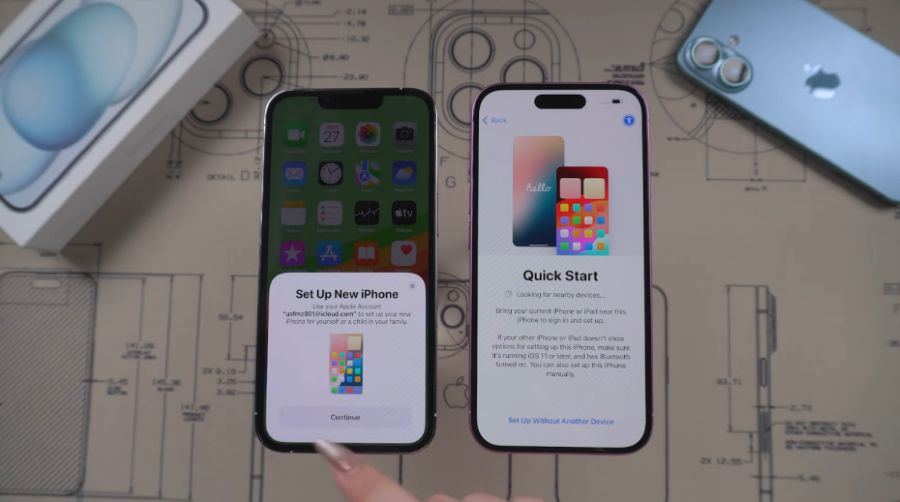
- Make sure Wi-Fi and Bluetooth are enabled on the old iPhone.
- Wait for the Quick Start screen to appear on the old iPhone.
- Tap Continue and follow the onscreen instructions.
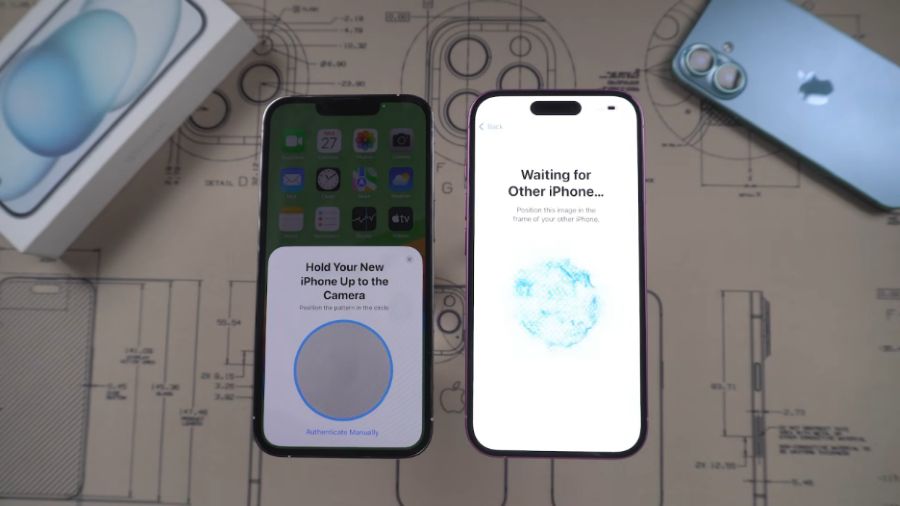
- Use your old iPhone to scan the animation displayed on the new iPhone.
- Enter your old iPhone's passcode when prompted.
- Set up Face ID on the new iPhone 18 Pro.
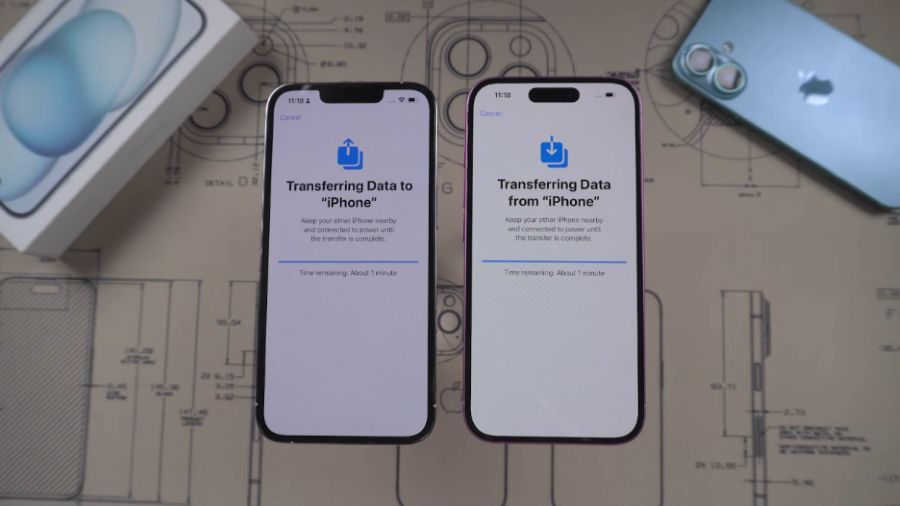
- Choose Transfer from iPhone to transfer your data directly.
- Keep both iPhones close to each other and connected to power until the transfer is complete.
Quick Start requires the devices to meet Apple's compatibility requirements. If you have a large photo library, the transfer may take some time, so keep both devices connected to power until the process is finished.
Method 2. Transfer Photos to iPhone 18 Pro After Setup with iCareFone
If you have already set up your new iPhone 18 Pro and forgot to transfer your photos, you don't necessarily need to erase the device and start the setup process again.
Tenorshare iCareFone can help you manage and transfer supported photos between iPhones through a computer. It can be useful when you only want to transfer specific photos or albums instead of your entire photo library.
Some benefits include:
- Transfer selected photos or albums instead of the entire library.
- Manage photos from your computer.
- Transfer supported data without relying on iCloud.
- Preview and manage photos before transferring them.
Steps to Transfer Photos with iCareFone
- Download and install iCareFone on your Windows PC or Mac.
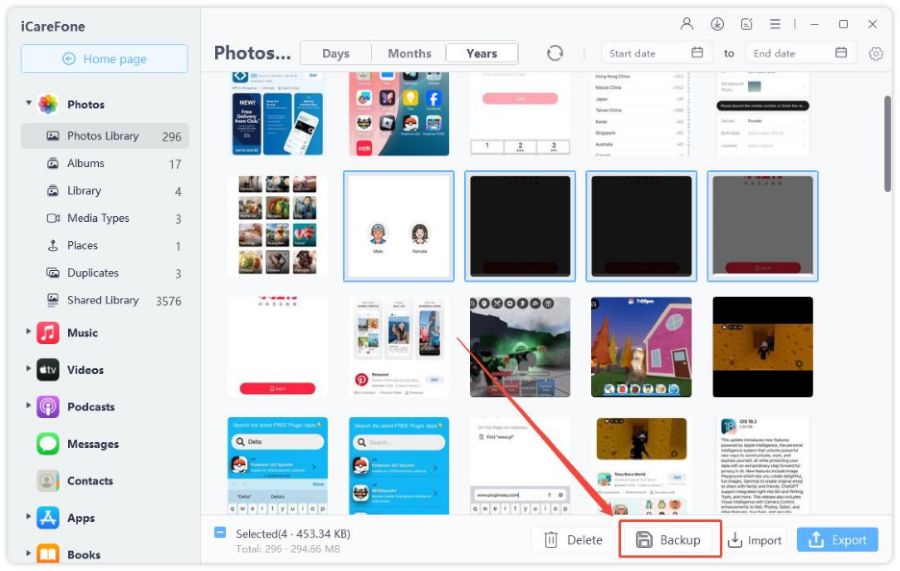
- Connect your old iPhone and new iPhone 18 Pro to the computer.
- Open iCareFone and select the Manage option.
- Select Photos.
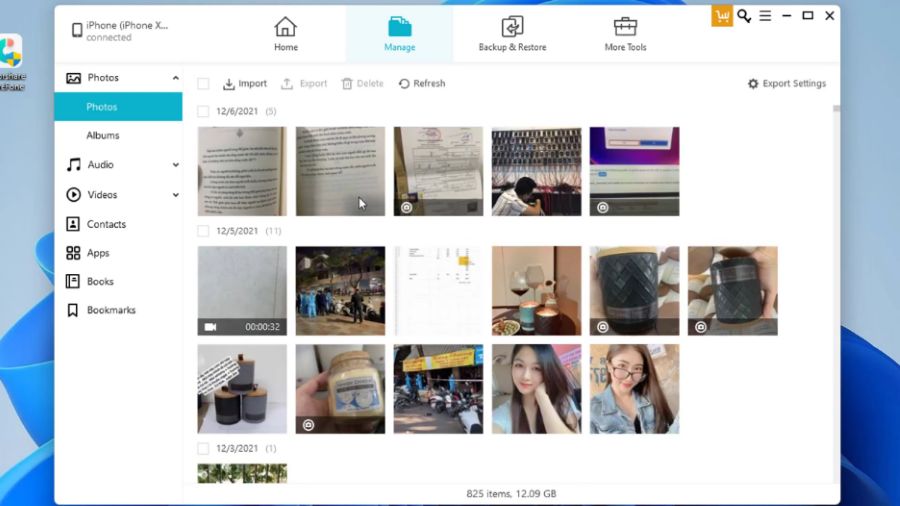
- Choose the photos or albums you want to transfer.
- Select the appropriate transfer option and follow the onscreen instructions.
- After the transfer is complete, open the Photos app on your iPhone 18 Pro to check the transferred photos.
If you want more control over which photos are transferred, a computer-based tool can be useful because you can select specific photos or albums instead of moving the entire library.
Method 3. Sync Your Photo Library to iPhone 18 Pro with iCloud Photos
If you use the same Apple Account on both iPhones, iCloud Photos can keep your photo library available across your Apple devices.
Unlike a one-time transfer, iCloud Photos continuously syncs your library. When you add, edit, or delete photos, those changes can also appear across devices using the same Apple Account and iCloud Photos settings.
Steps to Use iCloud Photos
- On your old iPhone, open Settings.
- Tap your name and select iCloud.
- Tap Photos.
- Turn on Sync this iPhone.
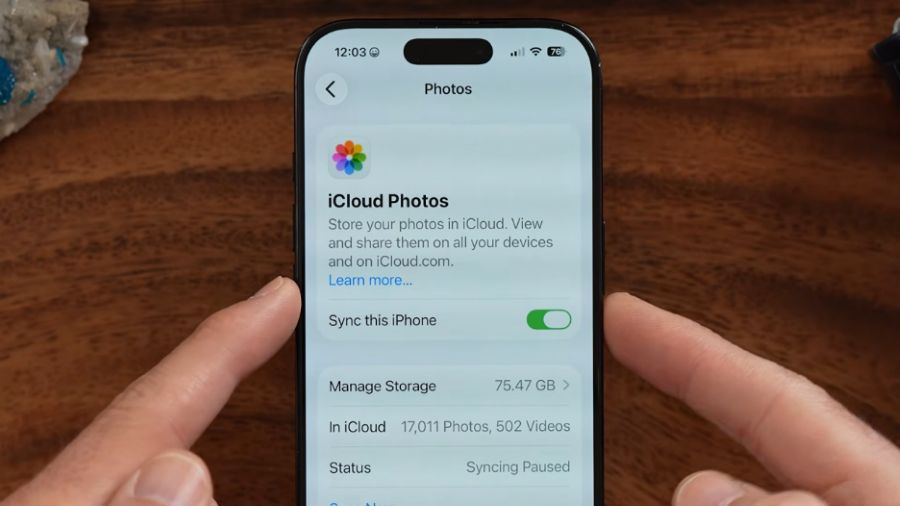
- Repeat the same steps on your new iPhone 18 Pro.
- Keep the new iPhone connected to Wi-Fi and allow the photo library to sync.
Keep in mind that your photos use iCloud storage. Large photo libraries may take longer to upload and download, depending on your internet connection and the size of the library.
Method 4. Send Selected Photos to iPhone 18 Pro Using AirDrop
AirDrop is useful when you only need to transfer a small number of photos rather than an entire photo library.
Steps to Transfer Photos with AirDrop
- Turn on Wi-Fi and Bluetooth on both iPhones.
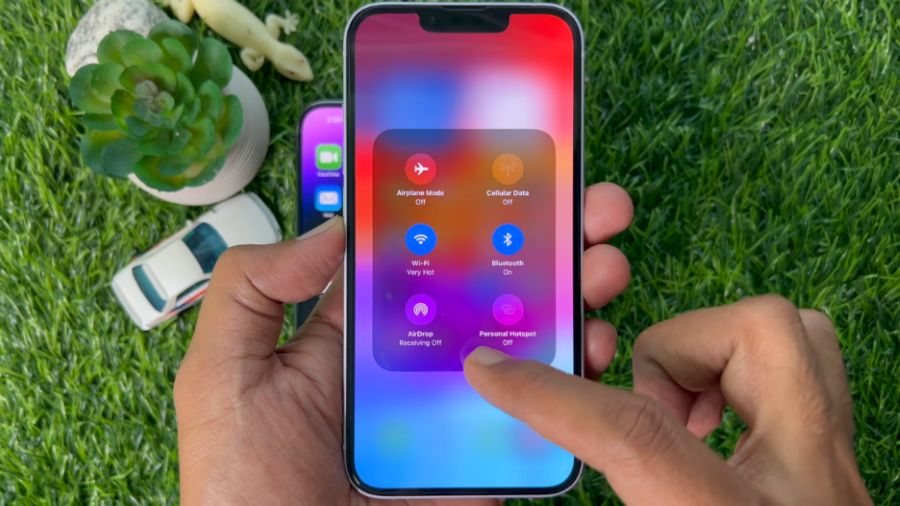
- Open the Photos app on your old iPhone.
- Select the photos you want to transfer.
- Tap the Share button.
- Select AirDrop.
- Choose your new iPhone 18 Pro from the available devices.
- Accept the transfer on your new iPhone.
- Wait for the transfer to complete.
AirDrop is convenient for smaller batches of photos. Large transfers may take longer depending on the number and size of the files.
Part 3. Why Are Some Photos Missing on Your New iPhone 18 Pro?
Sometimes a transfer or sync may appear to finish, but some photos may not immediately appear on the new iPhone.
For example, when using iCloud Photos, some original photos may remain in iCloud while the device displays optimized versions until the originals are downloaded.
You should also check whether both devices are signed in with the same Apple Account and whether iCloud Photos is enabled.
If some photos are still missing, check:
- Your Apple Account
- iCloud Photos settings
- The Hidden album
- The Recently Deleted album
- Your iCloud storage
- Your internet connection
These checks can often help identify why certain photos have not appeared on the new iPhone.
FAQs About Transferring Photos to iPhone 18 Pro
Can I Transfer Photos Without My Old iPhone?
Yes, if your photos are already stored in iCloud Photos or included in a computer backup, you can access or restore them on your new iPhone using the appropriate Apple Account or backup.
Will My Albums and Live Photos Transfer?
Supported transfer methods can preserve albums and supported photo formats, including Live Photos. The exact result depends on the transfer method and the type of data being transferred.
How Long Does It Take to Transfer Photos?
The time depends mainly on the size of your photo library, the transfer method, the connection speed, and the devices involved. A small batch of photos can usually be transferred within a few minutes, while a large library can take considerably longer.
Can I Transfer Photos After Taking New Photos on My iPhone 18 Pro?
Yes. Depending on the method you use, you can transfer or sync older photos without necessarily removing the photos already stored on your new iPhone. However, always check the destination device before deleting anything from your old iPhone.
Should I Keep My Old iPhone Photos After Transferring Them?
Yes. It's a good idea to keep your old iPhone or an available backup until you have confirmed that all important photos and videos are safely available on your new device.
Check several albums, open some photos and videos, and make sure important Live Photos are accessible before deleting anything from the old device.
Conclusion
There are several ways to transfer photos from an old iPhone to a new iPhone 18 Pro.
Quick Start is useful when you are setting up a new iPhone and want to transfer data directly. iCloud Photos is suitable for keeping your photo library synced across devices. AirDrop works well when you only need to send a small number of photos.
If your iPhone 18 Pro has already been set up and you want more control over which photos or albums to transfer, Tenorshare iCareFone provides a computer-based option for managing and transferring supported photos.
Choose the method that best fits your setup and the amount of data you need to transfer, and keep a backup of your important photos until you have confirmed that everything has been transferred successfully.

